Manage your notifications
Review, filter and open notification details so you can quickly act on project updates and system alerts.
This guide is designed for project manager.
Steps
Step 1: Open the Notifications page
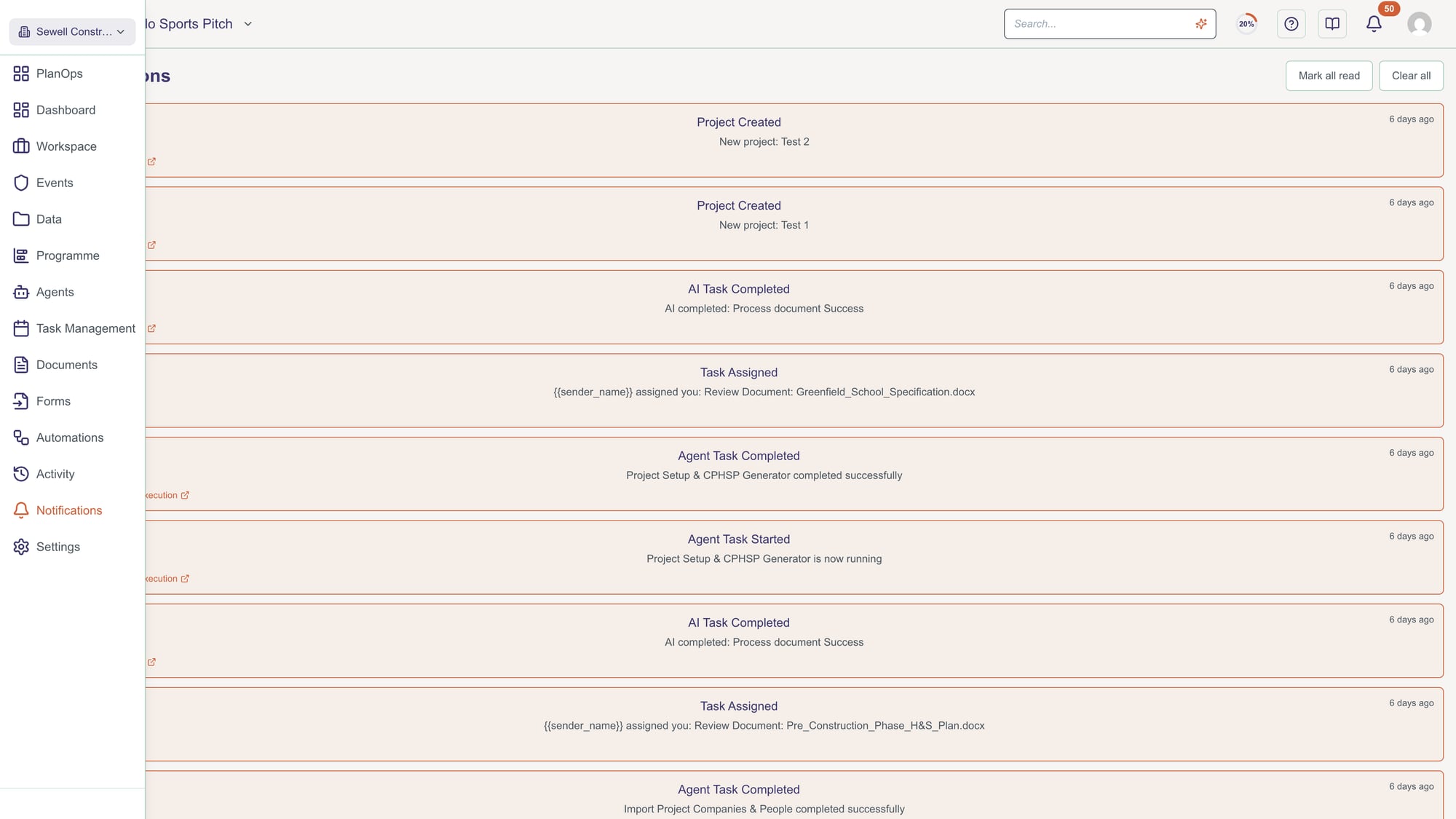
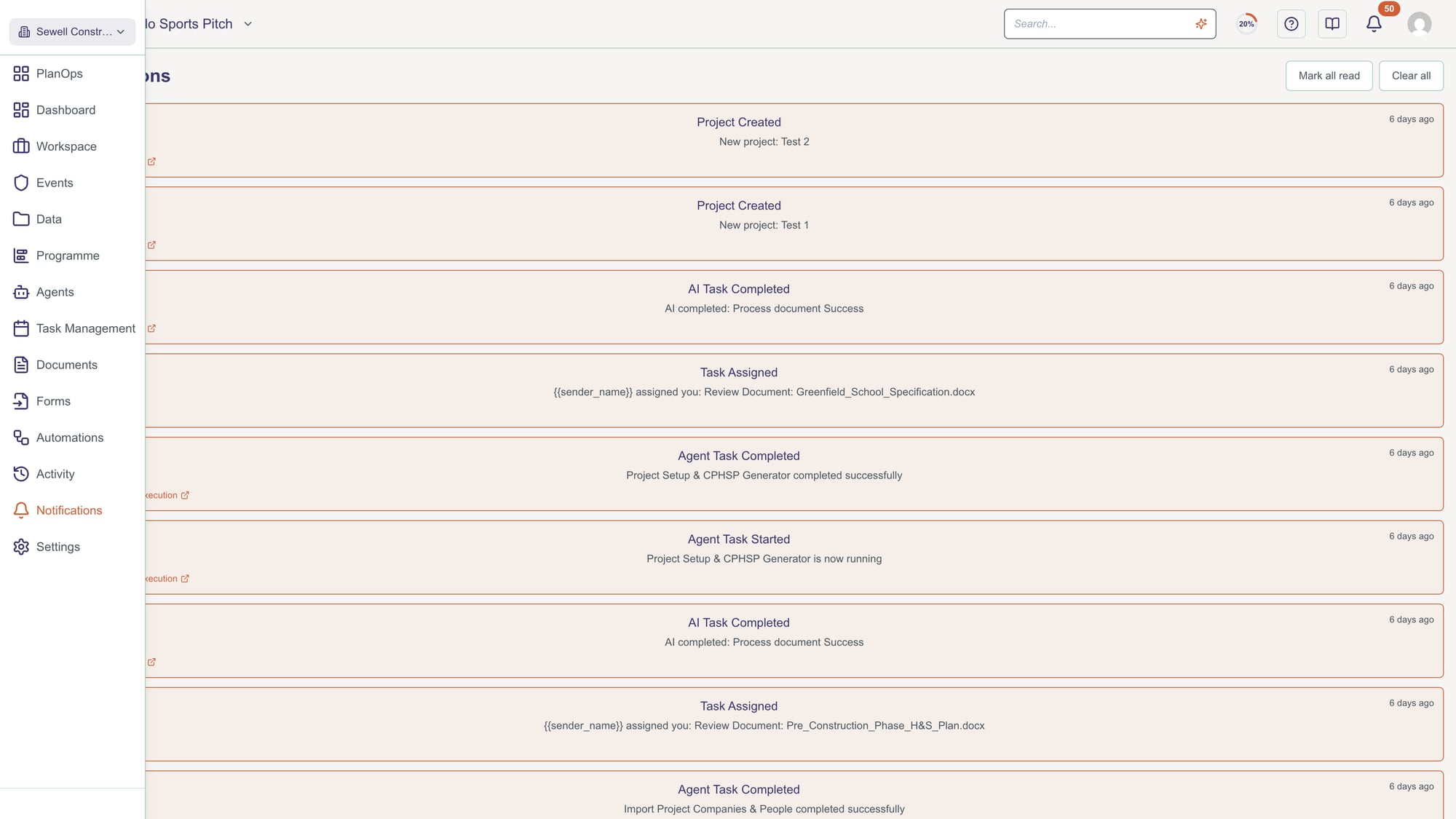
From the main navigation, go to the Notifications section to see all recent alerts for your projects in a single list.
Step 2: Review notification cards
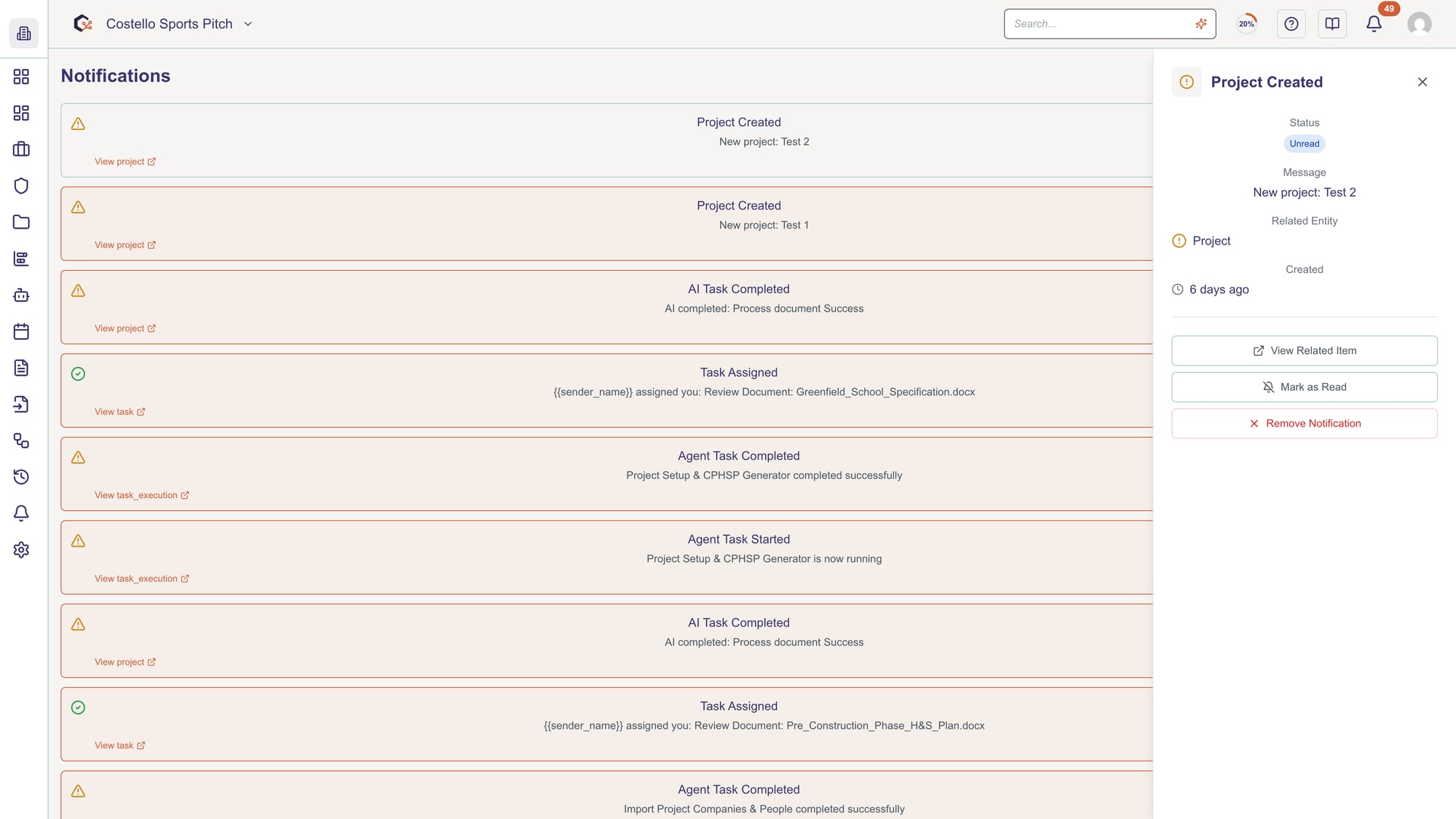
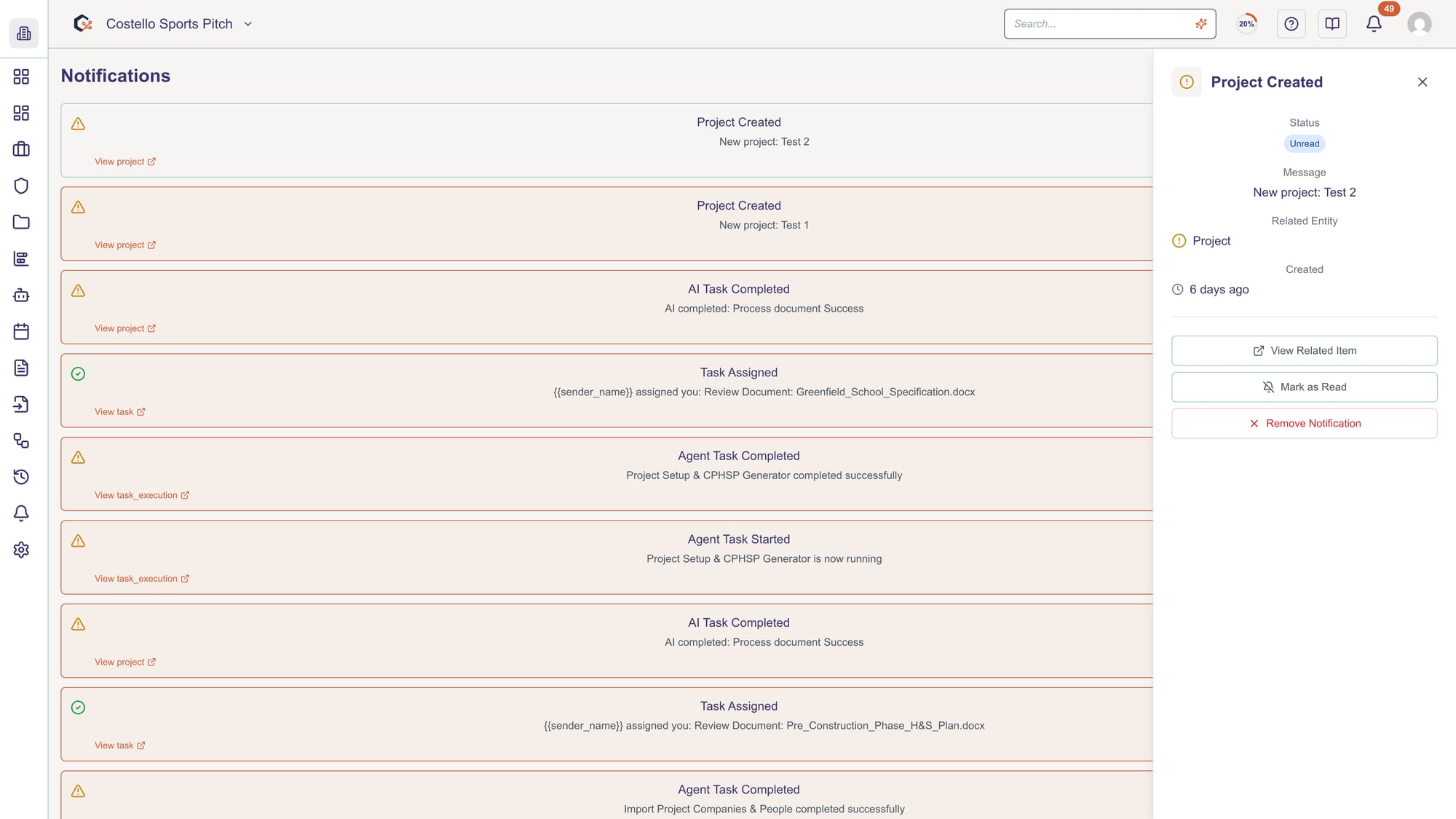
Scan the list of notification cards, noting the coloured left accent showing urgency, the title, message preview, sender and how long ago each update happened.
Step 3: Filter notifications
Use the filter bar at the top of the list to narrow notifications by type or time period so you can focus on the most relevant updates.
Step 4: Open a notification detail panel
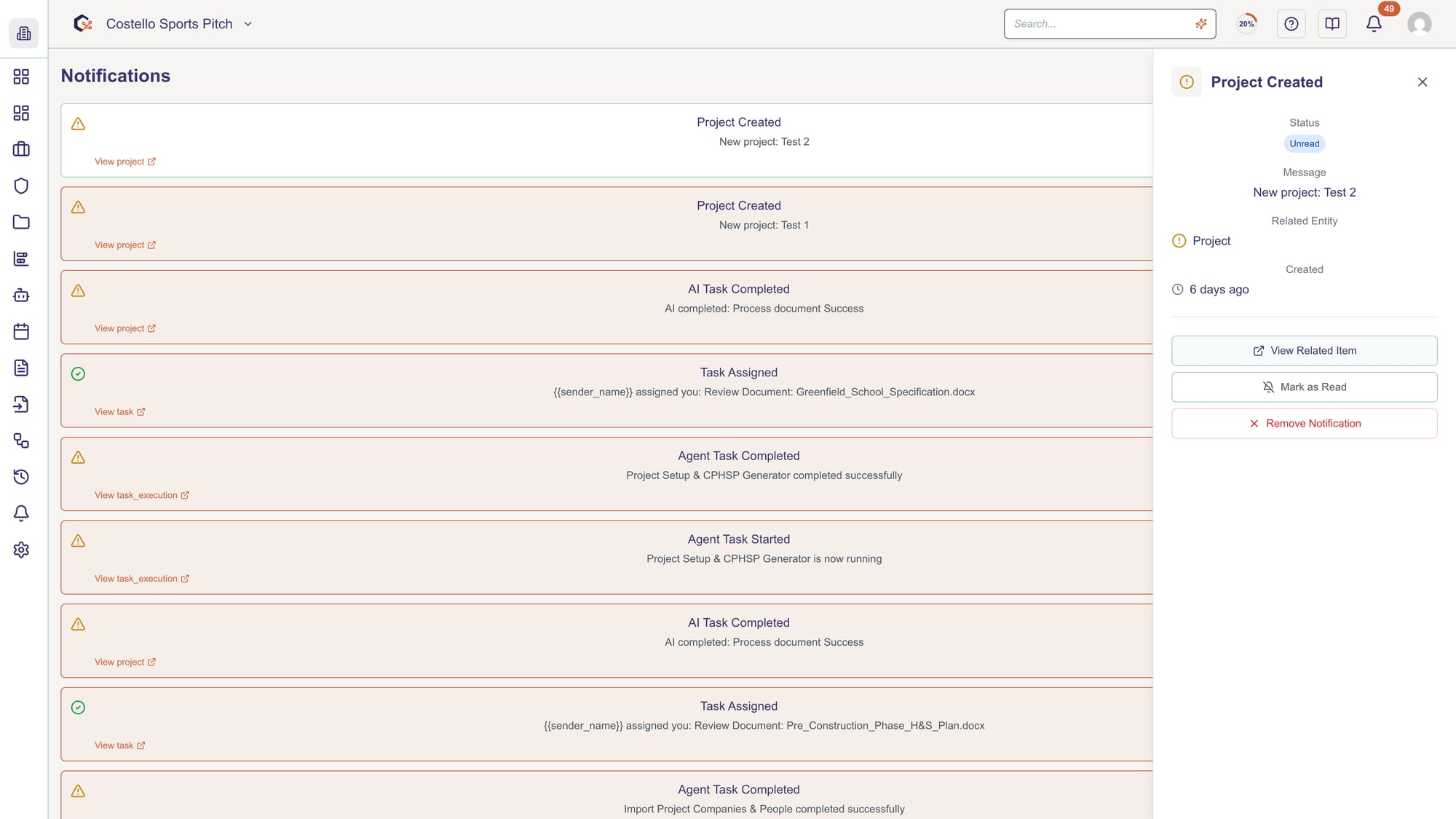
Click a notification row to open its detail panel on the right, where you can read the full message, see contextual information and any linked project items.
Step 5: Take action from a notification
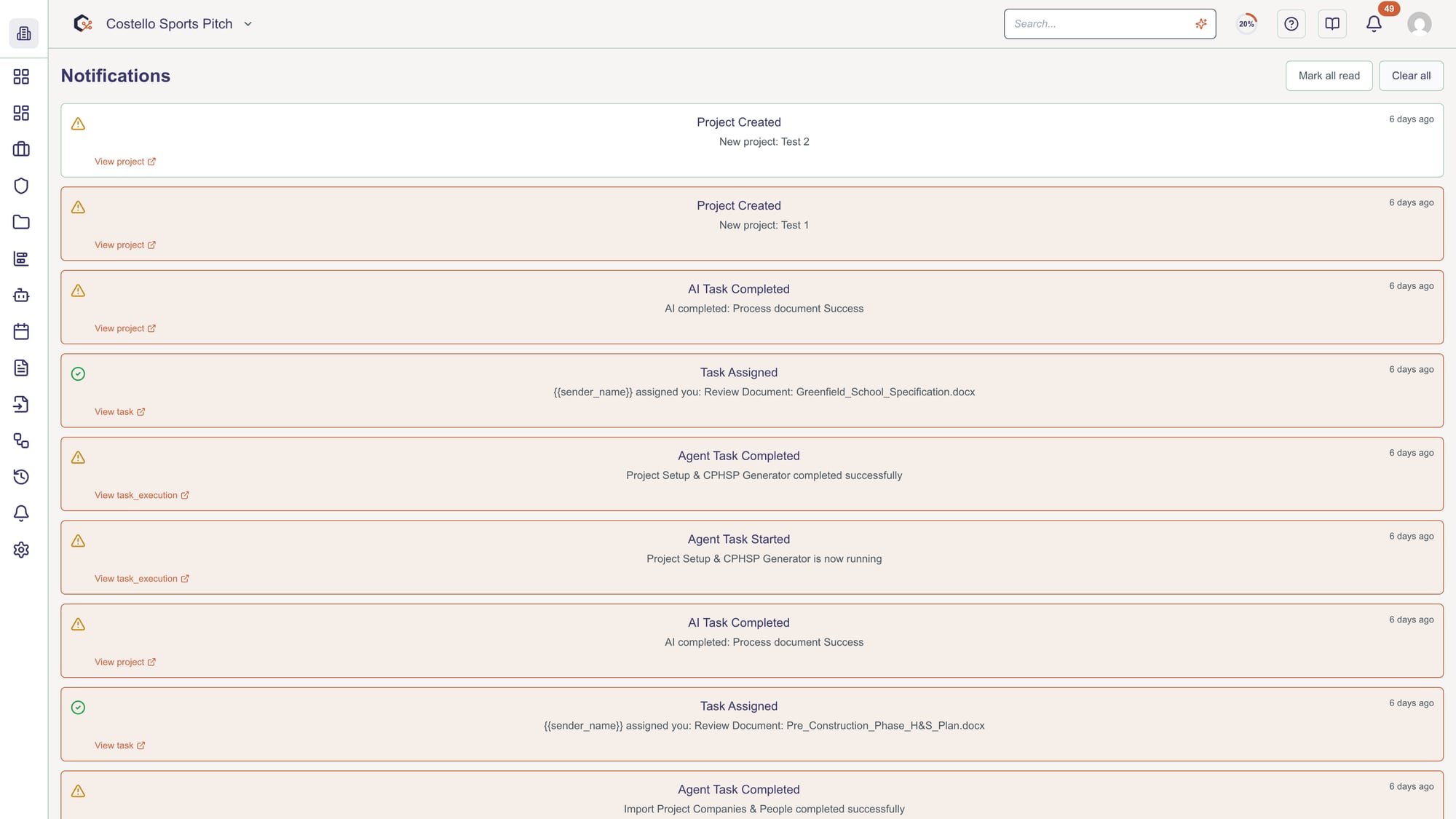
From the detail panel, follow the provided link or action to open the related task, document, meeting or project in a new view.
Step 6: Close the notification detail panel
When you have finished reviewing, close the detail panel to return to the full notifications list without losing your current filters.
Step 7: Remove a notification
Use the delete or remove control on a notification card, confirm in the dialogue, and the notification will disappear from your list.

Related Guides
Last updated: 2026-08-31