Schedule a recurring task from Recent runs
Use the Recent runs panel to turn a one-off completed assistant task into a recurring scheduled task.
This guide is designed for project manager.
Steps
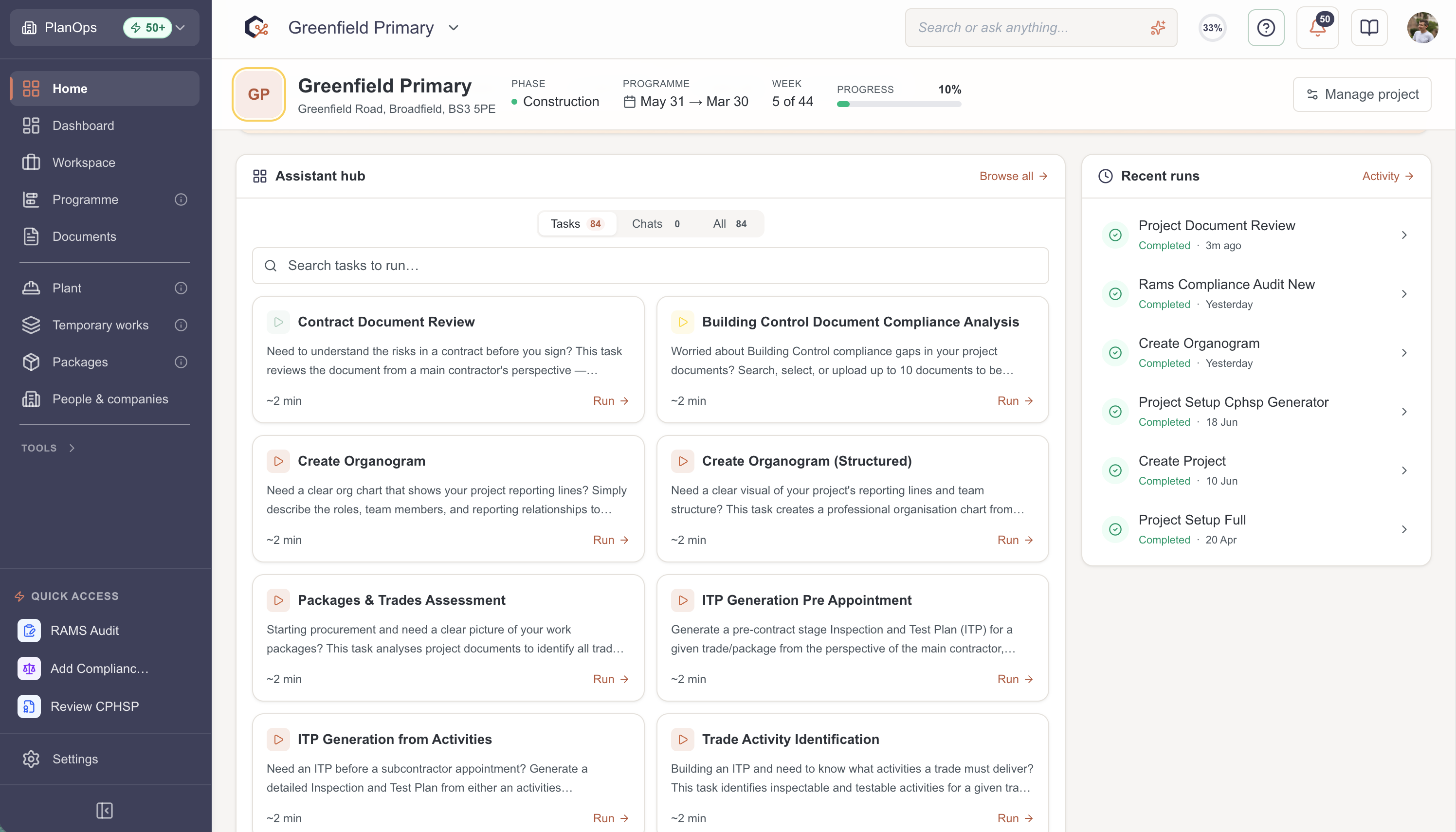
Step 1: Open the Recent runs panel
Navigate to the assistant area and open the Recent runs panel to see a list of your most recent task executions.
Step 2: Locate a completed task run
In the list, find the row for the task you want to schedule and confirm its status is marked as completed.
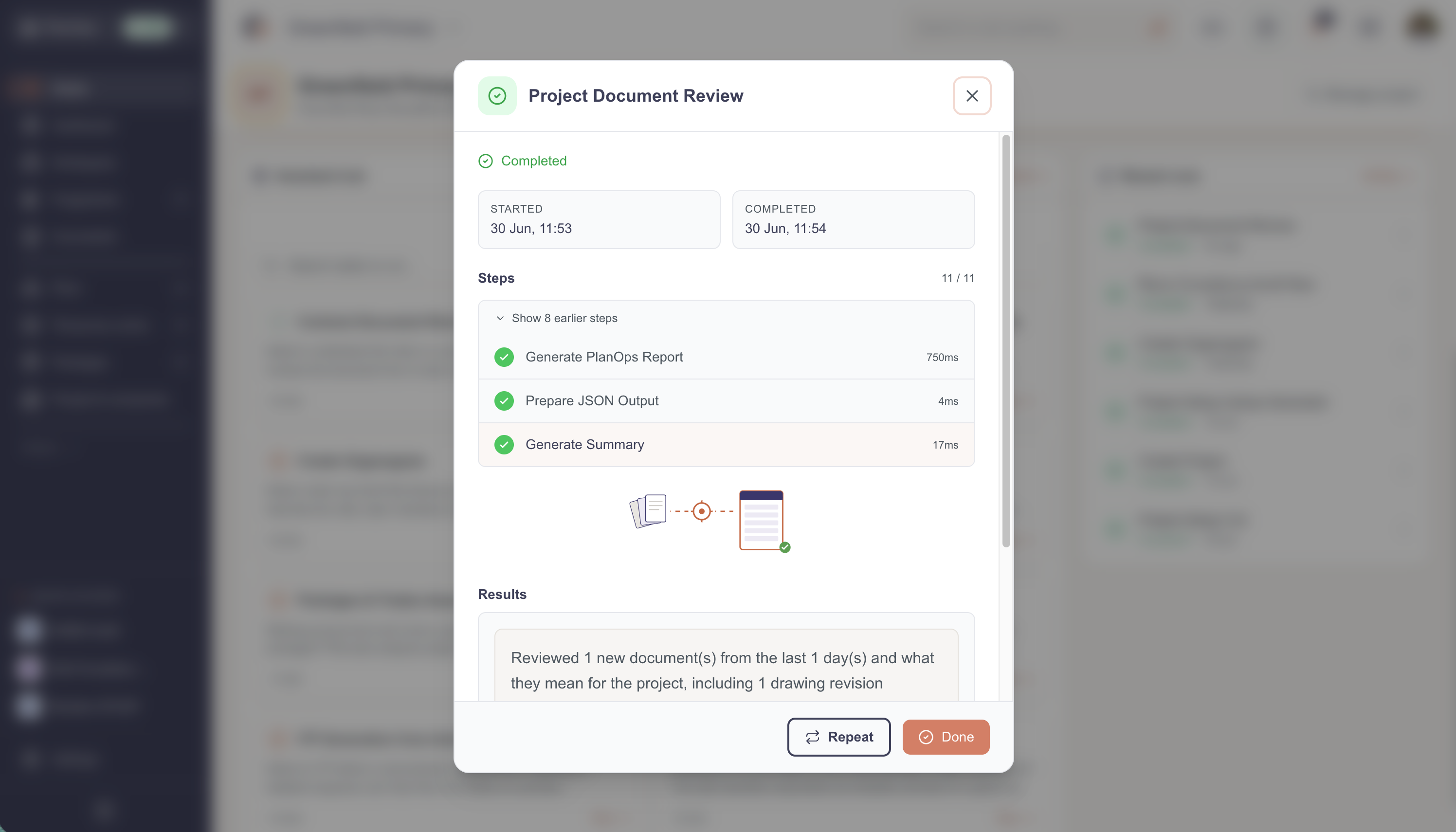
Step 3: Use the "Repeat" action
Select the "Repeat" button to start scheduling this task.
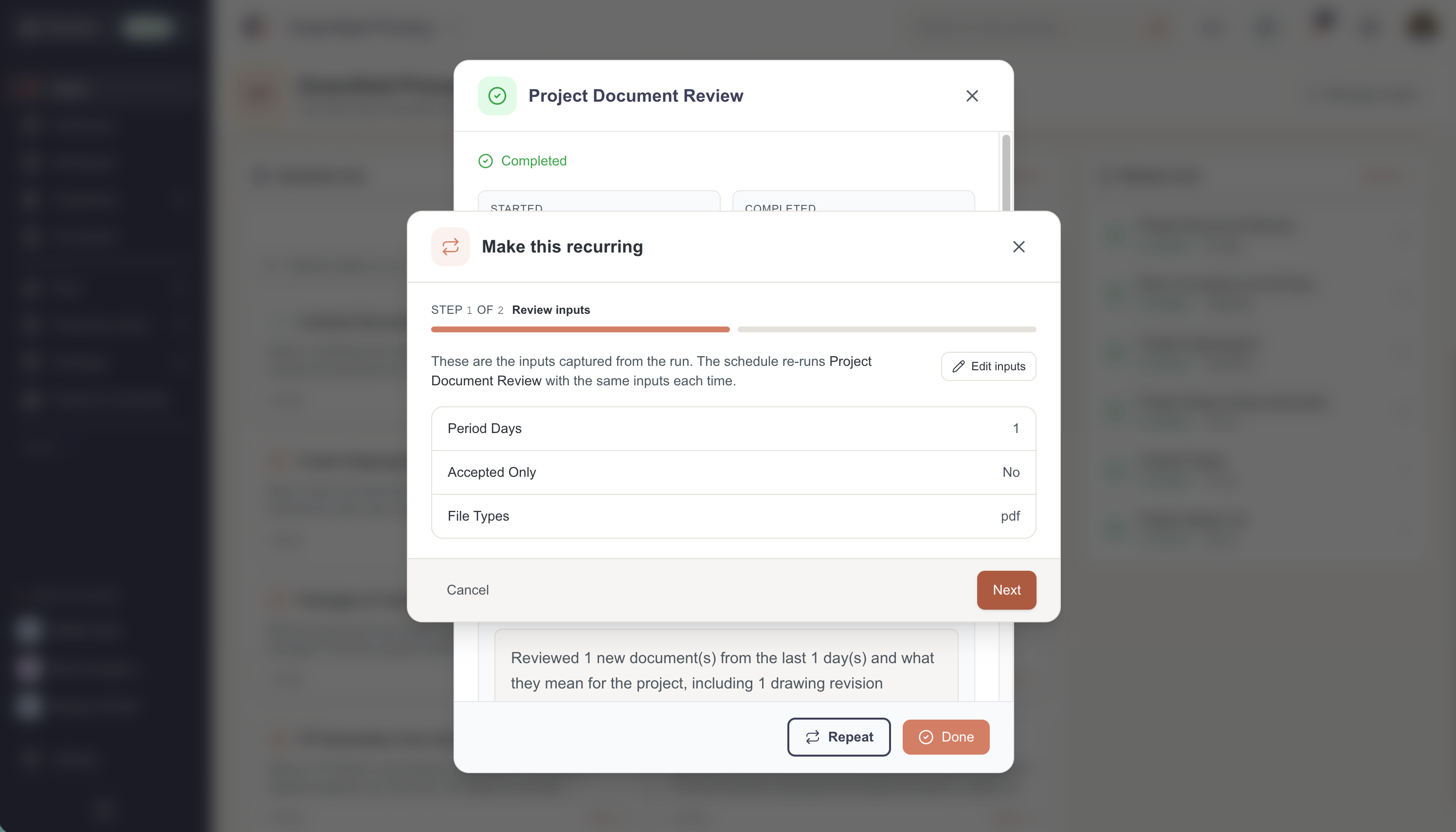
Step 4: Configure the schedule in the wizard
When the schedule wizard opens, review the task details and follow the prompts to set how often and when the task should run.
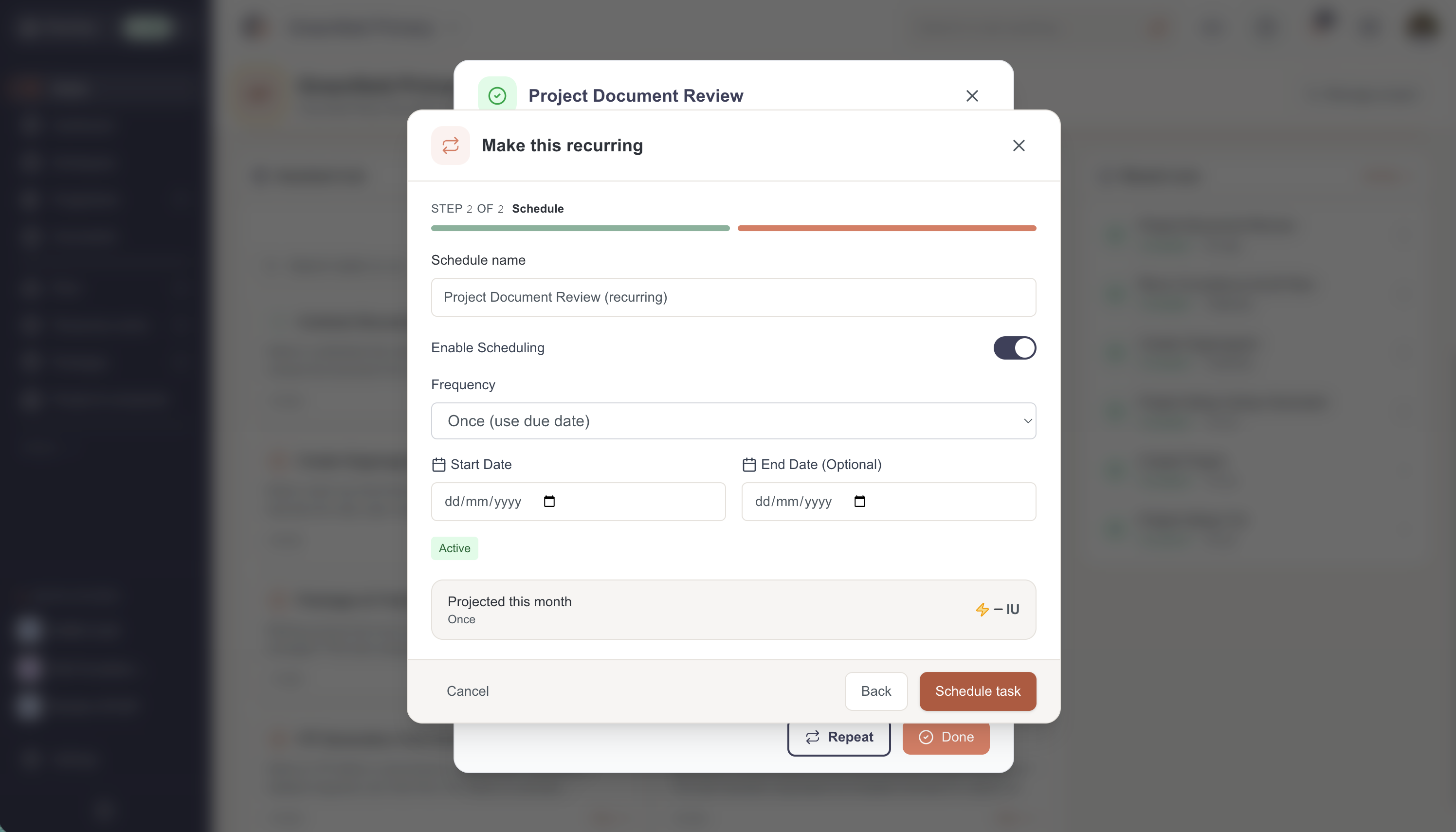
To select daily recurring, select 'Daily' from the Frequency options
Step 5: Save and confirm the new schedule
Save your changes in the wizard, by clicking on the 'Schedule task' button to create the recurring schedule, then go to PlanOps Home - Schedules to monitor and adjust task runs.

Related Guides
Last updated: 2026-06-27T00:00:00.000Z