Review auto-filled form values
Use the Auto-filled Values panel to review which fields in your form will be automatically populated when the form is issued.
This guide is designed for project manager.
Steps
Step 1: Open the form instance
Navigate to the relevant form instance screen where you can configure and review the fields for this specific form.
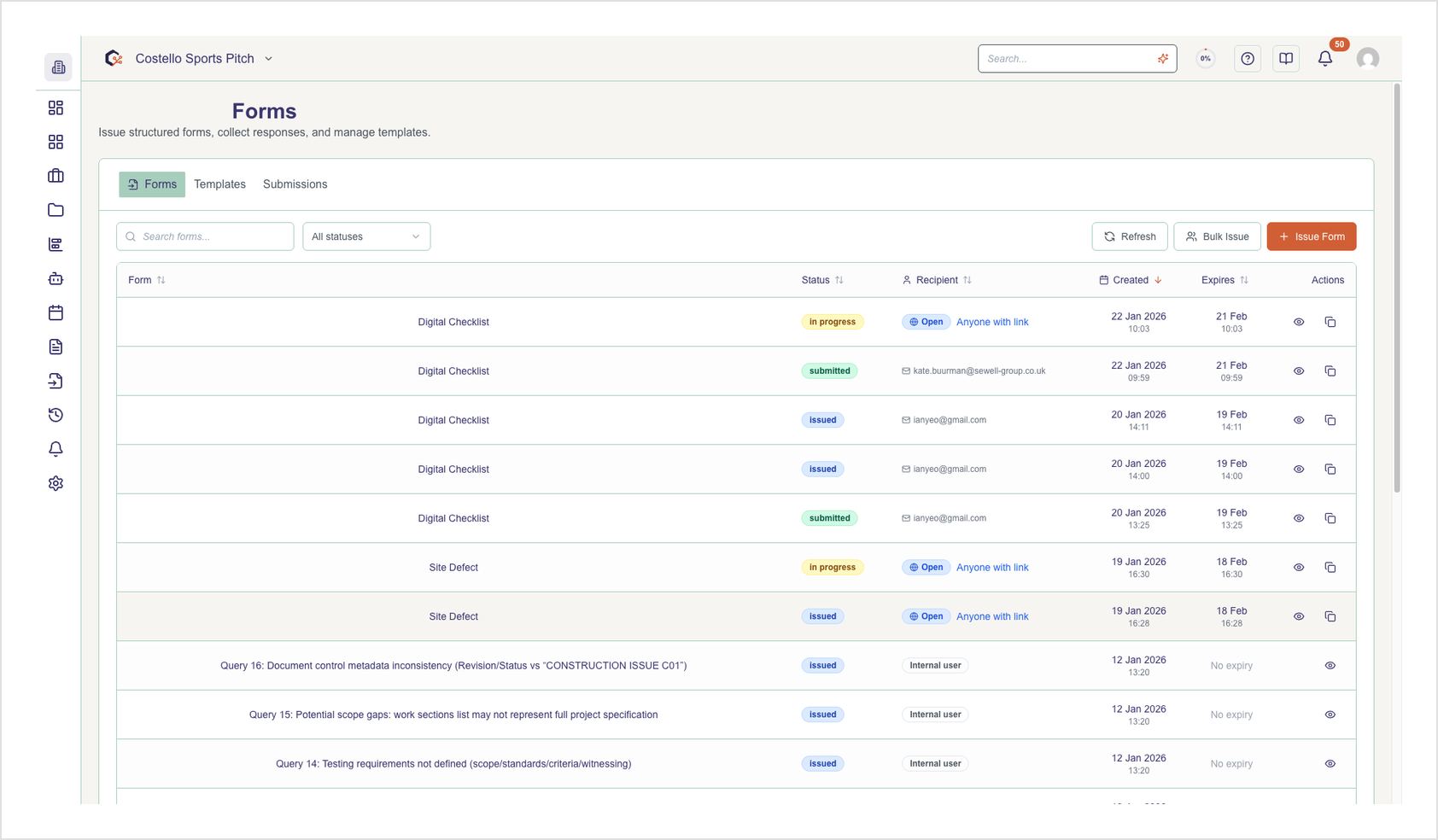
Step 2: Locate the Auto-filled Values panel
Scroll to the Template Preview section and find the “Auto-filled Values” panel, which shows a badge indicating how many fields will be auto-filled.
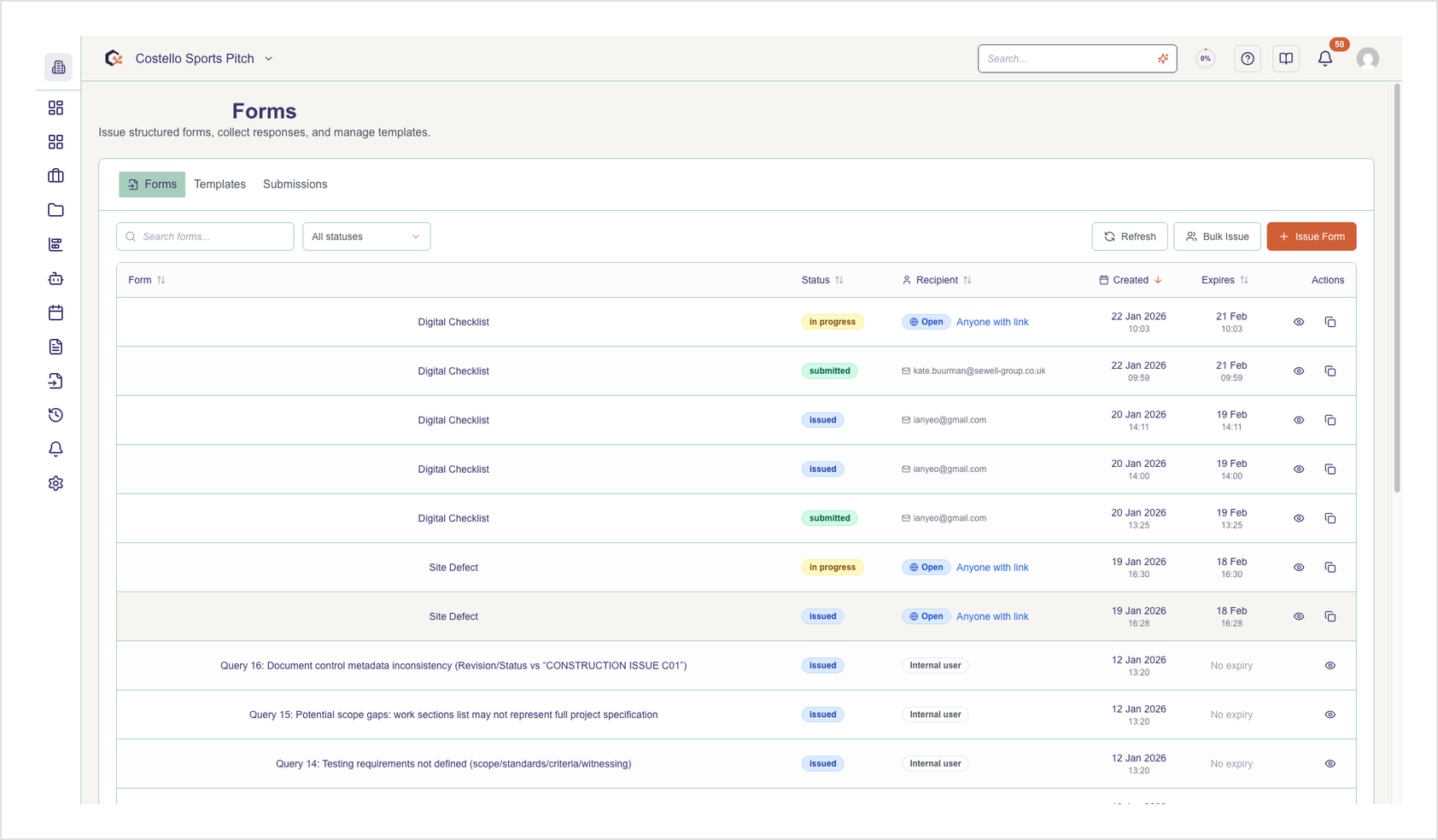
Step 3: Expand the Auto-filled Values panel
Select the Auto-filled Values header to expand the panel and reveal the list of fields that have template-based default values.
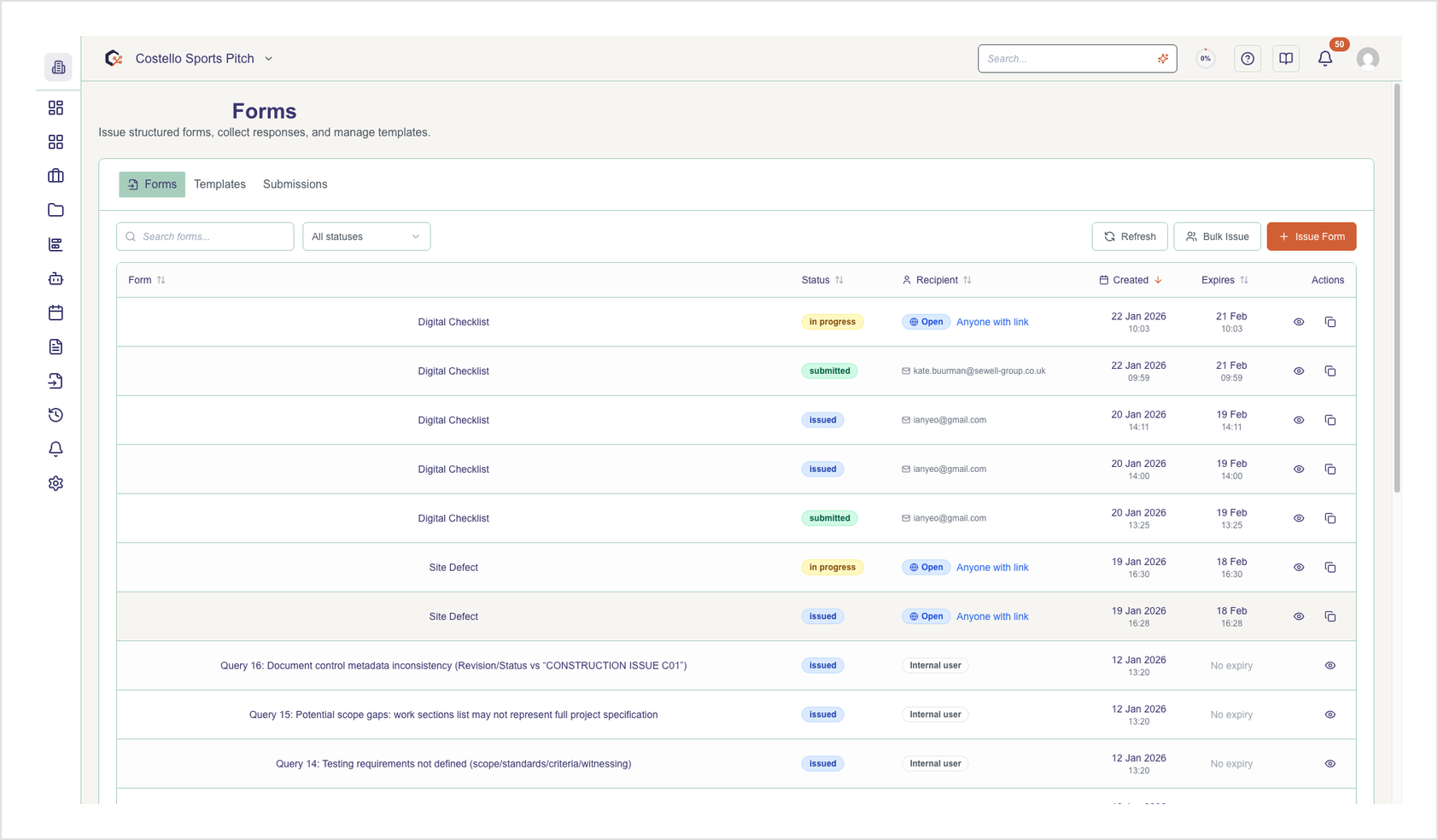
Step 4: Review the list of auto-filled fields
Read through the listed fields to understand which ones will be pre-populated when the form is issued, using the displayed labels and values as a reference.
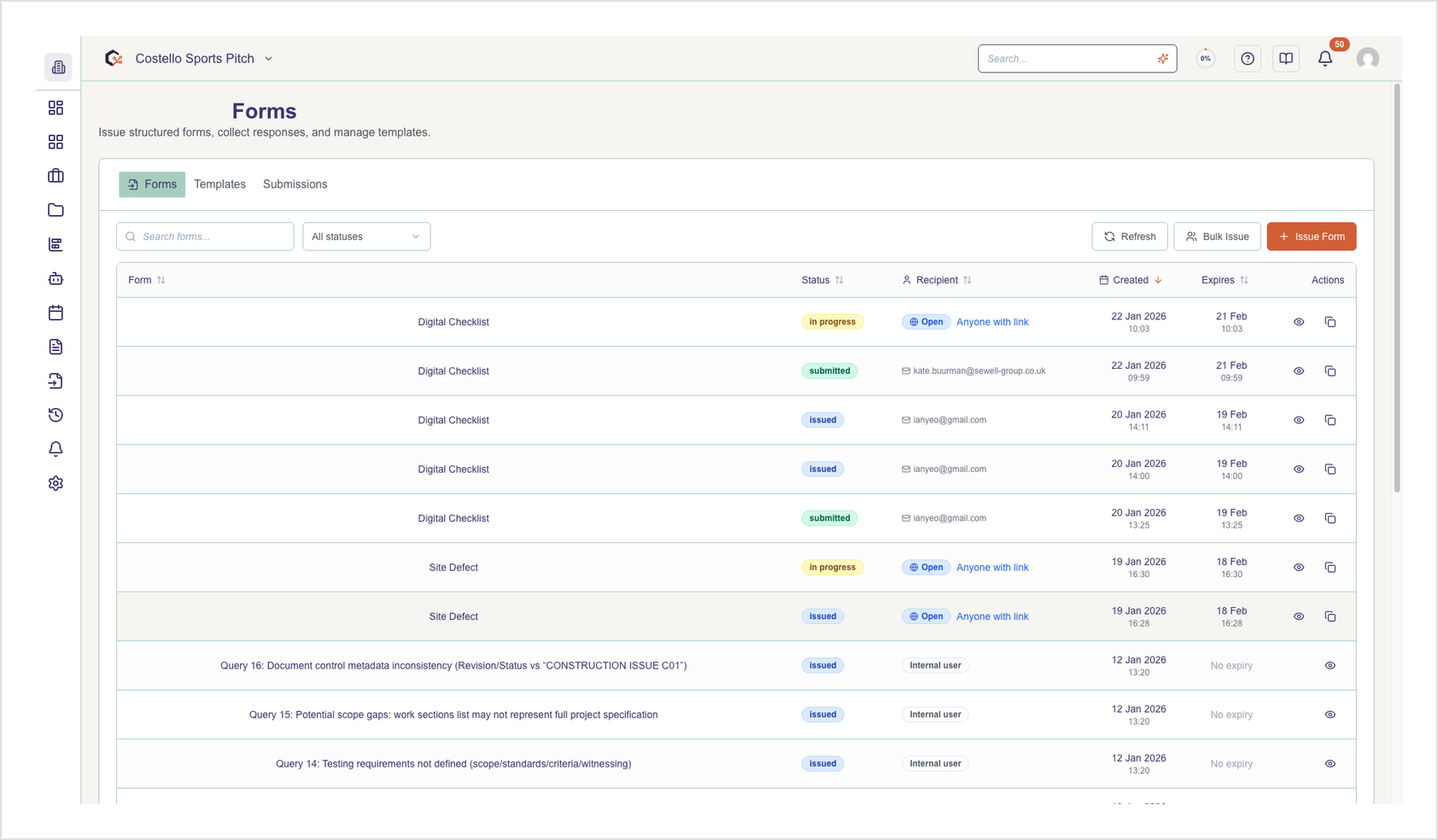
Step 5: Collapse the Auto-filled Values panel (optional)
Select the Auto-filled Values header again to collapse the panel and hide the preview if you no longer need to see the details.
Related Tasks
Last updated: 2026-01-10