View and manage form instances
Use the Form Instances tab to review, search and manage all submitted or in-progress form instances for a selected form.
This guide is designed for project manager.
Steps
Step 1: Open the Form Instances tab
From the form details view, select the "Instances" tab to see all instances associated with the current form.
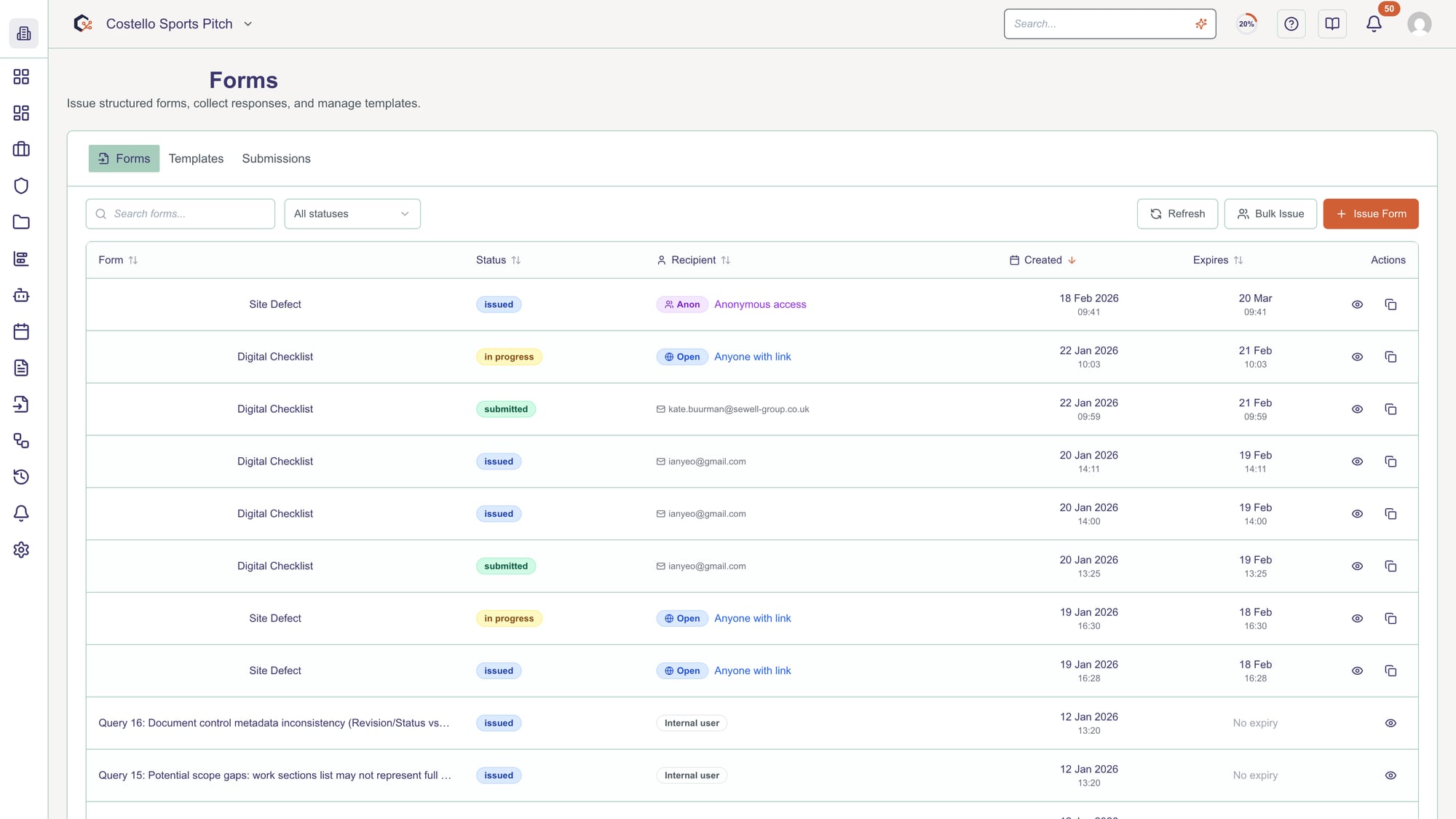
Step 2: Review the instances list
Browse the table of form instances, including key details such as status, assignee, last updated date and any other configured columns.
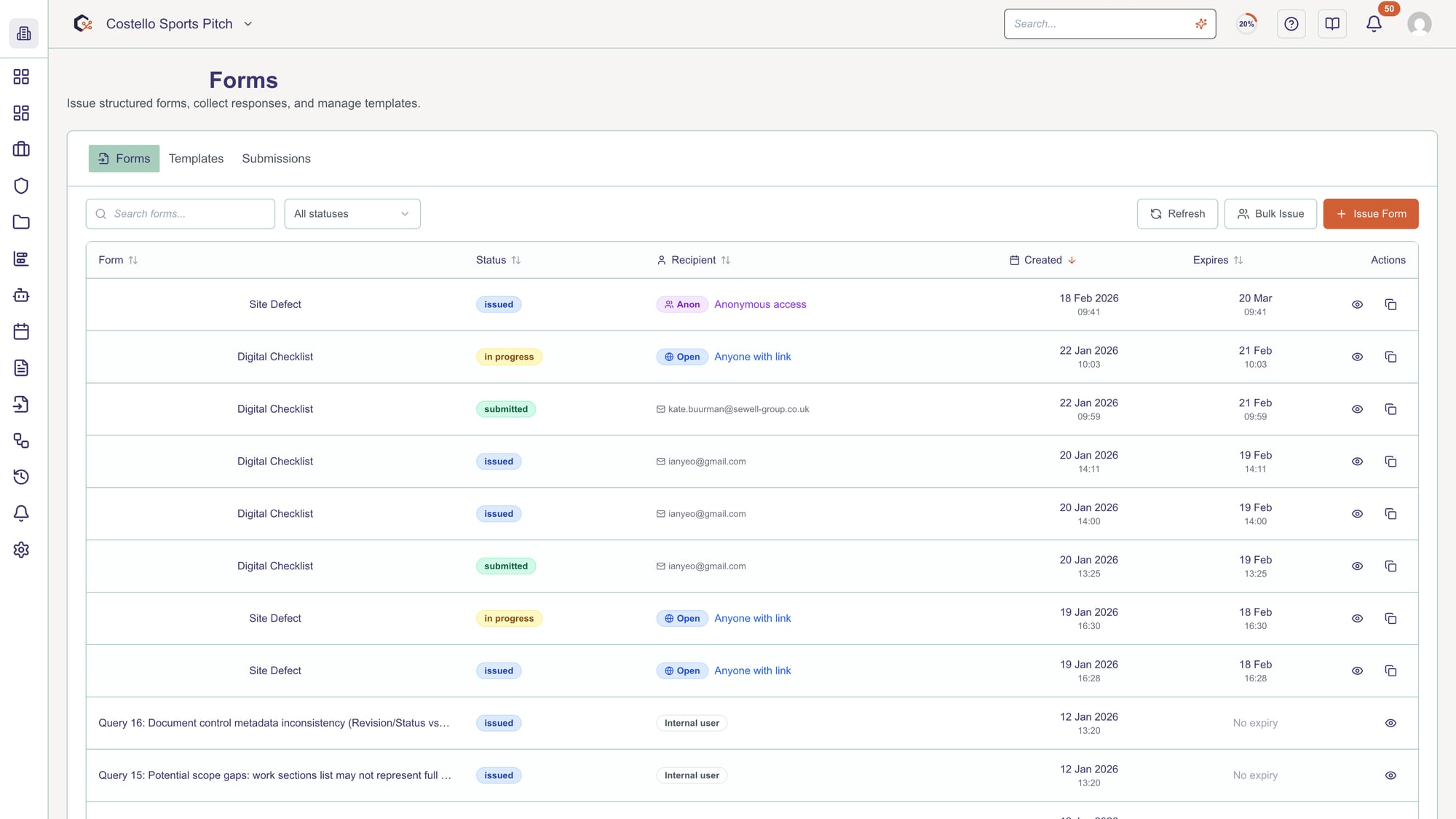
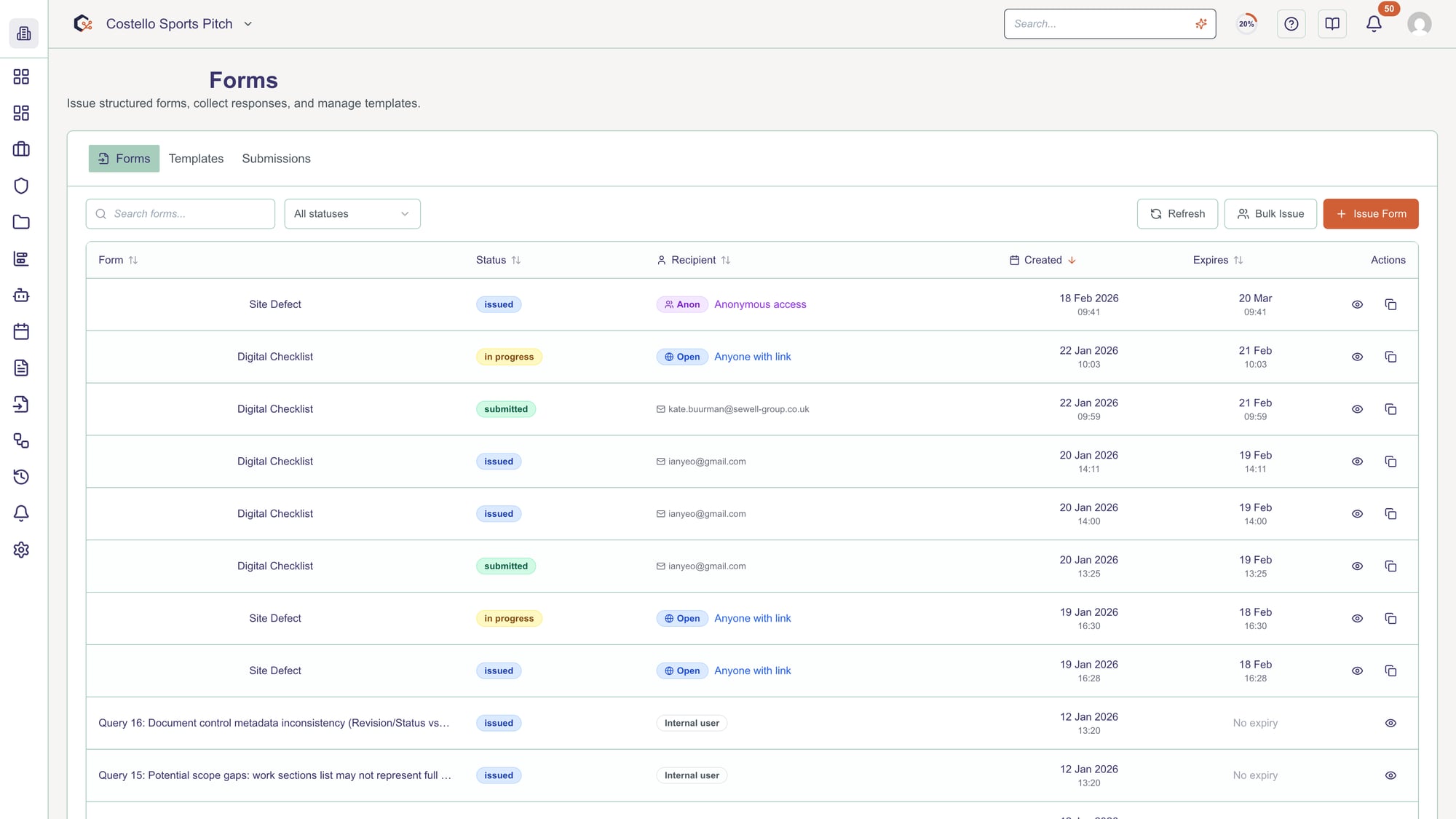
Step 3: Filter and search instances
Use any available search box, filters or status chips above the table to quickly locate specific instances or narrow down the list.
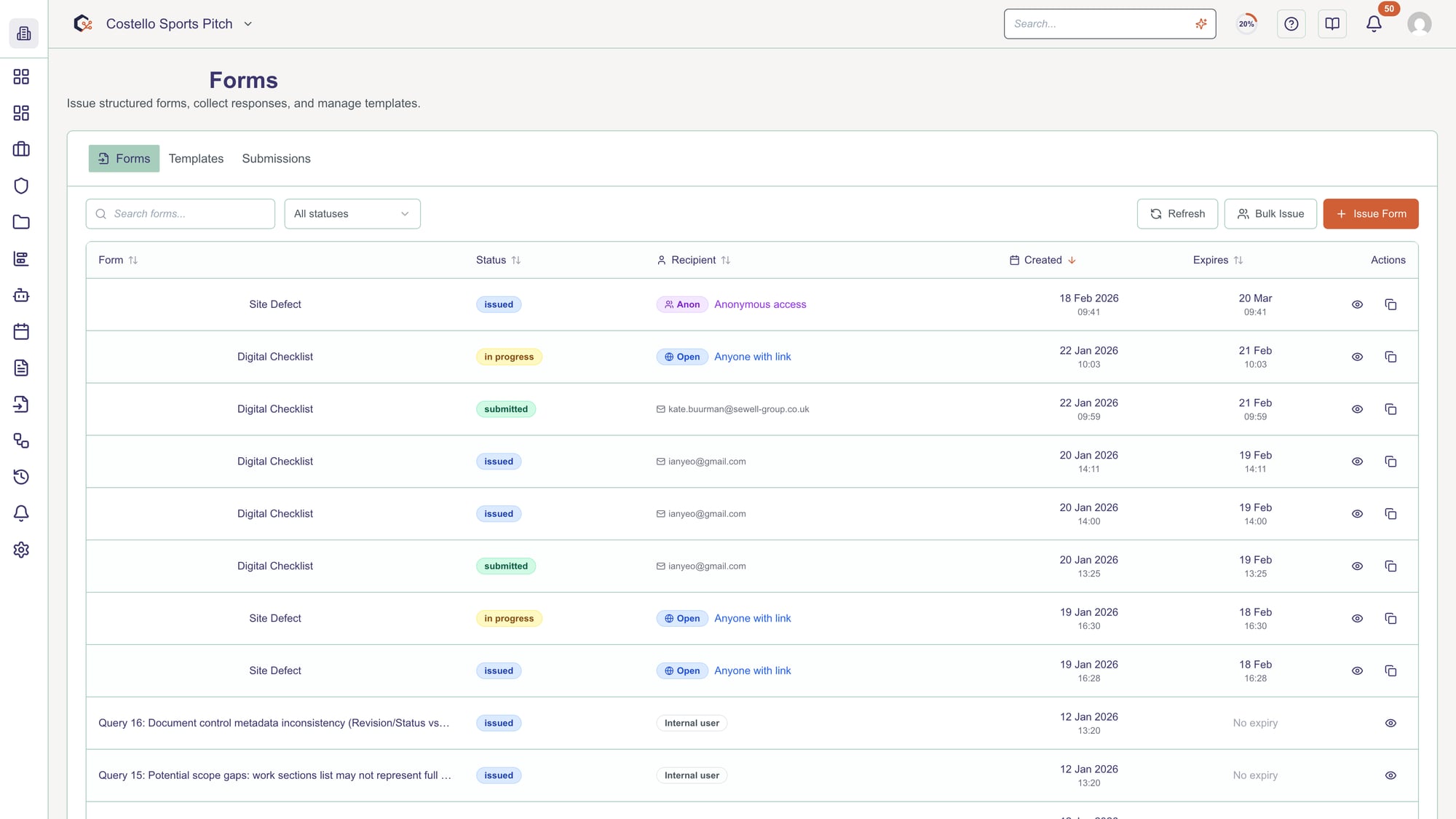
Step 4: Sort instance records
Click on column headers (such as "Status" or "Last updated") to sort the instances and bring the most relevant records to the top.
Step 5: Open an individual instance
Click on a row in the table to open that specific form instance and view its full details in a separate view or panel.
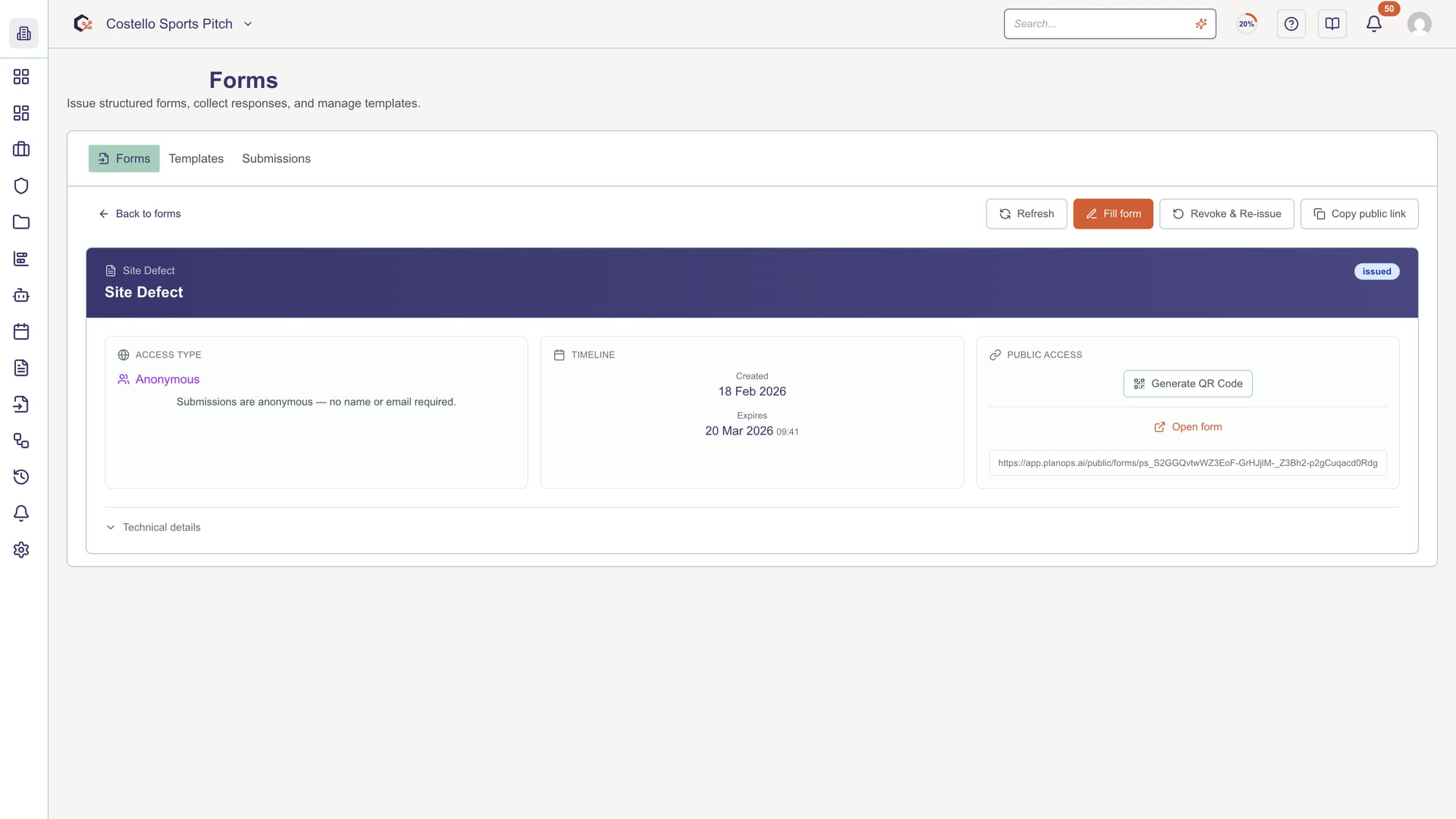
Step 6: Refresh the instances list
Use the refresh or reload control on the tab to make sure you are viewing the latest instance data.
Related Guides
Last updated: 2026-09-01