View form submission details
Review an individual form submission, including answers, file attachments, and available follow-up actions such as amendment or sharing.
This guide is designed for project manager.
Steps
Step 1: Open a specific form submission
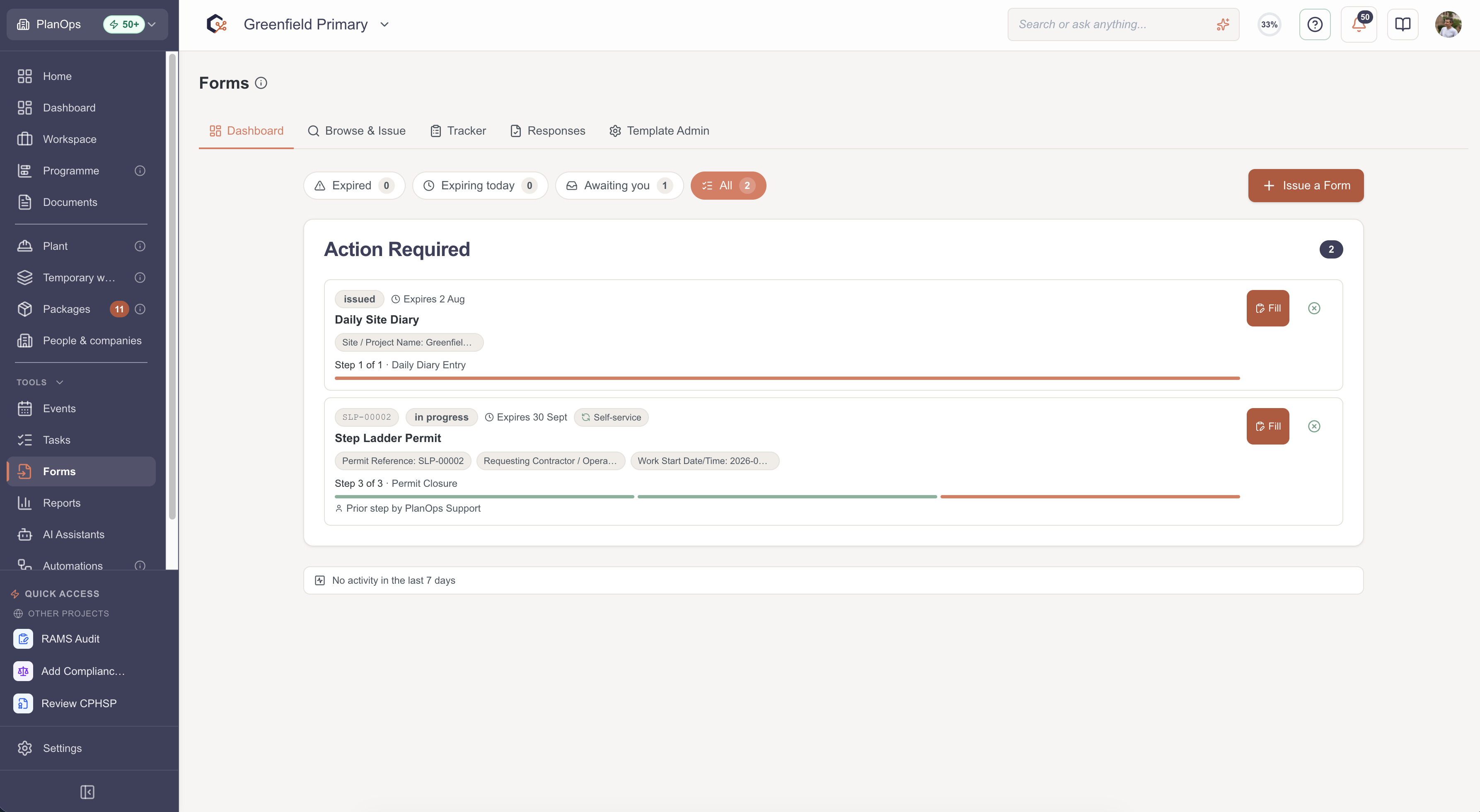
From the forms dashboard, select the form submission you want to review to open the submission detail view, which loads the submission data and the status.
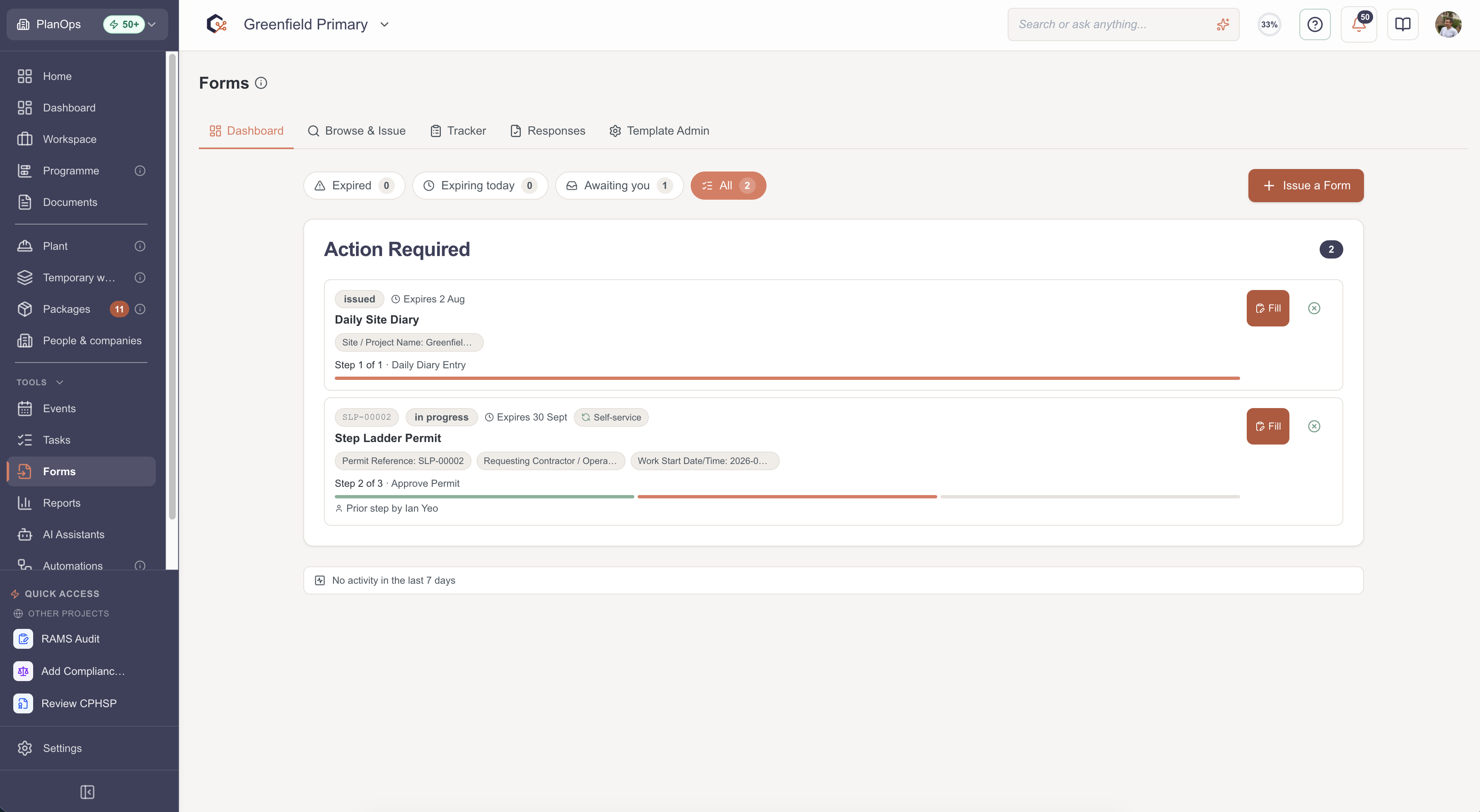
The dashboard provides a quick overview of the status of forms
Step 2: Review submission data
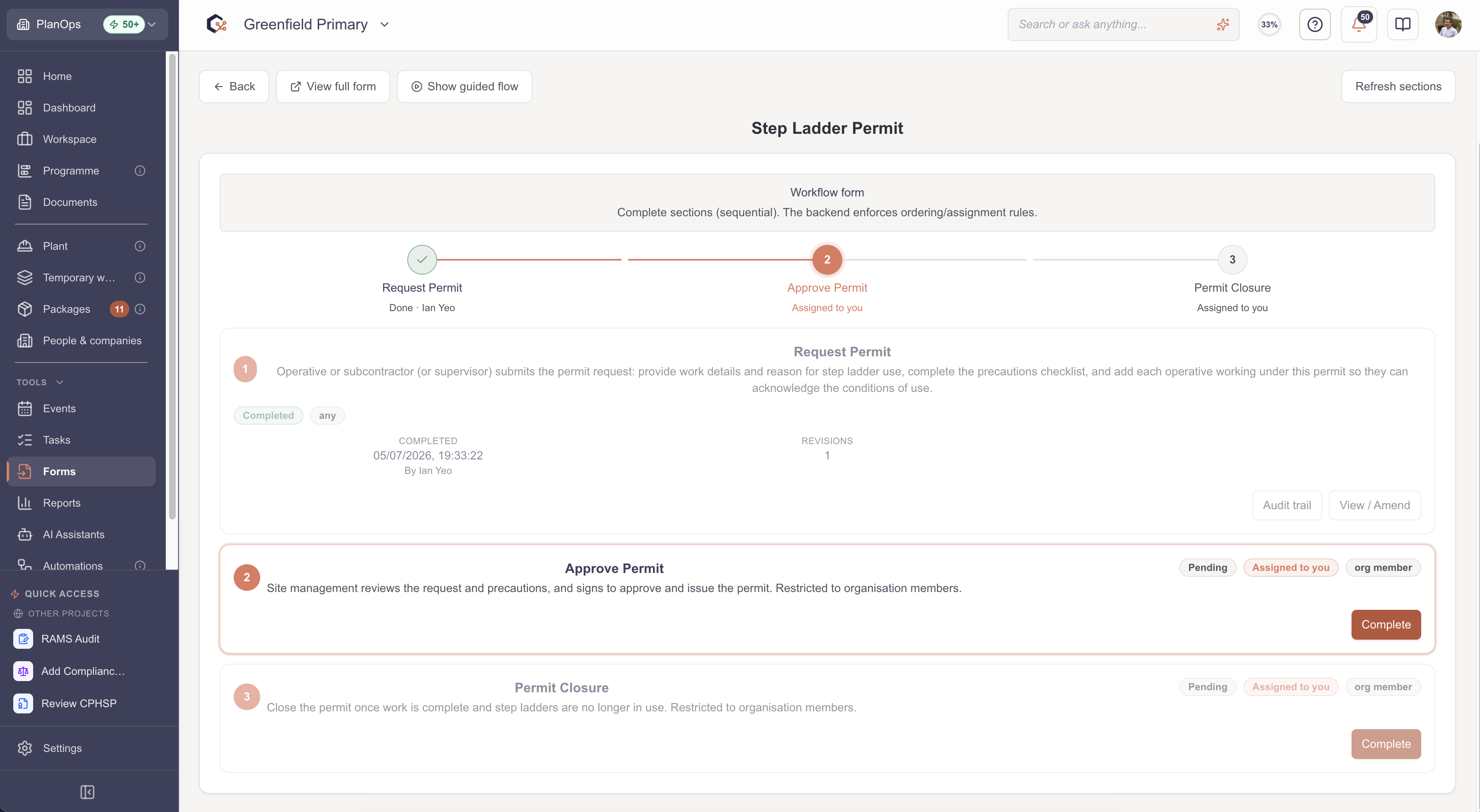
Click 'View / Amend' to review the information submitted.
Step 3: Inspect form field responses
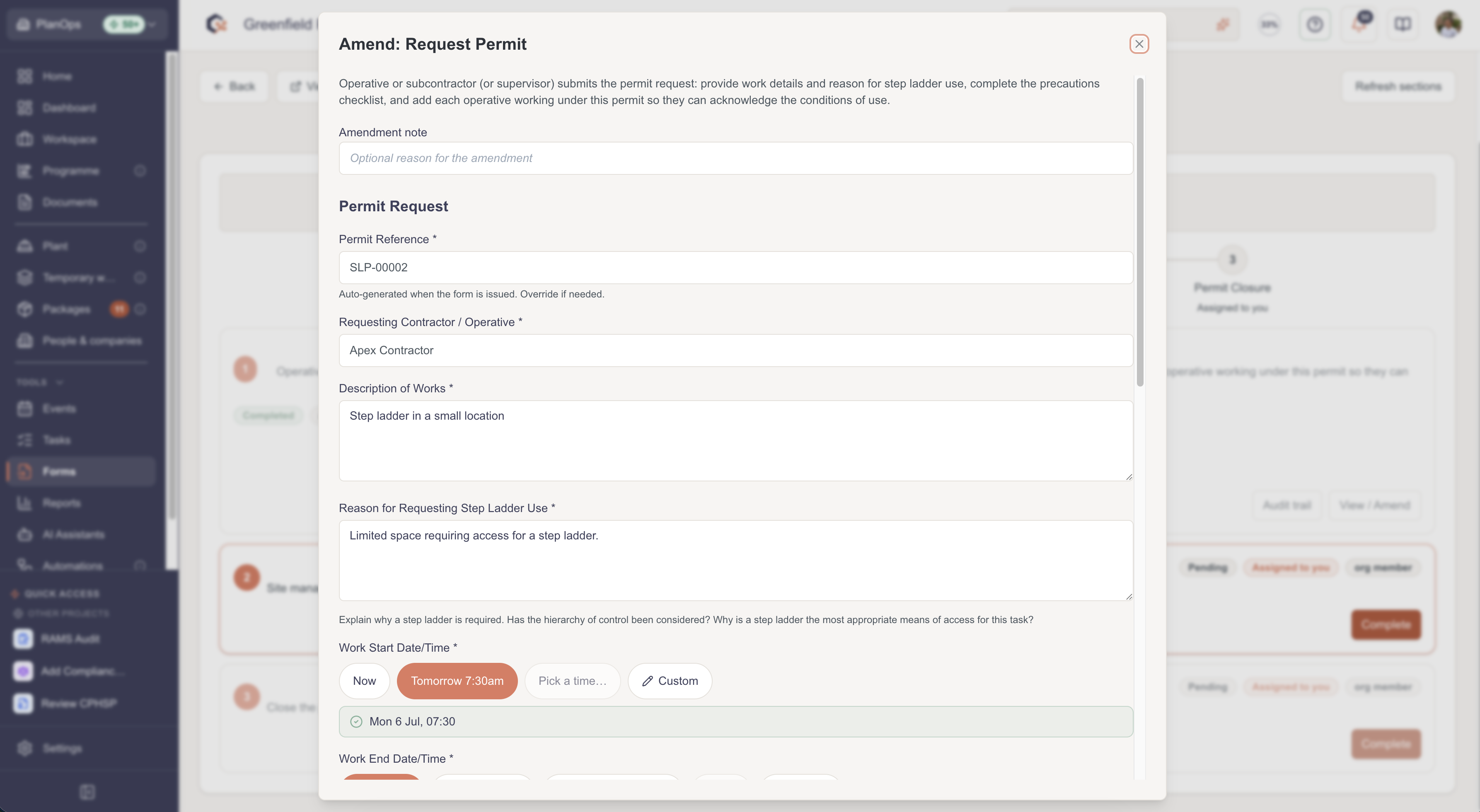
Scroll through the main content area to see each form field and its submitted value, allowing you to understand exactly what information was provided in this submission.
Step 4: View and download attachments
In fields that contain file uploads, use the attachment display to preview thumbnails where available and download files using the download control for further review.
Step 5: Open submission history and revisions
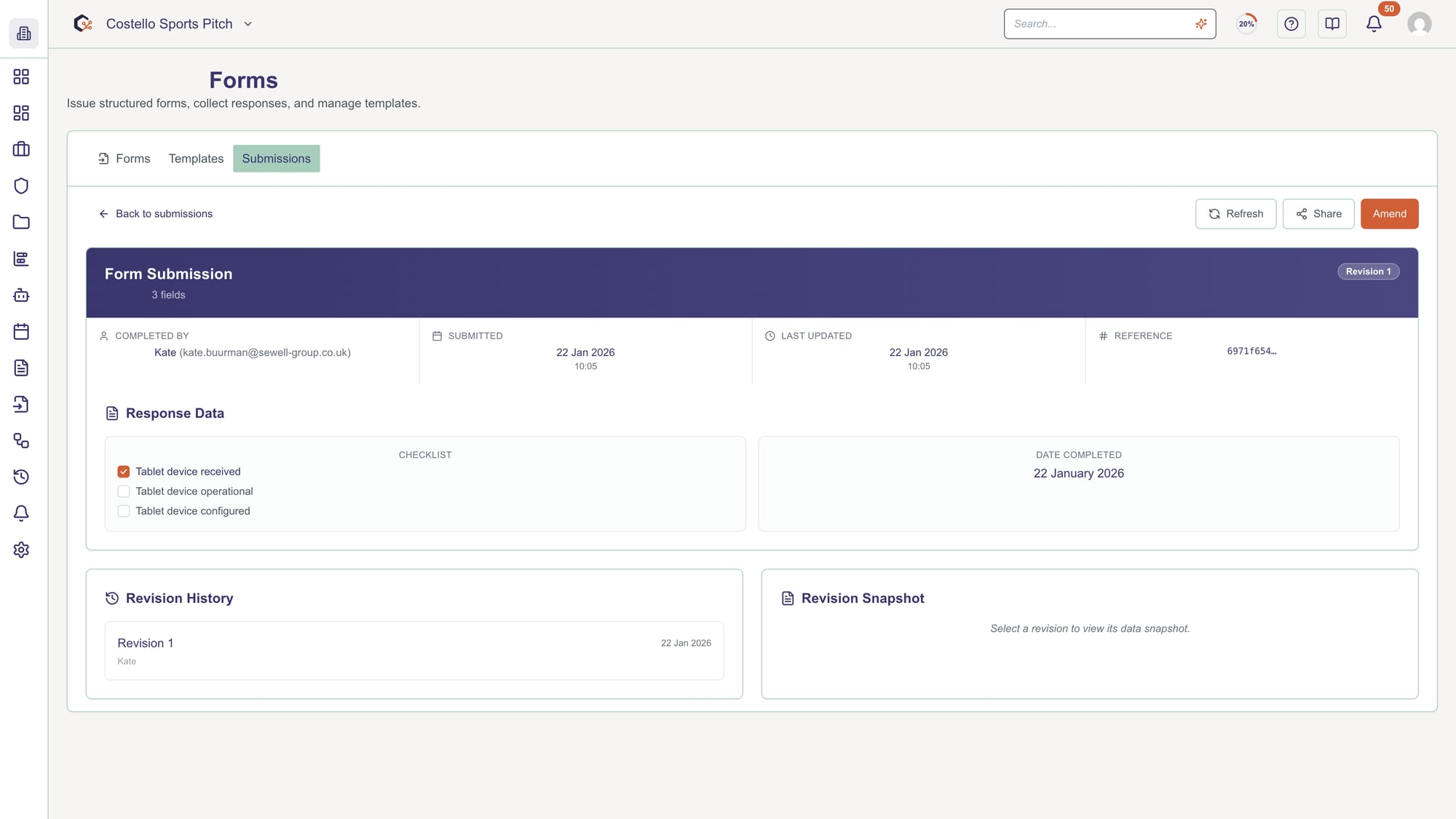
If revision or history information is available, use the history-related controls to compare or review previous versions of the submission as needed.
Step 6: Continue the form submission
If a section requires completing, click 'Complete' to enable completion of the next section of the form.
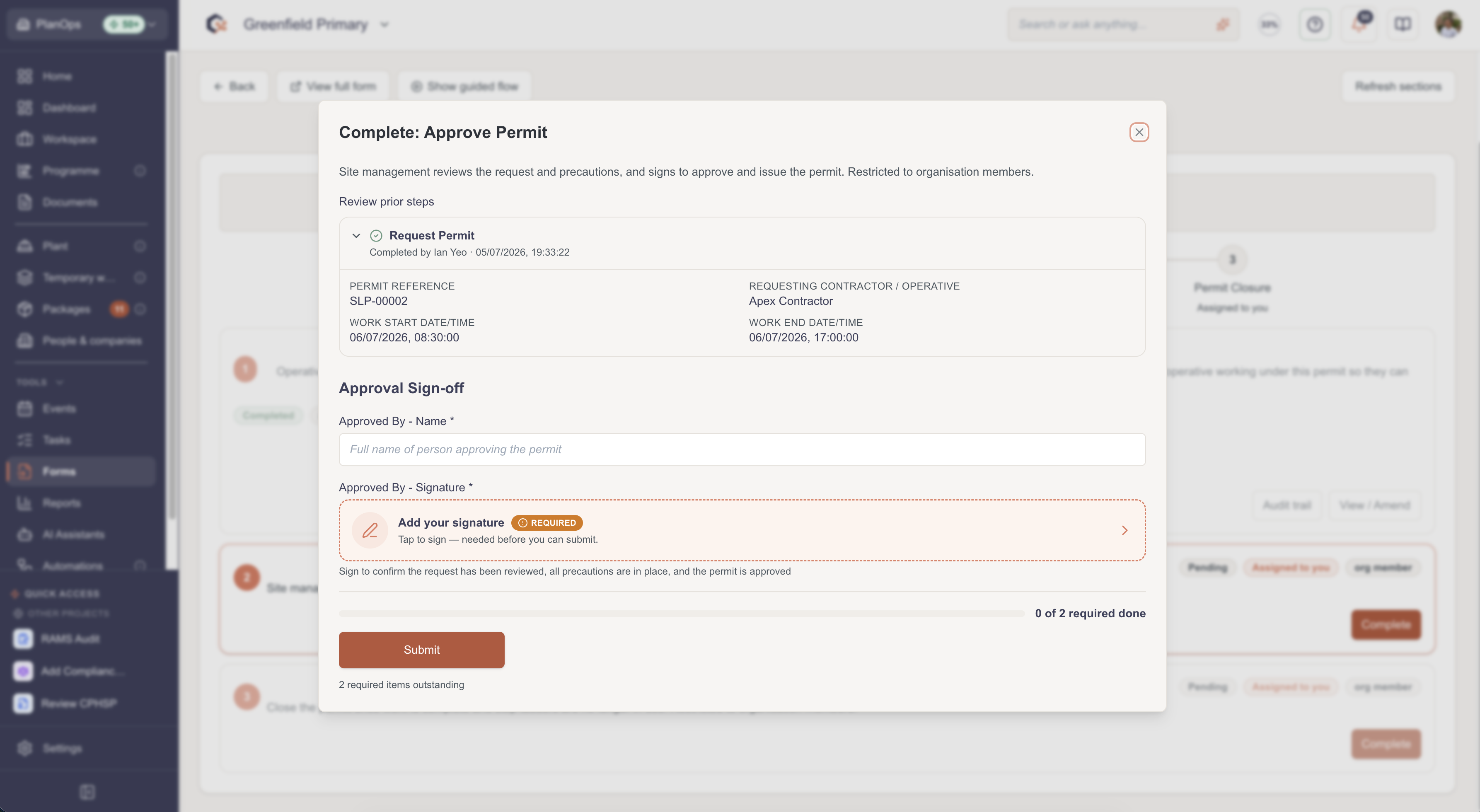
Sections (such as 'sign-off') are only available for completion by organisation management.
Step 7: Share form status
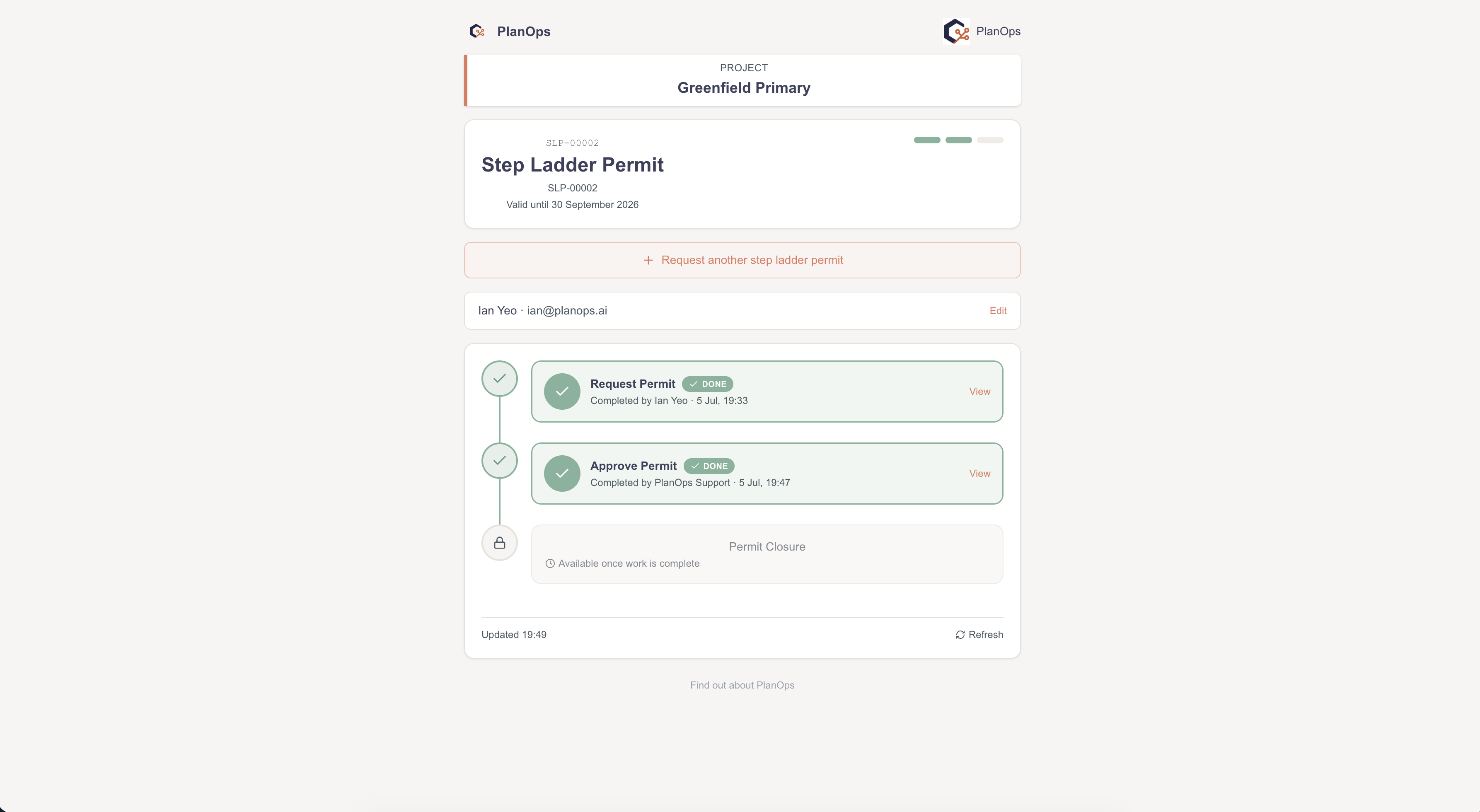
Following an update to the status of the form or the completion of a section. The information is updated to all those who have been issued the form.
Step 8: Return to the submissions list
Click the back to return to the main form dashboard.
Related Guides
Last updated: 2026-01-19T00:00:00.000Z