Browse and select a form template
Find the right form template in the Browse & Issue gallery - search, filter by category, preview a template's details, and issue it straight from the card.
This guide is designed for project manager.
Steps
Step 1: Open Browse & Issue
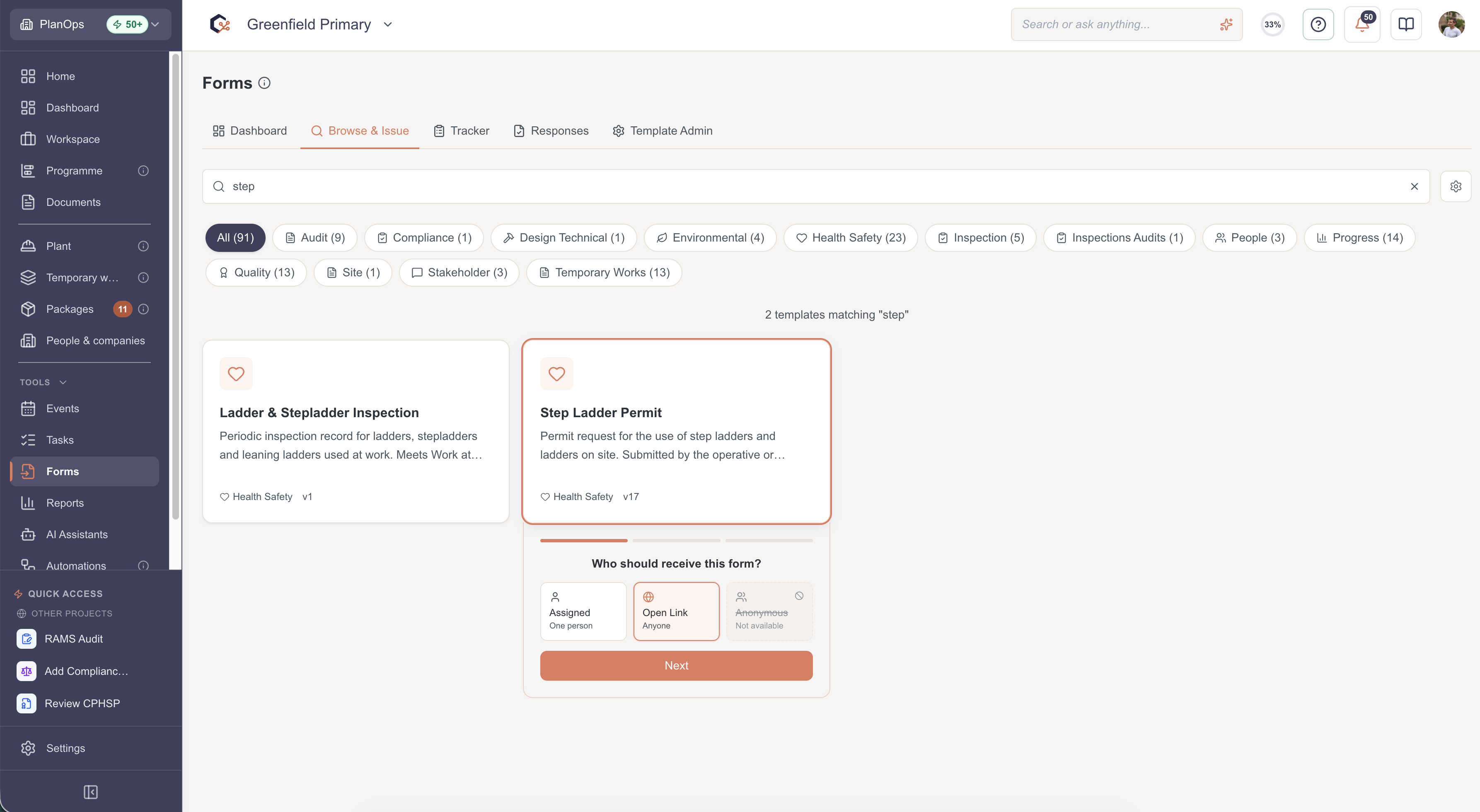
Go to Forms in the project sidebar (under Tools) and select the Browse & Issue tab. The gallery shows every template available to the project as a card, with its name, a short description, its category and current version.
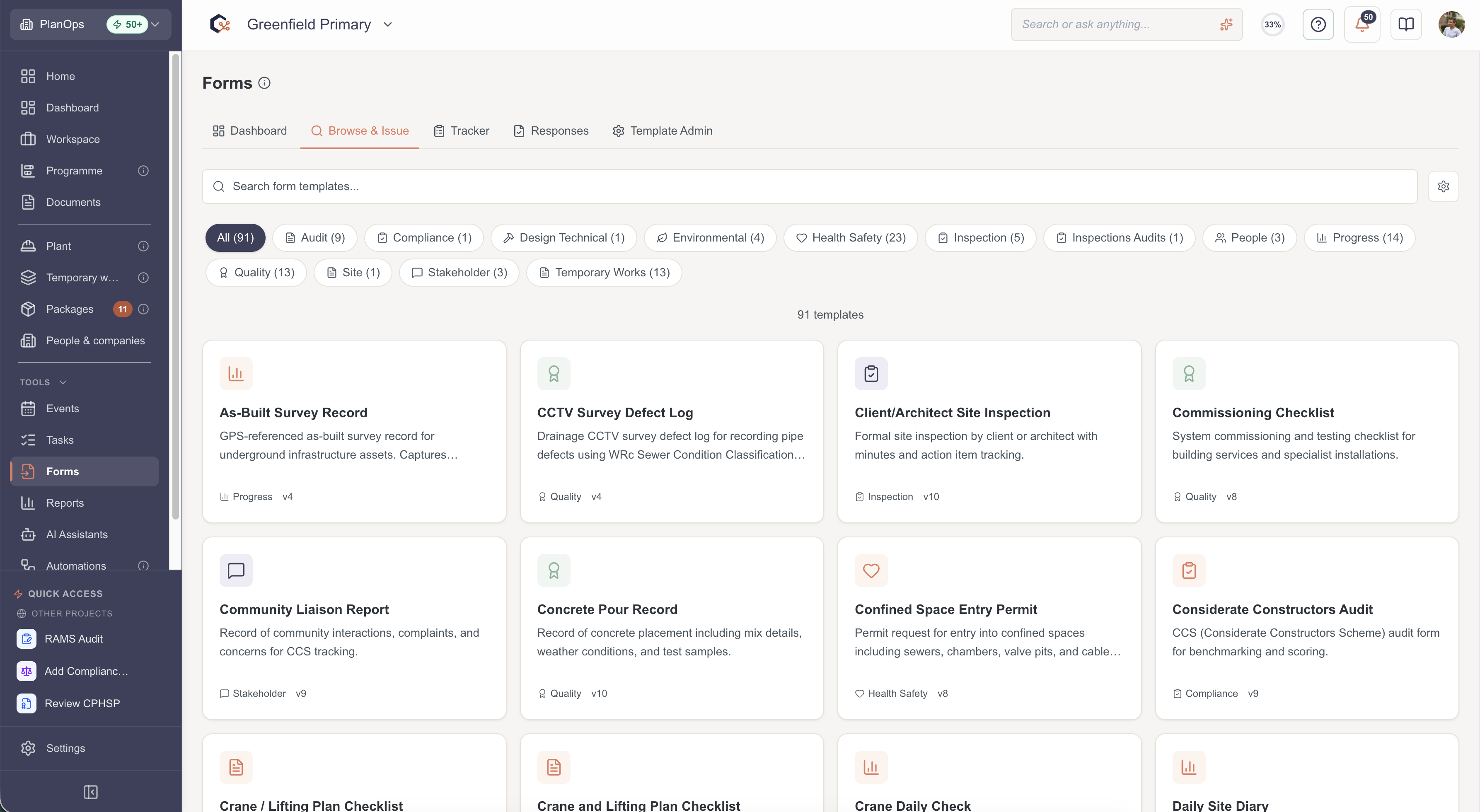
Step 2: Search or filter to narrow the list
Type into the search box to filter templates as you type, or use the category pills below it (Health Safety, Quality, Inspection, Temporary Works and so on) to browse by type. The count above the grid shows how many templates match.
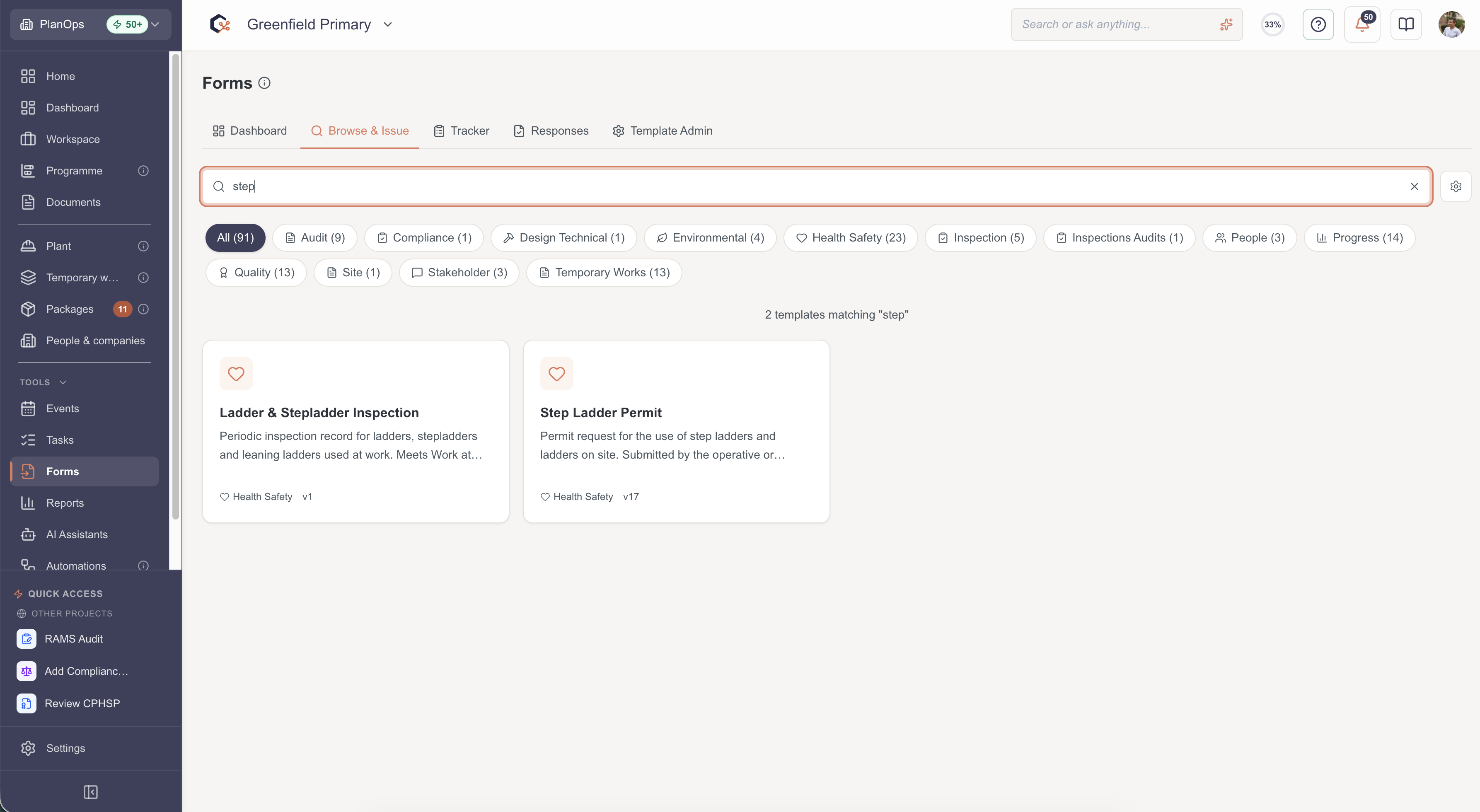
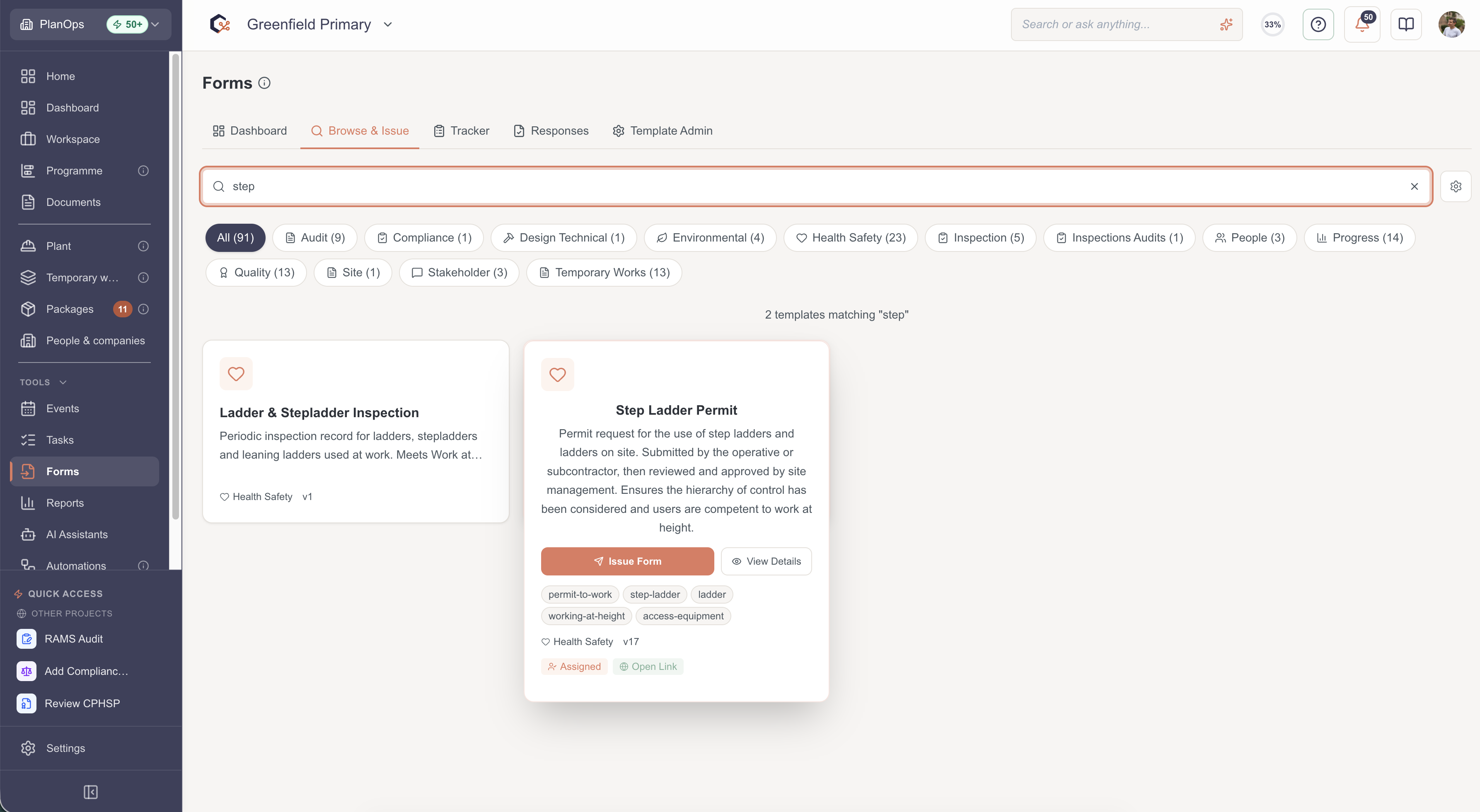
Step 3: Preview a template from its card
Move your pointer over a card to expand it. You see the full description, the template's tags, its category and version, and chips showing how it can be issued - Assigned to a named person, or as an Open Link anyone can complete.
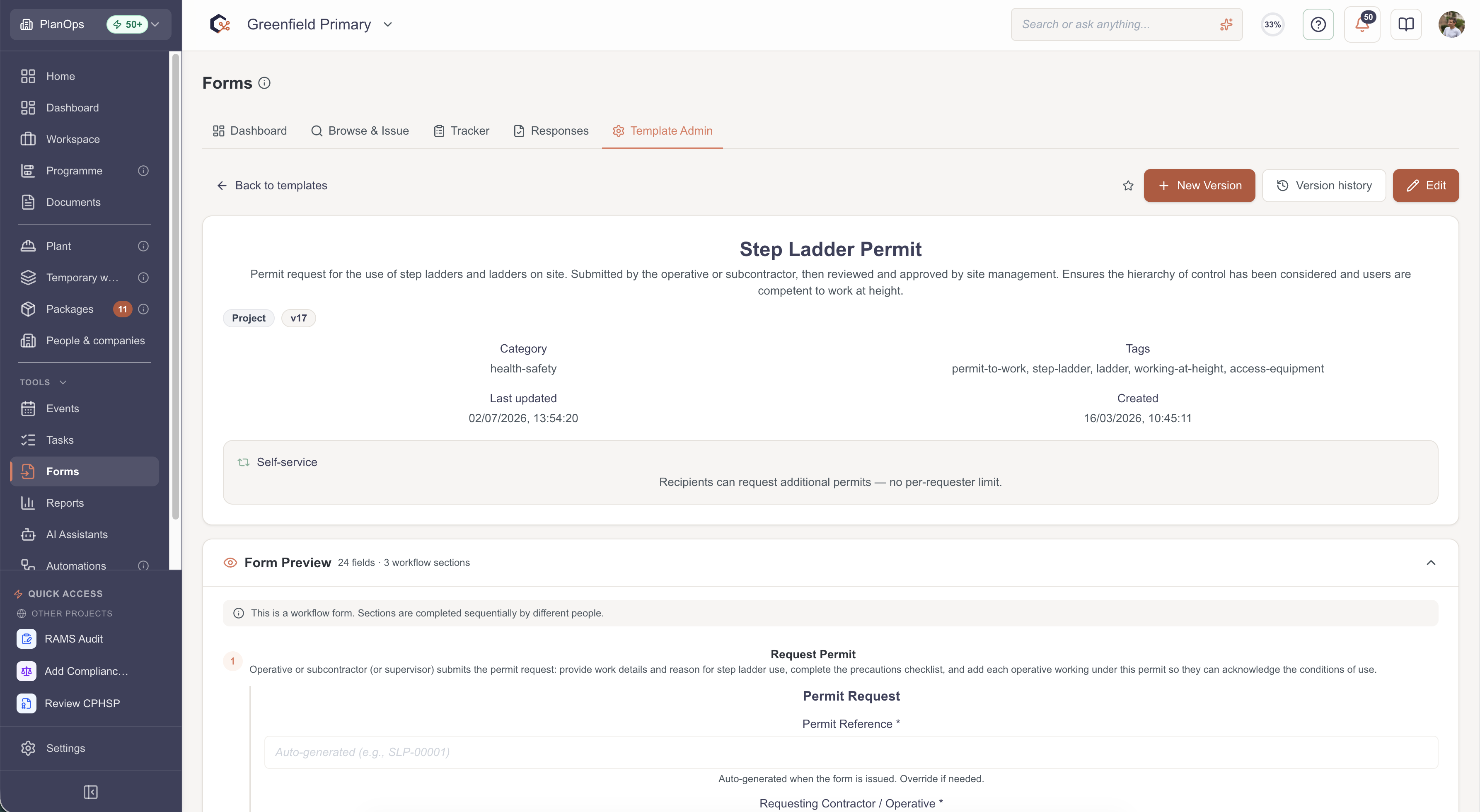
Step 4: View the template's full details
Select View Details on the card to open the template page. This shows the complete form preview with its fields and workflow sections, self-service settings, version history and - with the right permissions - options to edit or create a new version.
Step 5: Issue the form from the card
When you have found the right template, select Issue Form on the card. A short wizard opens in place to choose the recipient, set how long the form stays open, and send it - see the issue a project form guide for the detail.
Related Guides
Last updated: 2026-07-02T00:00:00.000Z