Share a newly created form using a QR code or link
Learn how to share a newly created form with respondents using a QR code and/or a shareable link.
This guide is designed for project manager.
Steps
Step 1: Open the form creation success modal
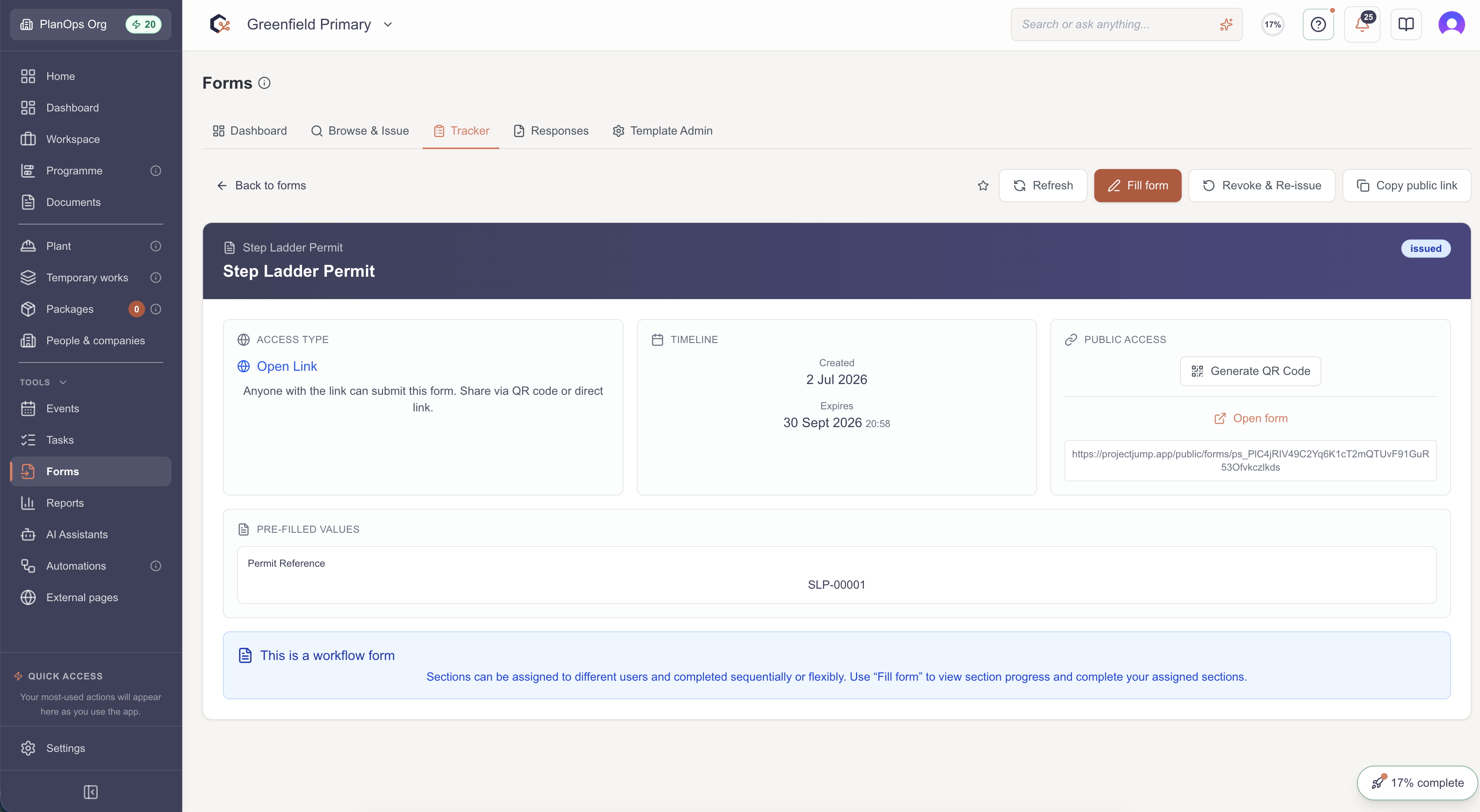
After creating a form, wait for the form instance to appear, with the detail of the form, including: form name and access type (open, email, anonymous).
Step 2: Create QR code
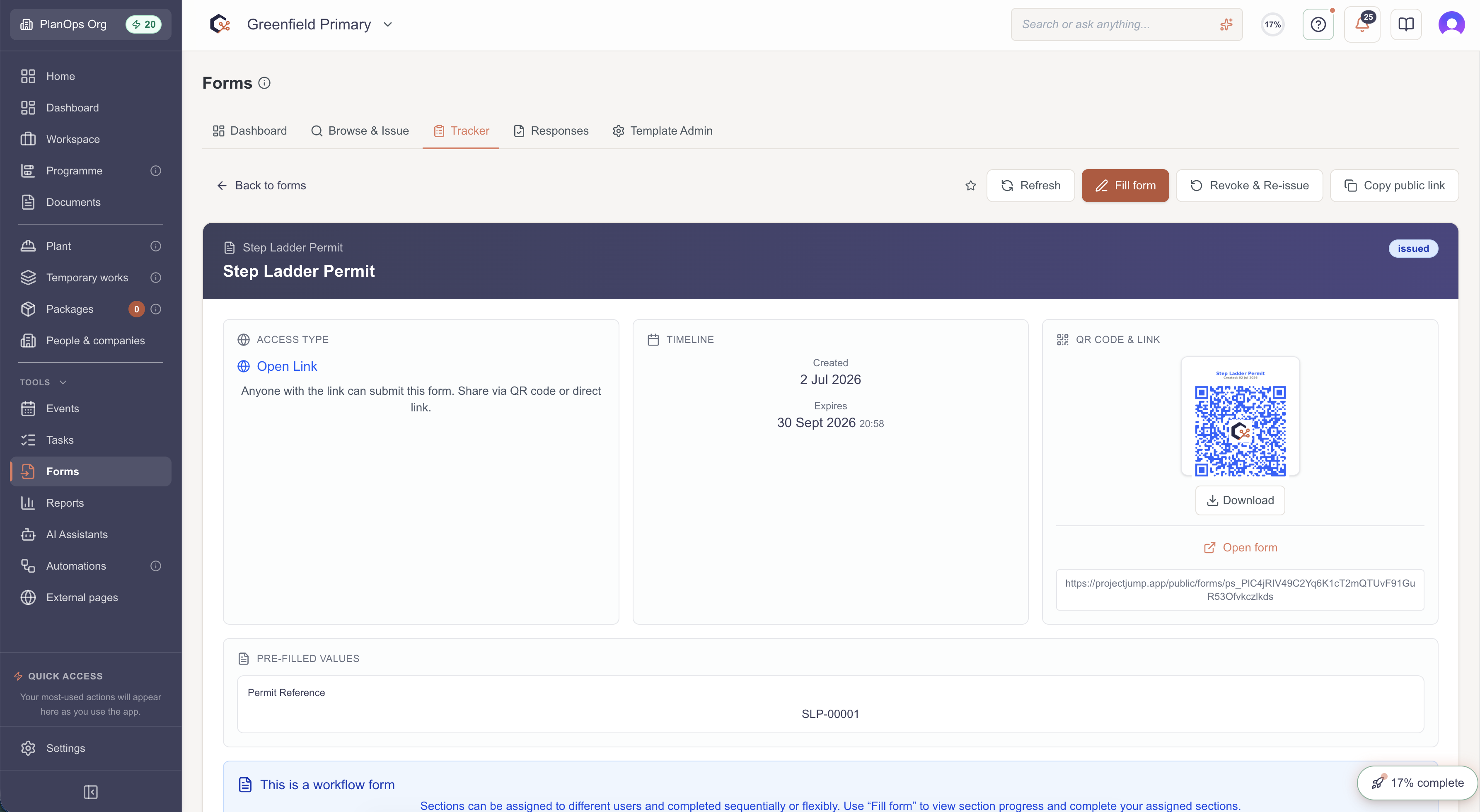
Click 'Generate QR Code', the QR code will be displayed within the form instance.
Step 3: Download or share the QR code
Use the QR code controls (such as download and copy link options within the QR code display) to save the QR code image for printing, presentations, or digital distribution.

Step 4: Copy and share the public link
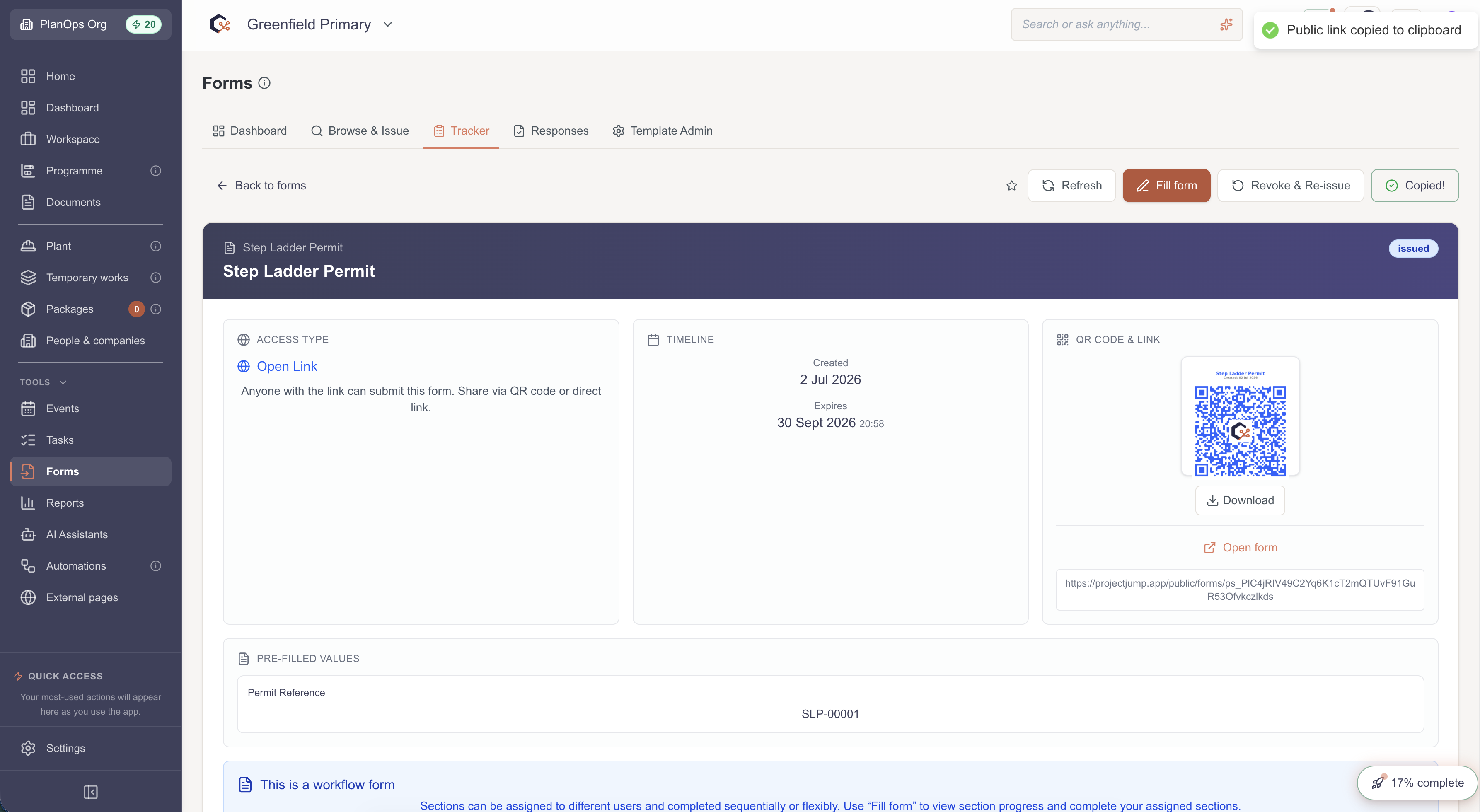
Alternatively, a shareable link is also displayed, click 'Copy public link' to copy the form public link to your clipboard, so you can share it by email, chat, or other communication tools.
Related Guides
Last updated: 2025-12-30T00:00:00.000Z