Manage form templates
View and manage form templates, including scope, versions, updates, tags and key actions.
This guide is designed for project manager.
Steps
Step 1: Open the form templates list
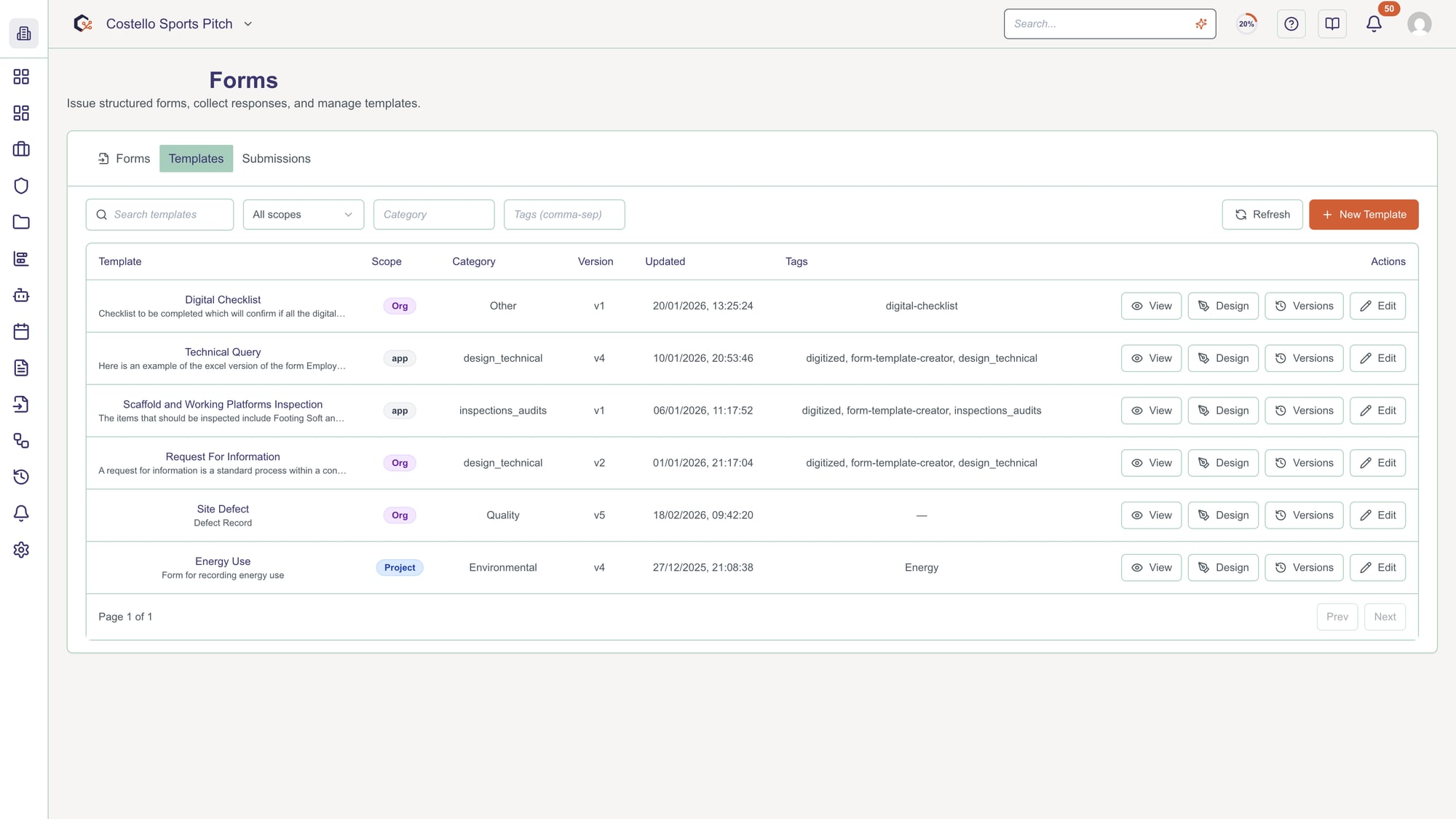
Navigate to the form templates section to see a table of all available templates, including their name, scope, category, version, last updated date and tags.
Step 2: Review template details
Scan the Template, Scope, Category, Version, Updated and Tags columns to understand how each template is used and when it was last changed.
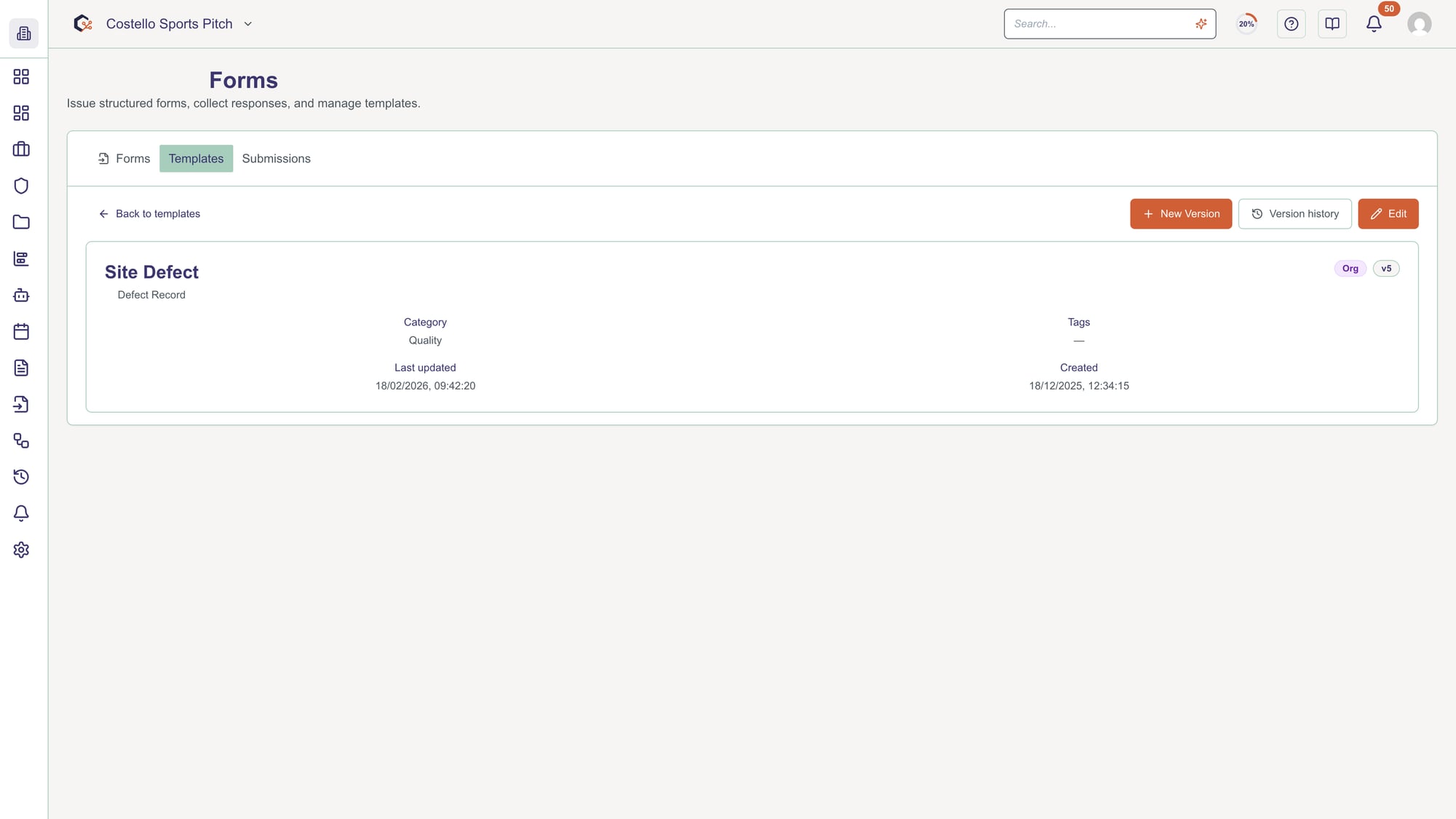
Step 3: View a template
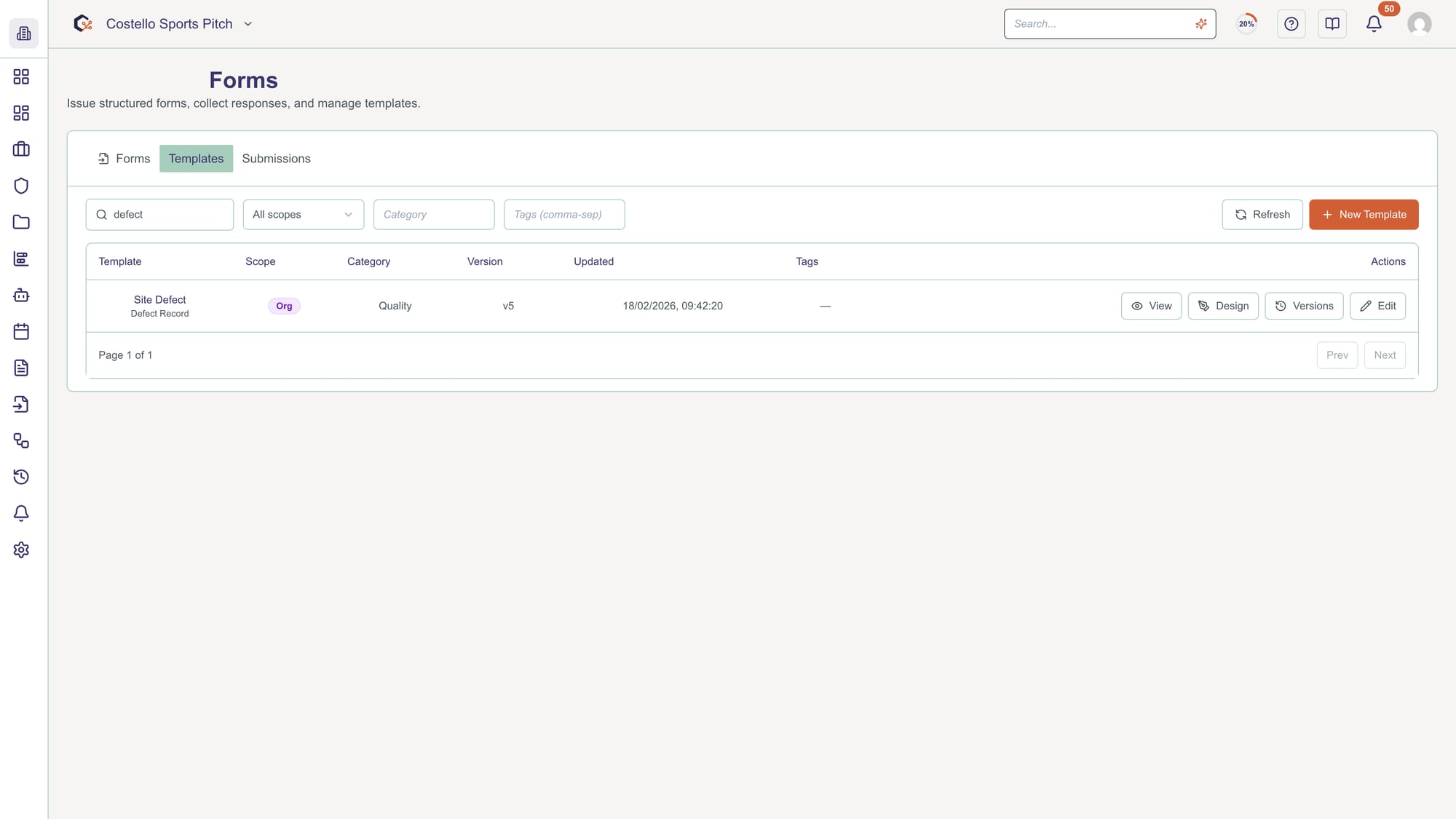
Select the Eye action in the Actions column to open a read-only view of the template’s current version.
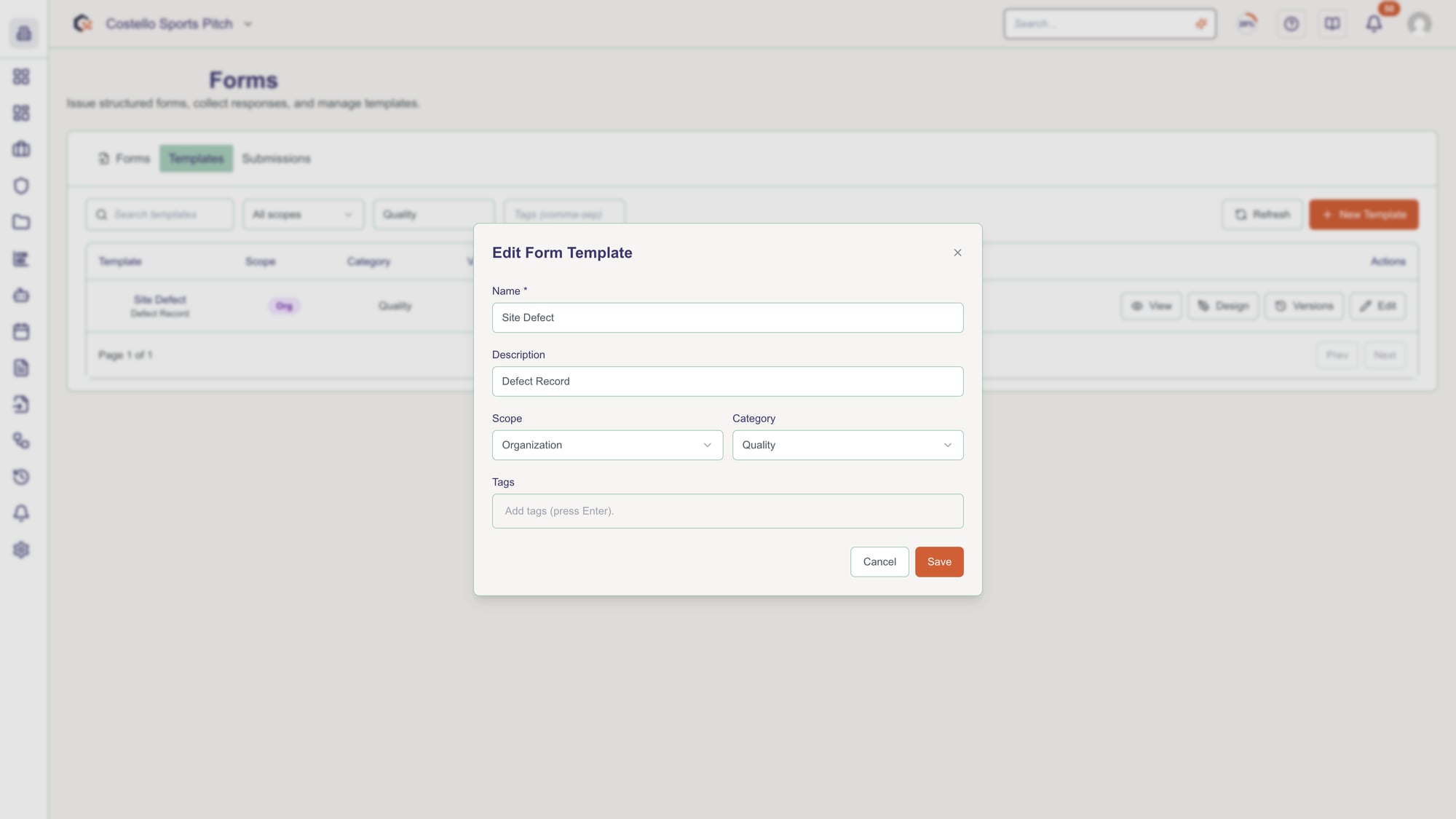
Step 4: Edit a template
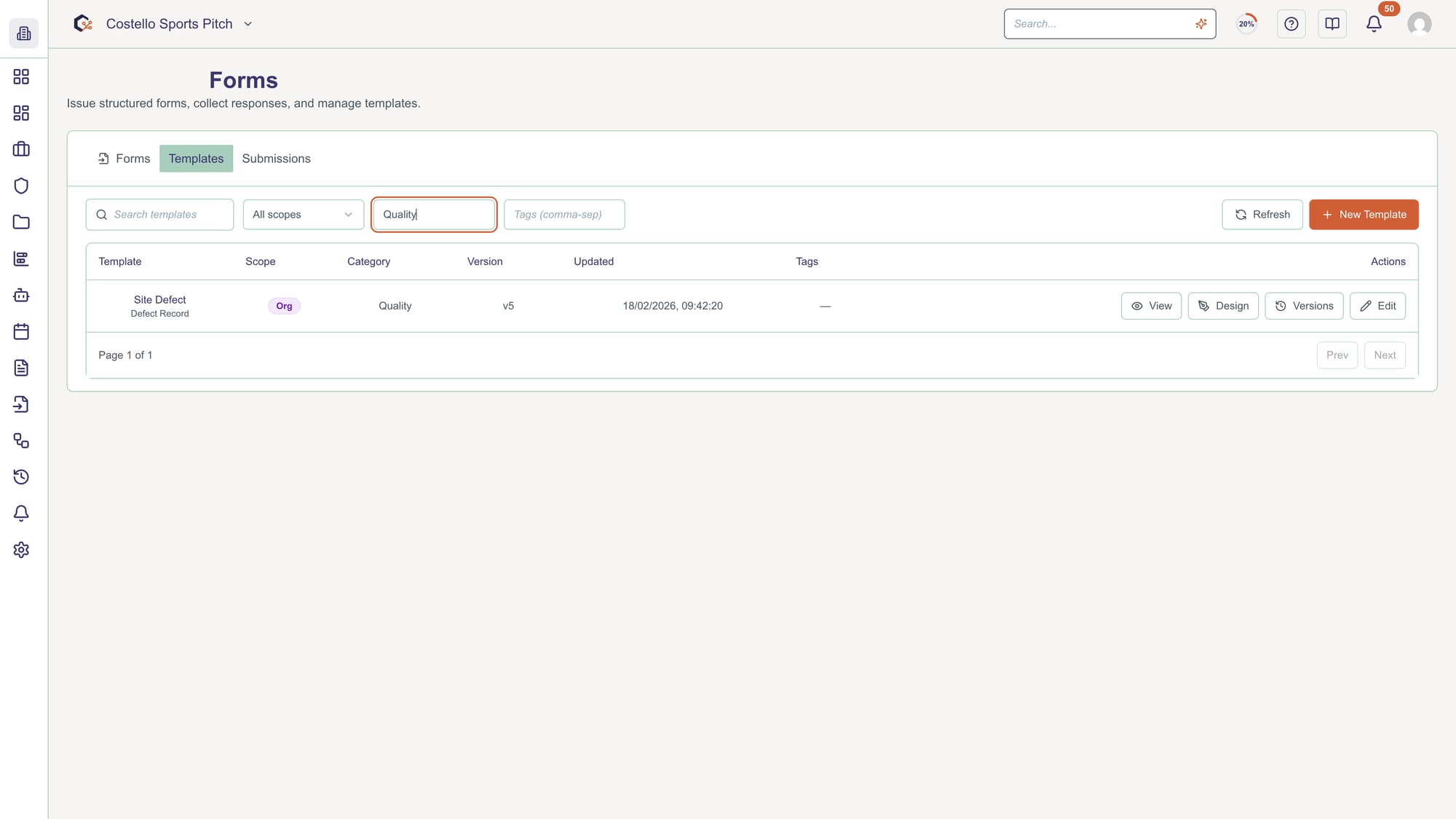
If you have permission, choose the Pencil action to edit the currently selected template’s details or settings.
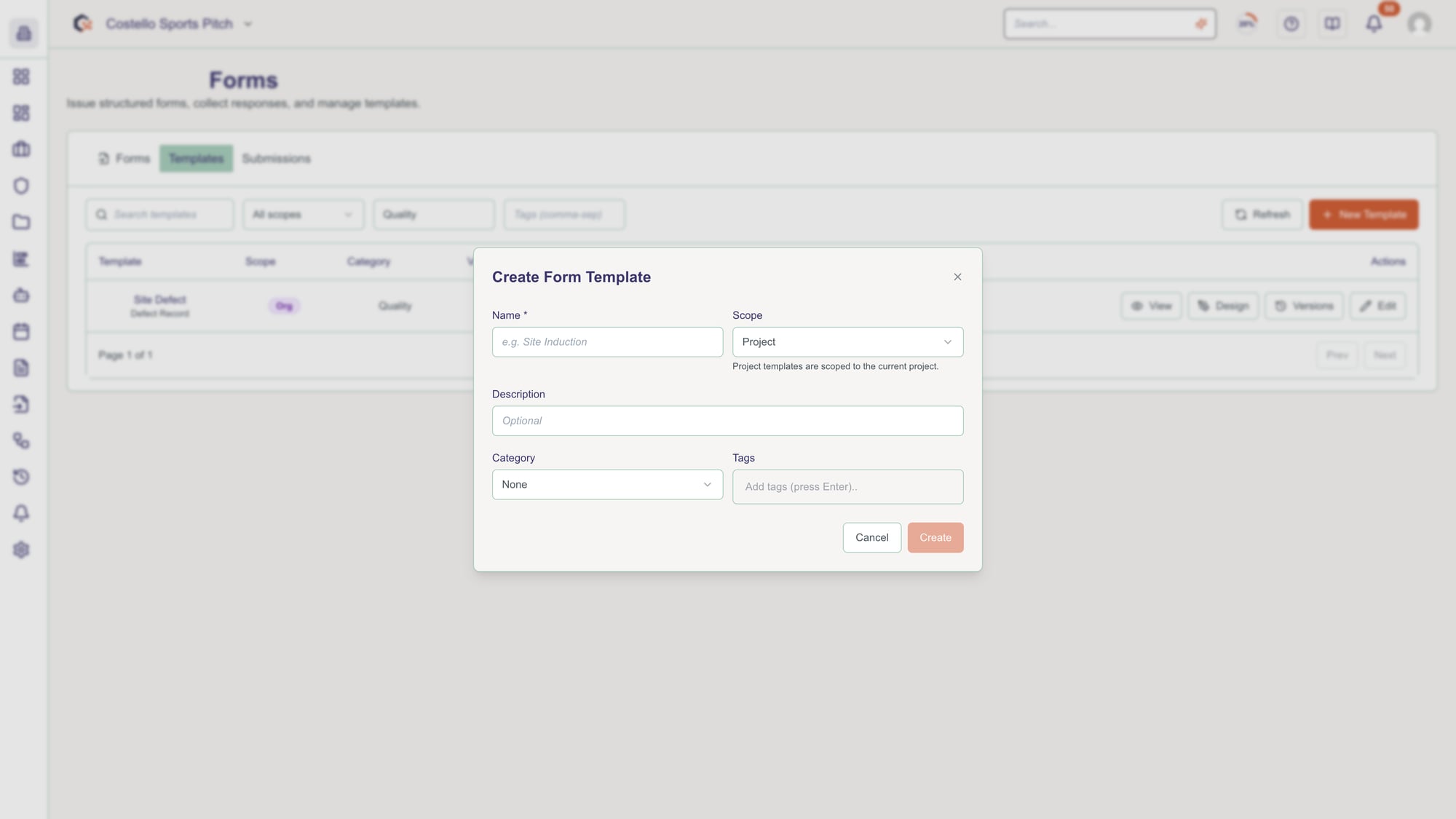
Step 5: Design a new version of a template
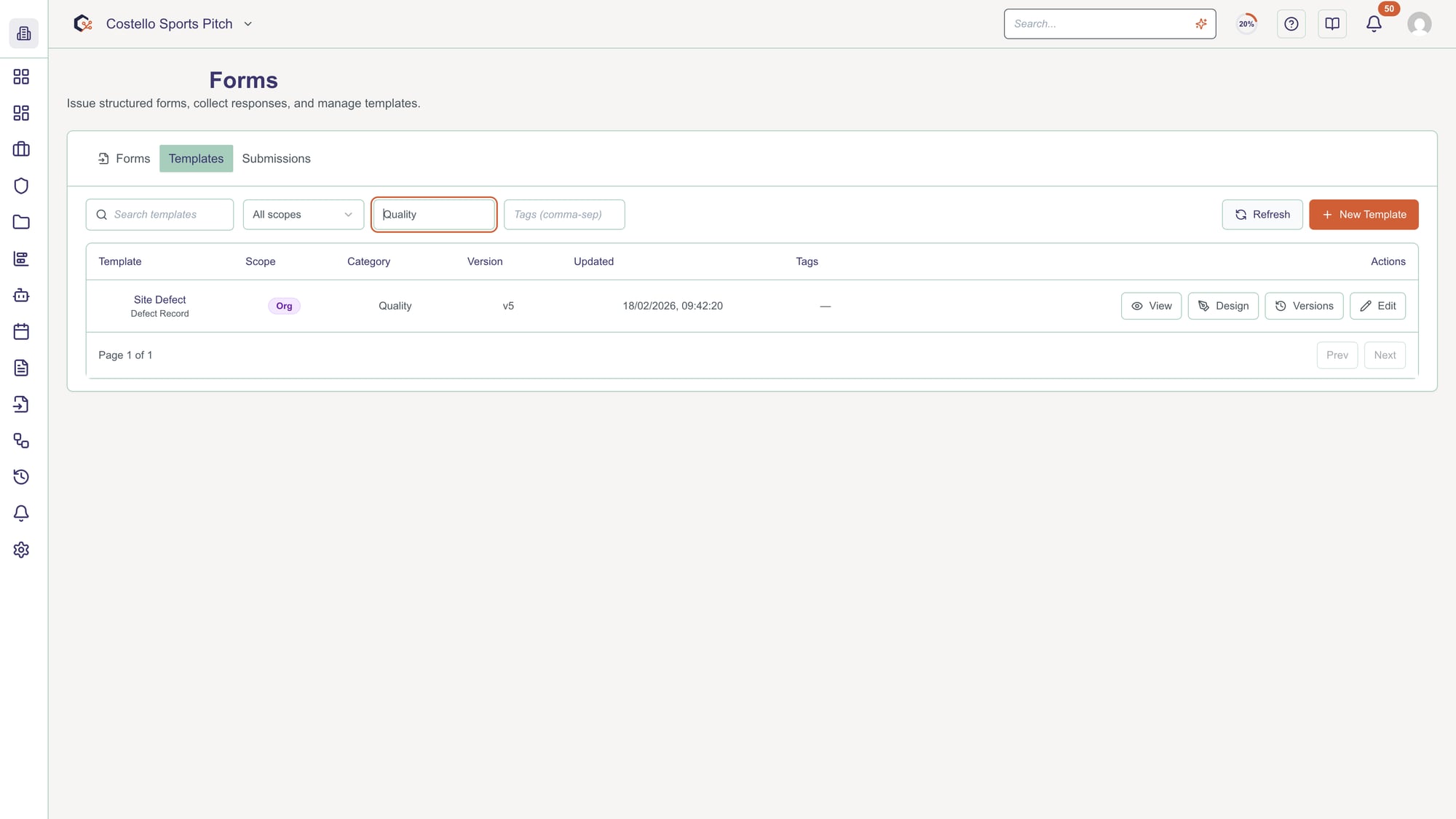
Use the PenTool or design action to open the form builder and create a new version of the chosen template.
Step 6: Review template version history
Click the History or versions action to see previous versions of the template and understand how it has changed over time.
Step 7: View template submissions
Select the FileText or submissions action to see form submissions that use the selected template.
Step 8: Move between pages of templates
Use the pagination controls below the table to move between pages when there are more than 50 templates.

Related Guides
Last updated: 2026-08-31