Share a submission securely
Use the share submission dialog to create secure share links and QR codes so external stakeholders can view a specific submission with the access controls you choose.
This guide is designed for project manager.
Steps
Step 1: Open the share submission dialog
From the submissions view, locate the submission you want to share and select the option to open the Share submission dialog; the dialog appears showing sharing options for the chosen submission.
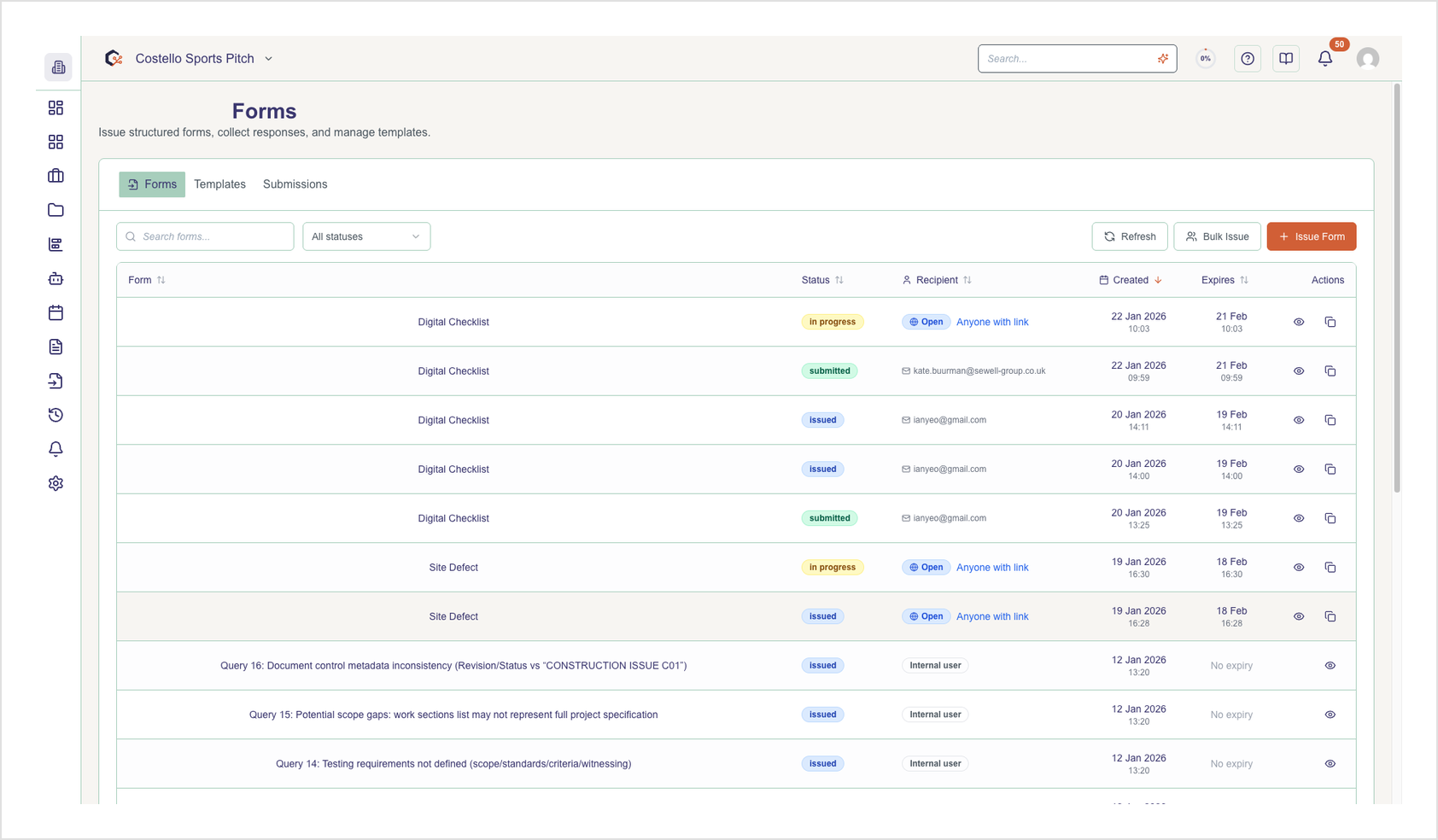
Step 2: Review existing active share links
In the dialog, review any existing active share links listed, including their access details and status, so you can decide whether to reuse, revoke, or create a new share.
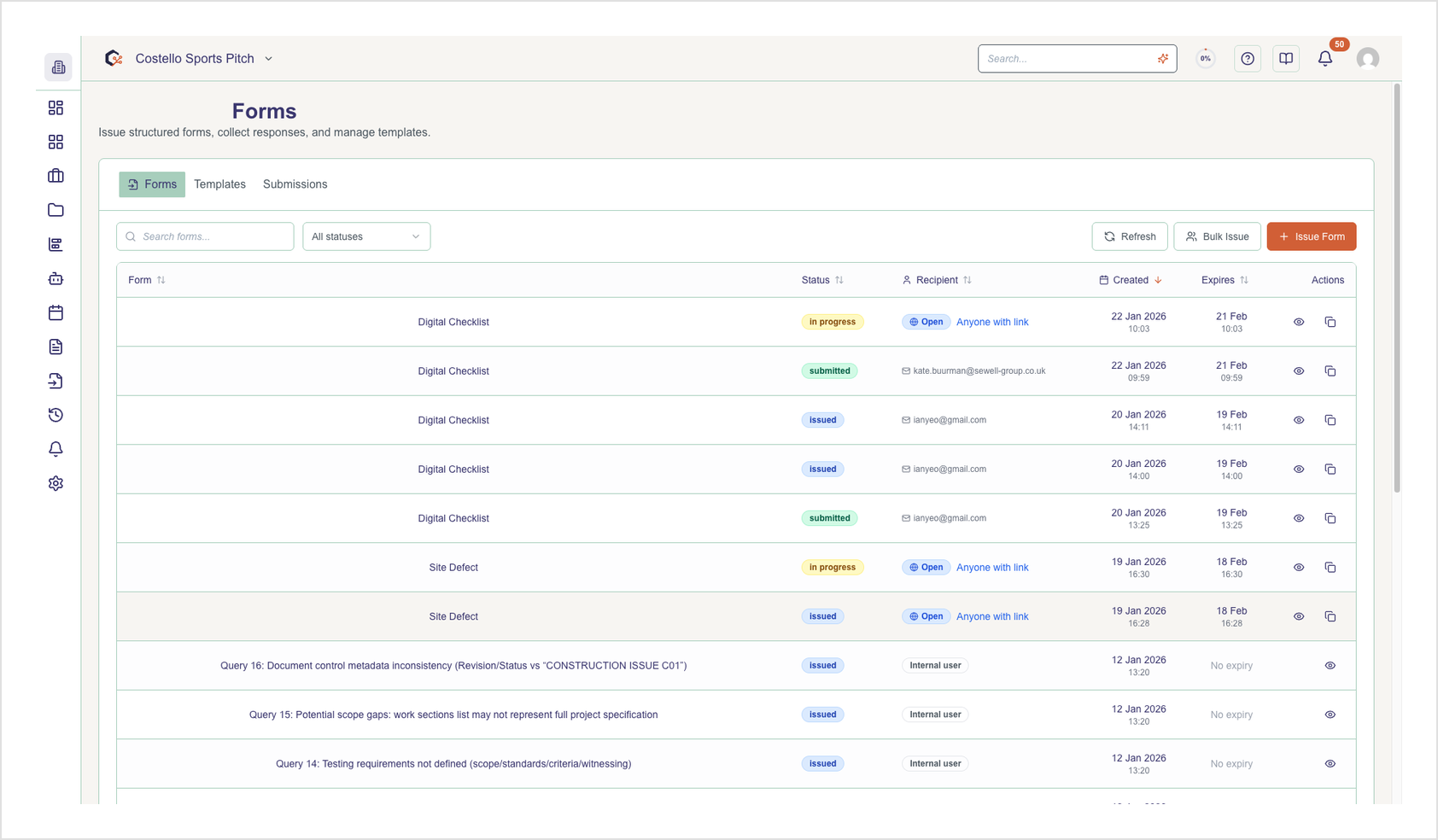
Step 3: Choose the access type
In the access settings area, select whether the shared submission should be public, email-gated, or protected by a password, depending on how strictly you want to control access.
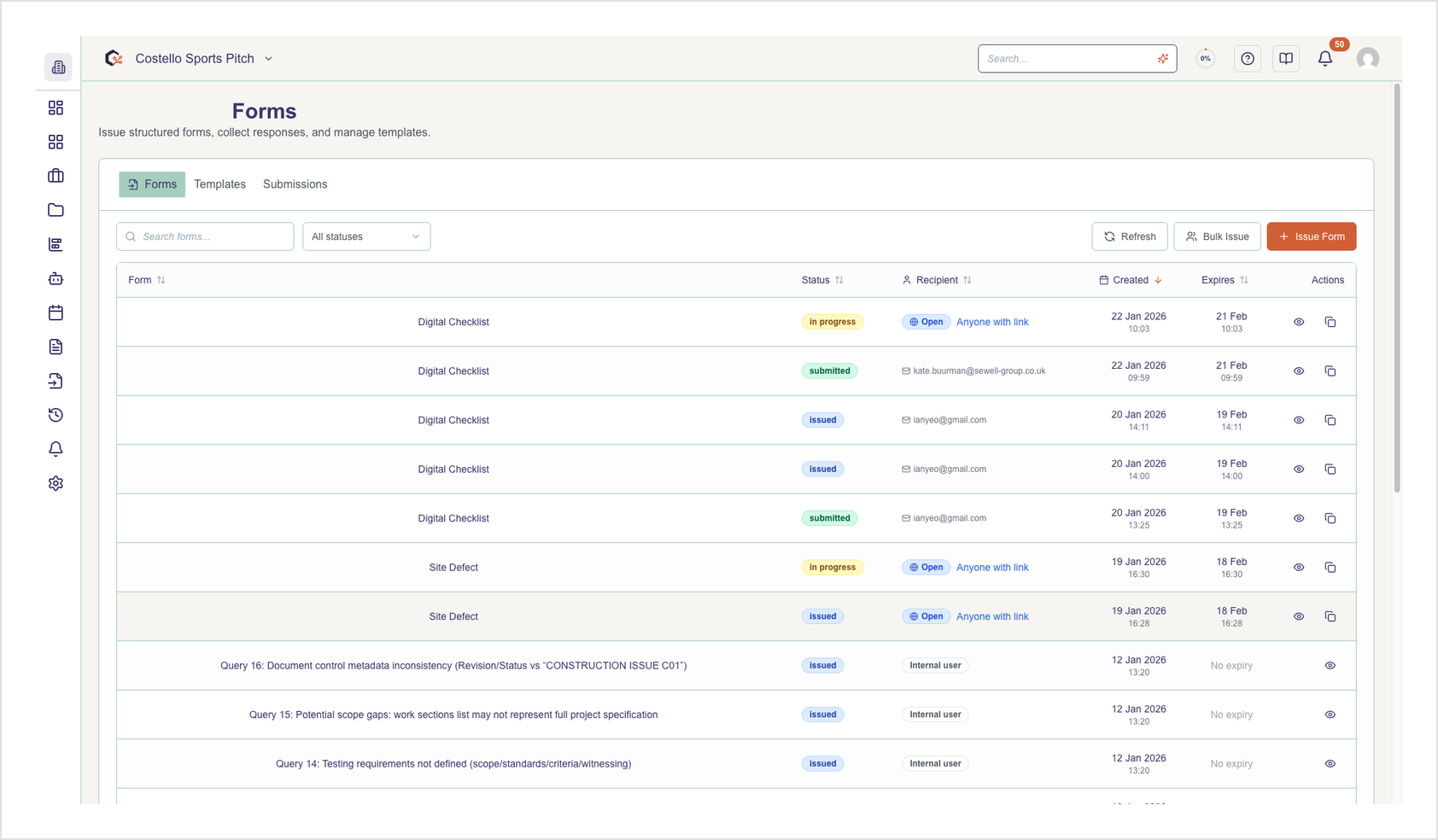
Step 4: Configure security and expiry options
If required, enter a password or the list of allowed email addresses, and set optional limits such as expiration in days and the maximum number of times the link can be accessed.
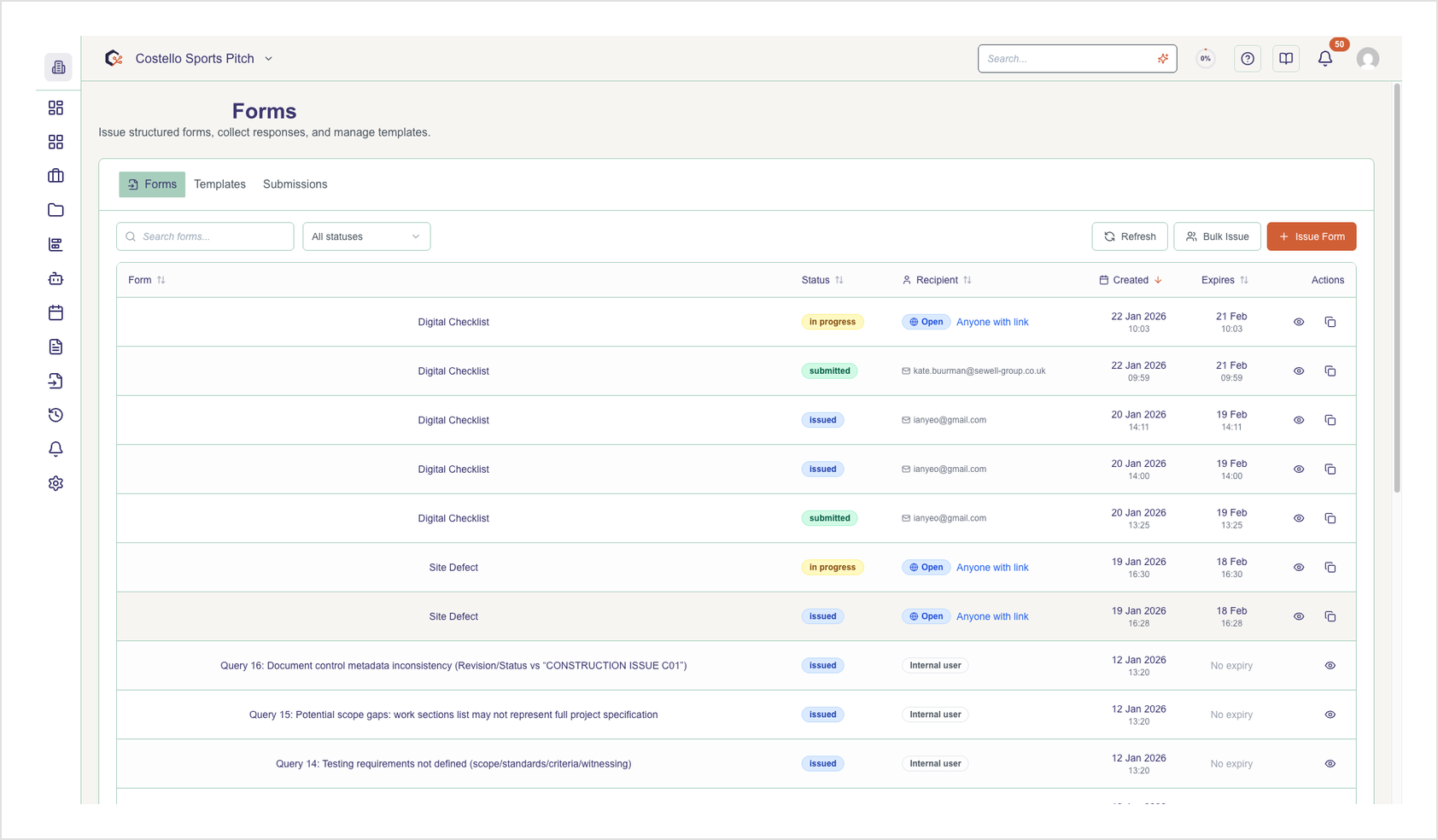
Step 5: Create the share link
Confirm your settings and create the share link; the new share appears in the list of public shares for the submission with its permissions and limits applied.
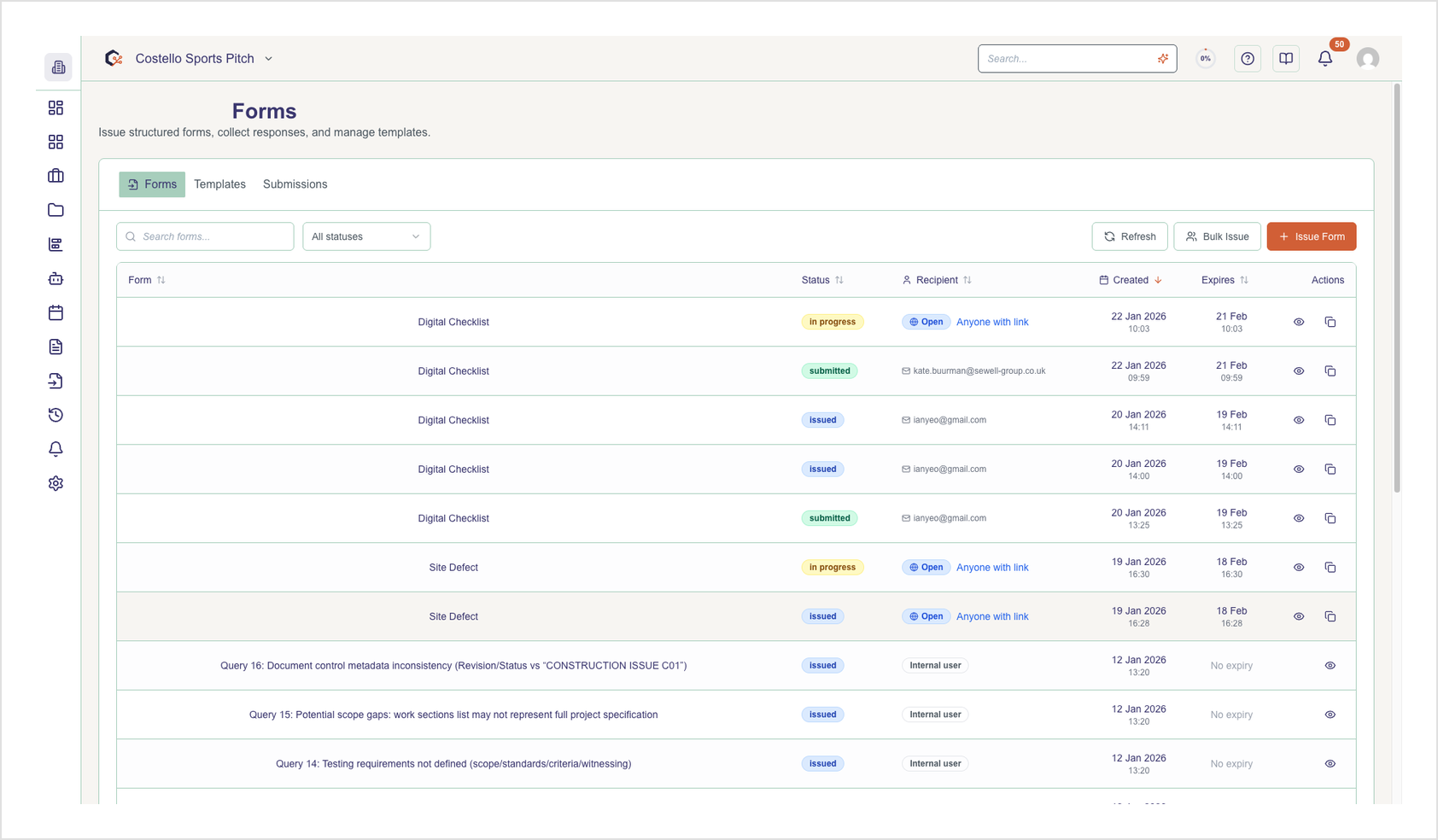
Step 6: Copy the share URL
Next to the share entry, use the copy action to copy the secure share URL to your clipboard, then paste it into an email, chat, or document for your stakeholders.
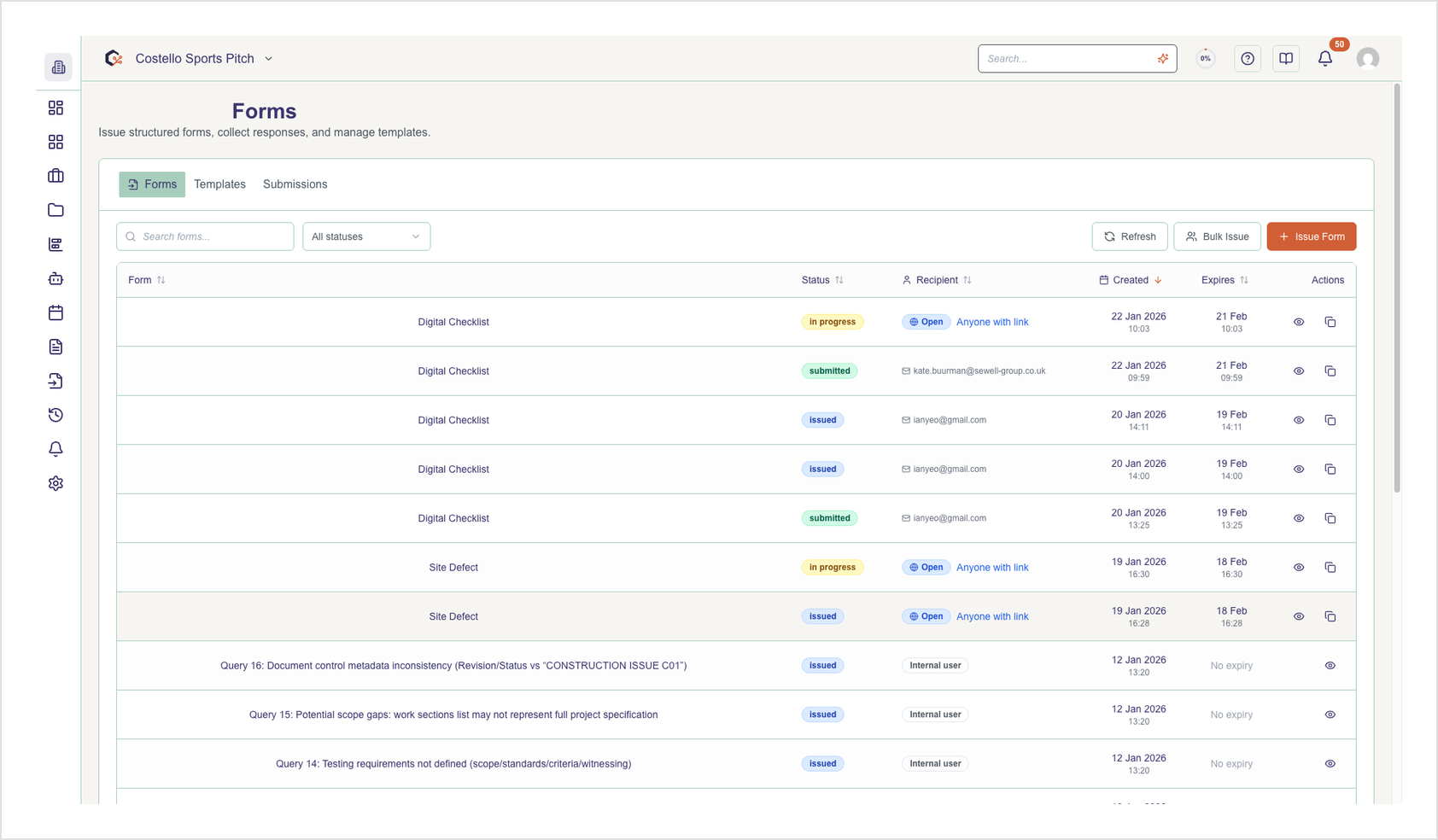
Step 7: Generate and view a QR code
For any active share link, choose the QR code option to generate a QR code; once generated, you can open it in the dialog for on-screen display or quick scanning.
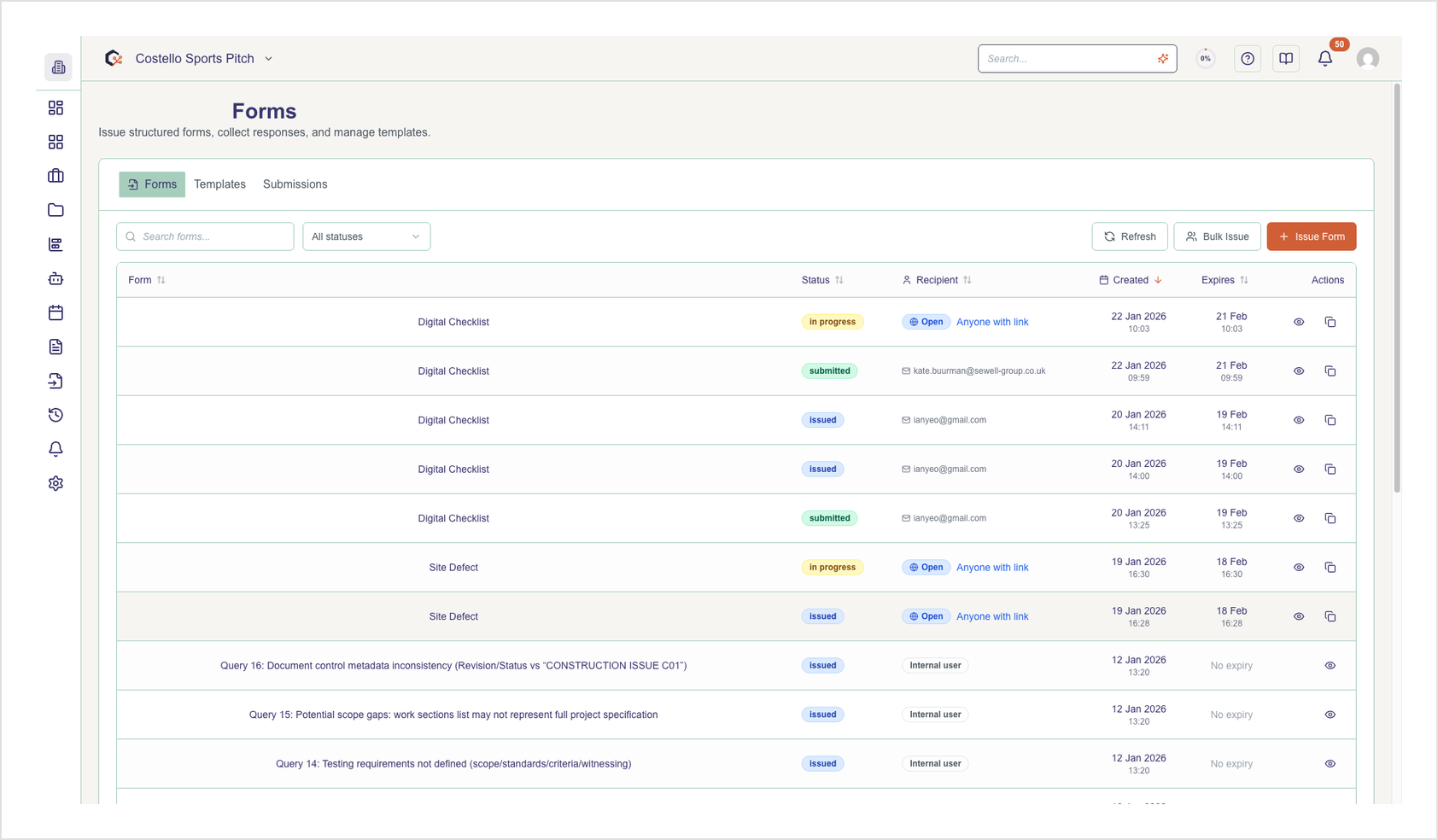
Step 8: Download the QR code
Use the download QR code action to save the generated QR code image to your device so you can embed it in presentations, reports, or printed materials.
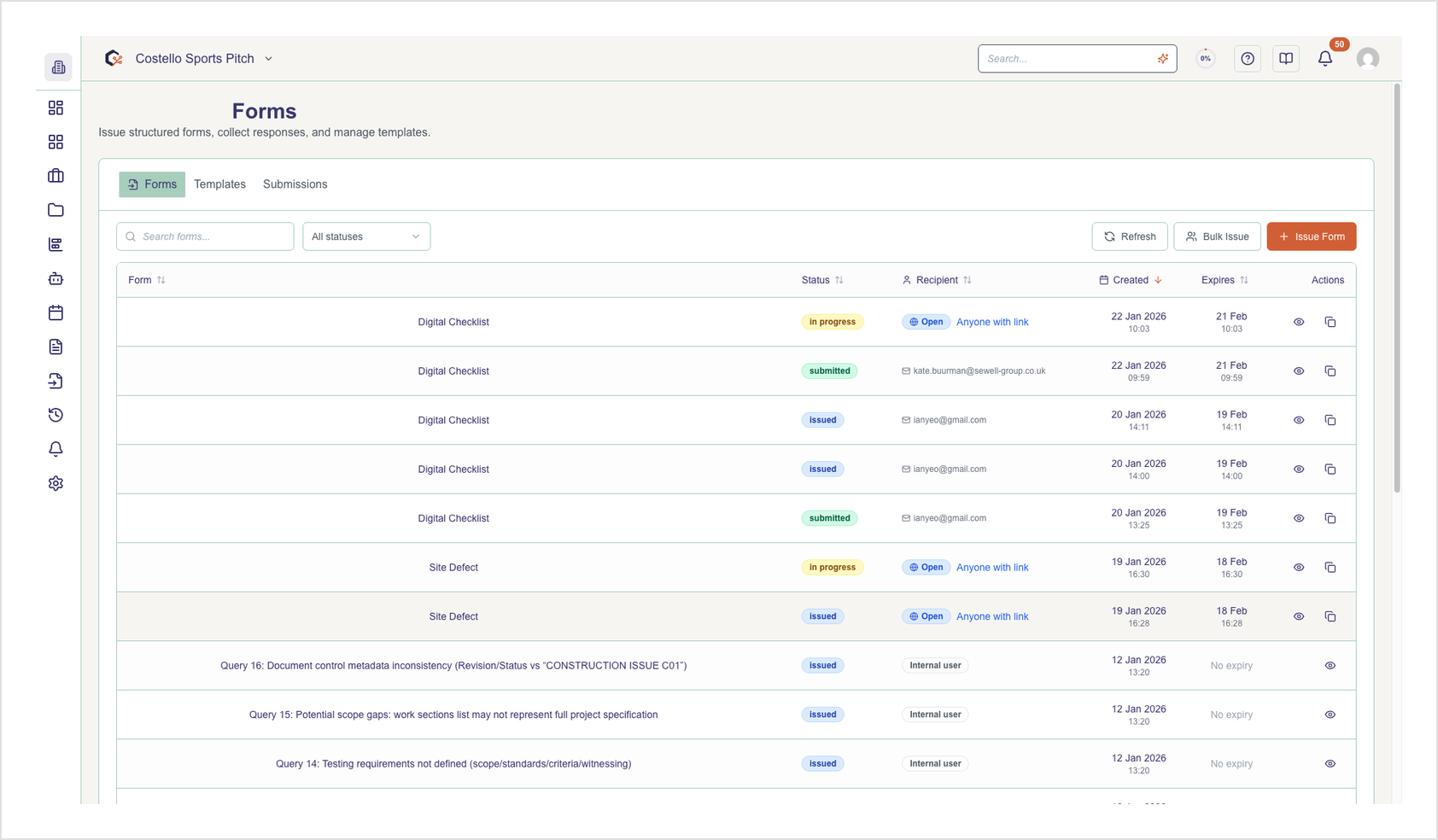
Step 9: Revoke a share link
If a share link should no longer be used, select the revoke or delete option next to that share; the link and its QR code will stop working for anyone who tries to access them.
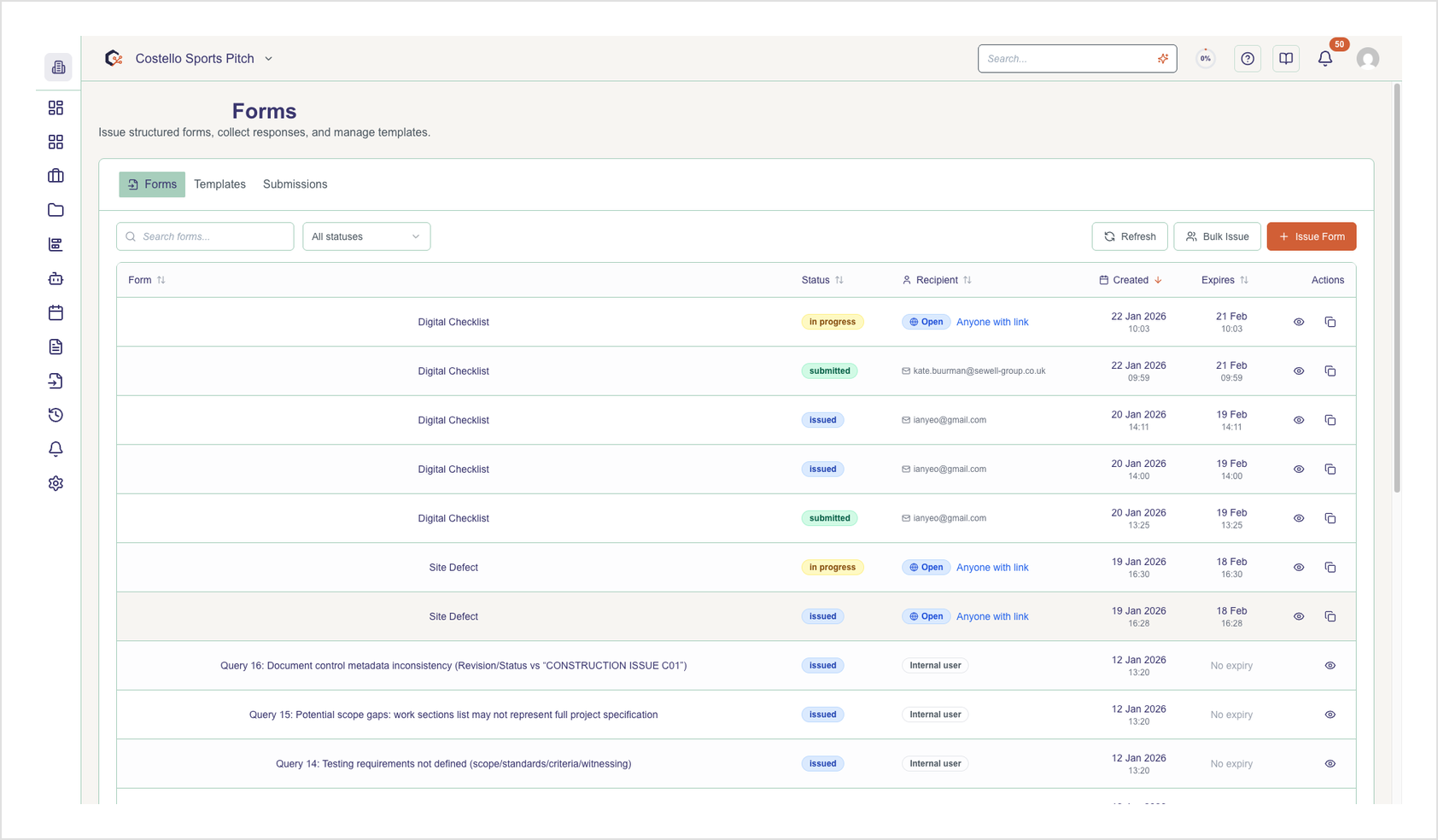
Step 10: Close the dialog
When you have finished managing share links and QR codes, close the dialog to return to your submissions view; your changes are saved automatically.
Related Tasks
Last updated: 2026-01-19