Insert template variables into your form
Use the template variable drawer to quickly find and insert dynamic placeholders (such as user, project or date details) into form templates.
This guide is designed for project manager.
Steps
Step 1: Open the template variable drawer
In the form builder, click the control or button to insert a variable; the template variable drawer slides in from the side, showing available categories such as User, Form, Project, Organisation and Date & Time.
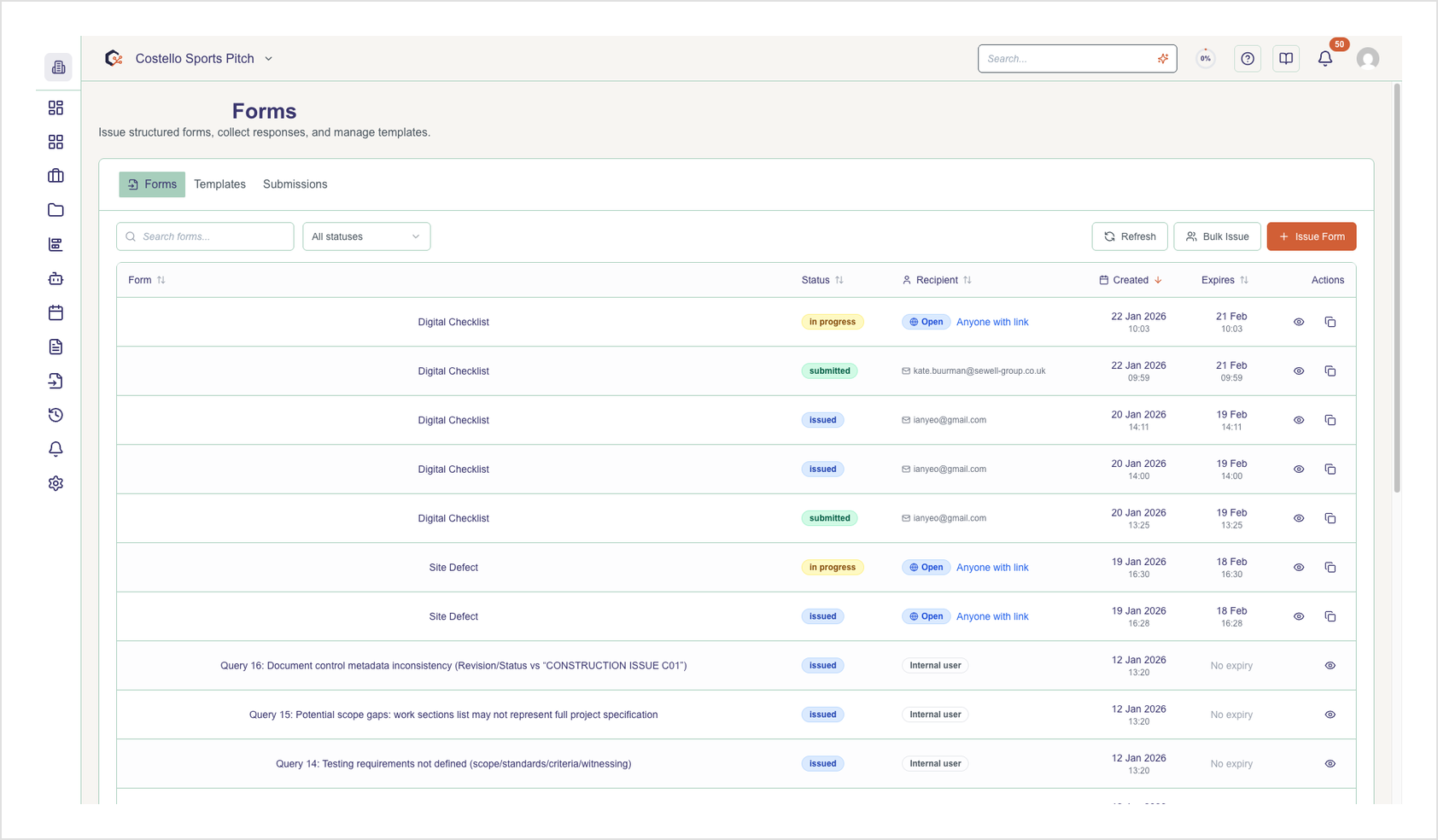
Step 2: Search for a template variable
Type a keyword into the search bar at the top of the drawer to filter the list of variables; the list updates instantly so you can focus on the most relevant options.
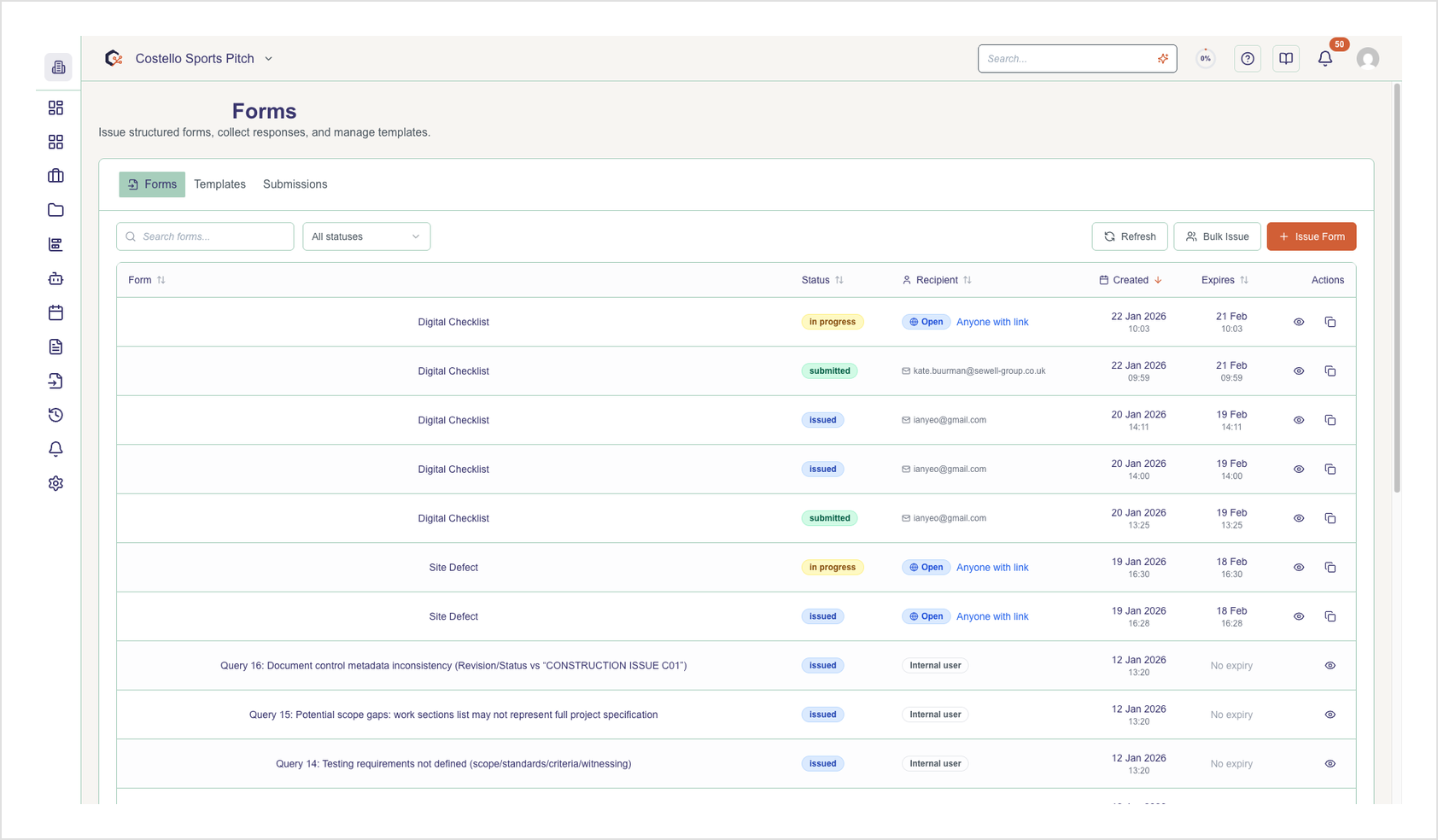
Step 3: Browse variables by category
Scan the grouped list of variables, organised into categories with matching icons and emojis (for example, 👤 User or 📁 Project), to understand what information each variable will pull into your template.
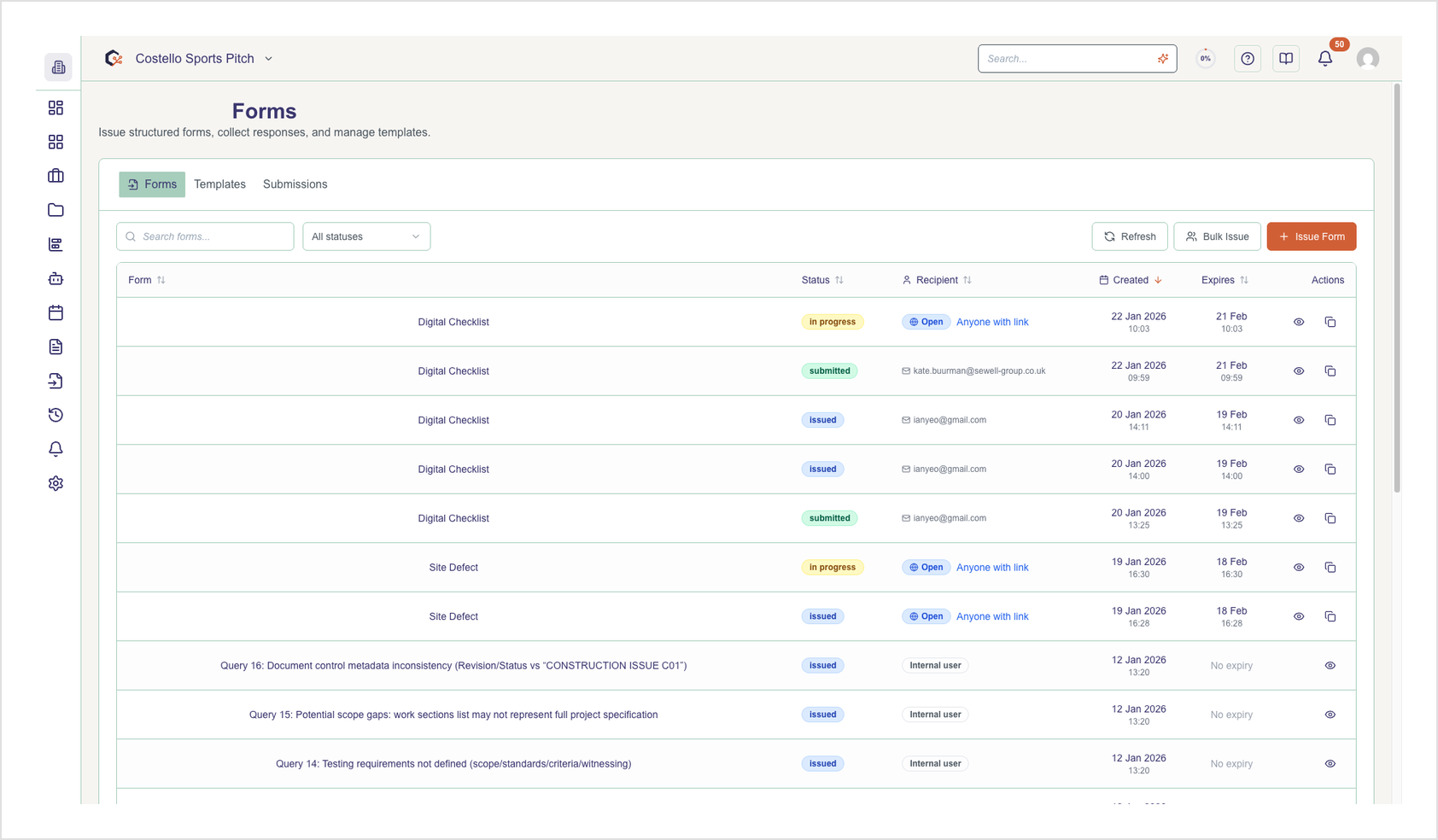
Step 4: Select a variable with mouse or keyboard
Use the mouse to click a variable in the list, or navigate using the arrow keys and press Enter; the selected variable is highlighted so you can clearly see which one will be inserted.
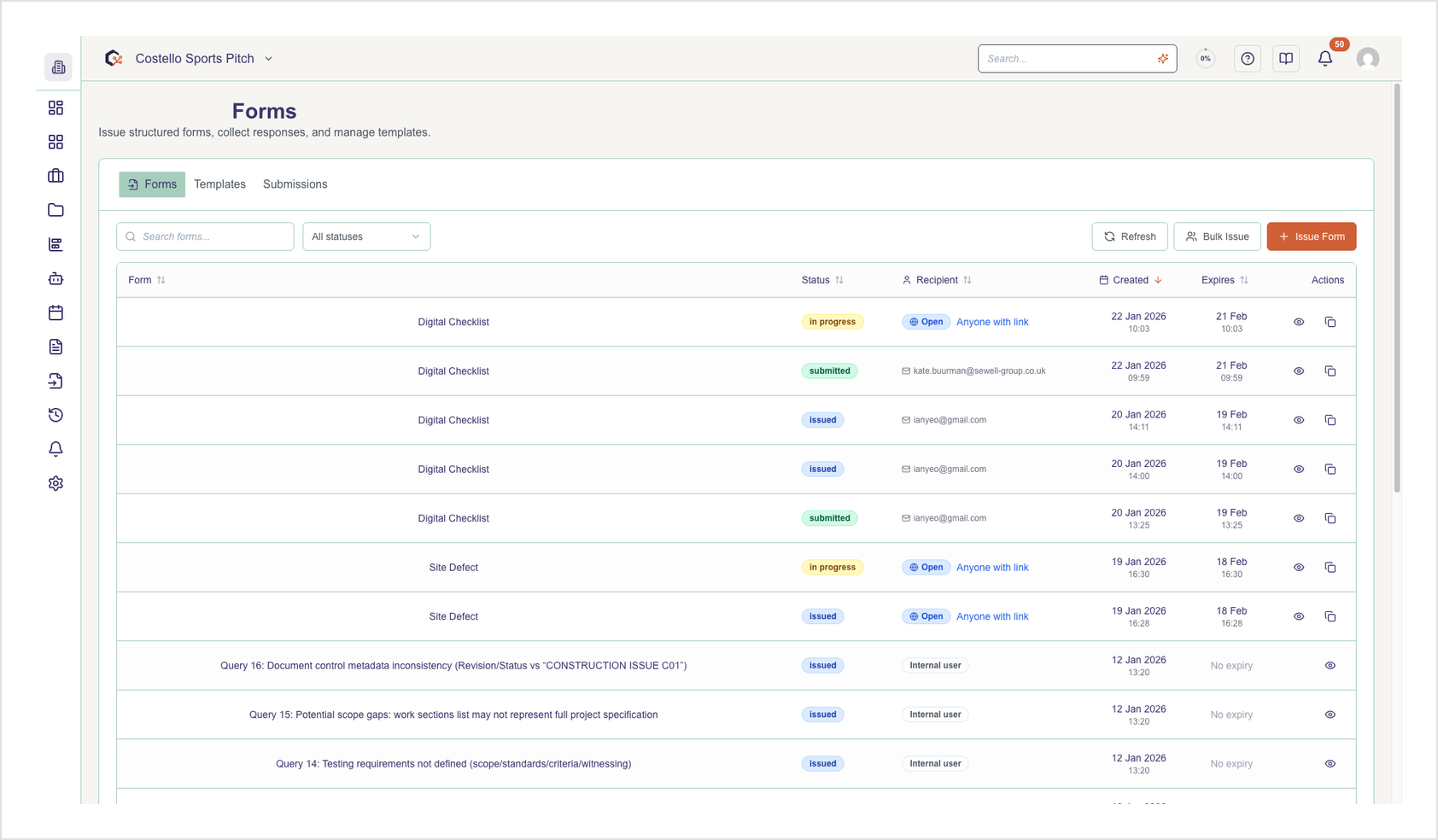
Step 5: Insert the chosen variable into your form
After selecting a variable, the drawer closes and the variable placeholder is inserted into the current field or configuration in your form builder, ready to be used in live submissions.
Step 6: Reopen the drawer to insert more variables
If you need additional placeholders, reopen the template variable drawer and repeat the search and selection process until your form content includes all the dynamic fields you require.
Last updated: 2026-01-10