Edit a temporary works record
Use the edit wizard to review and update an existing temporary works record, with fields gated by phase and status.
This guide is designed for project manager.
Steps
Step 1: Open the temporary works edit wizard
Navigate to the relevant project, locate the temporary works item you need to change, and choose the option to edit it. The edit wizard opens with the existing details loaded.

Step 2: Review status and edit permissions
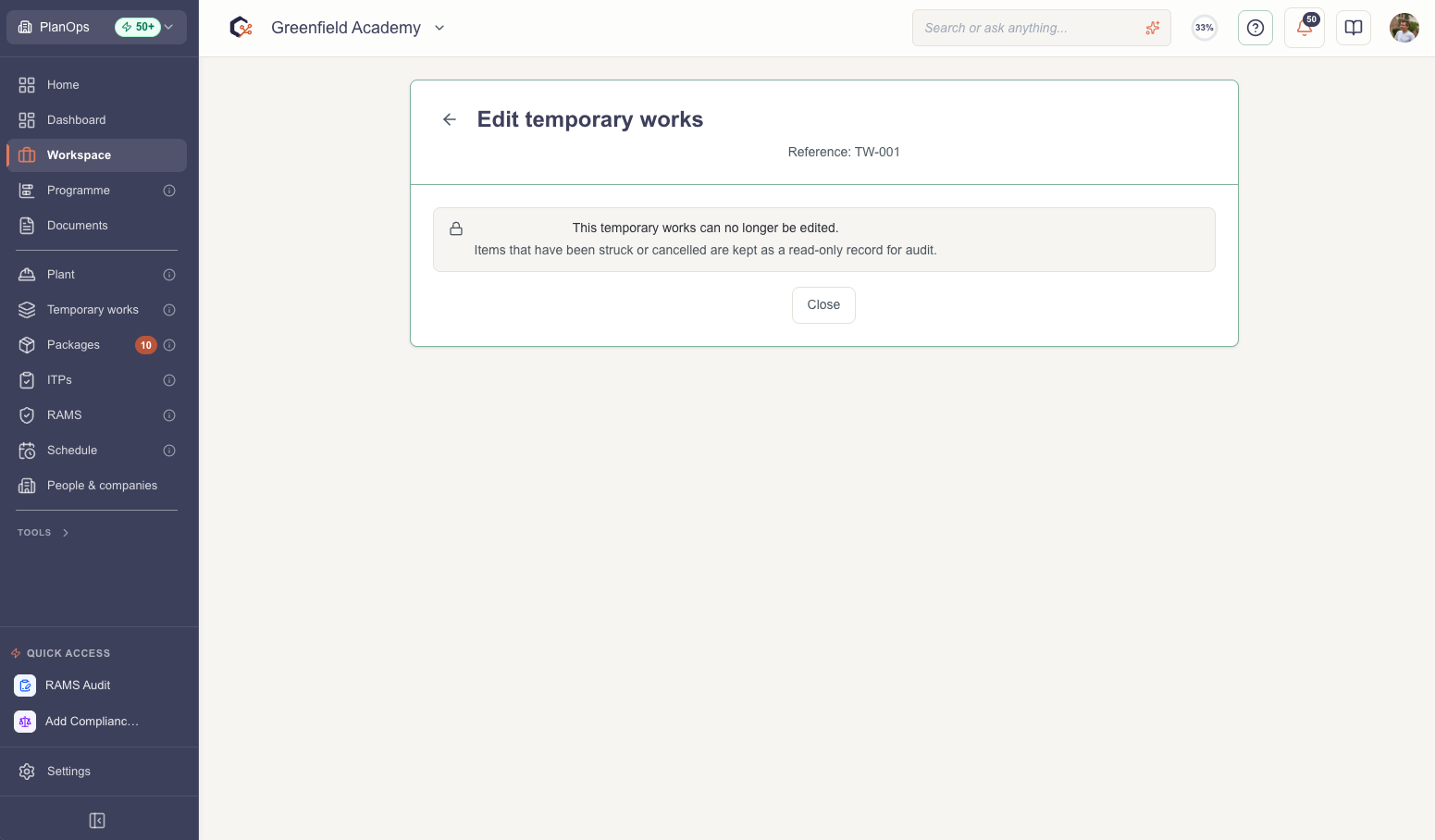
At the top of the wizard, check the status of the temporary works item. If it is struck or cancelled, the wizard will show a read-only notice and you will not be able to change any fields.
Step 3: Update the available fields for the current phase
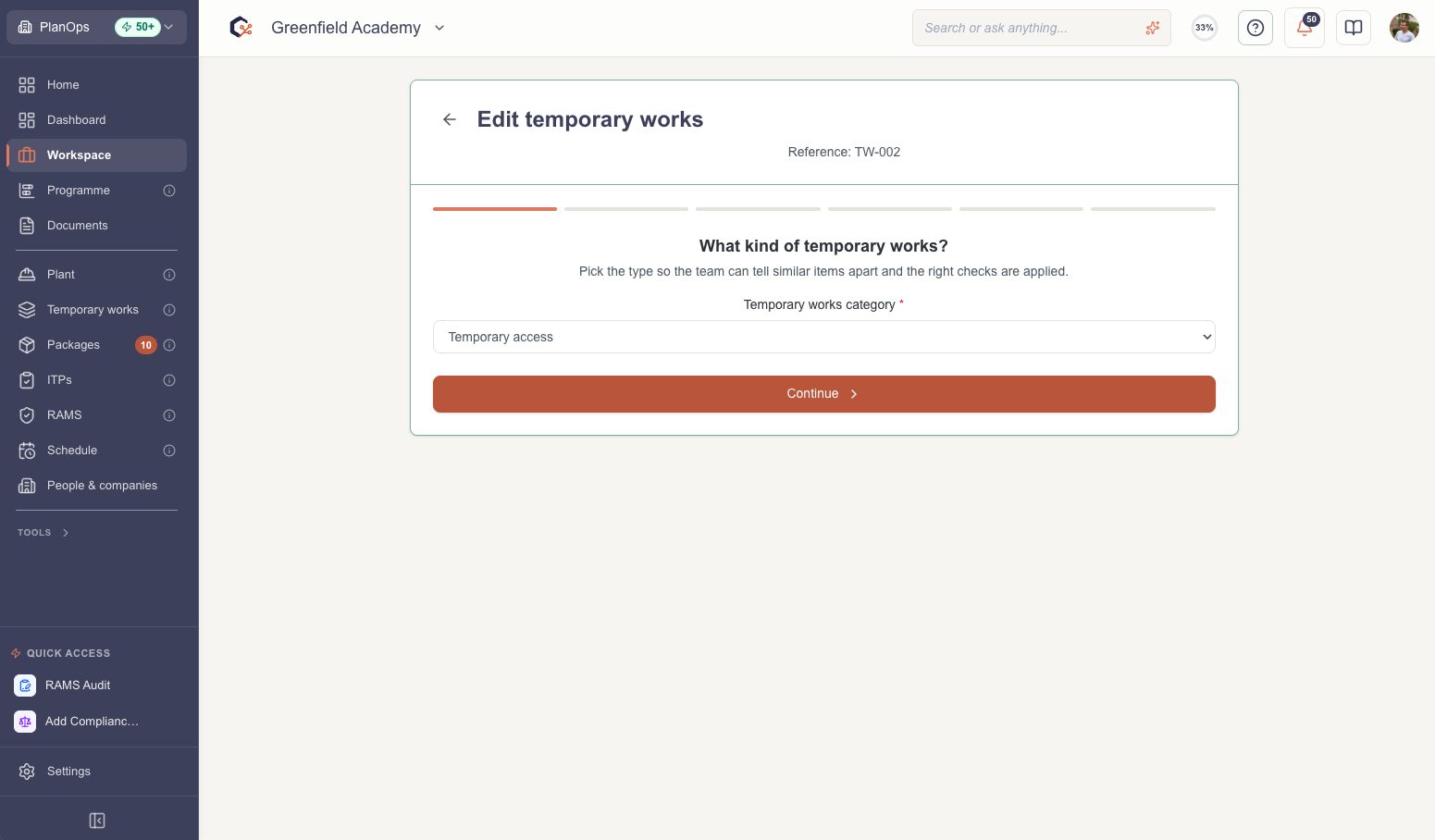
For active items, work through the form sections shown for the current phase, updating only the fields that are editable at this stage of the lifecycle.
Step 4: Use pickers and guided inputs
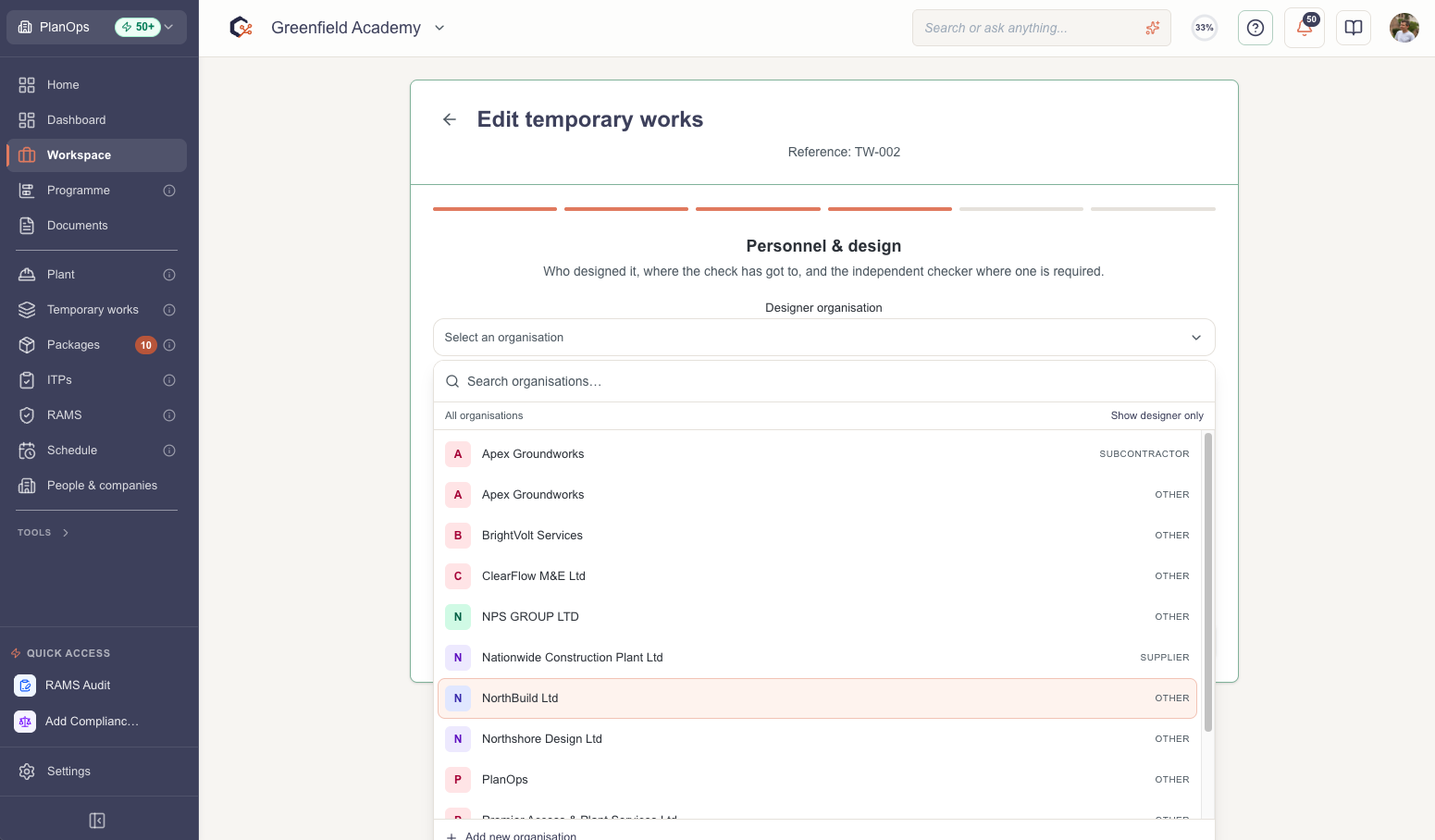
Where pickers are provided, select values from the configured lists instead of typing free text, so that data stays consistent with the lifecycle configuration.
Step 5: Save your draft progress
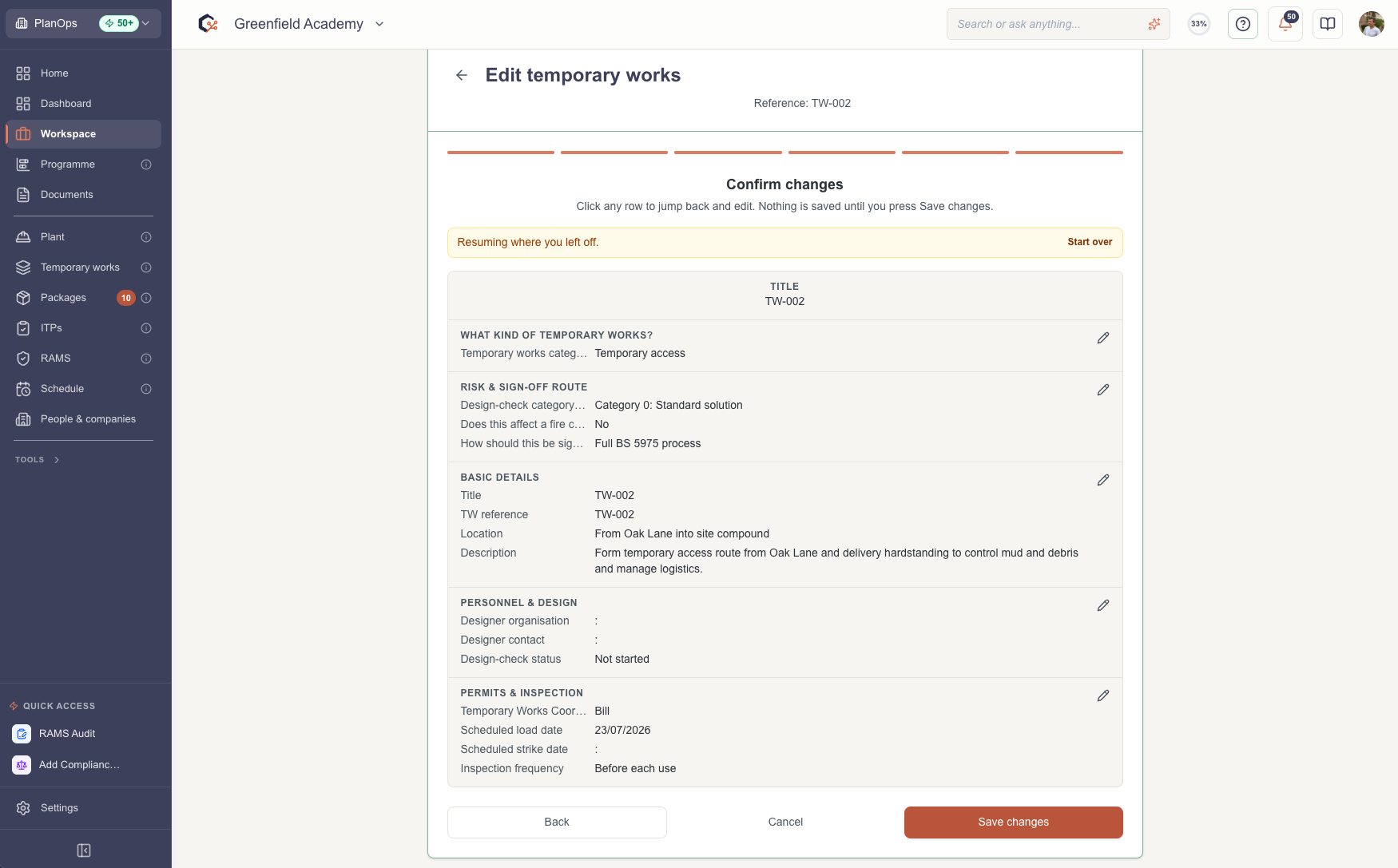
As you move through the wizard, your changes are stored in the browser for this specific temporary works item, so you can safely navigate between steps without losing your draft.
Step 6: Submit the updated temporary works record
When you are satisfied with your changes, select the option to submit or save. The system sends an update for this temporary works record and returns you to the temporary works item.
Step 7: Cancel editing without saving
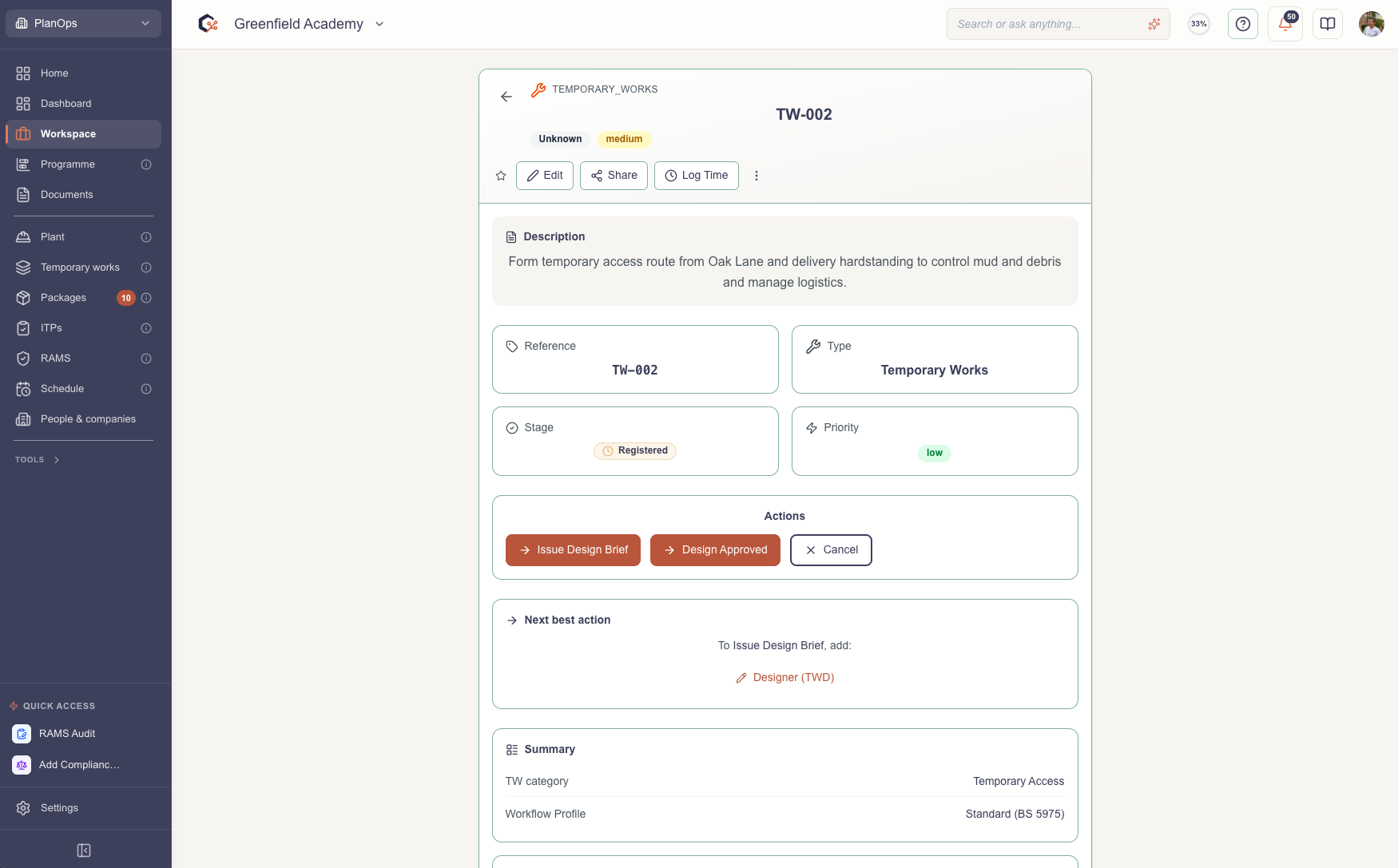
If you decide not to proceed, use the cancel option to close the wizard and discard your unsaved changes for this editing session.

Last updated: 2026-07-14T00:00:00.000Z