Compare two drawing revisions and see what's changed
Line up two versions of a drawing side by side so you can spot exactly what's changed before you carry on with the work.
This guide is designed for project manager.
Steps
Step 1: Open a drawing with a previous revision
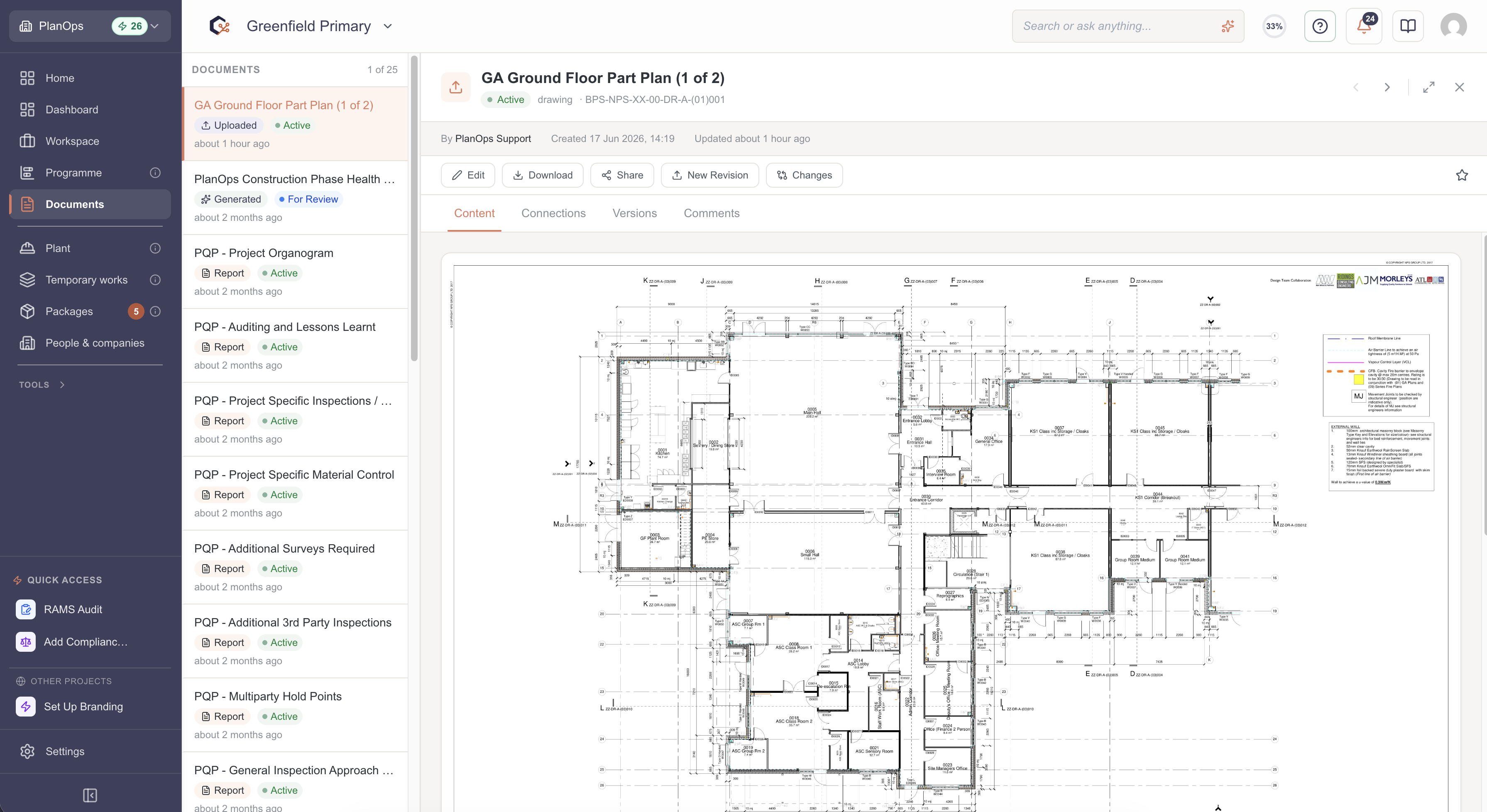
Go to a drawing that has an earlier version to compare against, and click on it to open it.
Step 2: Open the comparison view
Click on "changes" to open the comparison view, so you can see the current revision alongside the earlier one.
Step 3: Look at the highlighted changes
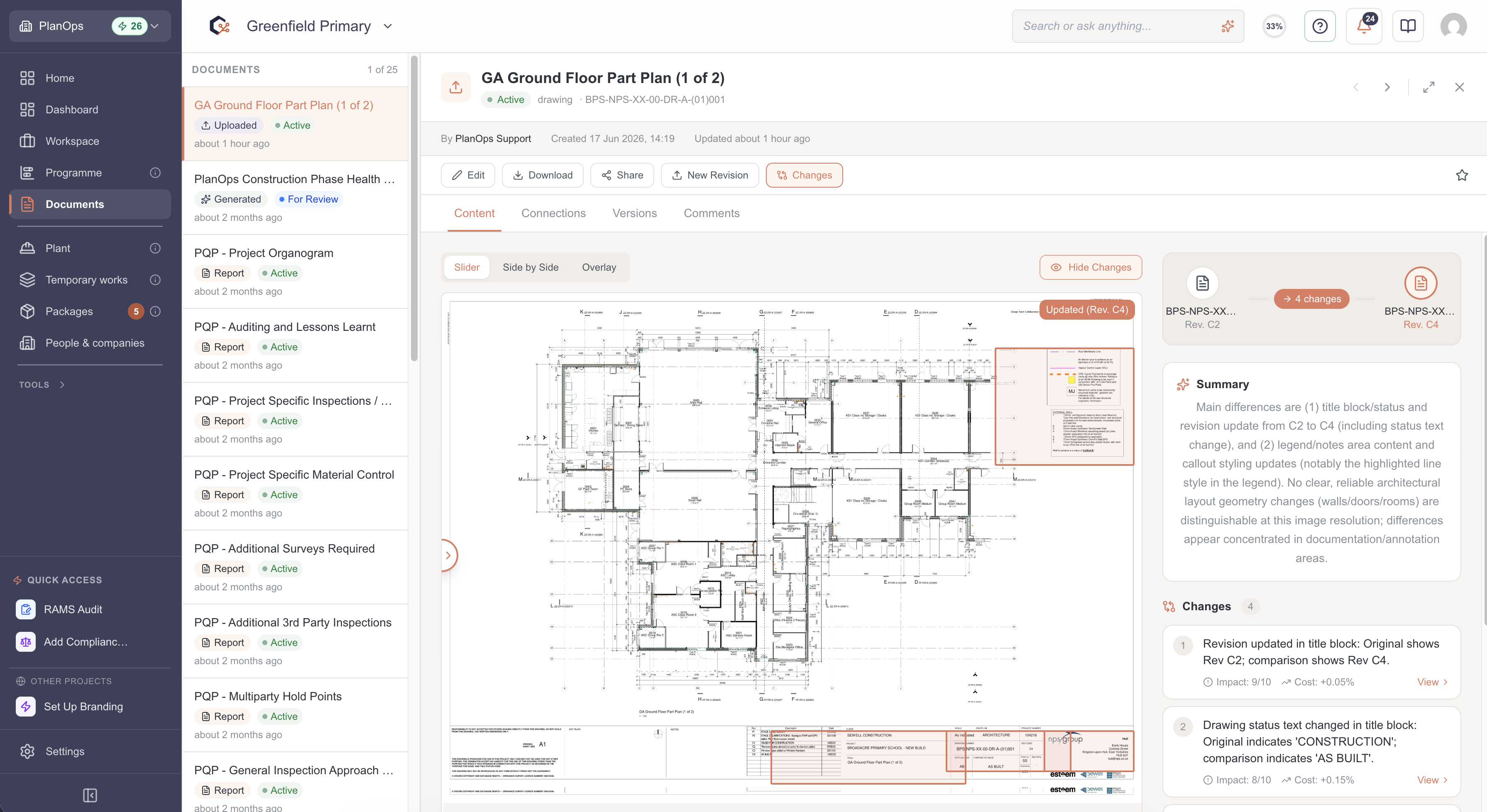
The comparison shows boxes drawn around anything that's different between the two versions. Each box marks an area that's changed, so you know exactly where to look.
Step 4: Choose the layout that suits you
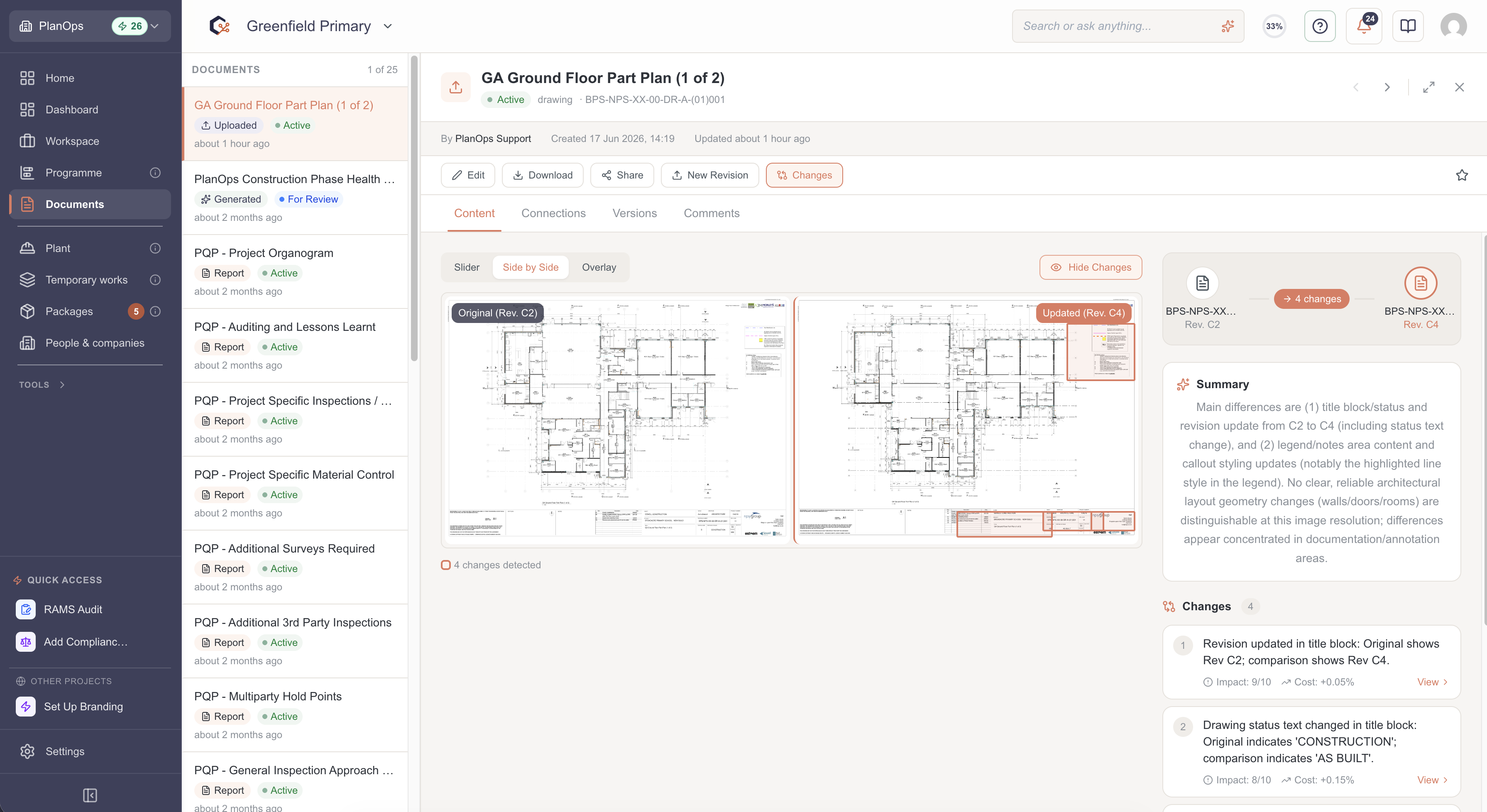
Switch between slider, side-by-side, or overlay views to find whichever makes the changes easiest to see on your screen.
Step 5: Move around the drawing
Click and drag, or use touch gestures, to move around the drawing and check changes in different areas.
Step 6: Zoom in on the detail
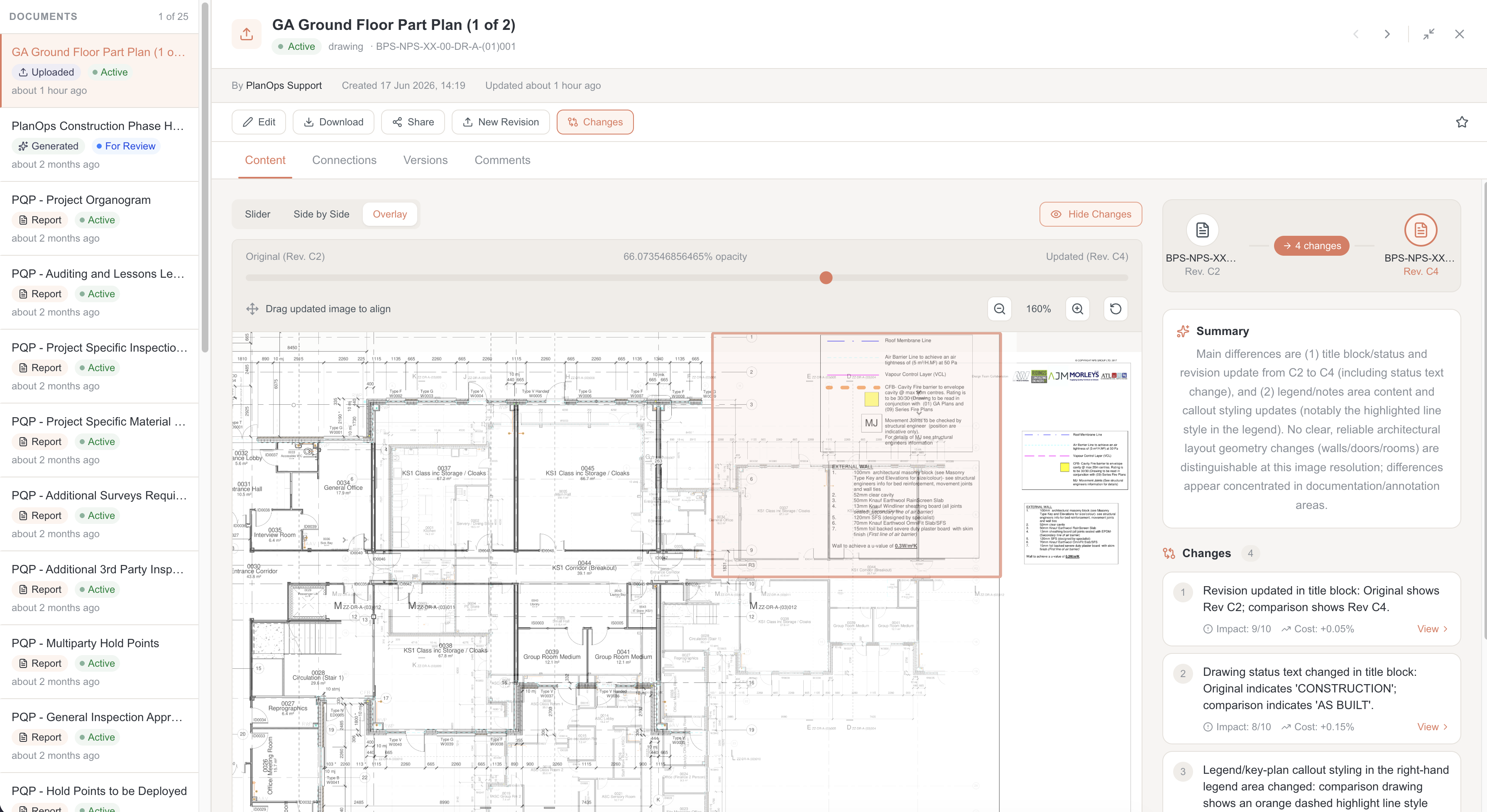
Use the zoom controls or a pinch gesture to get in close on any change so you can confirm exactly what's been altered.
Step 7: Reset the view
Use the reset or fit-to-screen button to snap the view back to its starting position and zoom level once you've finished panning and zooming.
Last updated: 2026-07-04