Upload an updated version of a document
Upload the latest version of a document you've already got in the project, so everyone's working from the newest copy instead of an out-of-date one.
This guide is designed for project-manager, design-manager.
Steps
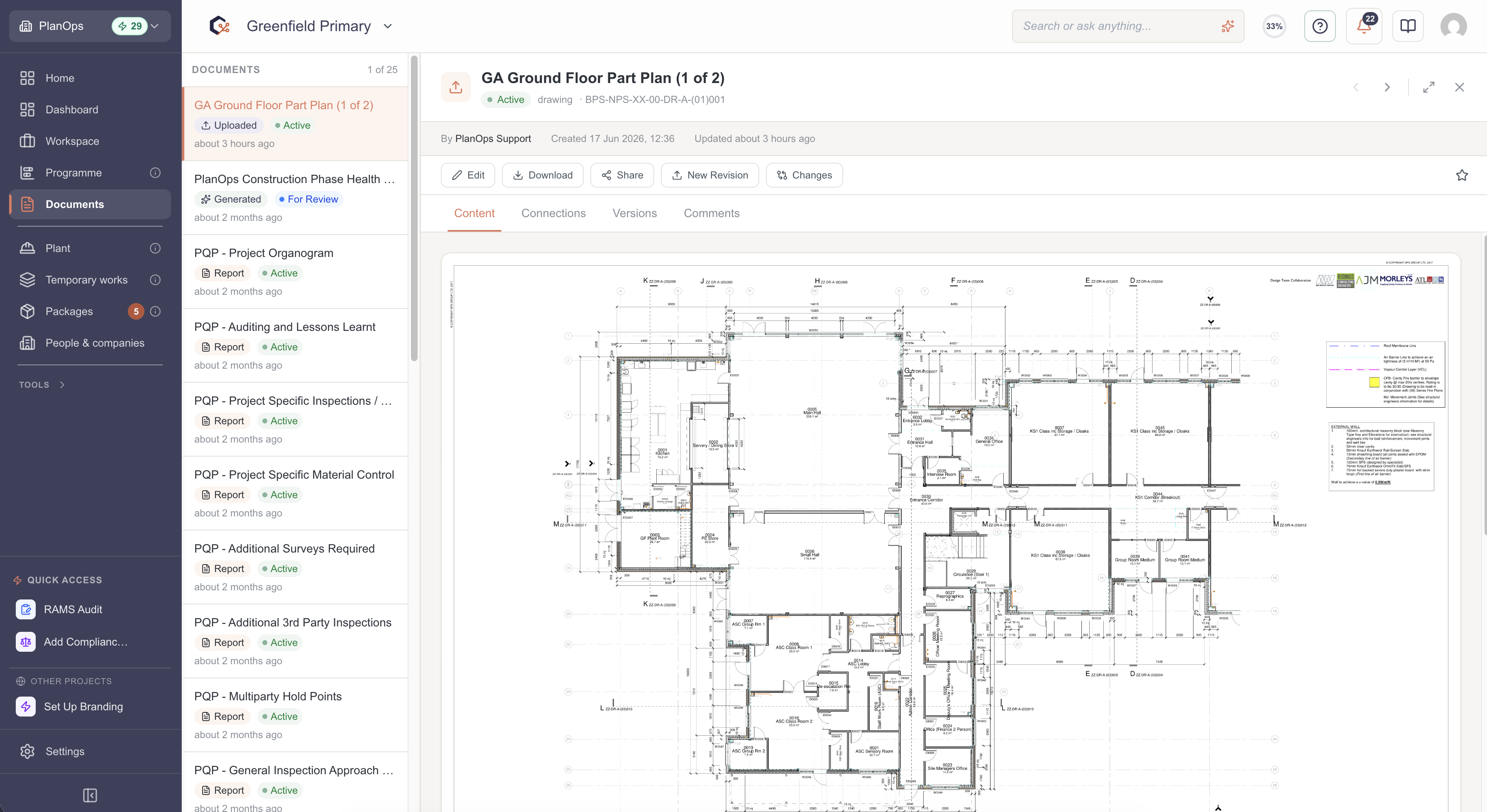
Step 1: Open the revision upload screen
Find the existing document in your project and choose the option to upload a revision. This opens a screen showing the document's current name, type and details so you can confirm it's the right one.
Step 2: Check what file types are accepted
Before you upload, look at the notes on file types and size limits so you know your new file will be accepted.
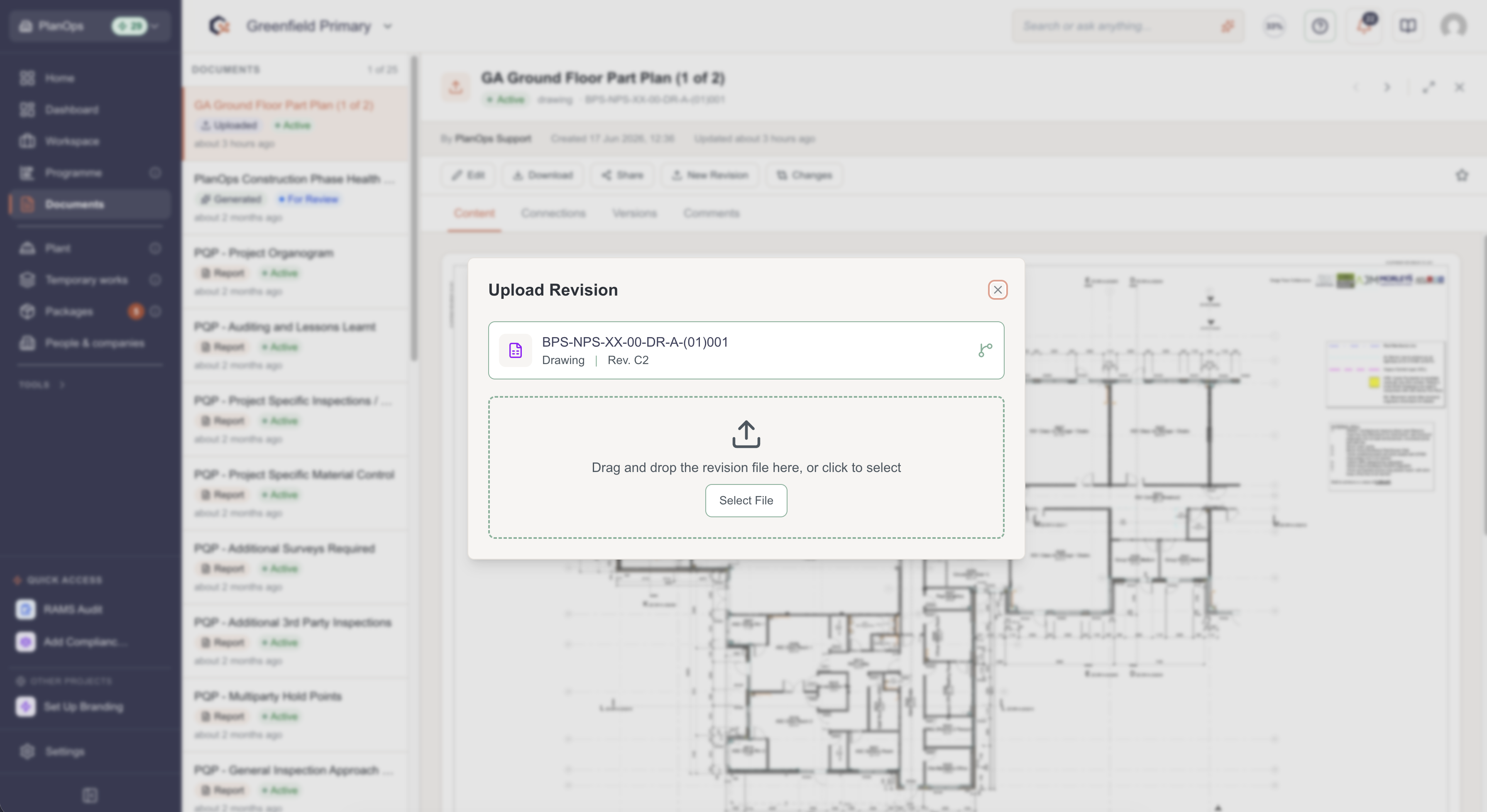
Step 3: Choose or drag in the new file
Either click the upload area to browse your computer for the new version, or drag the file straight in. Once it's picked, it'll show in the list ready to go.
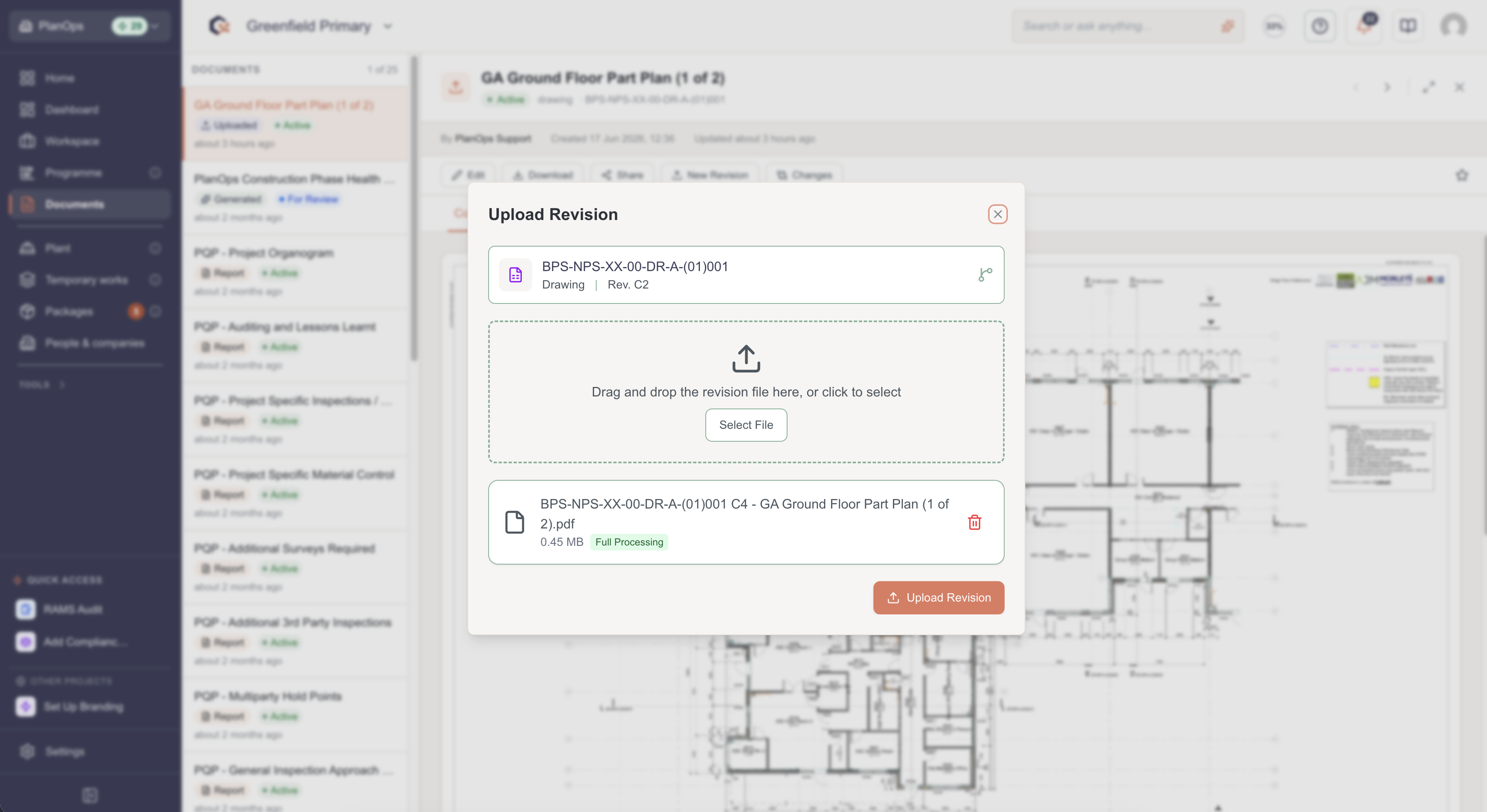
Step 4: Send the new version up
Click upload to send the new revision. You'll see a loading indicator while it's being processed.
Step 5: Check it's gone through
Once it's done, look for the success message. The document list will now show the new revision. Once processing finishes, it replaces the old version as the current document.
Last updated: 2026-07-04