Search for anything across your projects
Use search to find a document, task, RFI, person, or meeting fast, without clicking through menus, then jump straight to it.
This guide is designed for project manager.
Steps
Step 1: Open search
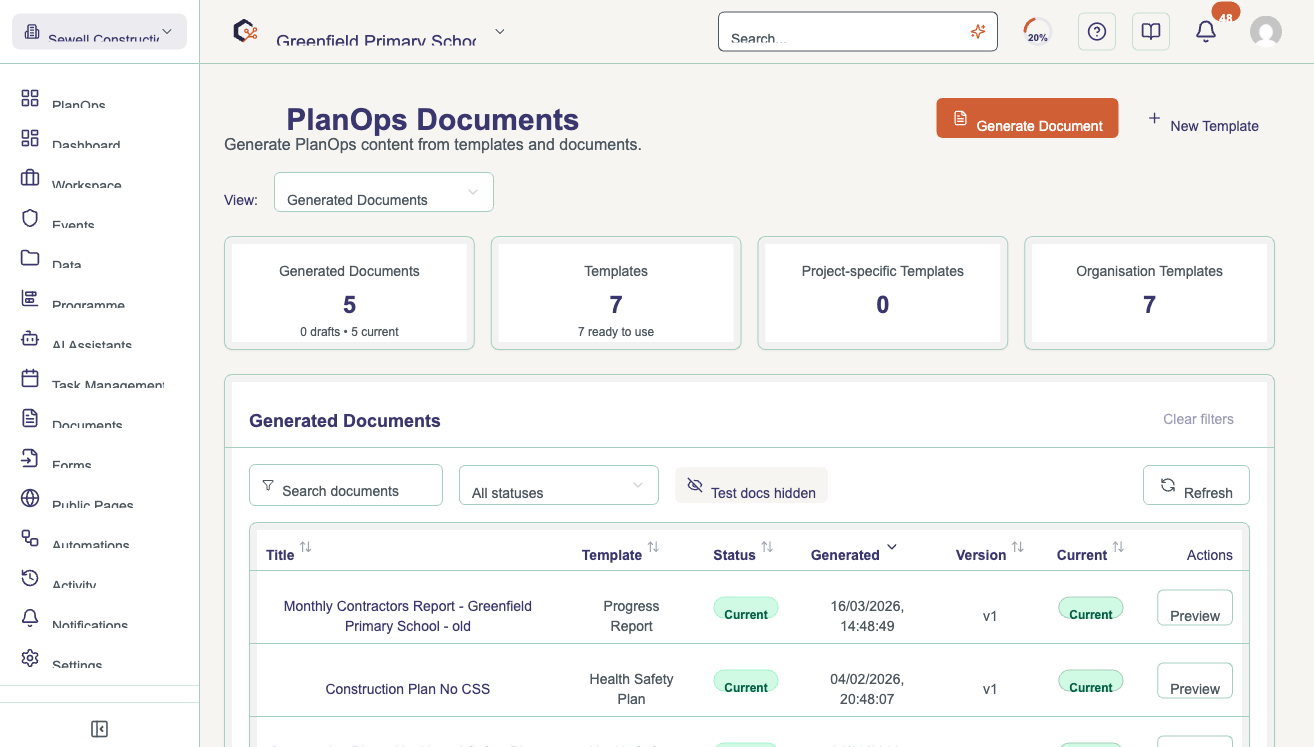
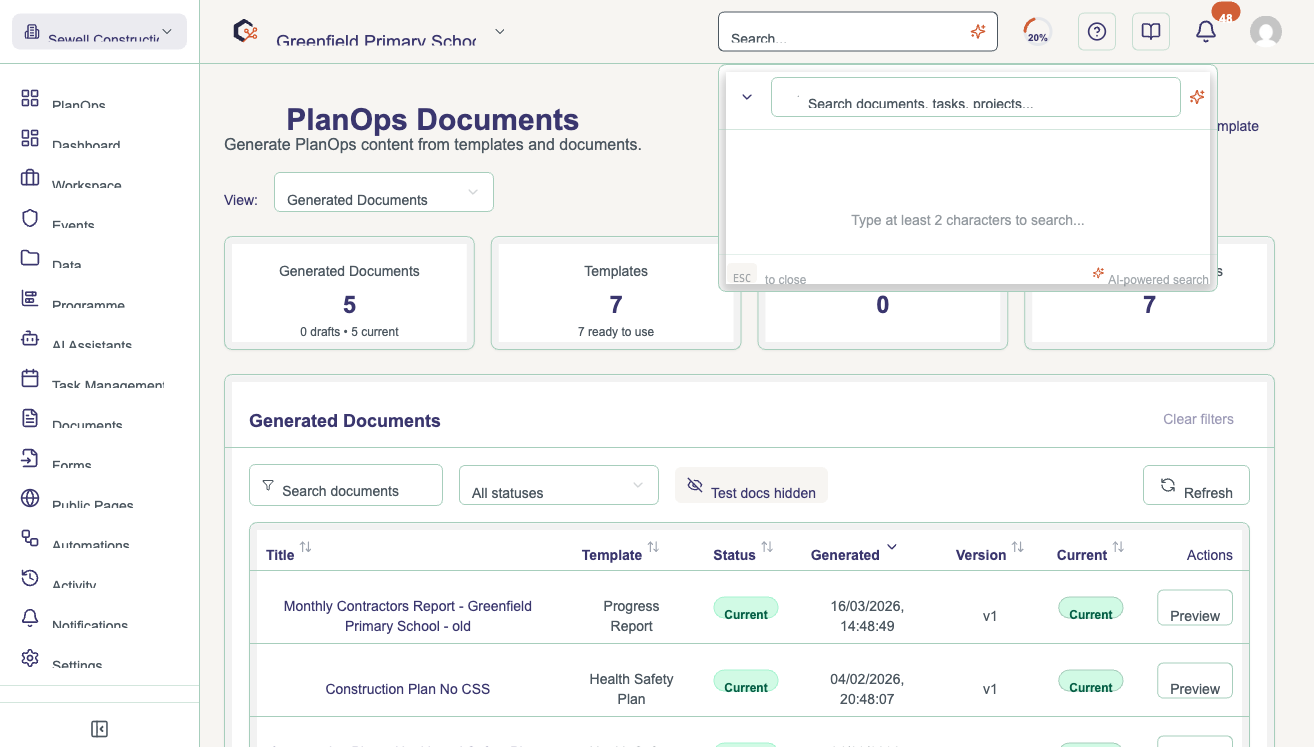
Press the keyboard shortcut, or select the search icon at the top of the screen. A search box opens in the middle of the screen, with recent or suggested results already showing.
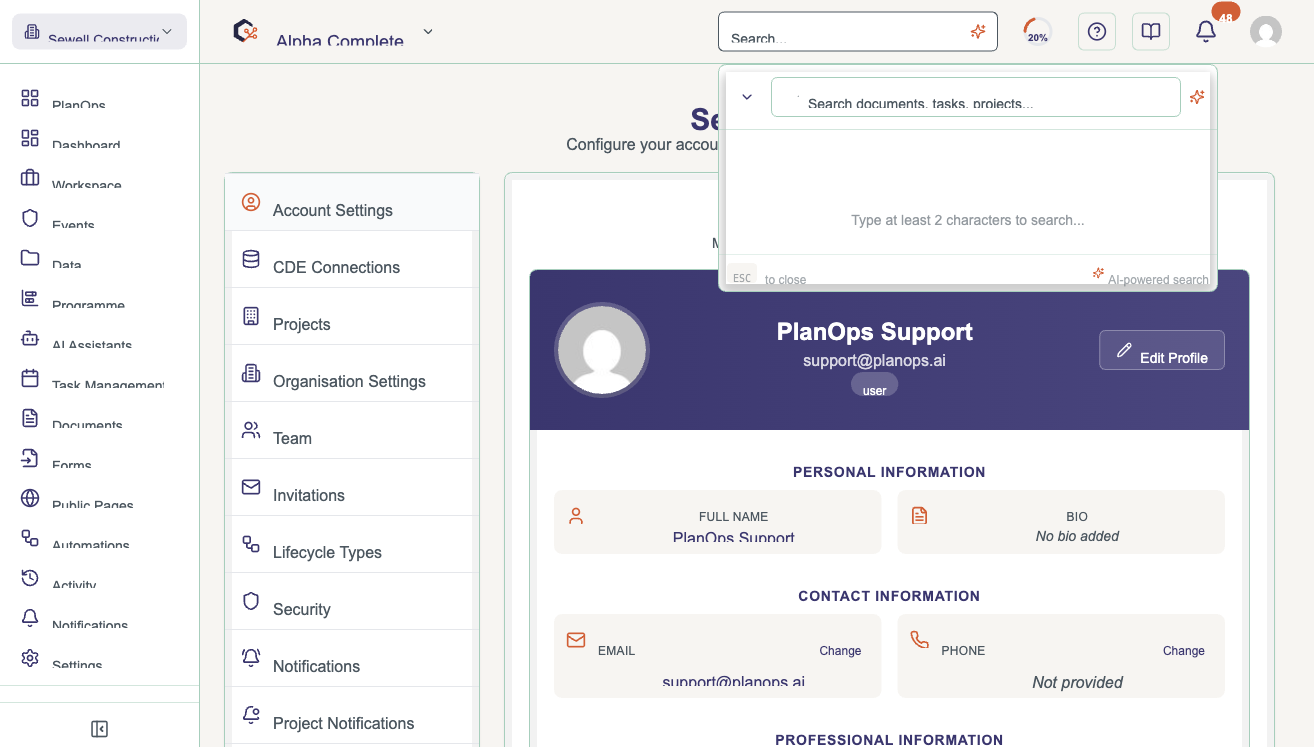
Step 2: Type what you're looking for
Click into the search box and start typing a keyword, document name, task title, person’s name, or anything else relevant. Matching results start showing up as you type.
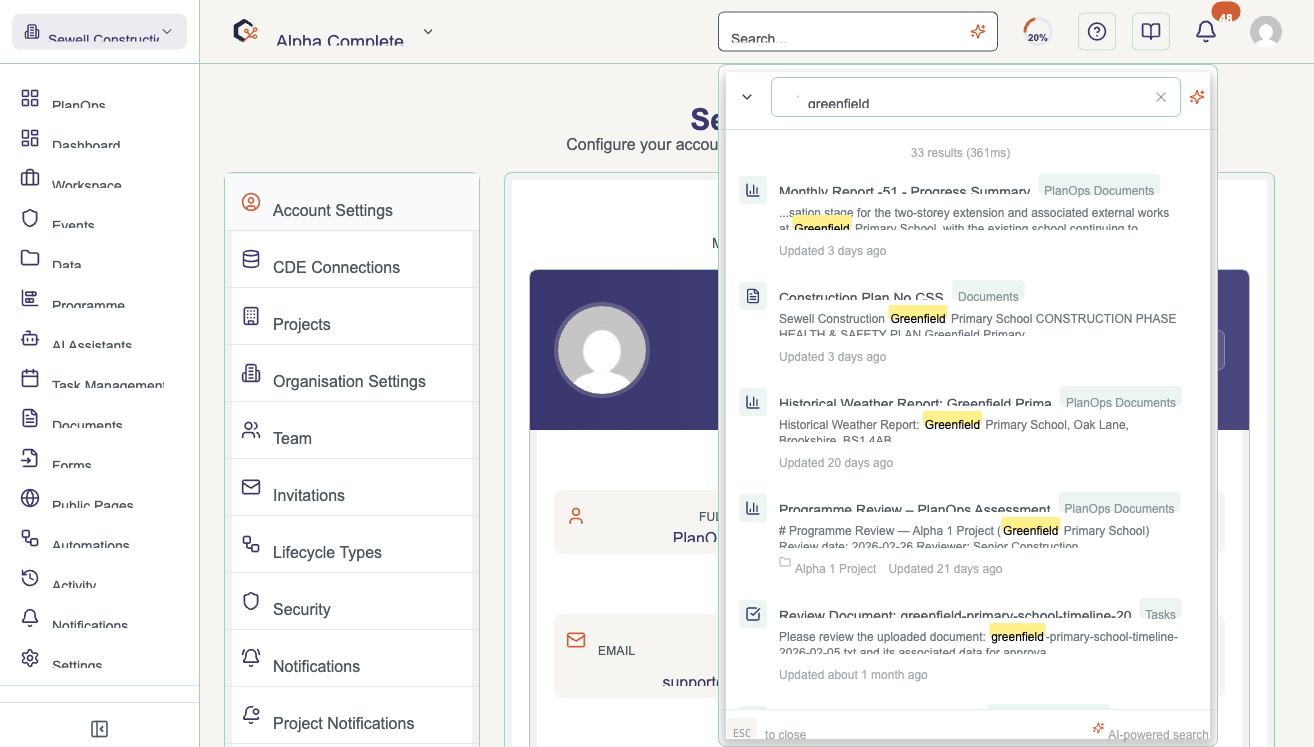
Step 3: Narrow it down by type
Use the filter options to pick which kinds of item to show, such as Documents, Tasks, Projects, People, RFIs, or Meetings. This cuts out anything you're not interested in.
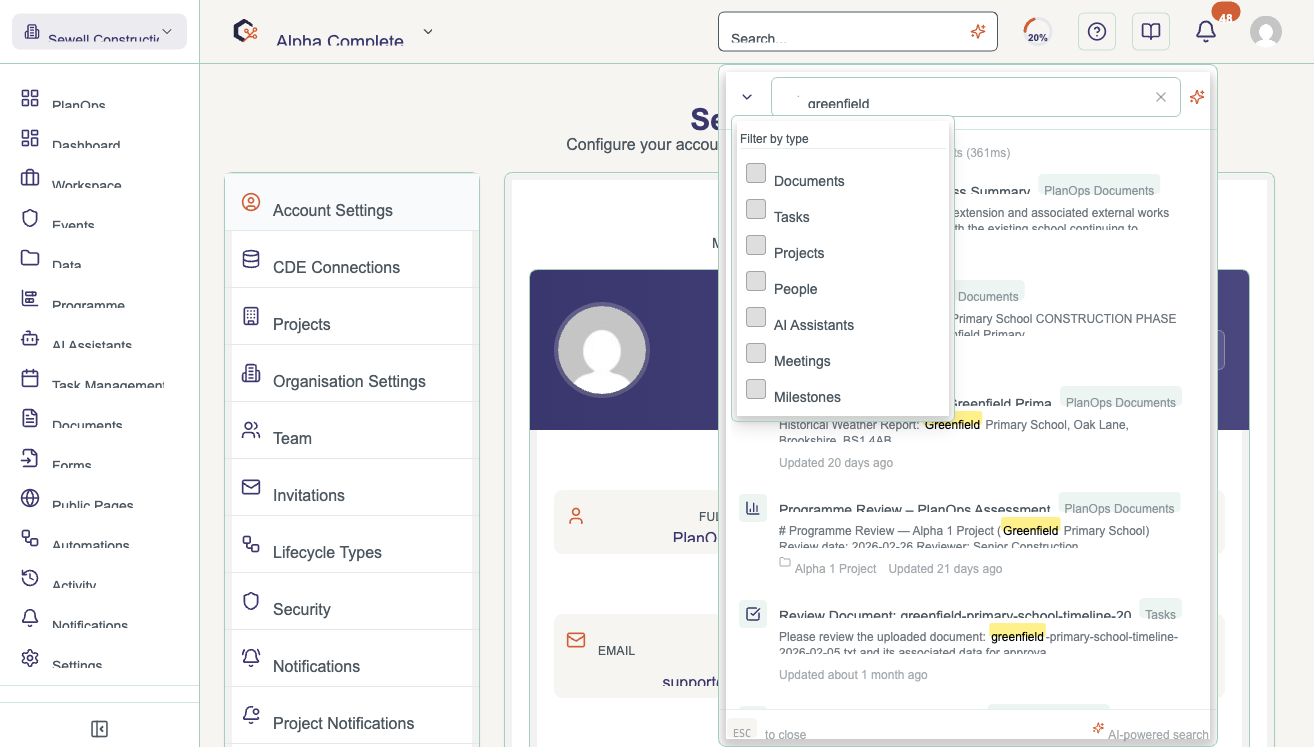
Step 4: Look through the results
Each result shows an icon for its type, the title, a snippet of matching text, and when it was last updated, so you can spot the right one quickly.
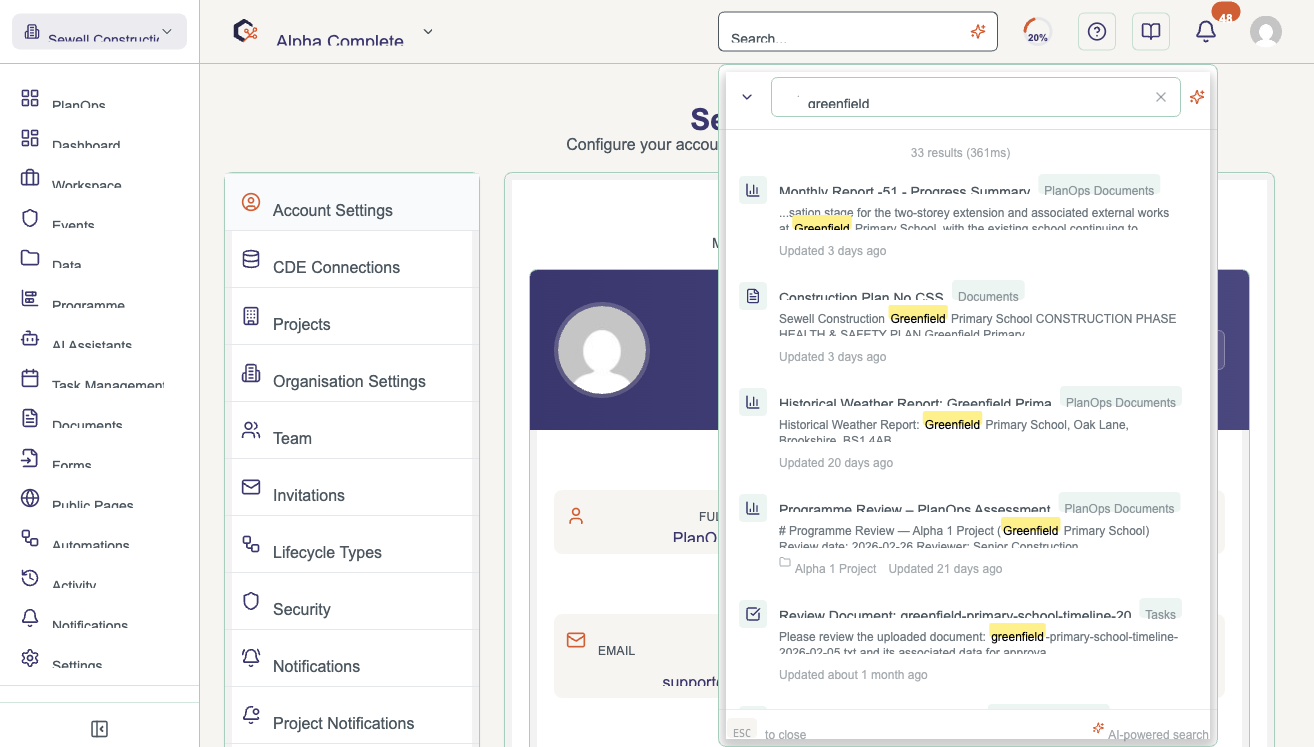
Step 5: Open the one you want
Click a result, or use the arrow keys and Enter, to go straight to it, whether that's a document, a task, or a project dashboard.
Step 6: Close search without opening anything
Not found what you need, or want to go back? Close the search box by clicking the X, clicking outside it, or pressing Escape.
Related Guides
Last updated: 2026-07-04