Get help without leaving your page
Open the help panel to get guidance on what you're doing, right there on the page, so you don't have to stop and go looking elsewhere for answers.
This guide is designed for project manager.
Steps
Step 1: Open the help panel
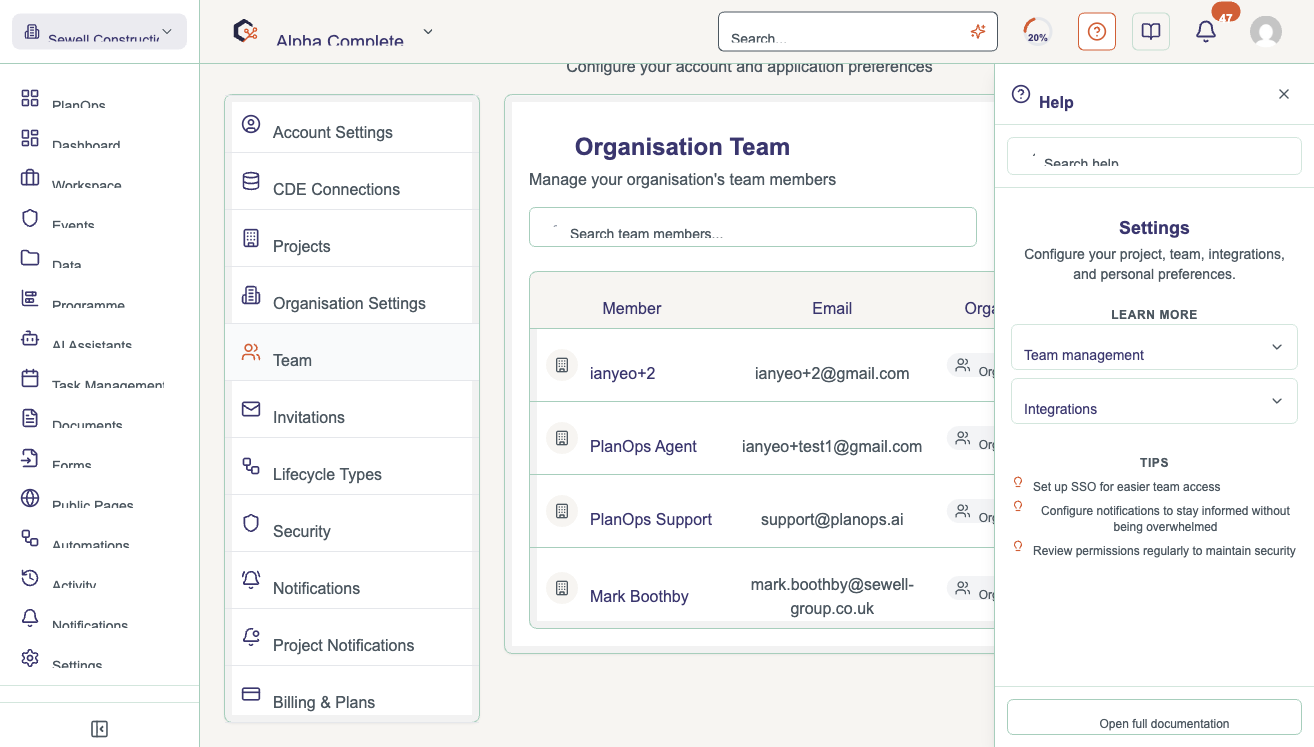
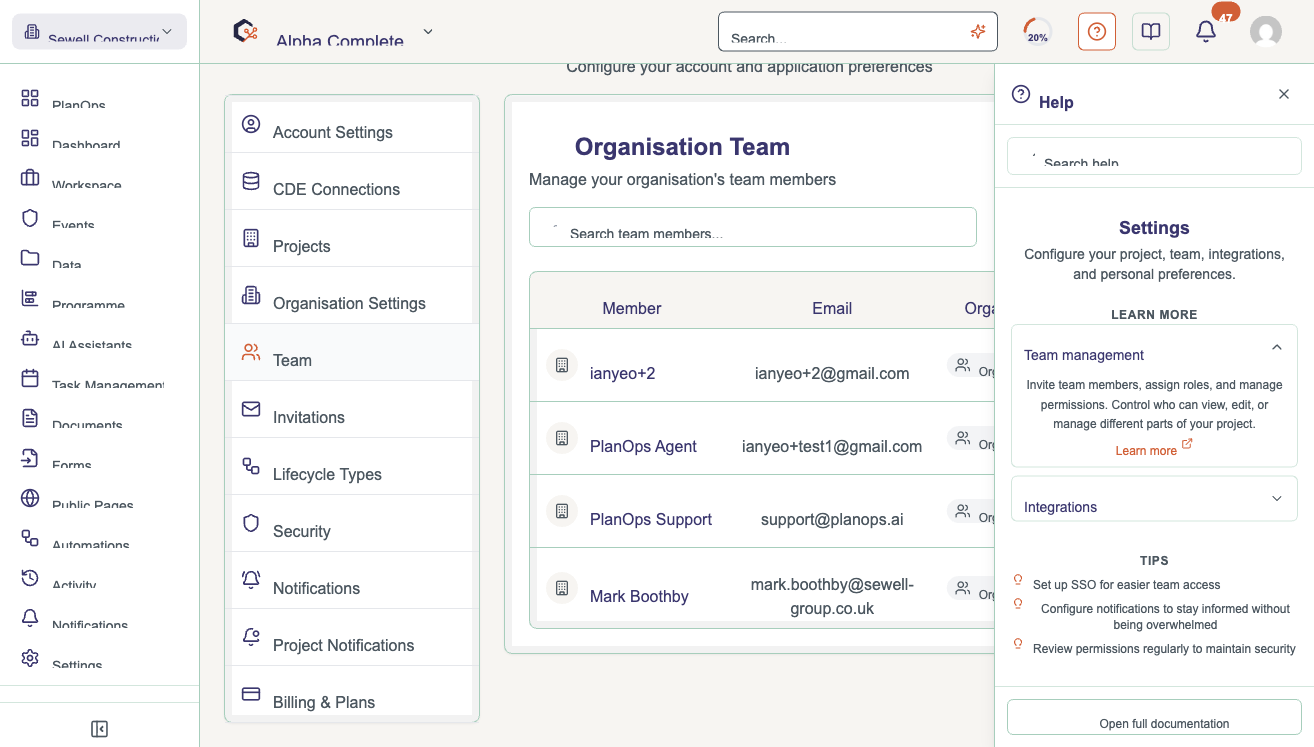
Select the help button or icon at the top of the screen. A panel opens on the right with help written for the page or task you're currently on.
Step 2: Read through the guidance
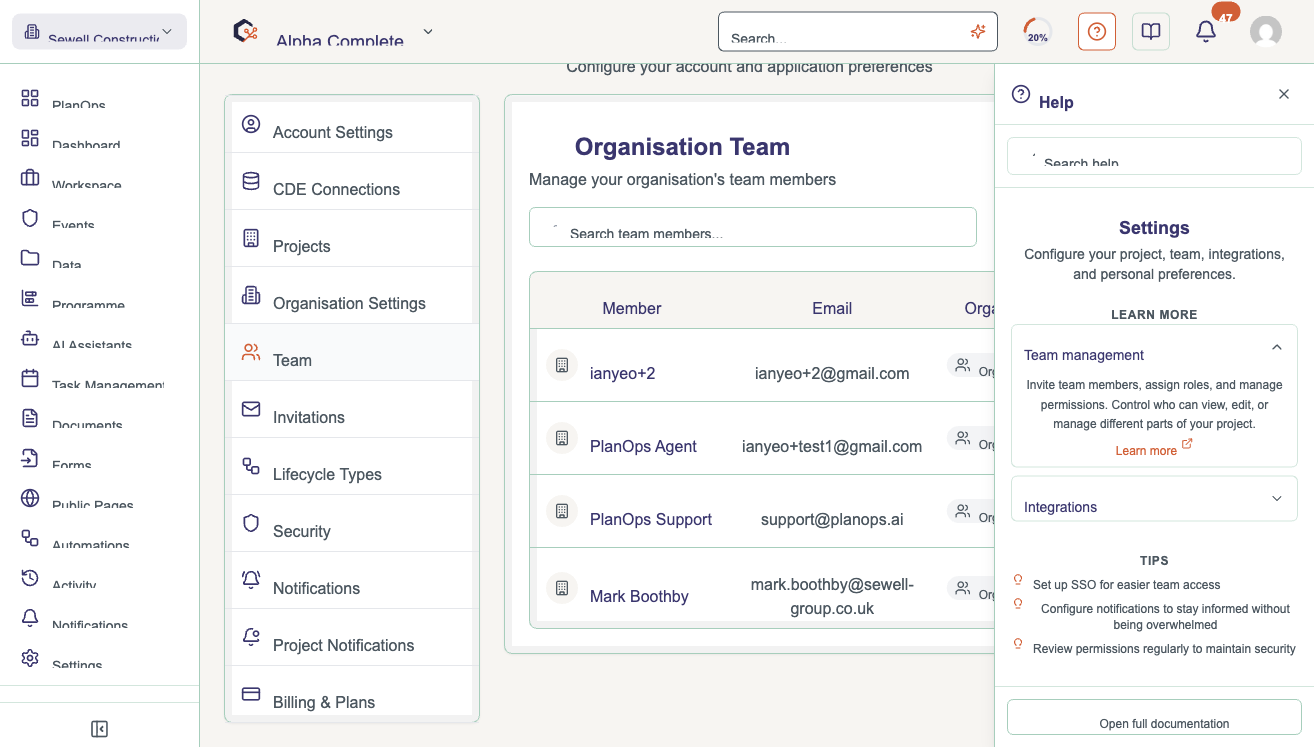
The panel shows step-by-step instructions, with headings, bullet points, and pictures where useful, so you can see exactly what to do for the task in front of you.
Step 3: Go back to an earlier topic
If you've clicked into another help topic, use Back in the panel to return to where you started, without closing the whole panel.
Step 4: Open links for more detail
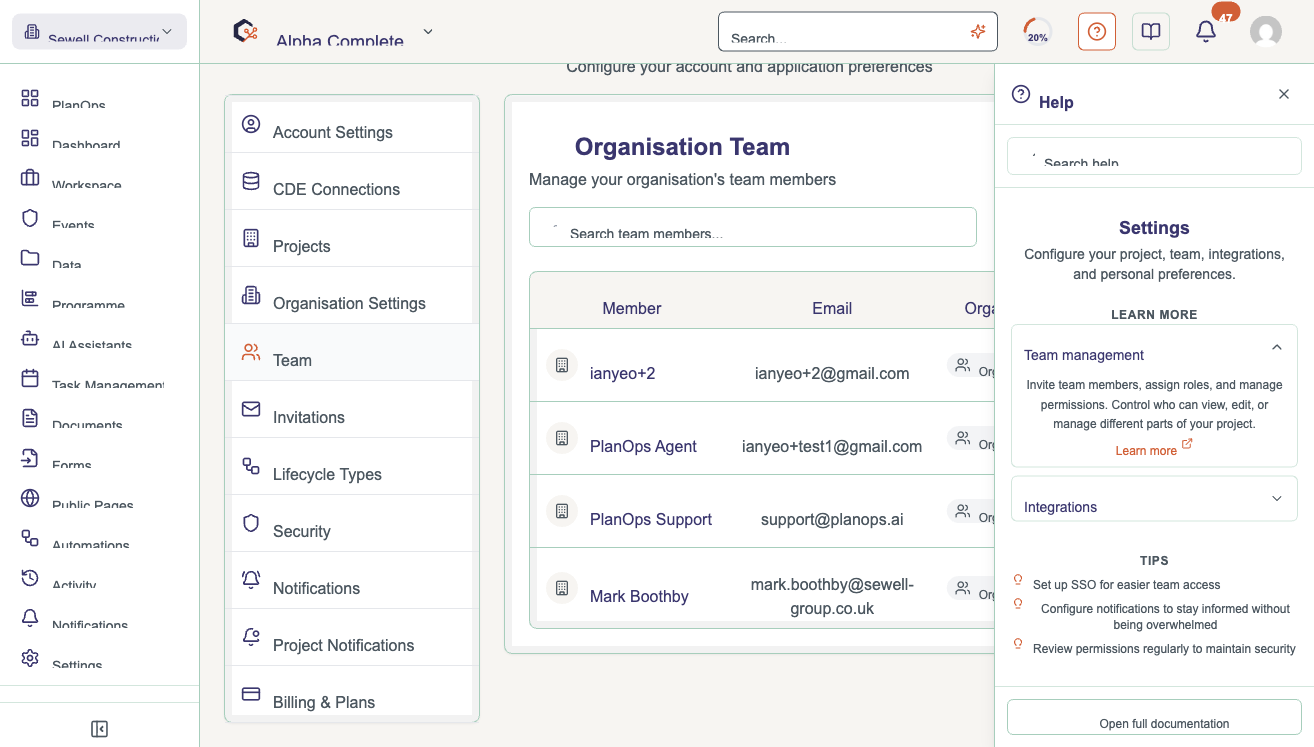
Where a link is given, select it to open more guidance in a new browser tab. Your project page stays open in the background.
Step 5: Ask a question if you're still stuck
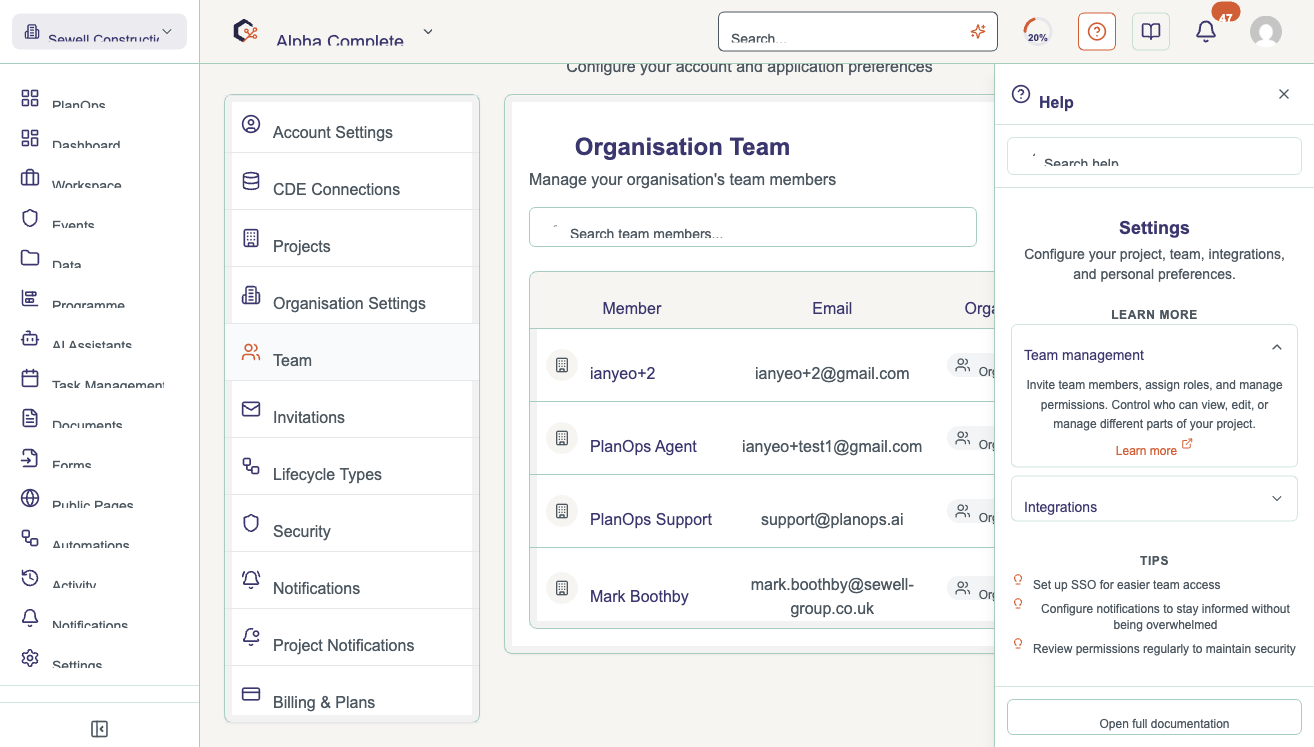
Use the Q&A section in the panel to type a question about what you're doing, and see suggested answers, without having to leave the page.
Step 6: Close the panel when you're done
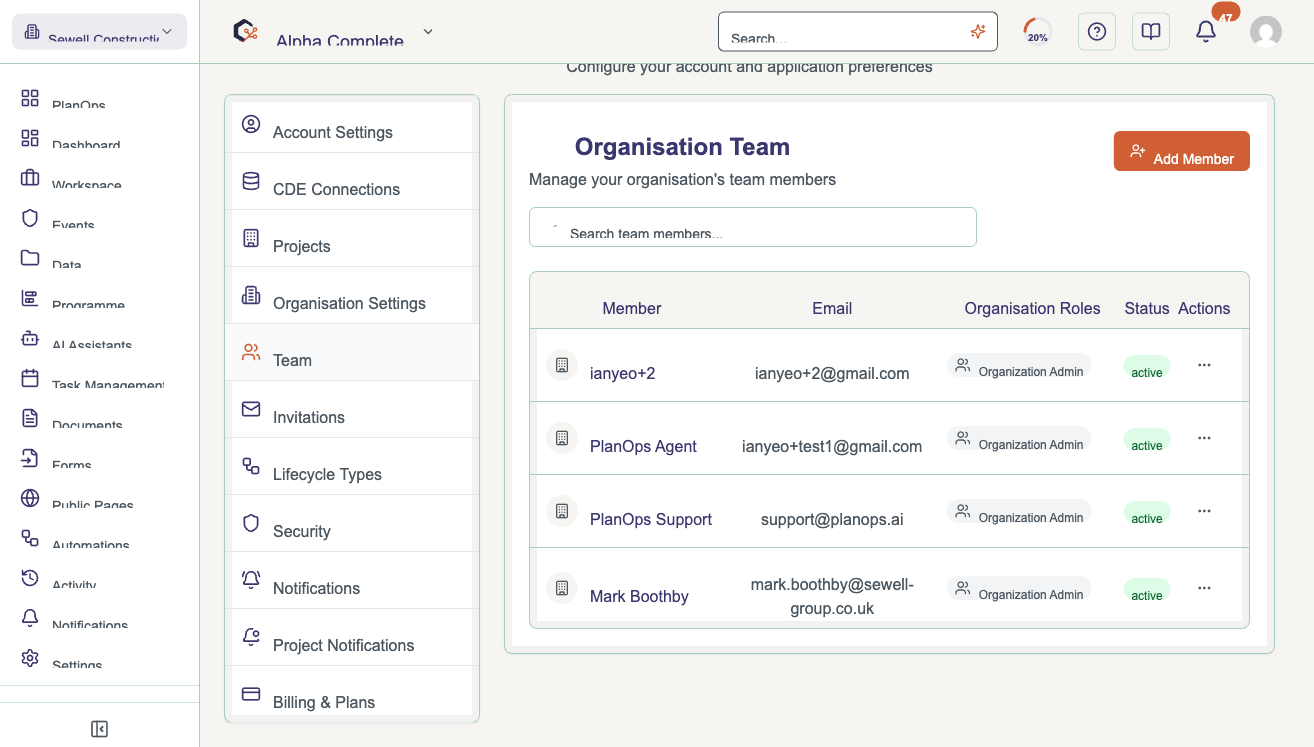
Select the close icon at the top of the panel to hide it and get your full screen back.
Related Guides
Last updated: 2026-07-04