Preview and export the Temporary Works register
Use the Temporary Works register preview to review key details and export an auditable PDF or CSV copy.
This guide is designed for project manager.
Steps
Step 1: Open the Temporary Works register preview
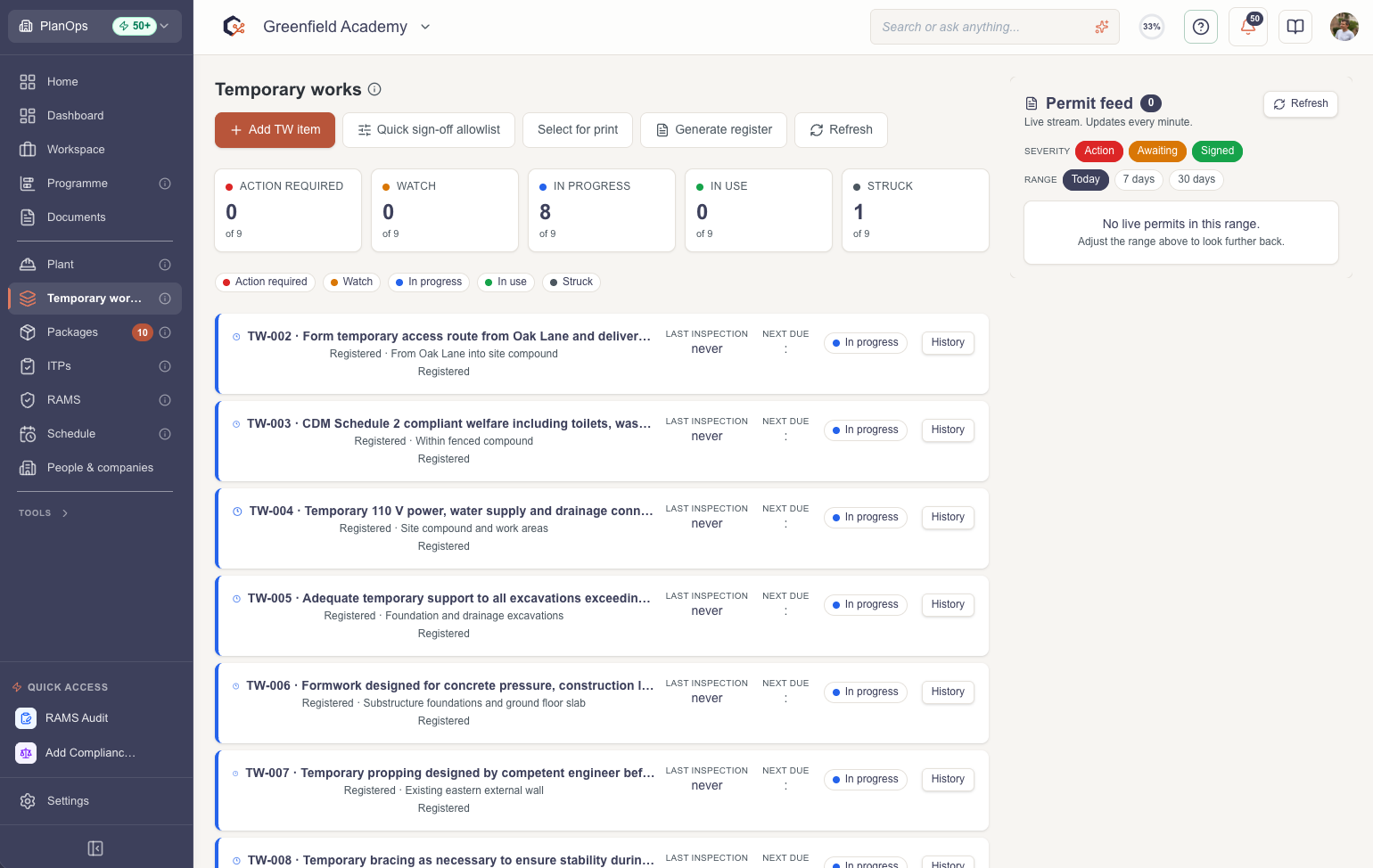
Open the Temporary Works register from your project area to display the preview dialog, showing the header, summary and full list of classified Temporary Works items.
Step 2: Review register details, classifications and sign-offs
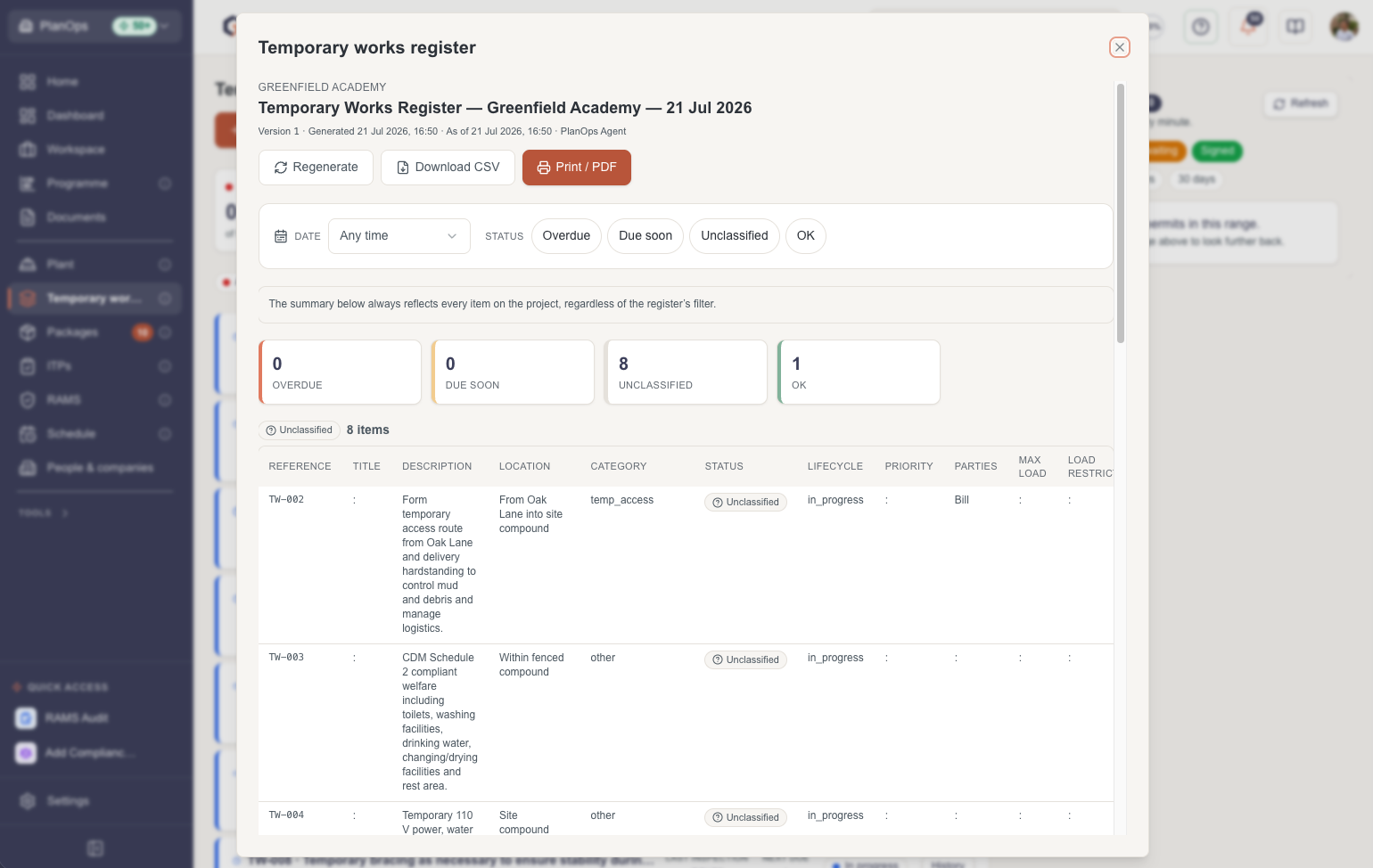
Scroll through the preview to check dates, lifecycle status, classifications, and the signature block so you can confirm that the register is complete and ready for audit. Select filters such as date or overdue.
Step 3: Download the register as a CSV file
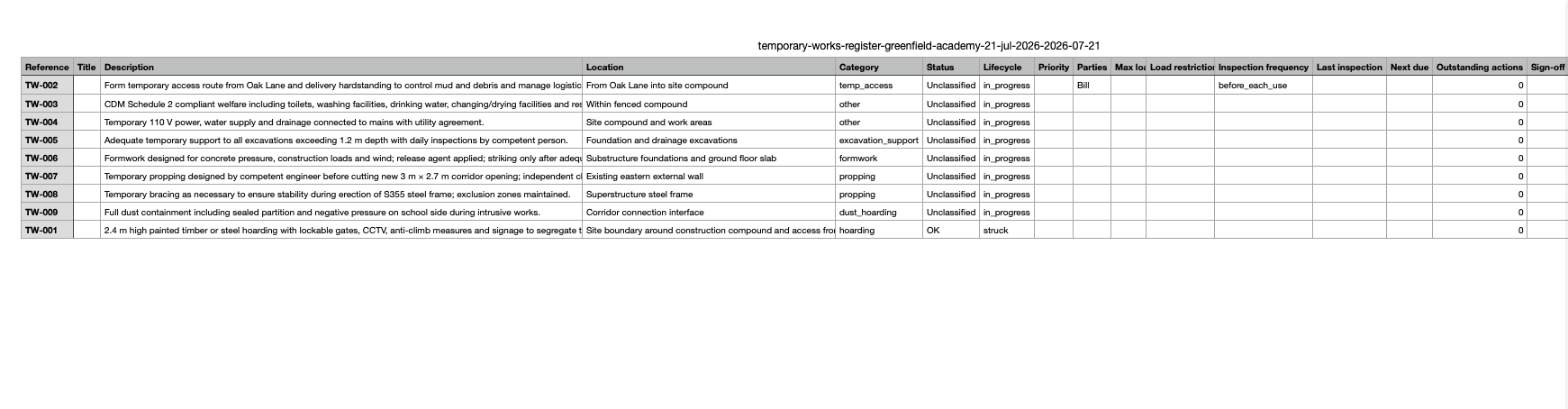
Select the CSV download option (FileDown icon) to export the full Temporary Works register as a CSV file for further analysis or reporting in spreadsheet tools.
Step 4: Export or print a branded PDF copy
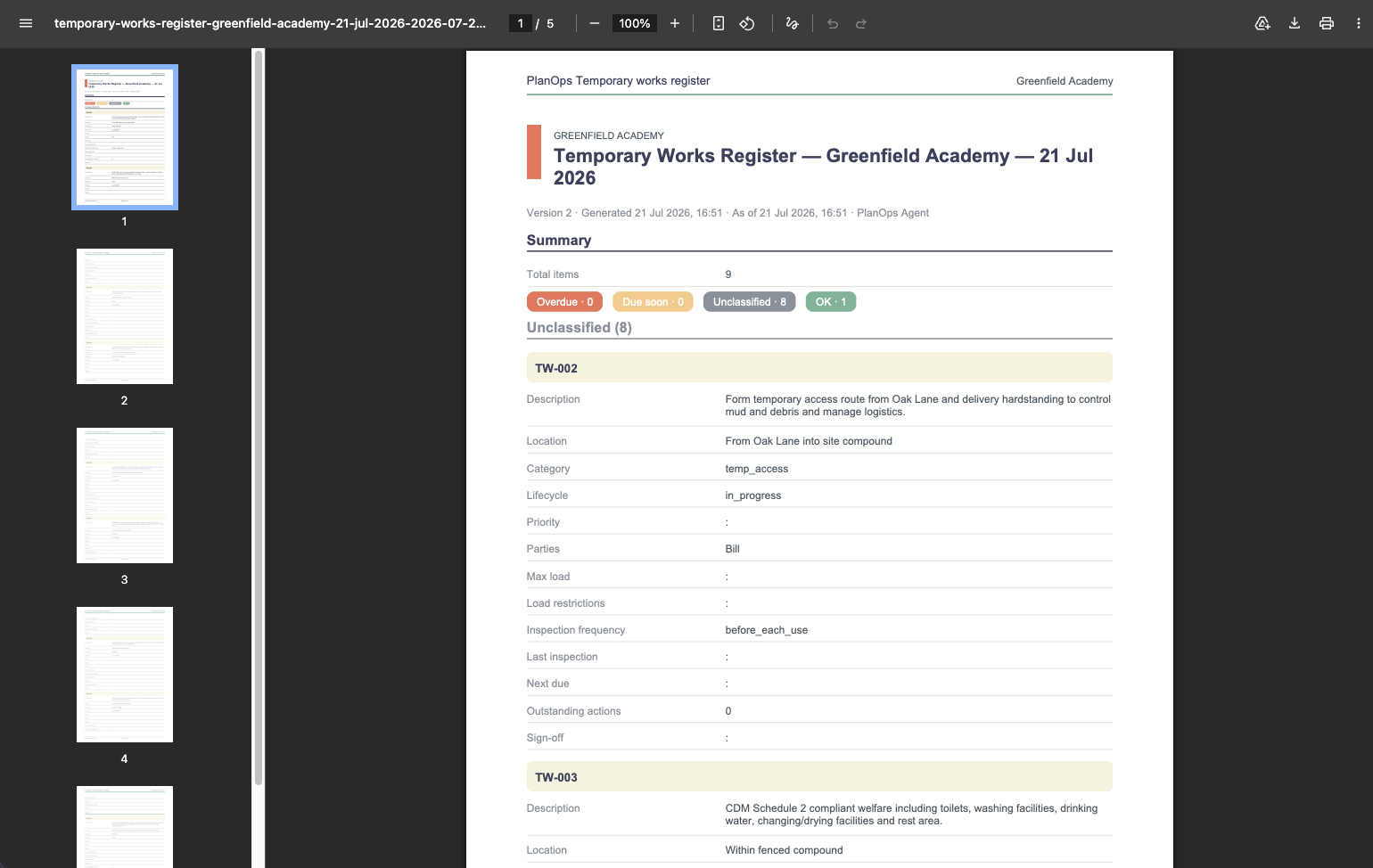
Select the Print or PDF action (Printer icon) to generate a PlanOps-branded PDF version of the Temporary Works register that is suitable for sharing with stakeholders and audit records.
Step 5: Close the preview dialog when finished
When you have finished reviewing or exporting, close the dialog to return to the main Temporary Works area and continue managing your register.

Last updated: 2026-07-10T00:00:00.000Z