Choose a CDE sync mode
Select how documents from your CDE will sync into PlanOps, including how much history to import and when new data is pulled in.
This guide is designed for project manager.
Steps
Step 1: Open the sync settings step
In the CDE connection wizard, after selecting the folder to be synced, click 'Use this folder' to see the available sync modes for your provider and project. NOTE: subfolders will also be synced.
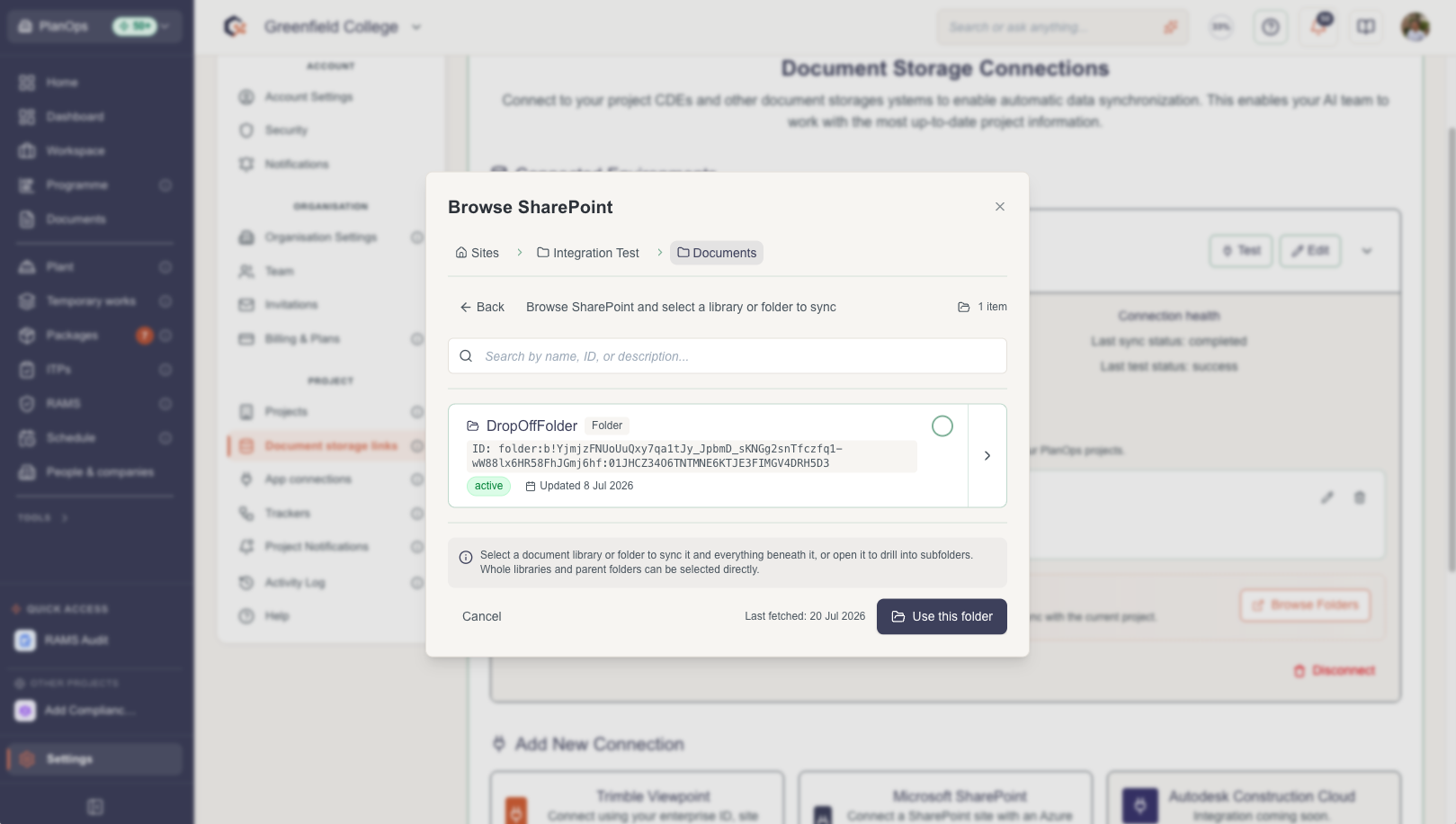
Step 2: Review your project and IU balance
Check the context chip to confirm you are configuring the correct PlanOps project, and review the remaining IU balance shown beside the sync options.
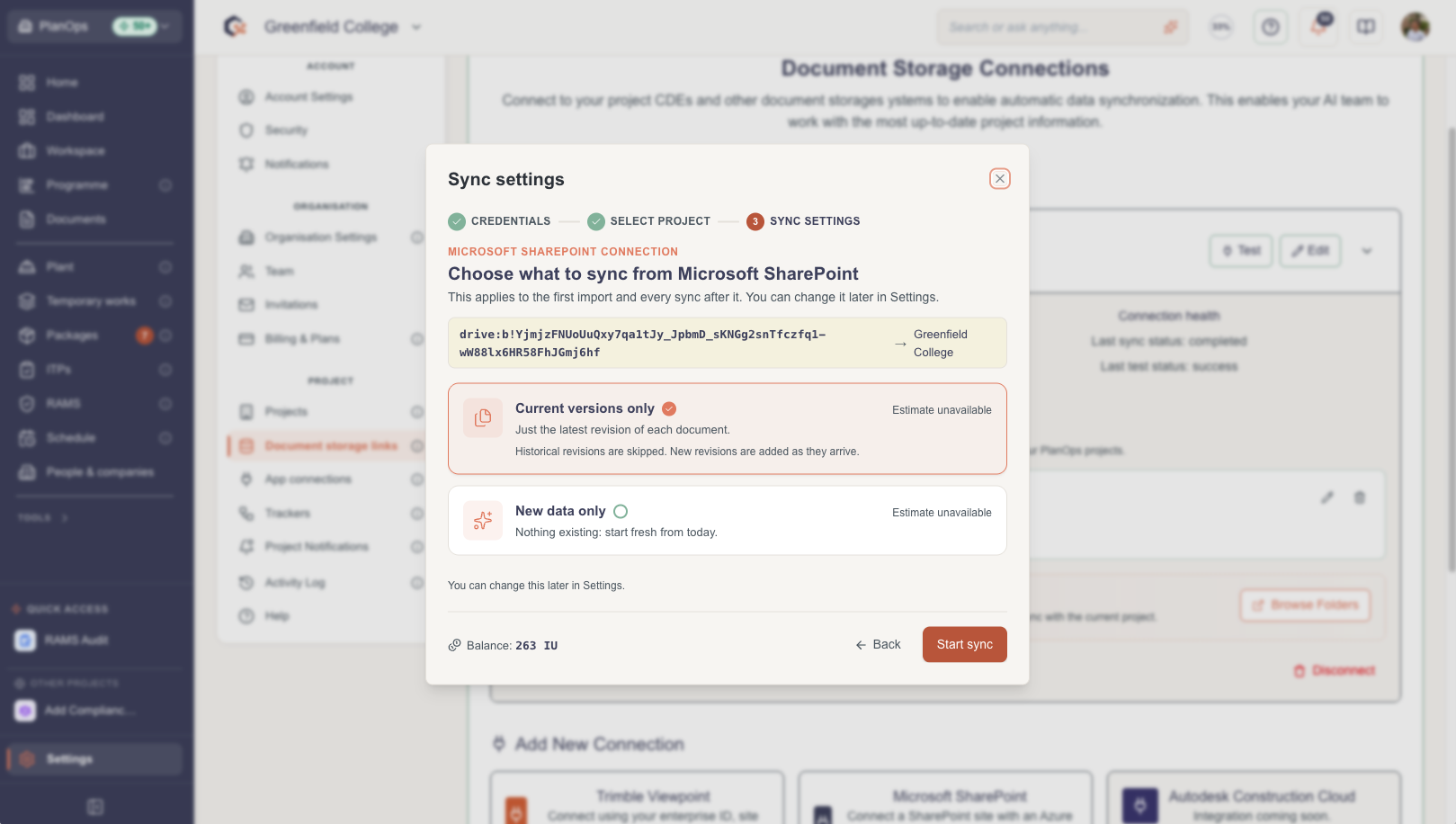
Step 3: Compare the available sync modes
For each mode, read the title, description and behaviour text to understand what data will be imported and how revisions will be handled.

Step 4: Select your preferred sync mode
Click the card for "Sync everything", "Current versions only" or "New data only"; the selected mode is highlighted to confirm your choice.

Step 5: Check IU warnings and limits
If the estimated IU volume for "Sync everything" exceeds your remaining balance, review the warning banner and note that this heaviest mode may be restricted.

Step 6: Top up IU if required
If your balance is too low and you cannot or do not want to override, use the top-up option to purchase additional IUs before confirming the sync mode.

Step 7: Confirm and continue
Press "Confirm" to save your chosen sync mode (and any override) so the connection can proceed and the initial sync.

Last updated: 2026-06-23T00:00:00.000Z