Connect Microsoft SharePoint for documents
Register a Microsoft Entra ID (Azure AD) application, grant it least-privilege access to your SharePoint site, and use its credentials to connect SharePoint to PlanOps so your documents synchronise automatically.
This guide is designed for project manager.
Steps
Step 1: Confirm you can register an app in Microsoft Entra ID
The connection uses application-only (app registration) access to Microsoft Graph rather than a personal login, so a single connection can sync documents in the background. You need permission to register an application in Microsoft Entra ID (formerly Azure AD), or an Entra administrator who can do it for you.
Each organisation can have a single SharePoint connection, and only PlanOps organisation admins can create or manage it. It can run alongside a Trimble Viewpoint connection.
Step 2: Register an application in Microsoft Entra ID
In the Microsoft Entra admin centre, go to 'App registrations' and create a new registration (a single-tenant app is sufficient; no redirect URI is required for app-only access). Once created, note the application's Directory (tenant) ID and Application (client) ID from the overview page.
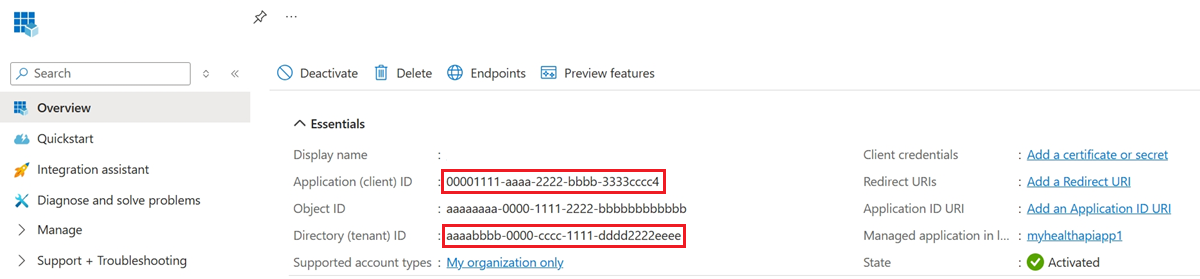
The Directory (tenant) ID and Application (client) ID are GUIDs. You will paste both into PlanOps later.
Step 3: Add Microsoft Graph application permissions
In the app registration, open 'API permissions', choose 'Add a permission', select 'Microsoft Graph', then 'Application permissions' (not Delegated). Add 'Sites.Selected' for least- privilege access to a single site (recommended), or 'Sites.Read.All' if you prefer broader, tenant-wide read access.
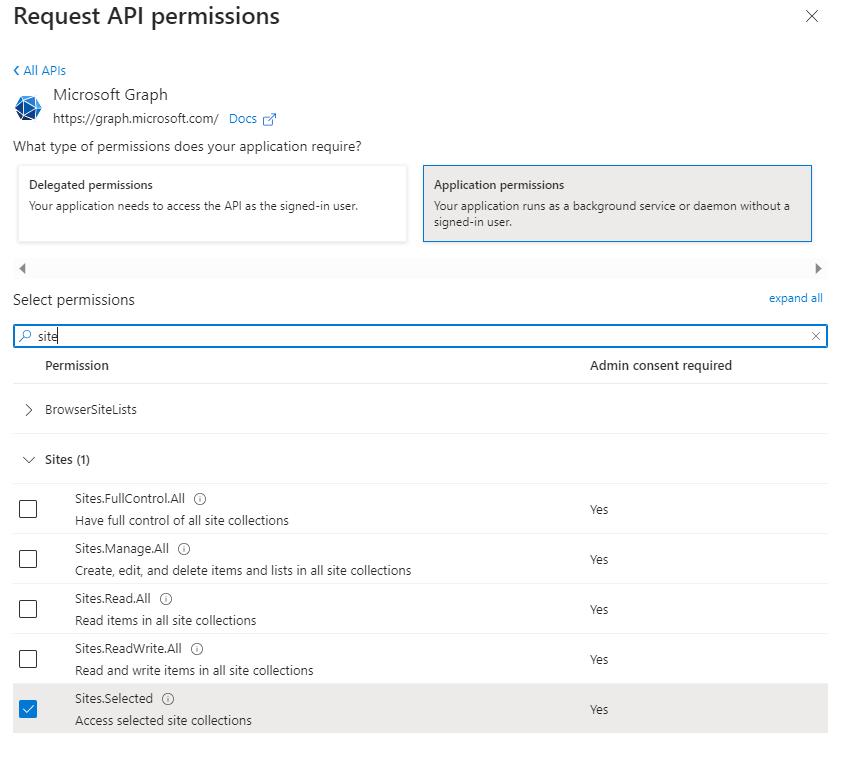
Application permissions let the integration read documents without a signed-in user. Sites.Selected is the most secure option and is the default PlanOps expects.
Step 4: Grant admin consent
Still on the 'API permissions' page, choose 'Grant admin consent for [your tenant]'. The permission status must show as granted before the app can call Microsoft Graph.
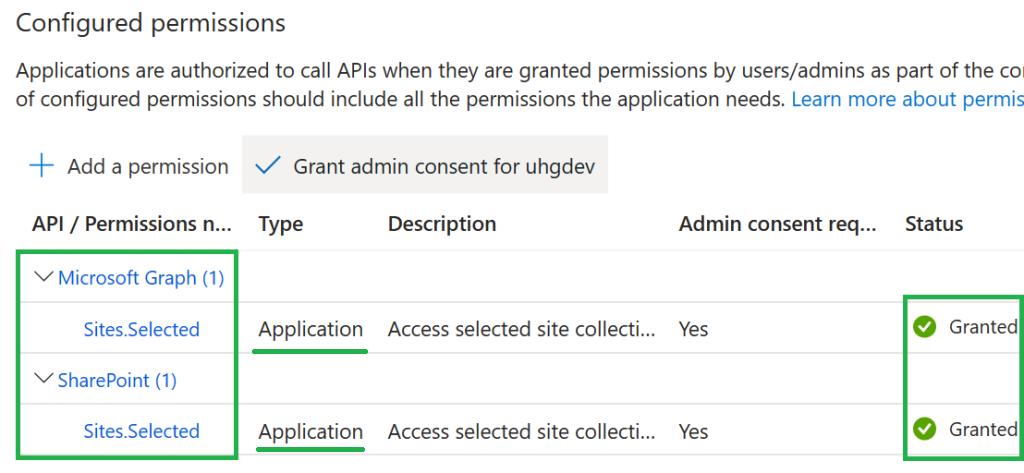
Admin consent requires a Global Administrator or Privileged Role Administrator. Consent alone is not enough for Sites.Selected — you must also grant the site in the next step.
Step 5: Grant the app access to your SharePoint site (Sites.Selected only)
With Sites.Selected, the app has no access until an administrator grants it for a specific site. An admin grants read access to the target site via Microsoft Graph (a POST to /sites/{site-id}/permissions with the 'read' role and your app's client ID), or using SharePoint PowerShell. Skip this step if you chose Sites.Read.All.
Without this grant, PlanOps will authenticate successfully but see no documents. If you chose Sites.Read.All, no per-site grant is needed.
Step 6: Create a client secret
In the app registration, open 'Certificates & secrets', choose 'New client secret', set an expiry that suits your security policy, and copy the secret 'Value' immediately.
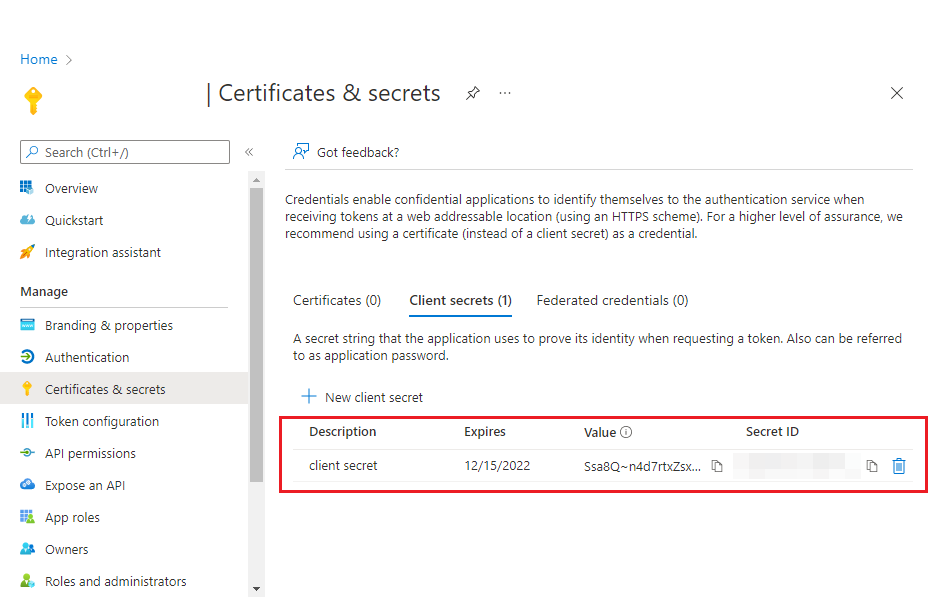
Copy the secret Value, not the Secret ID, and store it securely — Entra only shows it once. Note the expiry date so you can rotate the secret in PlanOps before it lapses.
Step 7: Note your SharePoint site and optional drive ID
Note the SharePoint site you want to read from. You can enter it as the site URL (for example https://contoso.sharepoint.com/sites/IntegrationTest) — PlanOps resolves it to the underlying Graph site for you. Optionally note a default document library (drive) ID if you want to set one; otherwise you can pick a library and folder per project after connecting.
The Site accepts several forms: a full site URL, the host and site path (contoso.sharepoint.com:/sites/Name), or an already-resolved composite Graph site ID (contoso.sharepoint.com,{siteId},{webId}). PlanOps normalises and resolves whichever you provide on first use.
Step 8: Open the connection dialog in PlanOps
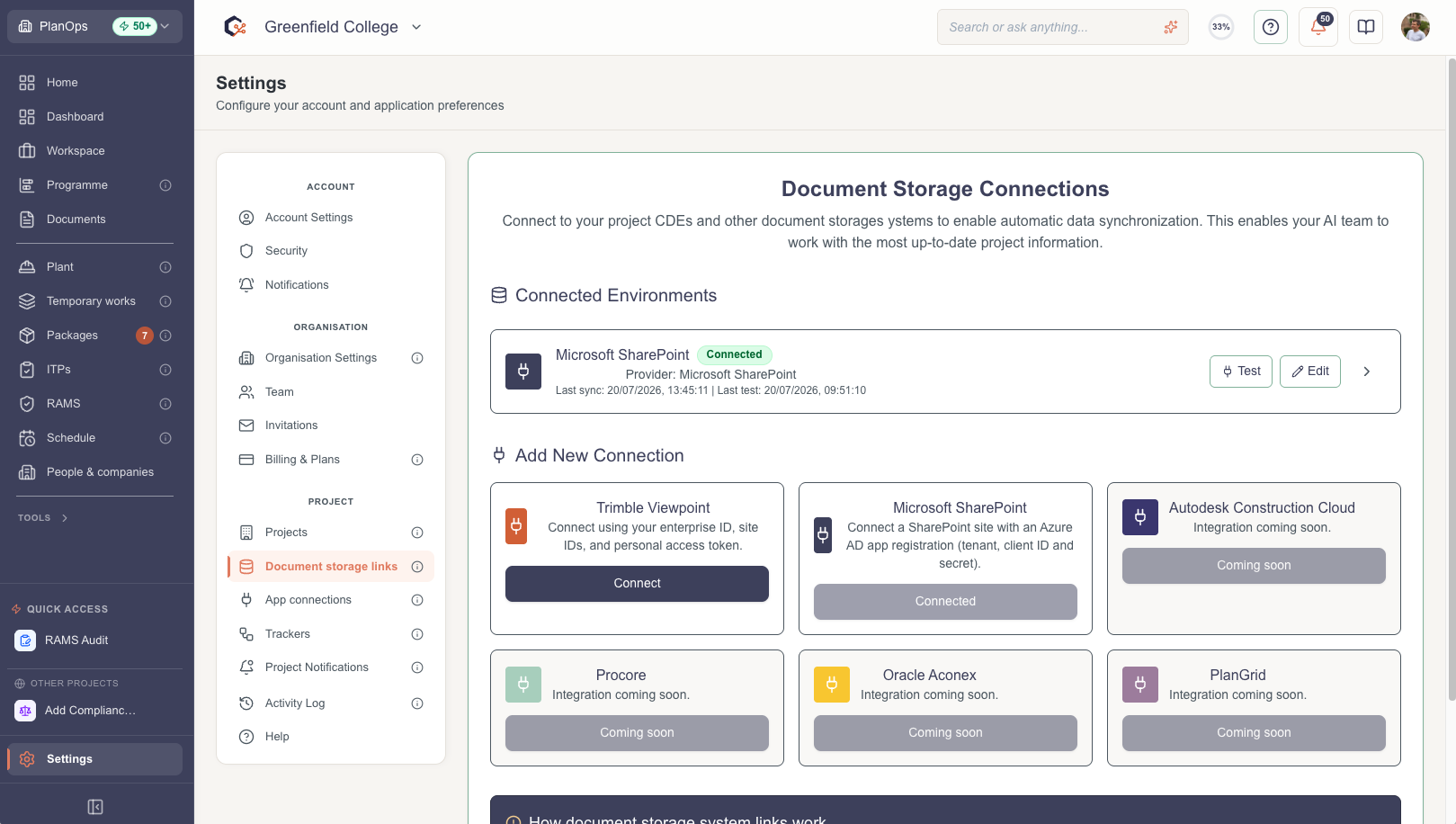
In PlanOps, go to Settings and open 'Document system links'. Under 'Add new connection', select Microsoft SharePoint and choose 'Connect' to open the 'Connect Microsoft SharePoint' dialog.
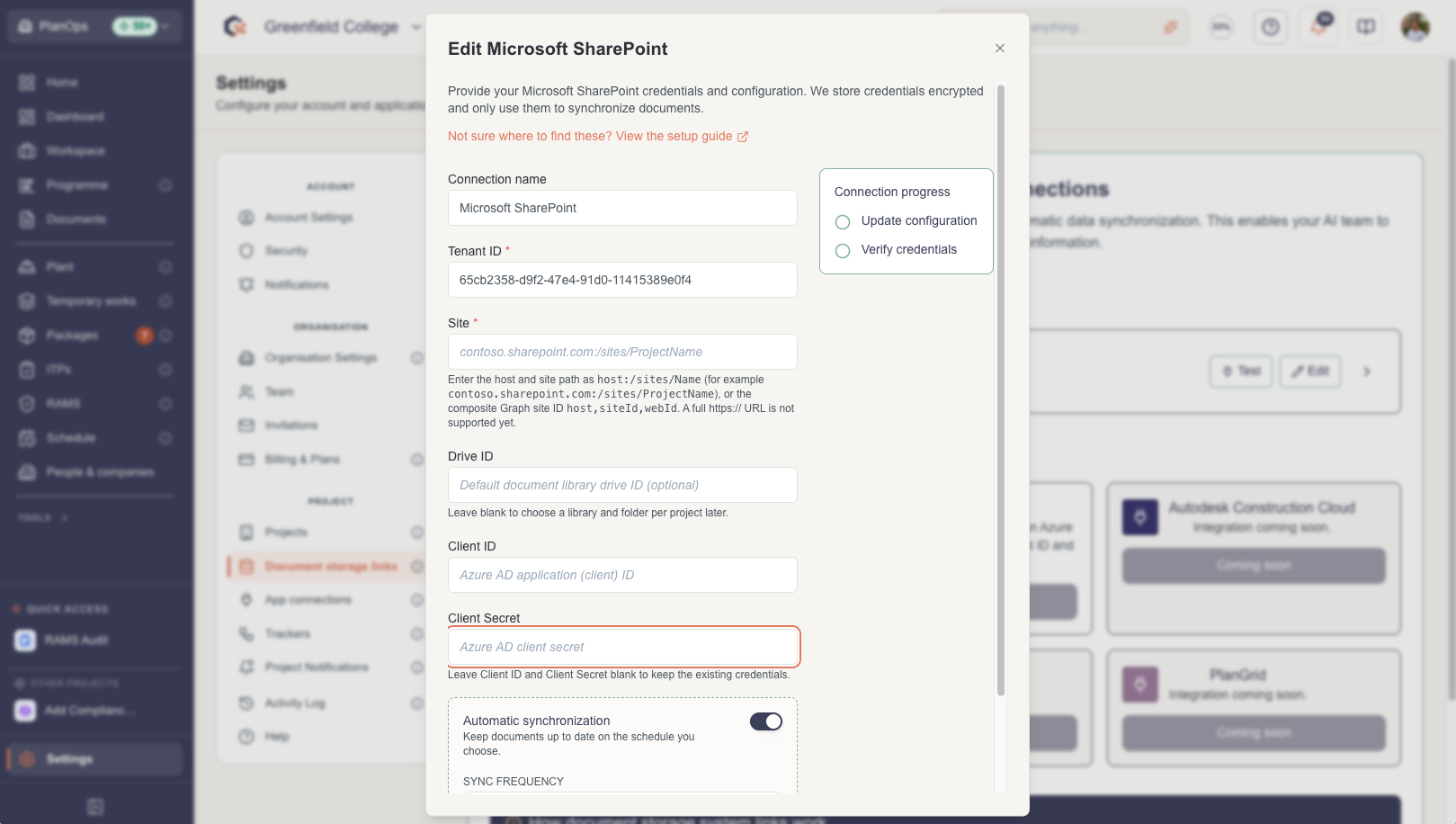
The SharePoint option is only available to organisation admins. If it is disabled, ask an organisation admin to set up the connection.
Step 9: Enter your SharePoint details
Give the connection a recognisable name, then enter the Tenant ID, the Site (a site URL, the host and site path, or a composite Graph site ID), an optional default Drive ID, the Application (client) ID, and the Client Secret value you copied.
Credentials are stored encrypted and are only used to synchronise documents. PlanOps resolves whichever Site form you enter, so a full site URL is fine.
Step 10: Choose your synchronisation settings
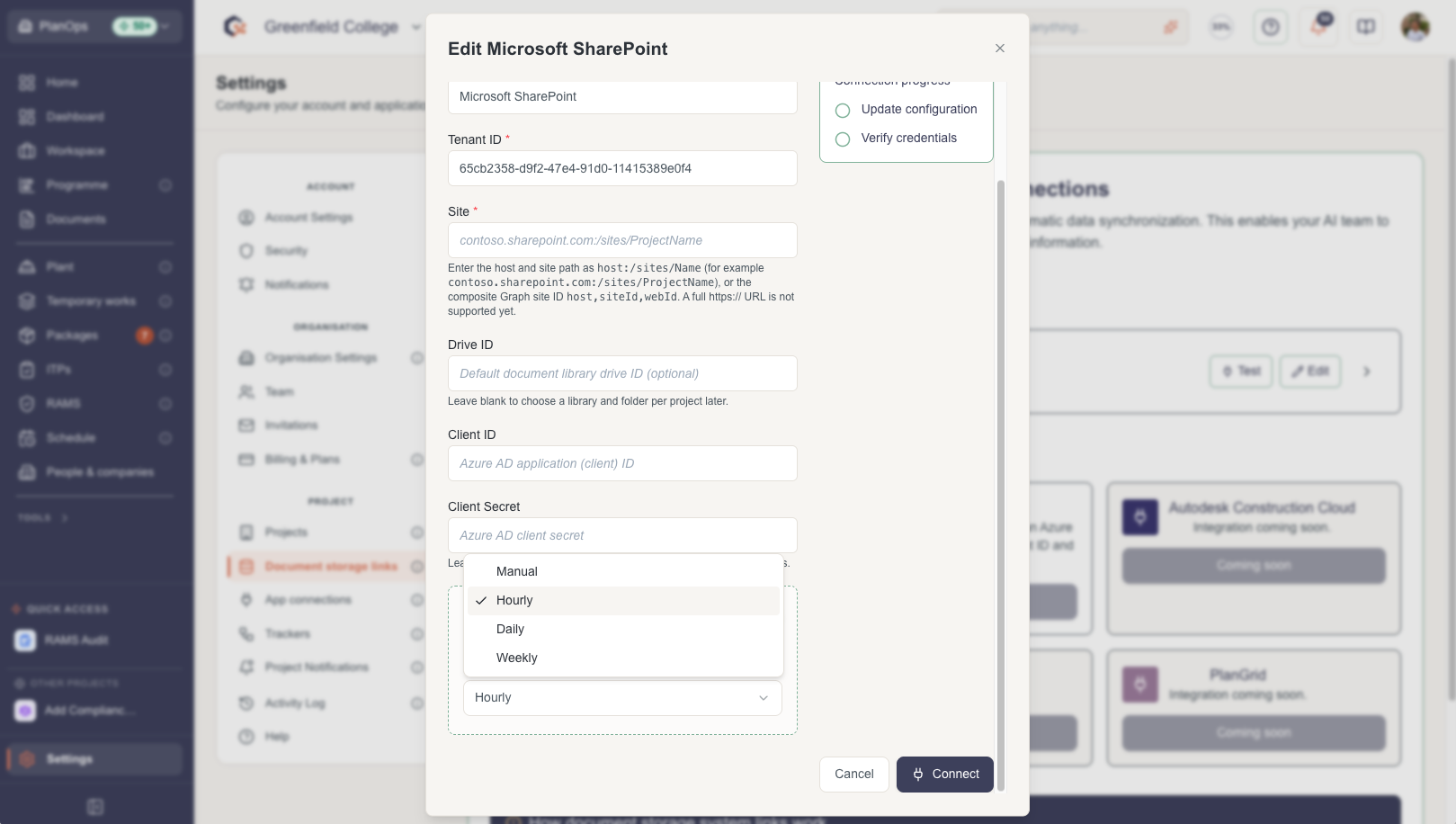
Turn on Automatic synchronisation if you want PlanOps to keep documents up to date, and pick a sync frequency (manual, hourly, daily or weekly) to suit your project.
Step 11: Connect and verify
Click 'Connect'. PlanOps saves the configuration and then verifies the credentials against Microsoft Graph. When both steps show as successful, the connection is active.
If verification fails, work through the likely causes in order. An 'Invalid hostname' error usually means the Site host or path is wrong — check it matches your SharePoint site. An authentication error points to the Tenant ID, Client ID or Client Secret — commonly an expired secret, or the Secret ID copied instead of the secret Value. An authorisation error (the app signs in but cannot read the site) means the Graph permission or admin consent is missing, or the Sites.Selected grant for this specific site has not been made.
Step 12: Link a SharePoint folder to your project
Once connected, expand the connection and choose 'Browse folders'. Navigate from the site into a document library and then into folders, and choose 'Use this folder' to sync that folder and its subfolders to your current PlanOps project.
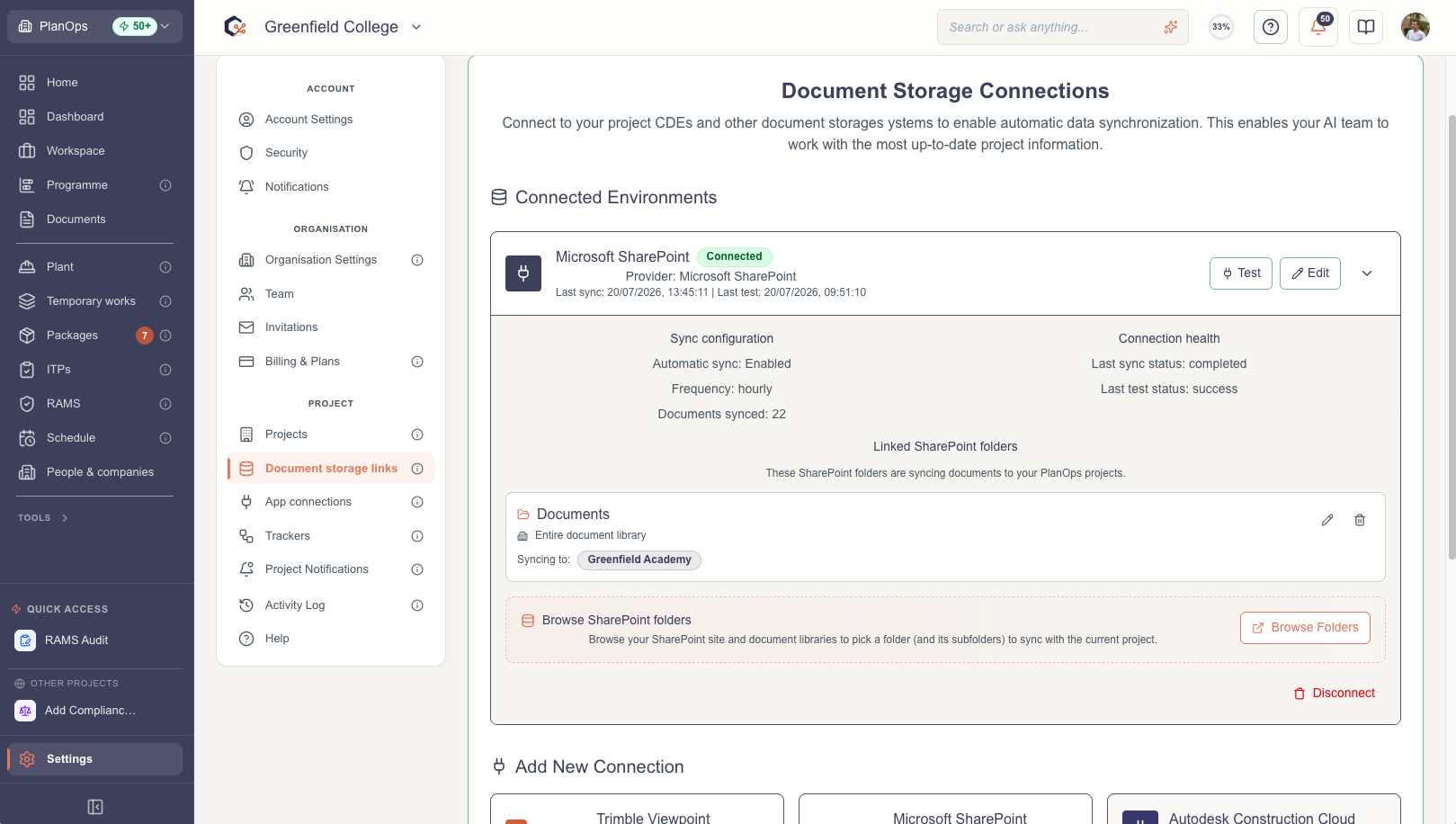
Selecting a document library at the top level syncs the whole library; selecting a folder syncs that folder and everything beneath it.
Related Guides
Last updated: 2026-07-13T00:00:00.000Z