Manage CDE Connections

Connect your organization to Common Data Environments (CDEs) and document management systems. Configure integration settings and manage authentication credentials for seamless document synchronization and data exchange.

Audience

This guide is designed for project-manager.

Steps

Step 1: Navigate to CDE Connections Settings

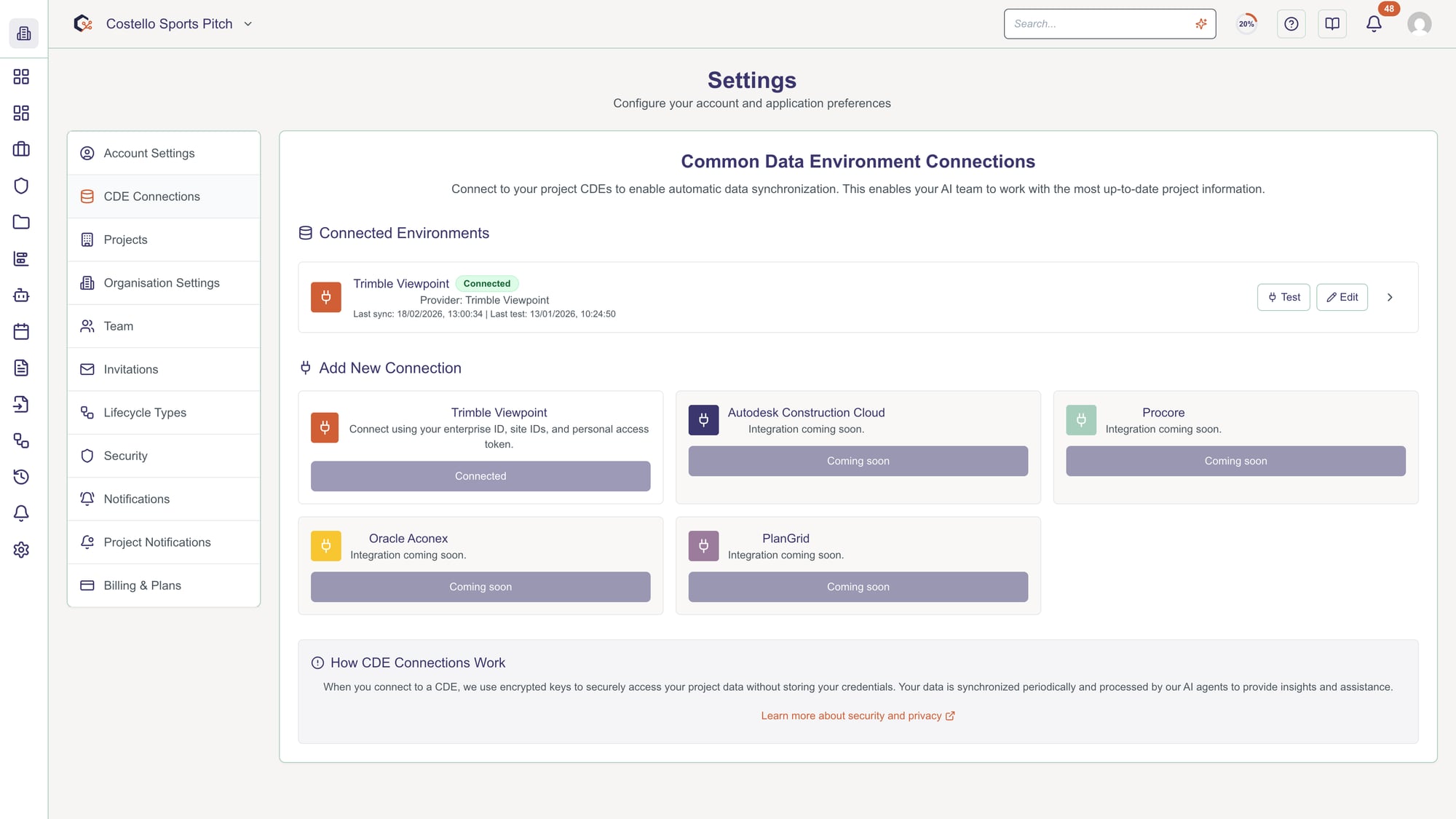
From Settings, click CDE Connections in the left menu. This page displays all configured CDE connections and integration statuses across your organization. You can add, edit, or remove CDE integrations from here.

Navigate to CDE Connections Settings

Step 2: View existing CDE connections

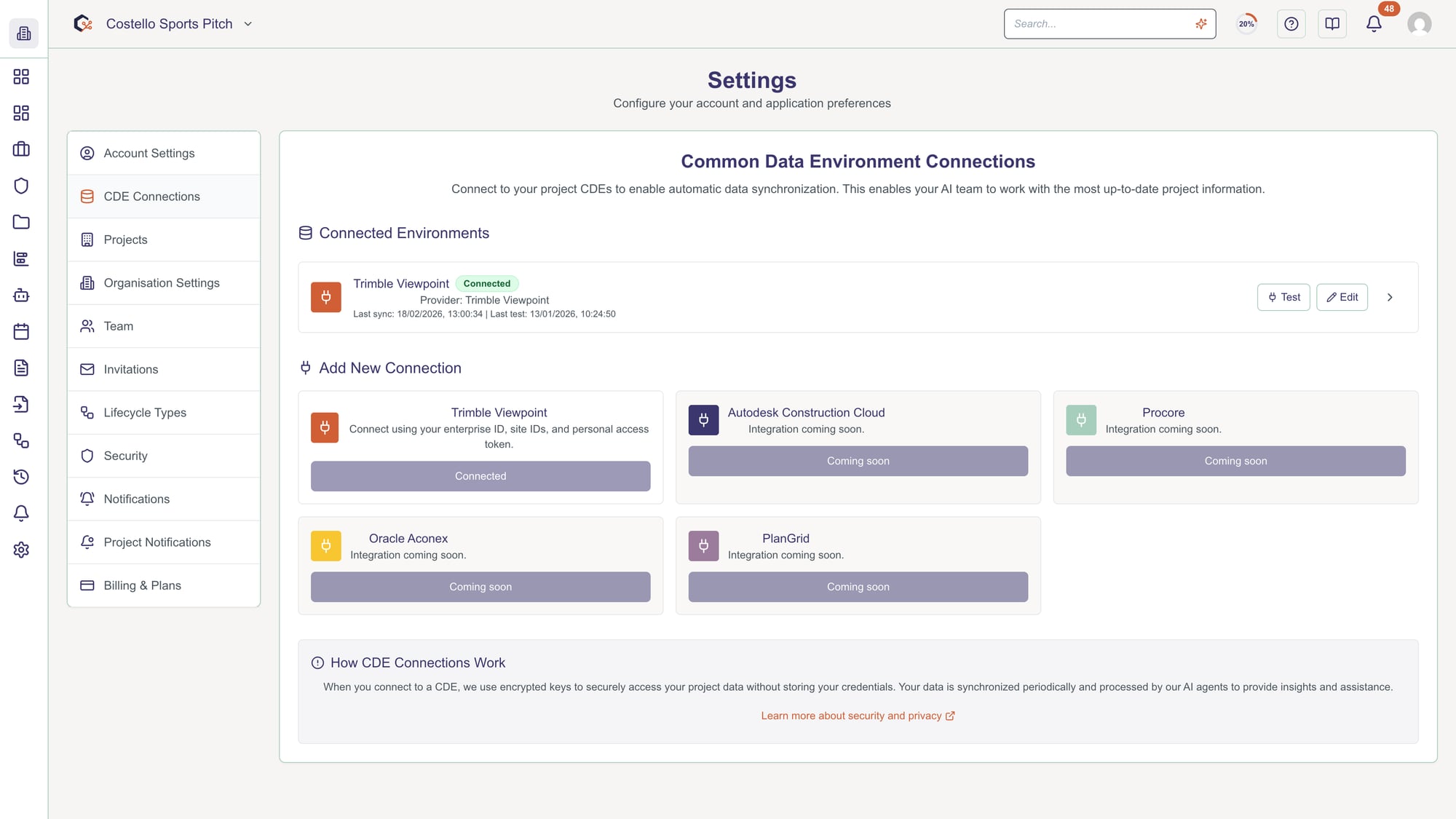
The connections list shows all active CDE integrations including connection name, CDE type, status (Connected/Disconnected), and last synchronization time. Each connection shows connection details and allows for configuration management.

View existing CDE connections

tip

Use the search box to find specific connections by name or CDE type.

Step 3: Add new CDE connection

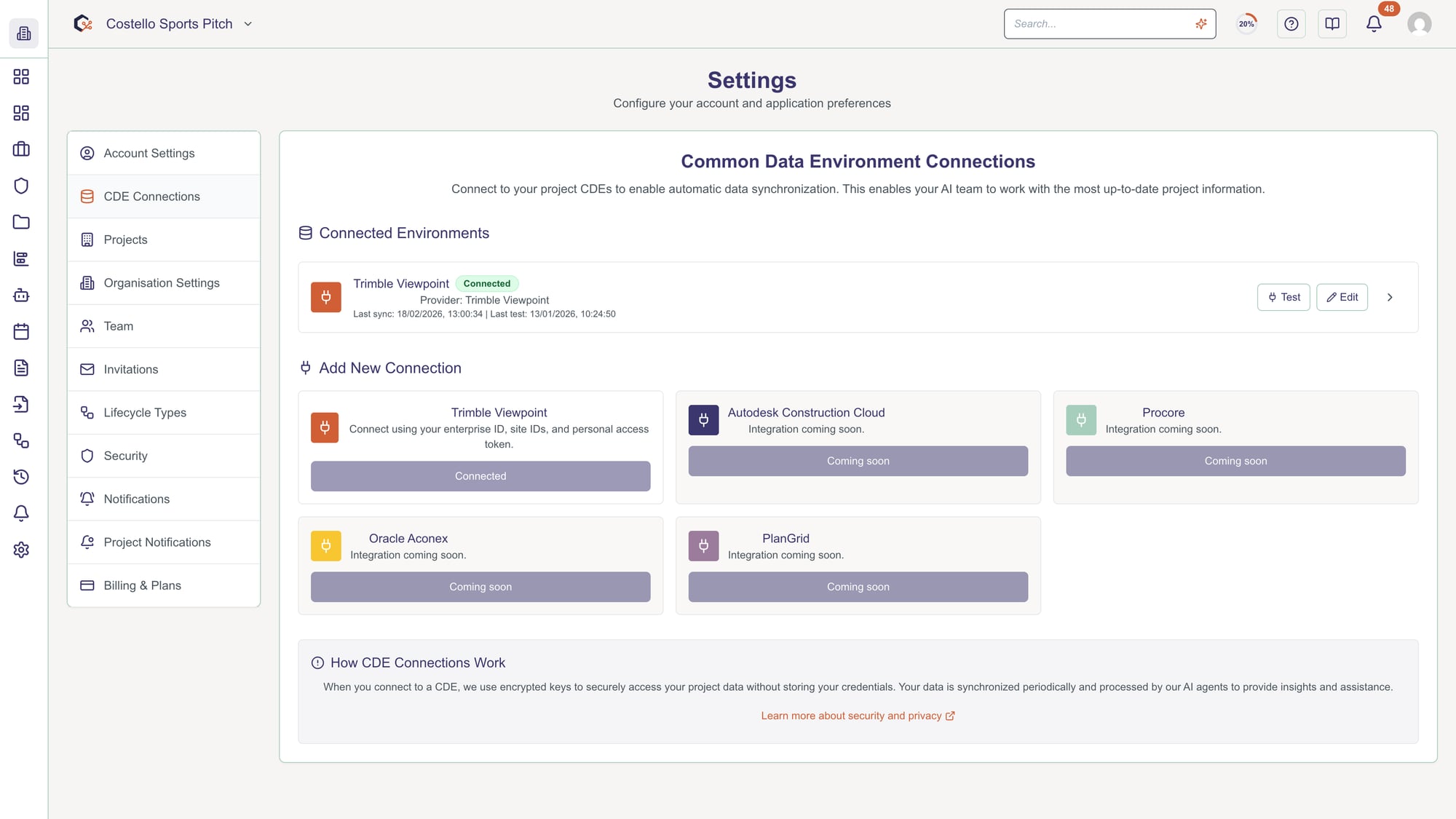
Click Add CDE Connection to set up a new integration. Select your CDE type (e.g., Aconex, Touchplan, Viewpoint, etc.) from the available options. Each CDE type requires different authentication methods.

Add new CDE connection

tip

Connection names must be unique within your organization.

Step 4: Configure CDE credentials

Enter authentication credentials for your CDE system. This typically includes API key, username/password, or OAuth credentials depending on your CDE type. Never share or expose sensitive credentials - they are securely encrypted.

Configure CDE credentials

tip

Credentials are encrypted and never displayed after initial configuration.

Step 5: Set connection preferences

Configure how this CDE connection behaves including sync frequency, data types to synchronize, and project assignments. You can choose to automatically sync documents, pull project data, or synchronize team member information.

Set connection preferences

tip

Some synchronization options may require additional permissions in your CDE account.

Step 6: Test CDE connection

Click Test Connection to verify that credentials are valid and the CDE system is accessible. This checks authentication and network connectivity. You'll see success or error messages indicating the connection status.

Test CDE connection

tip

Fix any connection errors before saving to ensure synchronization works properly.

Step 7: Assign connection to projects

In the Projects section, select which projects should use this CDE connection. Multiple projects can share one connection, or each project can have its own dedicated CDE integration based on your needs.

Assign connection to projects

tip

Changes take effect immediately and will start syncing data based on configured preferences.

Step 8: Save CDE connection

Click Save Connection to store your CDE integration settings. The system will begin initial synchronization if enabled. Monitor the sync status on the connections list to confirm successful integration.

Save CDE connection

Step 9: Monitor synchronization status

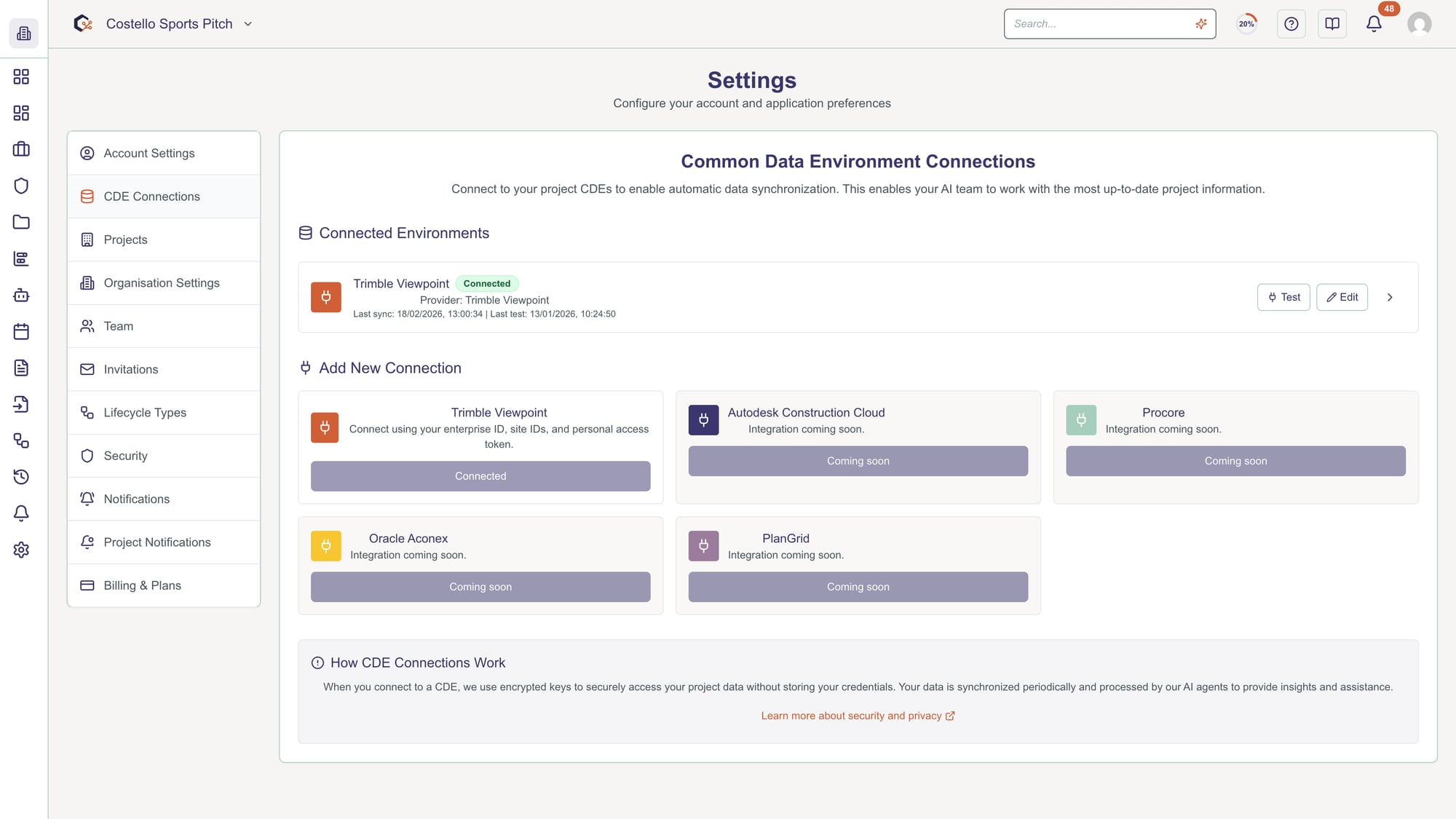
Check the status column to verify synchronization is active. Click on a connection to view sync history, error logs, and recent data updates. Address any sync errors by updating credentials or checking CDE system status.

Monitor synchronization status

tip

Initial synchronization may take time depending on the amount of data. Regular syncs follow your configured schedule.

Step 10: Disconnect or remove CDE connection

To remove a CDE connection, click Disconnect or the delete icon. Confirm the action. Disconnecting stops synchronization but retains previously synced data. Reconnecting will resume sync operations.

Disconnect or remove CDE connection

tip

Projects using this connection will no longer receive data updates after disconnection.

Video Tutorial


Last updated: 2025-12-09