Manage organisation settings
Update your organisation details, branding, defaults and integrations so all projects use consistent settings.
This guide is designed for project manager.
Steps
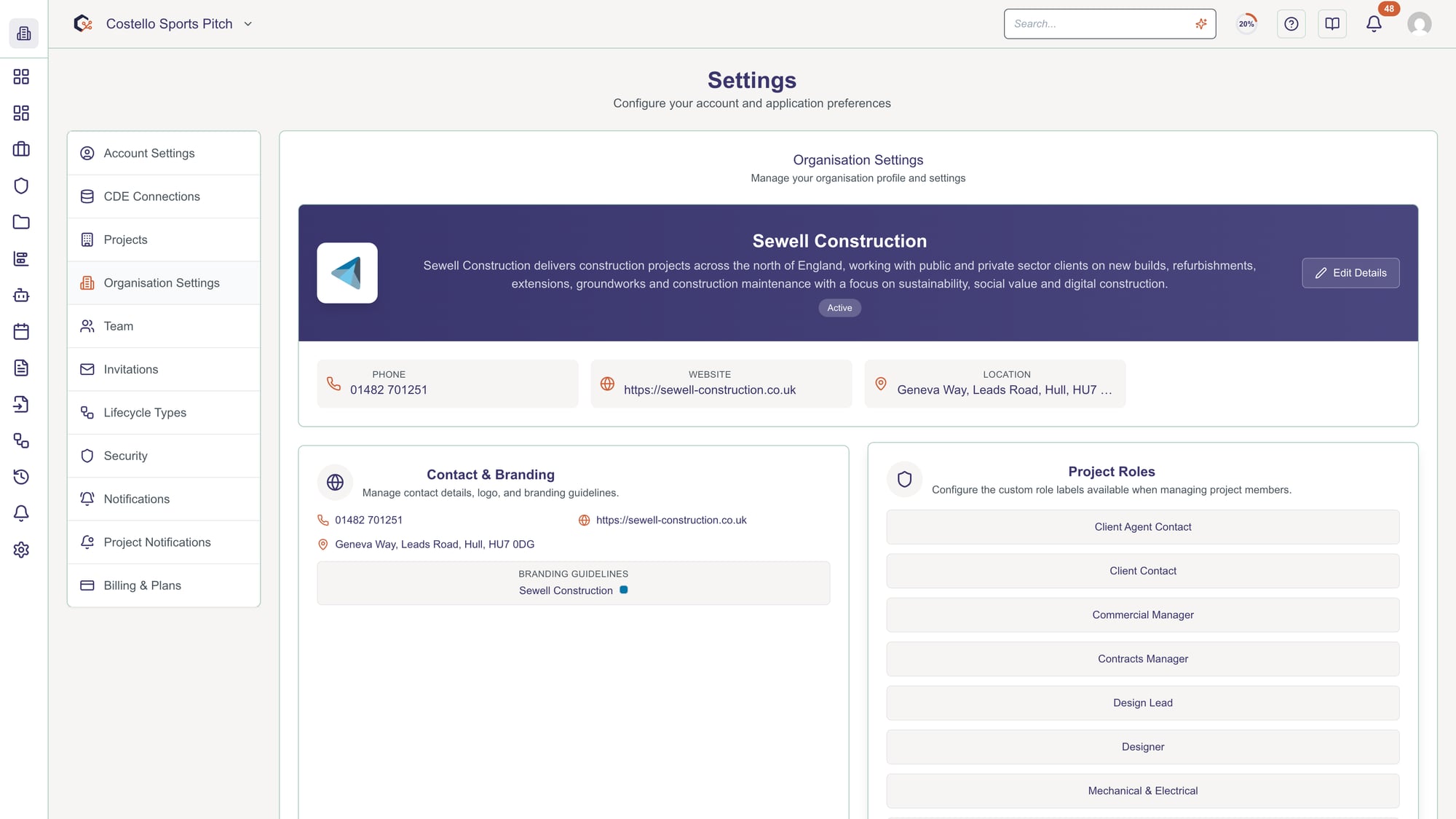
Step 1: Open the organisation settings area
From the main navigation, go to the settings section and choose Organisation settings to open the configuration page.
Step 2: Review and update basic organisation details
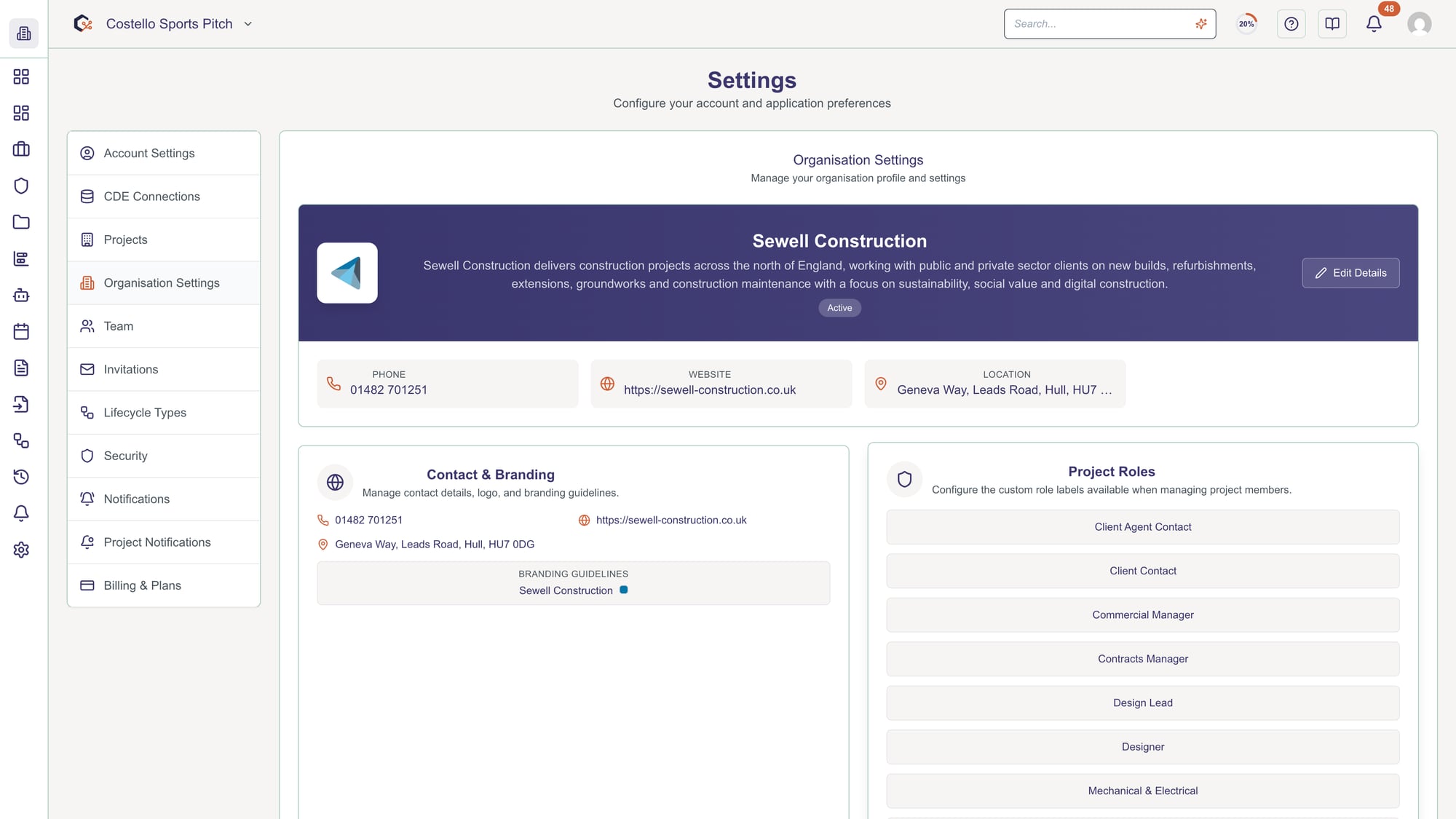
In the Organisation details card, edit fields such as name, website, email, phone number and address, then save your changes.
Step 3: Upload and manage organisation branding
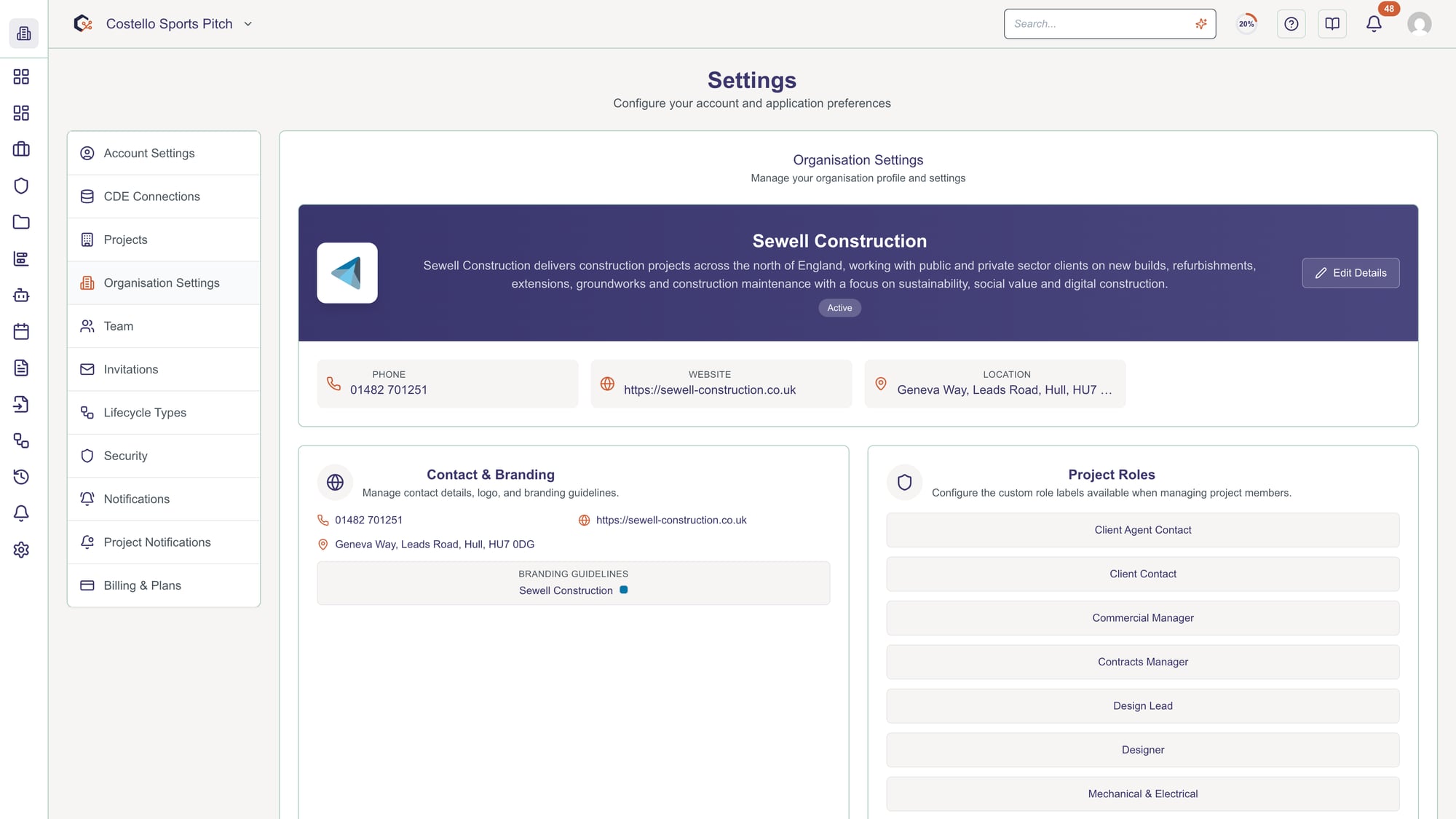
Use the logo upload and branding controls to add or update your organisation logo, colours and other visual settings, then apply them.
Step 4: Configure default project settings
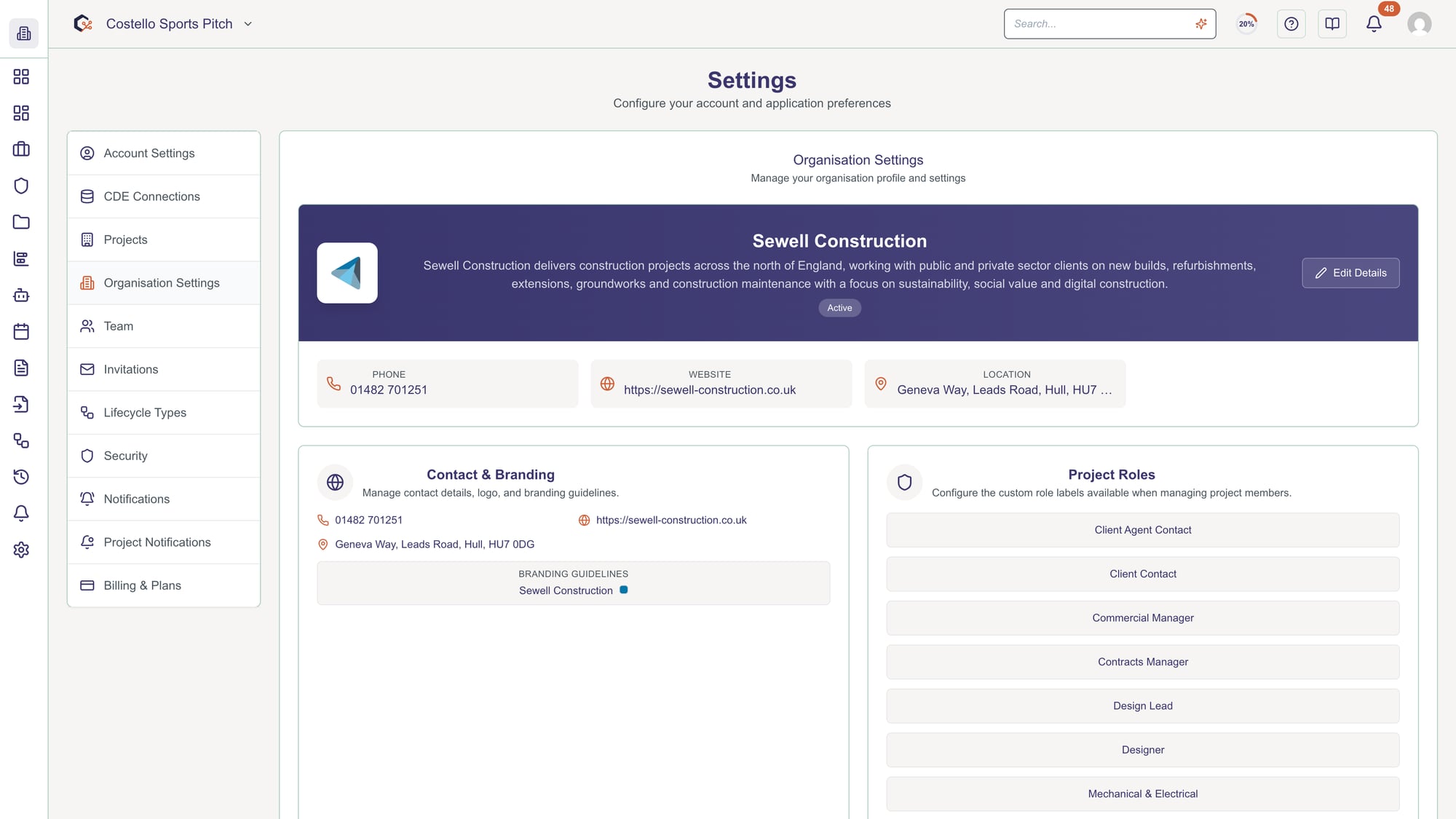
In the project defaults section, adjust options such as default templates, report content mode and other standard project values, then save.
Step 5: Manage external system connections
Open the external systems section to add new integrations, edit existing connections using the dialog, or delete integrations you no longer need.
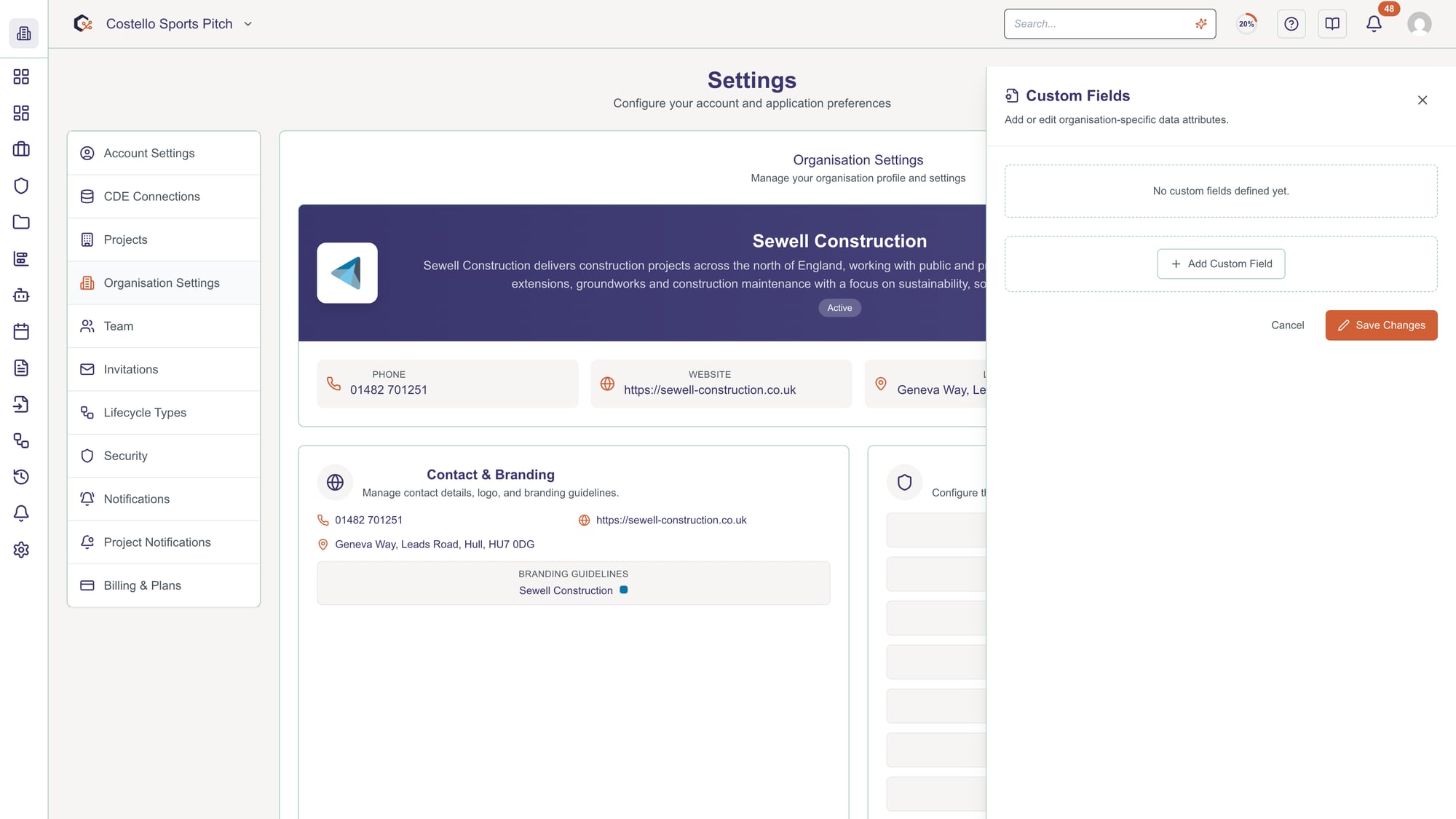
Step 6: Set compliance and security requirements
Use the compliance and security panels to review and update organisational requirements, toggling switches and fields as appropriate before saving.
Last updated: 2026-09-01