Review drawing changes from the documents list
Use the Changes chip in the documents list to see which drawings have a ready-made comparison against their previous revision and open the diff directly.
This guide is designed for project manager.
Steps
Step 1: Find drawings with available comparison
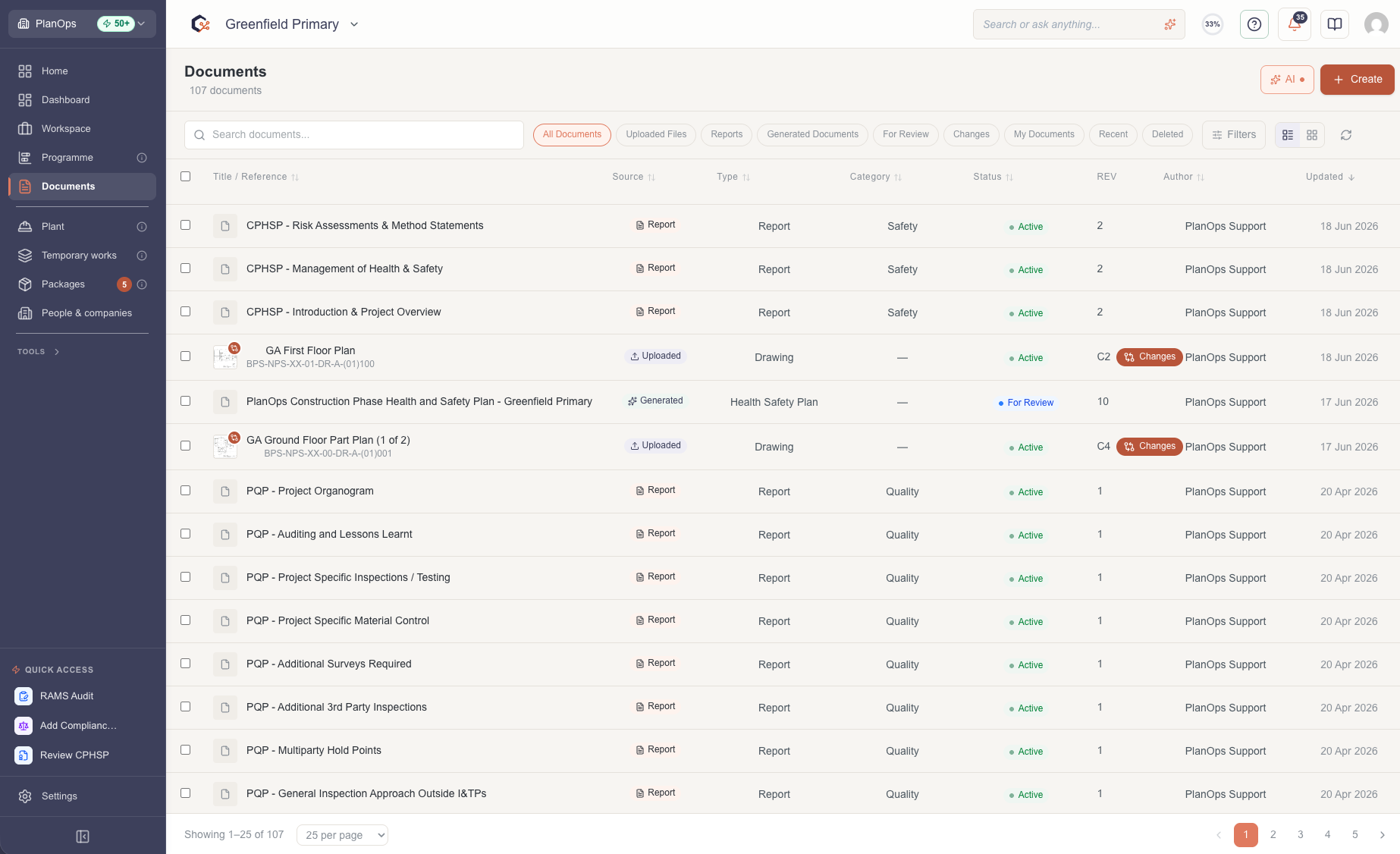
In the unified documents list or grid, look for drawings that display a terracotta Changes chip next to their revision details; this indicates a completed comparison against the previous revision is ready to view.
Step 2: Open the drawing comparison
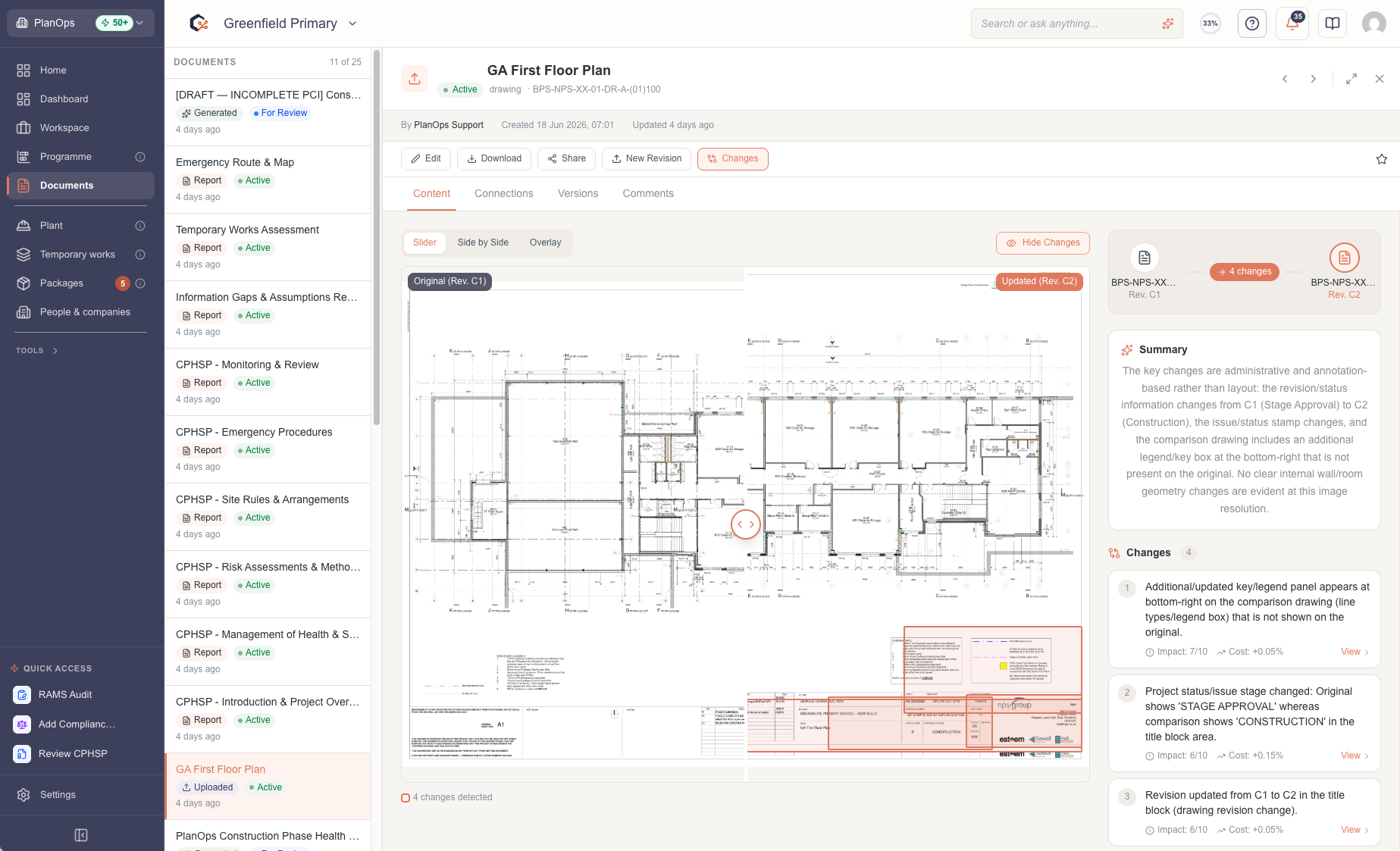
Select the Changes chip with the compare arrows icon to open the drawing diff view, where you can review what has changed from the previous revision.
Step 3: Recognise comparisons that are still running
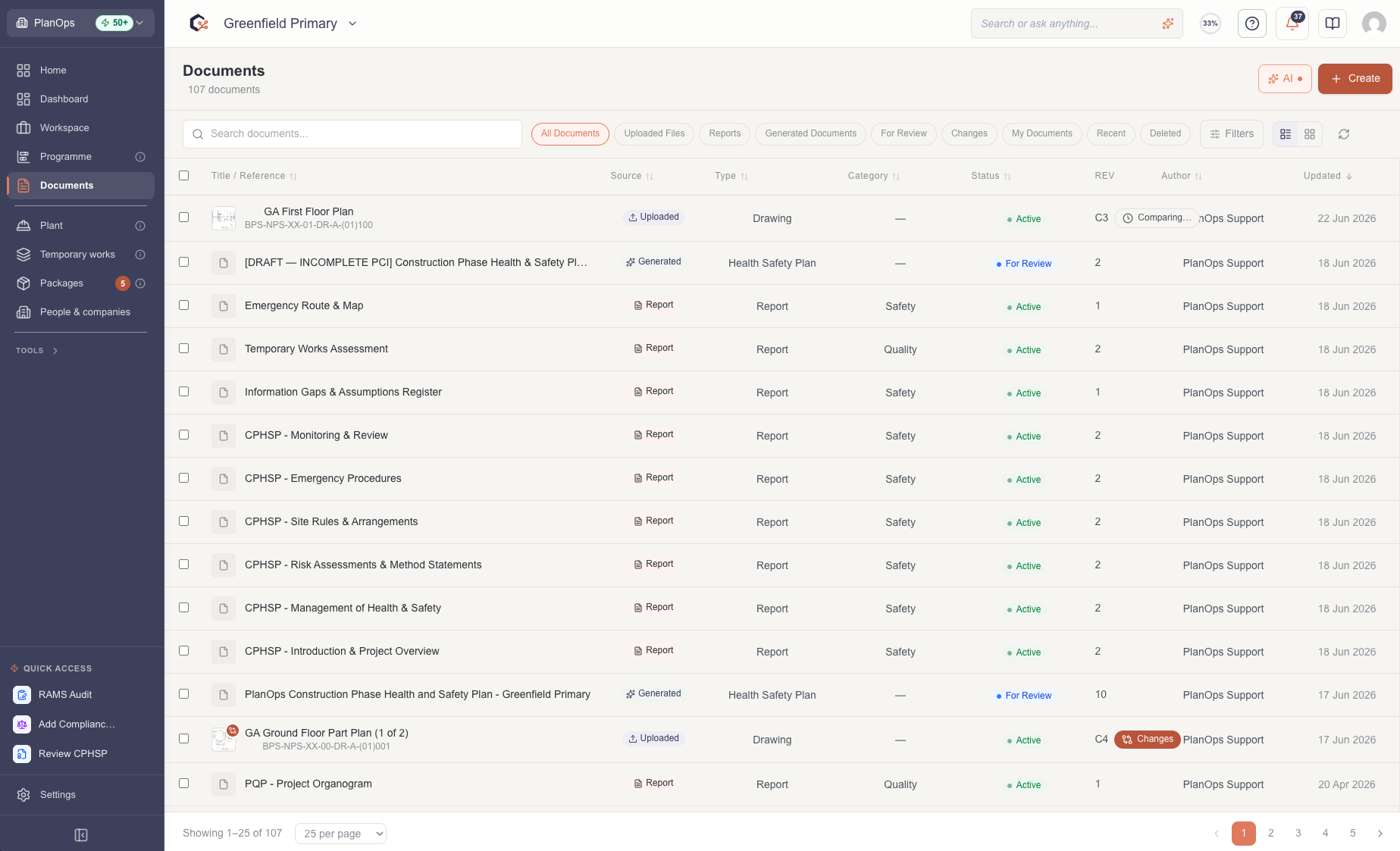
When you see a Comparing… chip with a clock icon, PlanOps is still analysing the differences.
Step 4: Identify failed comparisons
If a Compare failed chip with an alert icon appears, the system could not generate changes for that drawing and you may need to retry or request support.
Last updated: 2026-06-17T00:00:00.000Z