Compose AI-generated document content
Use compose mode to generate, review, and refine AI-authored document sections, including embedded reports and linked documents.
This guide is designed for project manager.
Steps
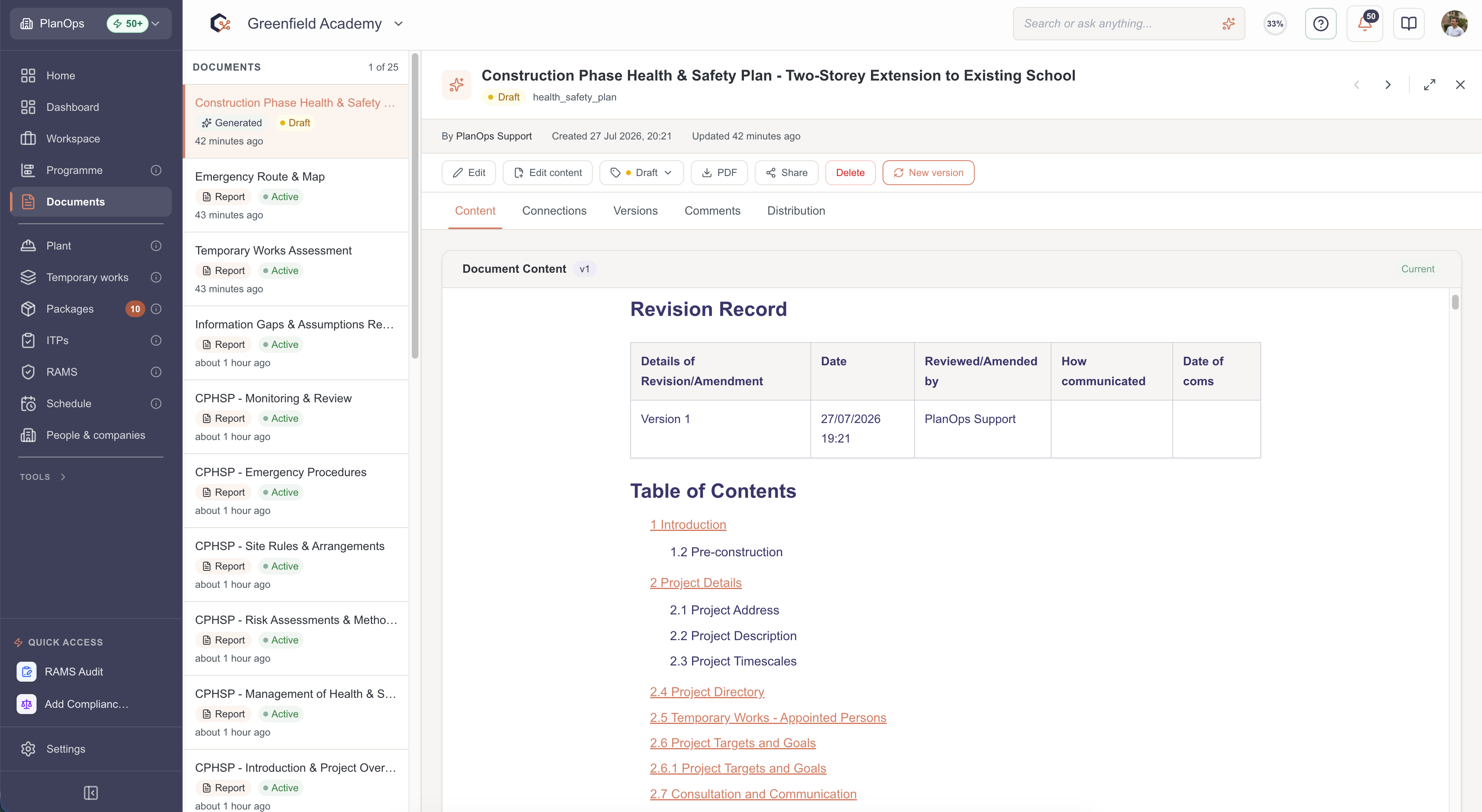
Step 1: Open the document in compose mode
Open the document detail view and switch to compose mode so the standard read-only view is replaced with the composition surface for editing AI-generated content.
Step 2: Review the AI-generated section
Scroll through the composed content to review the generated text and any embedded elements, checking that it aligns with your project requirements.

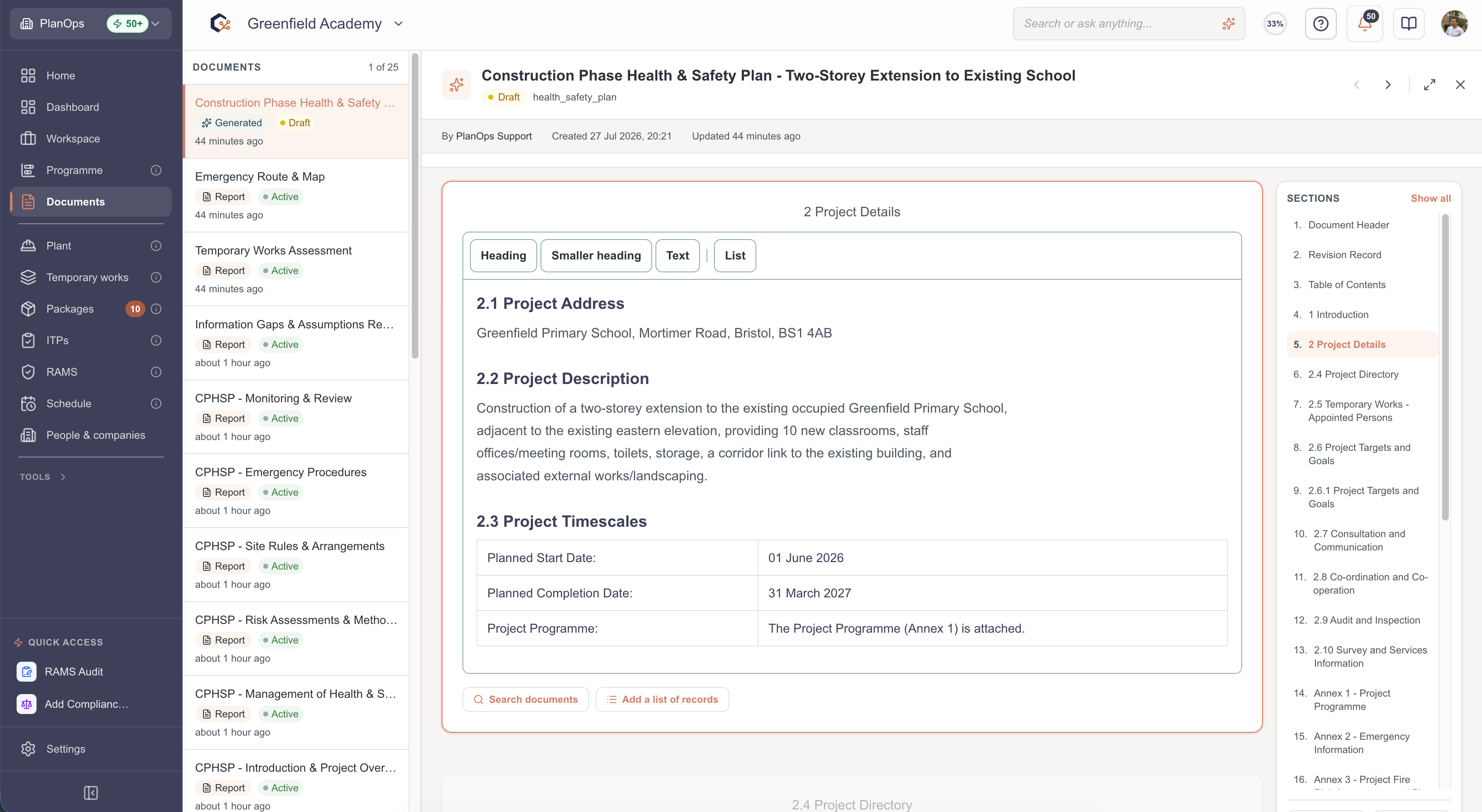
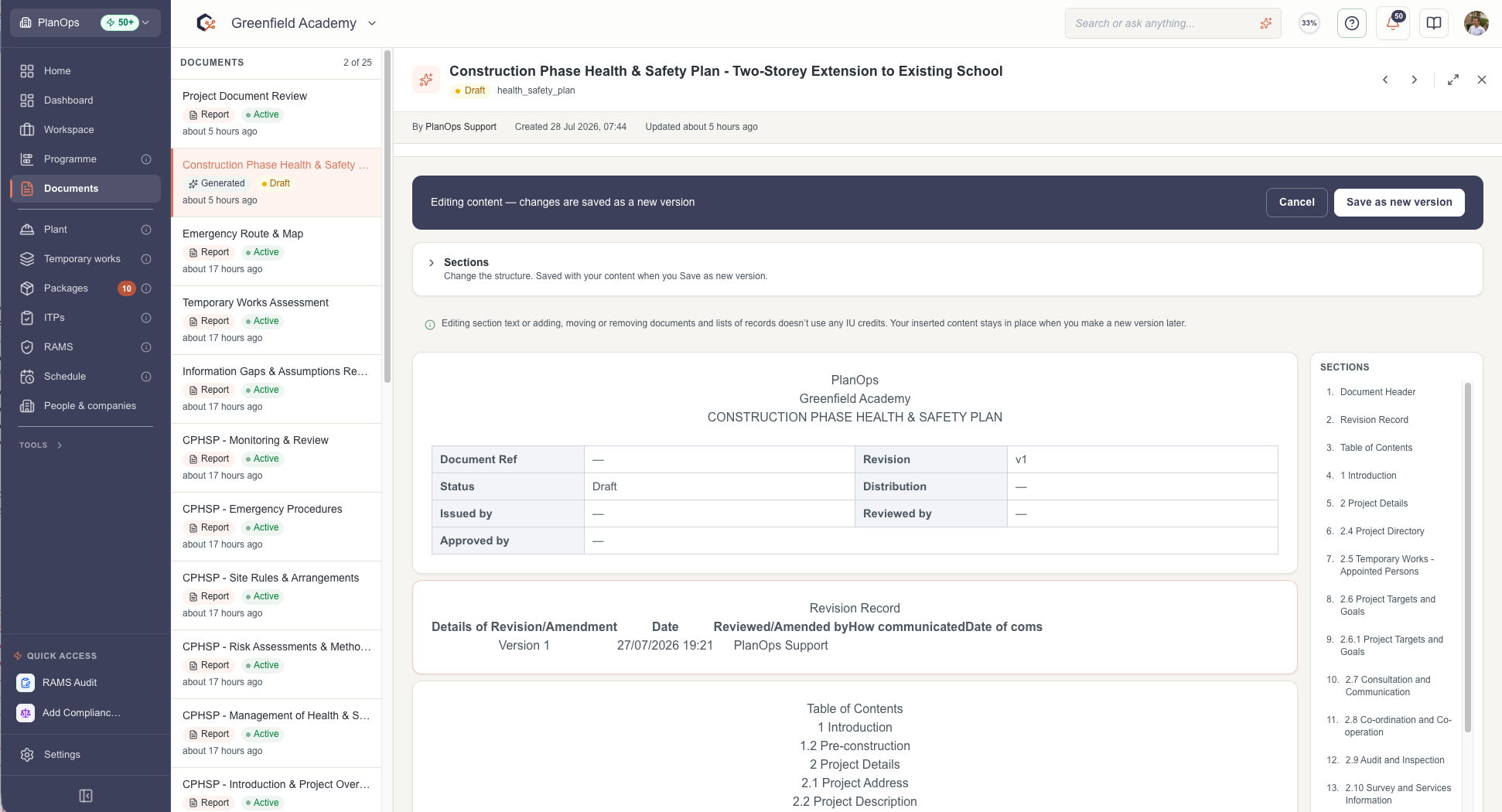
Step 3: Add or adjust free-text edits
Click into the rich text editor to type or modify free-text content, ensuring any clarifications, caveats, or project-specific wording are accurately captured.
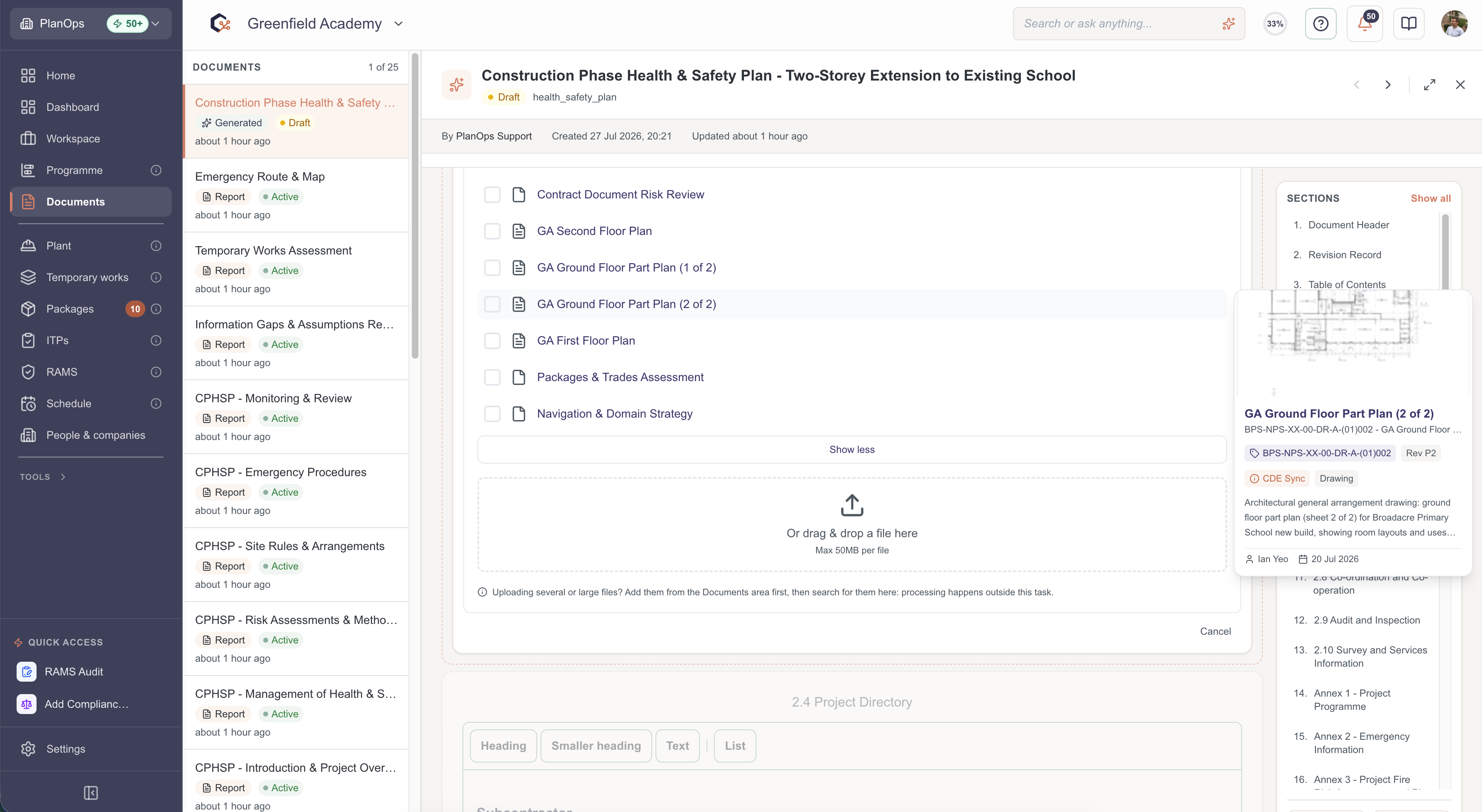
Step 4: Insert supporting documents with the picker
Use the document picker field to search for and attach relevant project documents so the AI can reference them within the composed section.
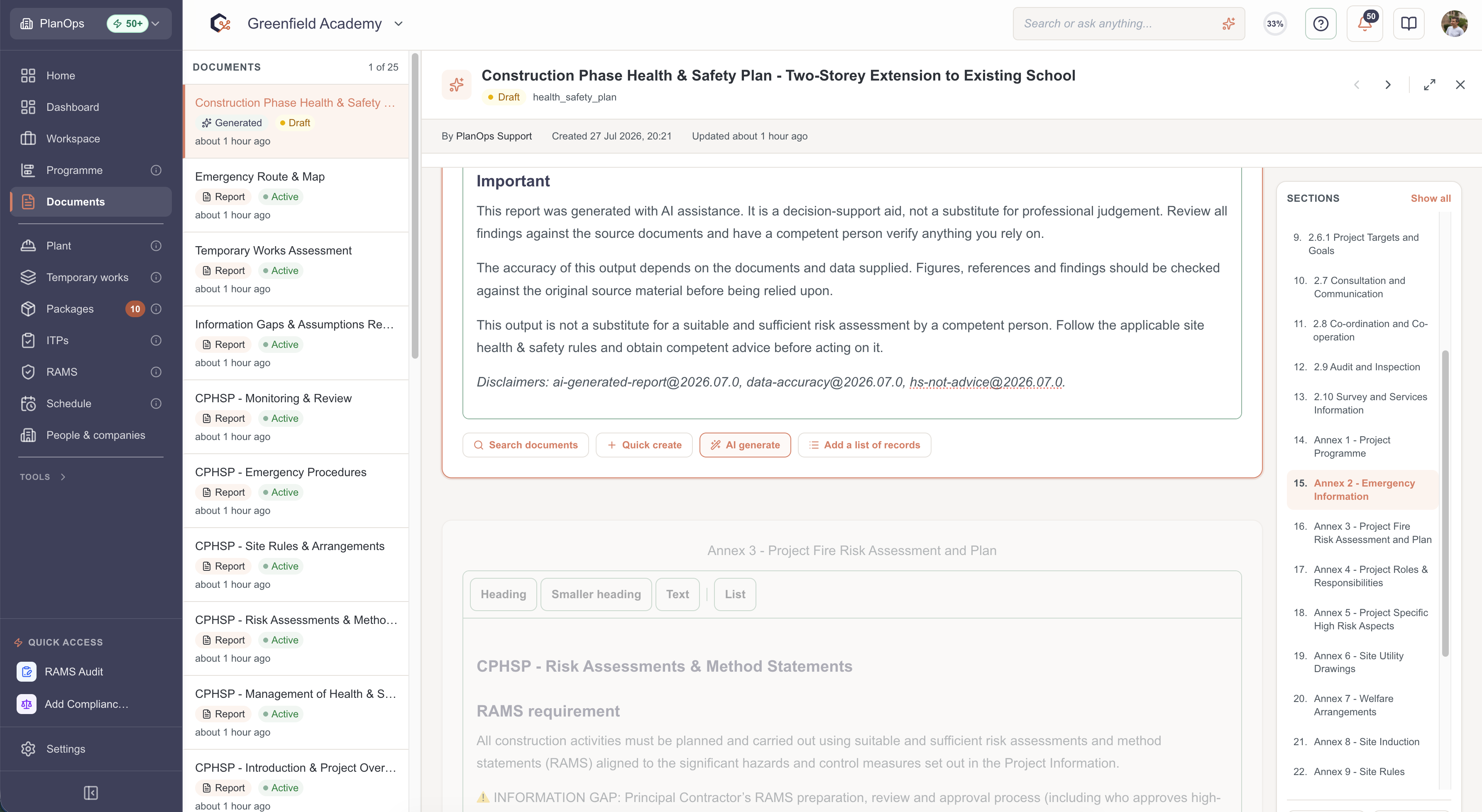
Step 5: Trigger an AI agent task for deeper analysis
Start an AI agent task from compose mode to generate a more detailed analysis or report, then wait for the agent task modal to confirm completion.
Step 6: Attach AI-generated report outputs
Once the AI agent completes, link the returned AI report output into your composed content to provide traceable, structured evidence.

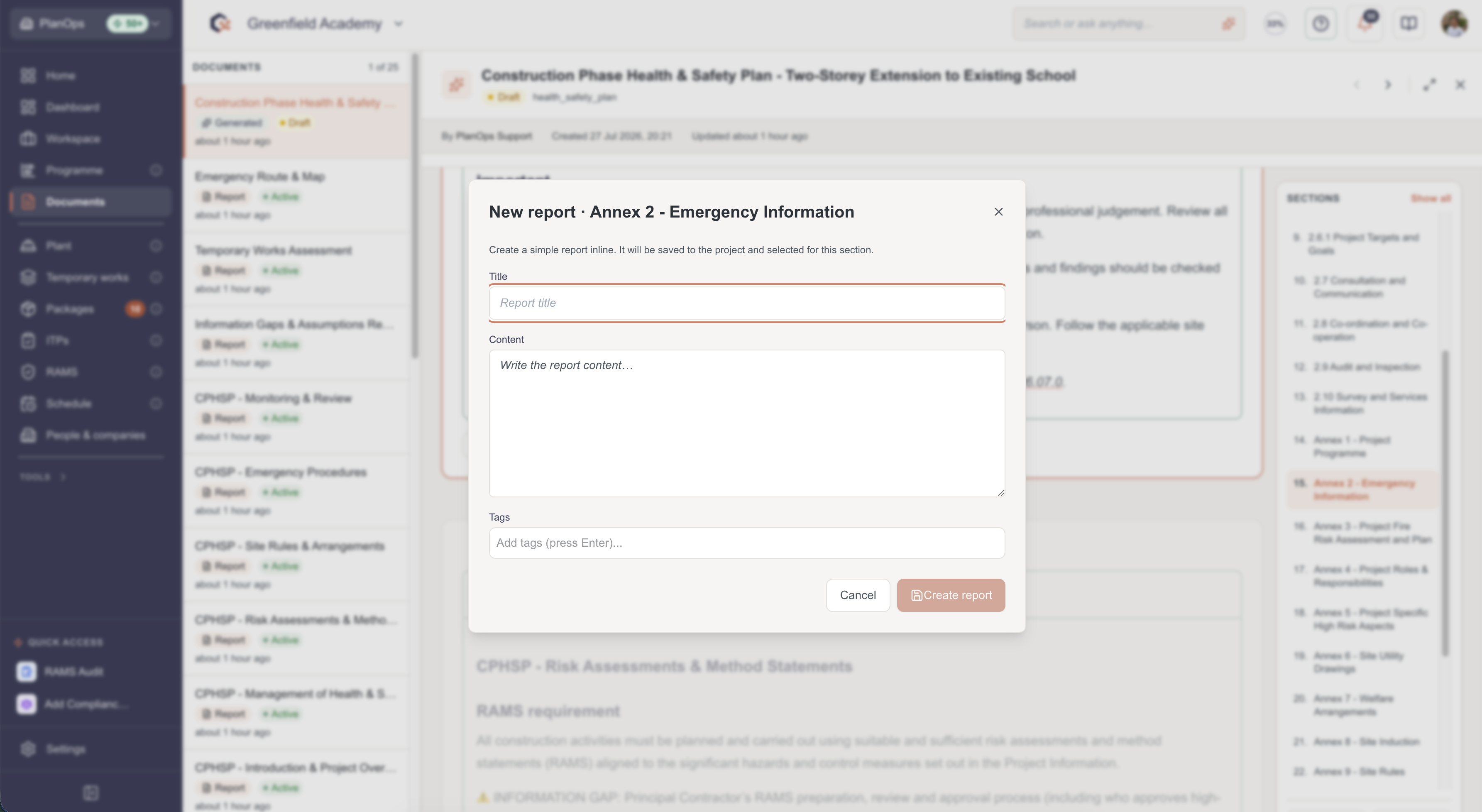
Step 7: Create a quick report from a section
Open the quick report modal from the current section to capture a concise, tagged report that is automatically associated with the relevant part of the document.
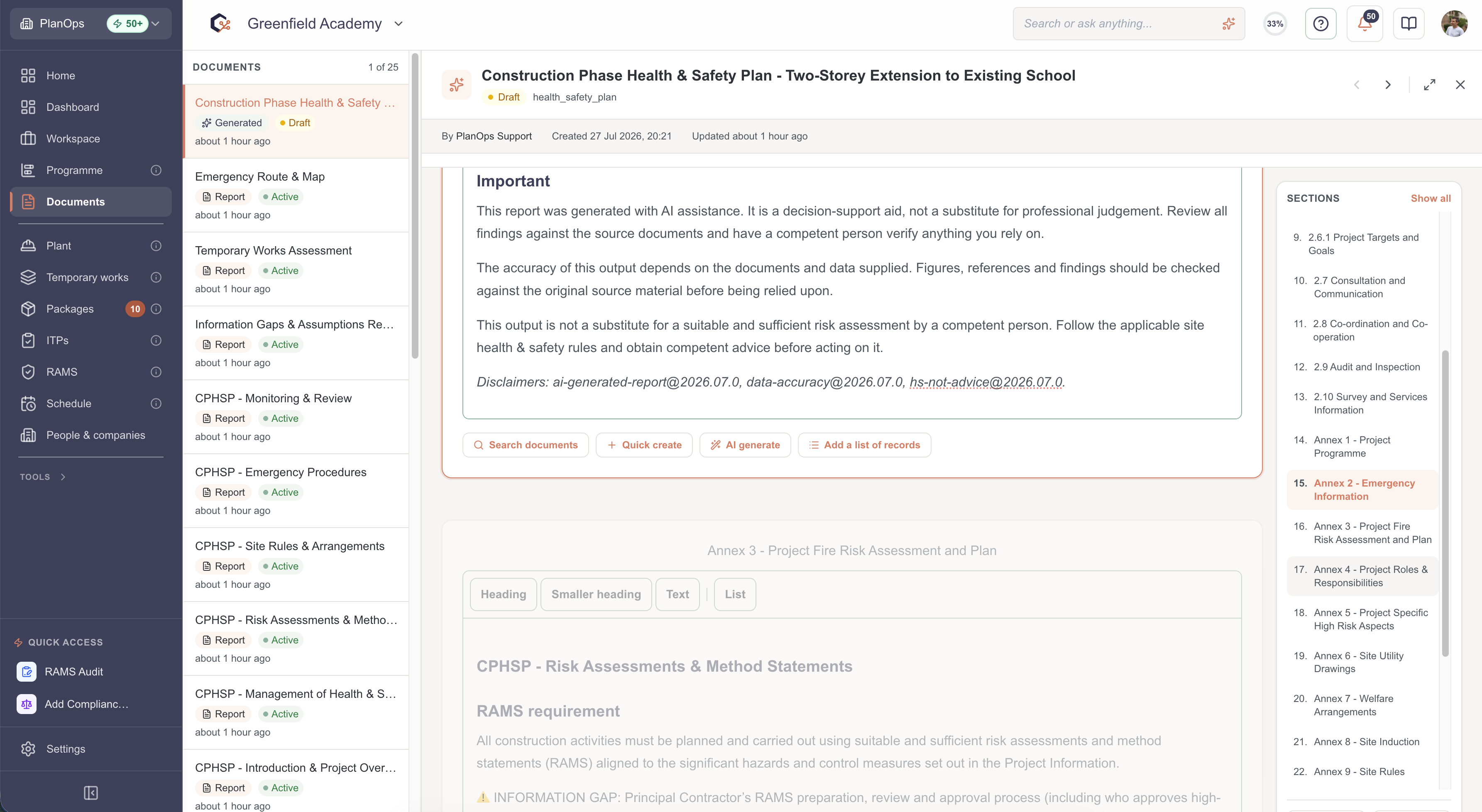
Step 8: Preview document pages
Use the page preview to move between pages, confirming that the composed wording and inserts render correctly across the full document layout.
Step 9: Regenerate AI content when needed
Regenerate the AI-authored section to refresh the content, retaining embedded items while being aware that only free-text edits may trigger a destructive-change warning.

Step 10: Save the composed document section
Save your changes to commit the composed and edited content, resolving any save errors shown by the compose save error message before finalising.
Last updated: 2026-07-27T00:00:00.000Z