Compose a document from generated sections and embedded records
Use the unified compose view to edit generated document sections, embed supporting documents, and manage register blocks without changing the underlying template.
This guide is designed for project manager.
Steps
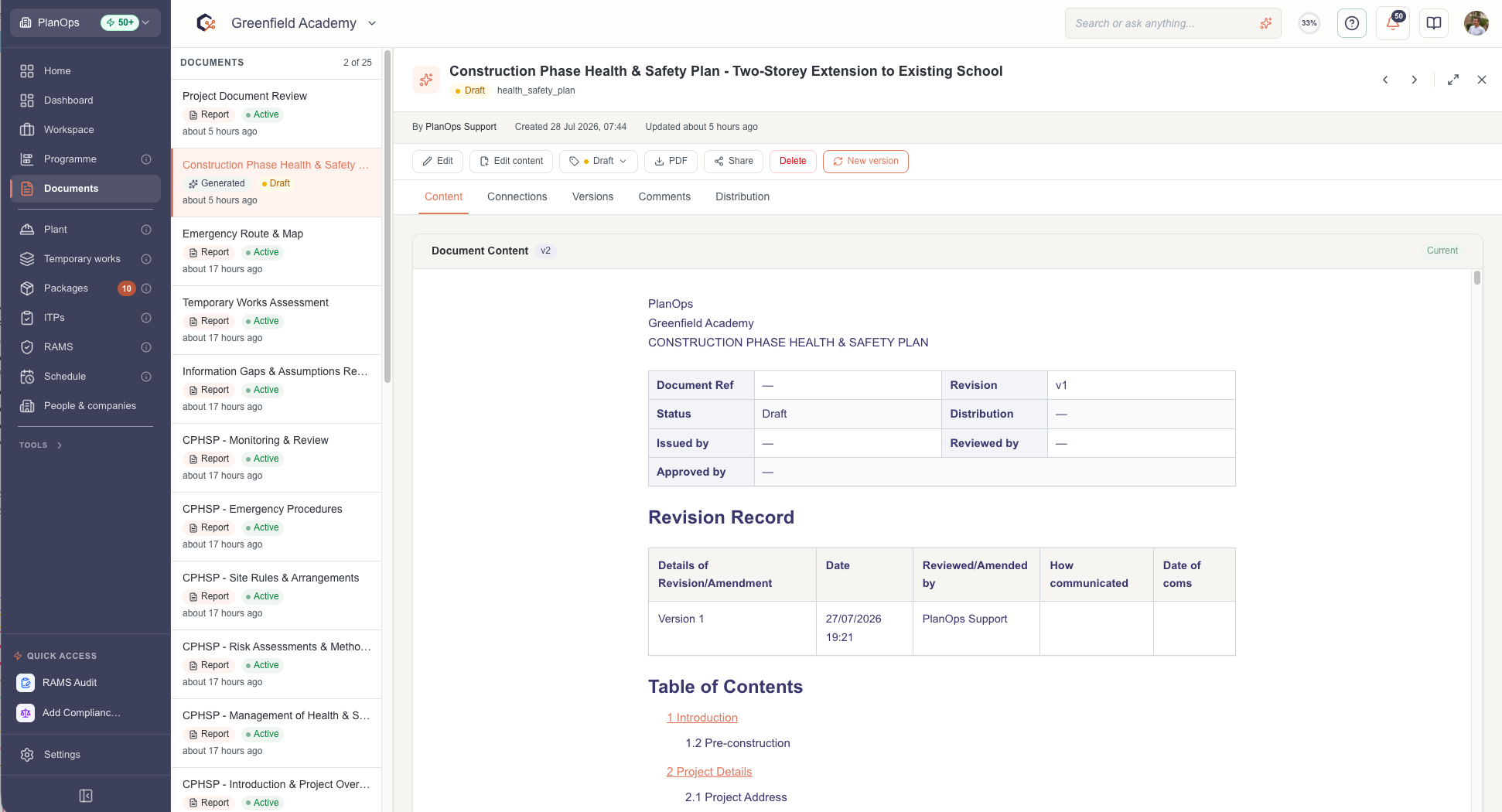
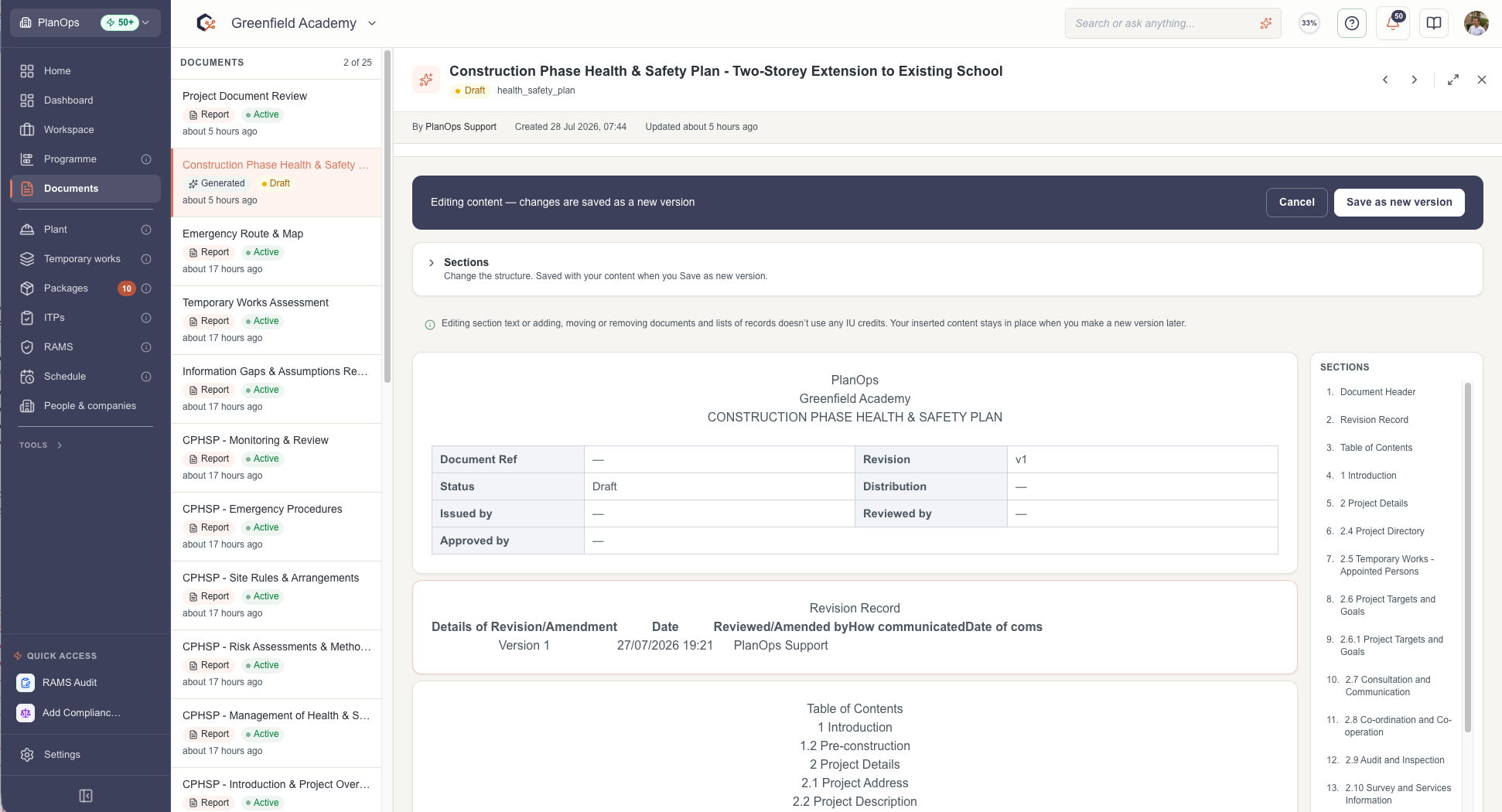
Step 1: Open the document in 'Edit content' mode
From the unified documents view, open a generated document; it appears in compose mode with each section shown as an individual block you can work with.
Step 2: Review section blocks and existing content
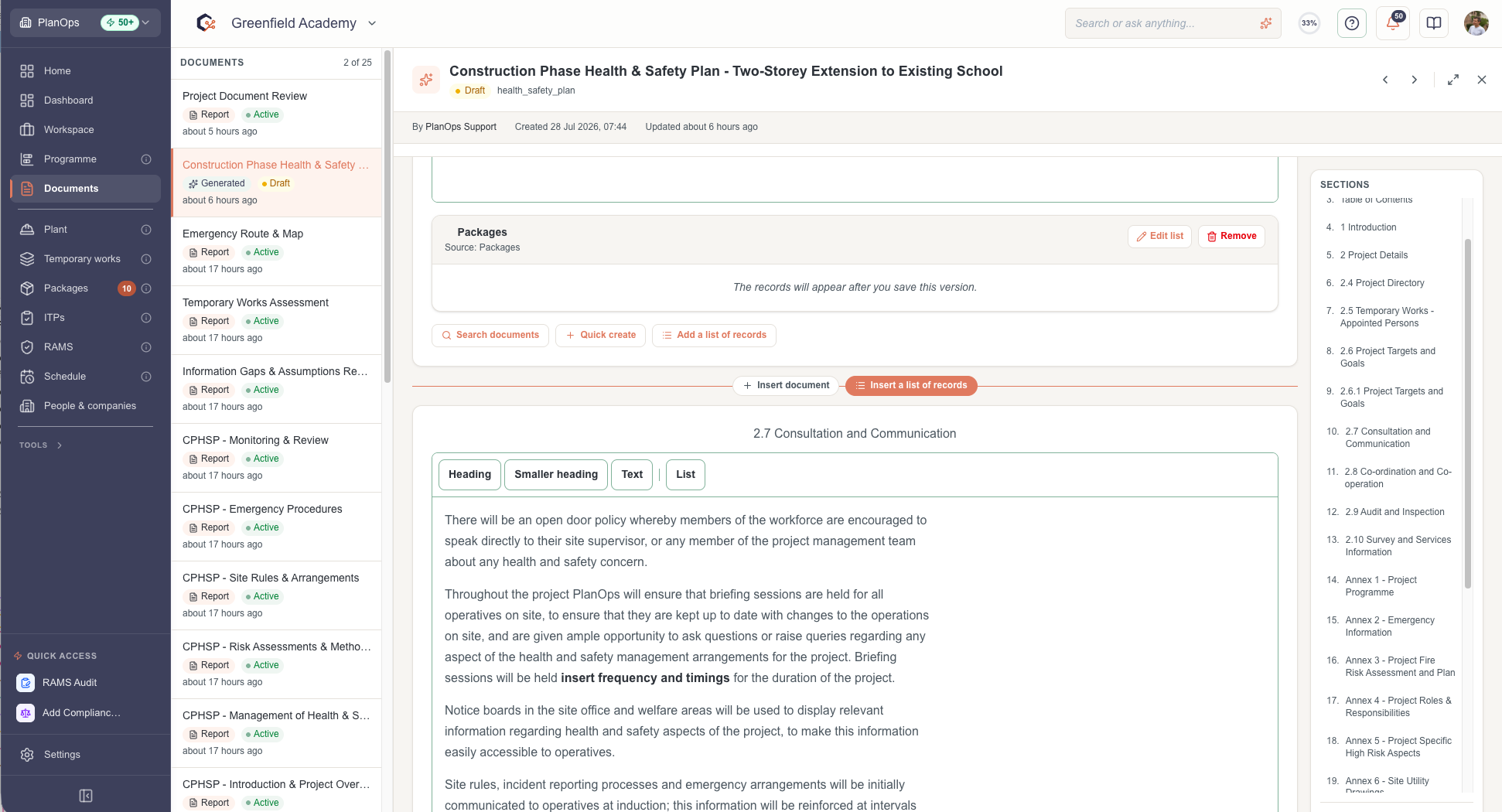
Scroll through the document to review each section block, including its read-only generated text, embedded document cards, and any existing register blocks.
Step 3: Insert additional documents into a section
Within a section block, use the document picker to search for and select related documents; each chosen file is added as an embed card that shows its title, status line, thumbnail, and page count.

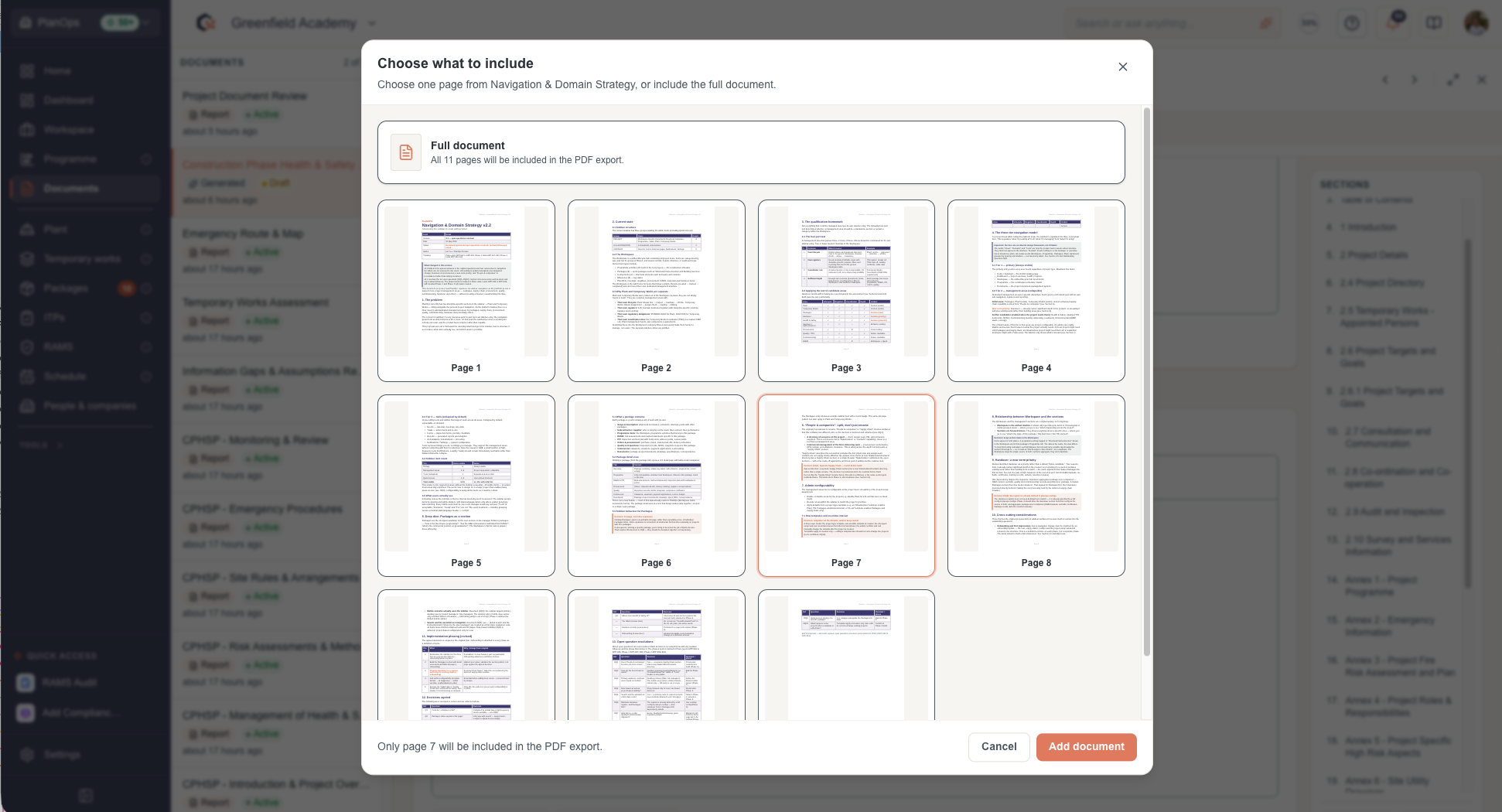
Step 4: Choose specific pages to embed
For multi-page documents, open the page picker from the embed card to select which pages to reference so that the embed is focused on the most relevant content.
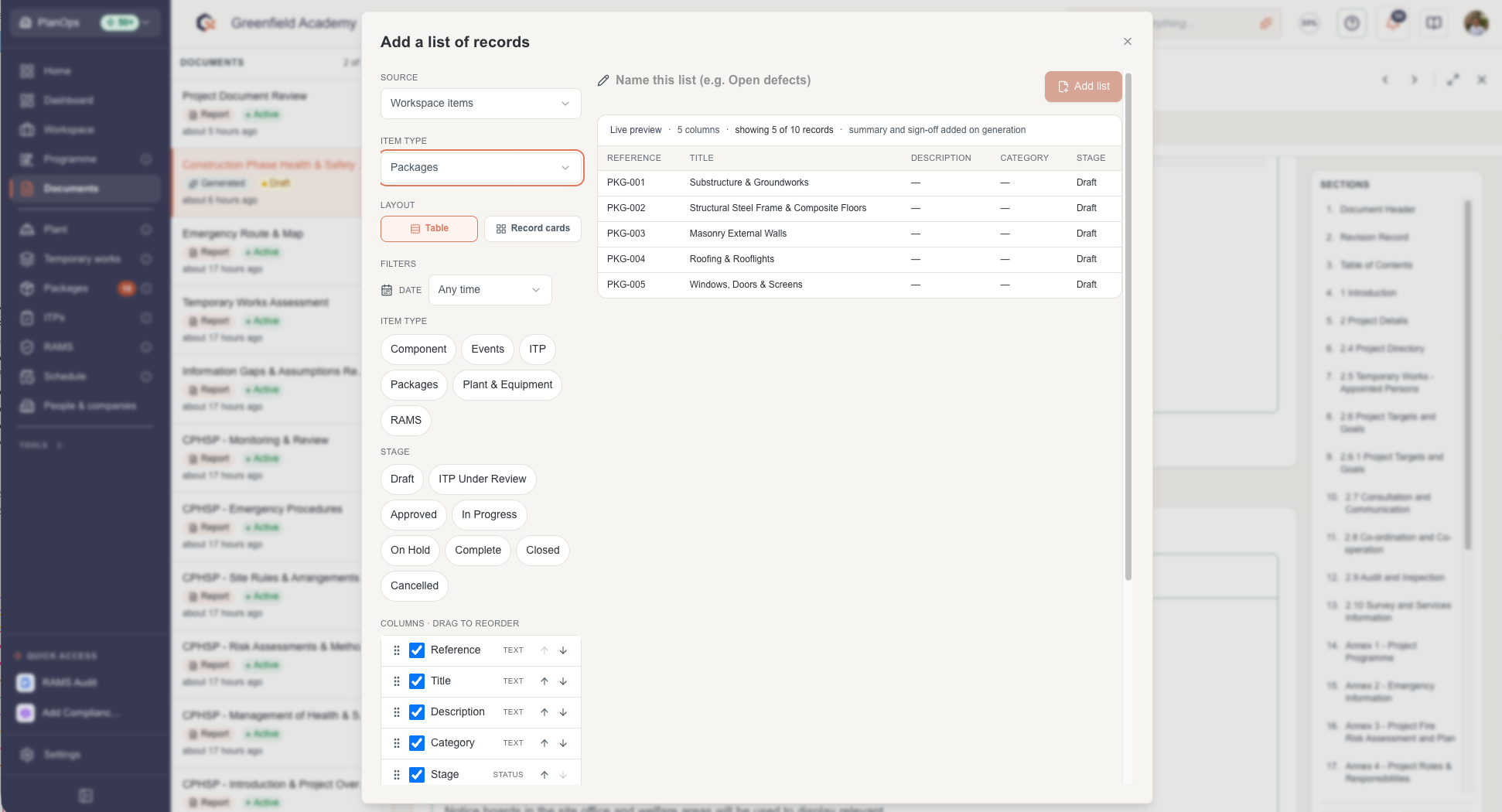
Step 5: Add and configure registers - RAMS, Companies, packages etc
In sections that support registers, open the register builder to define or edit structured registers, then insert them so they appear as dedicated register cards in the composition surface. Each register will require a 'title' before it can be saved.
Step 6: Add, move, or remove register items between sections
Hover between sections to reveal insert points, then add new embeds or register, or remove ones you no longer need, so that the composition matches the structure you want without touching the template.
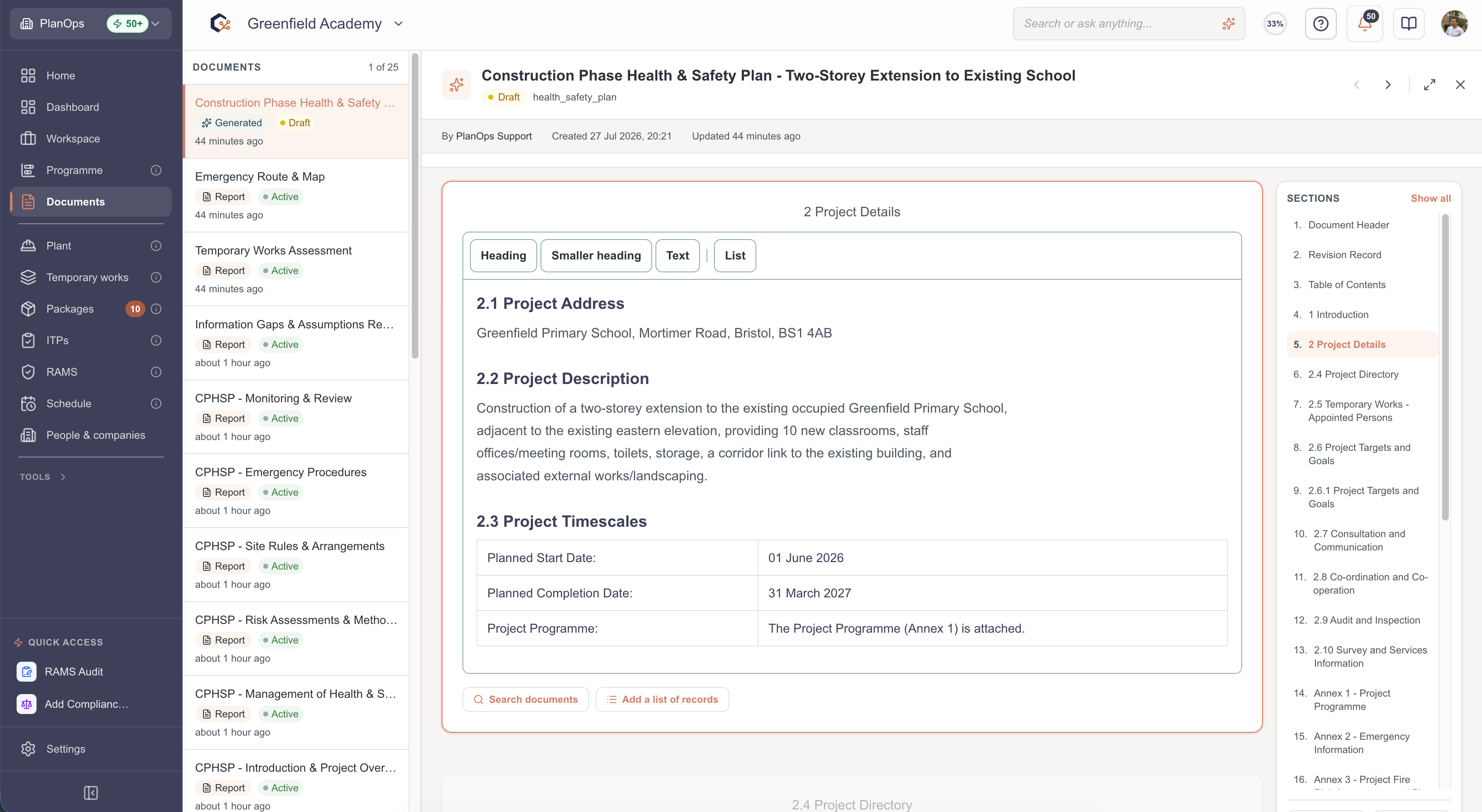
Step 7: Update and add text notes
In sections that permit user content, type or edit notes using the text editor for information that is kept alongside the document inserted sections and registers.
Step 8: Save the composition as a new version
Save your changes so that the current arrangement of sections, embeds, and register blocks is stored as a new version of the document without incurring additional model usage.
Last updated: 2026-07-27T00:00:00.000Z