Open contextual help for your current page
Learn how to open the contextual help panel so you can see guidance relevant to the page you are currently working on.
This guide is designed for project manager.
Steps
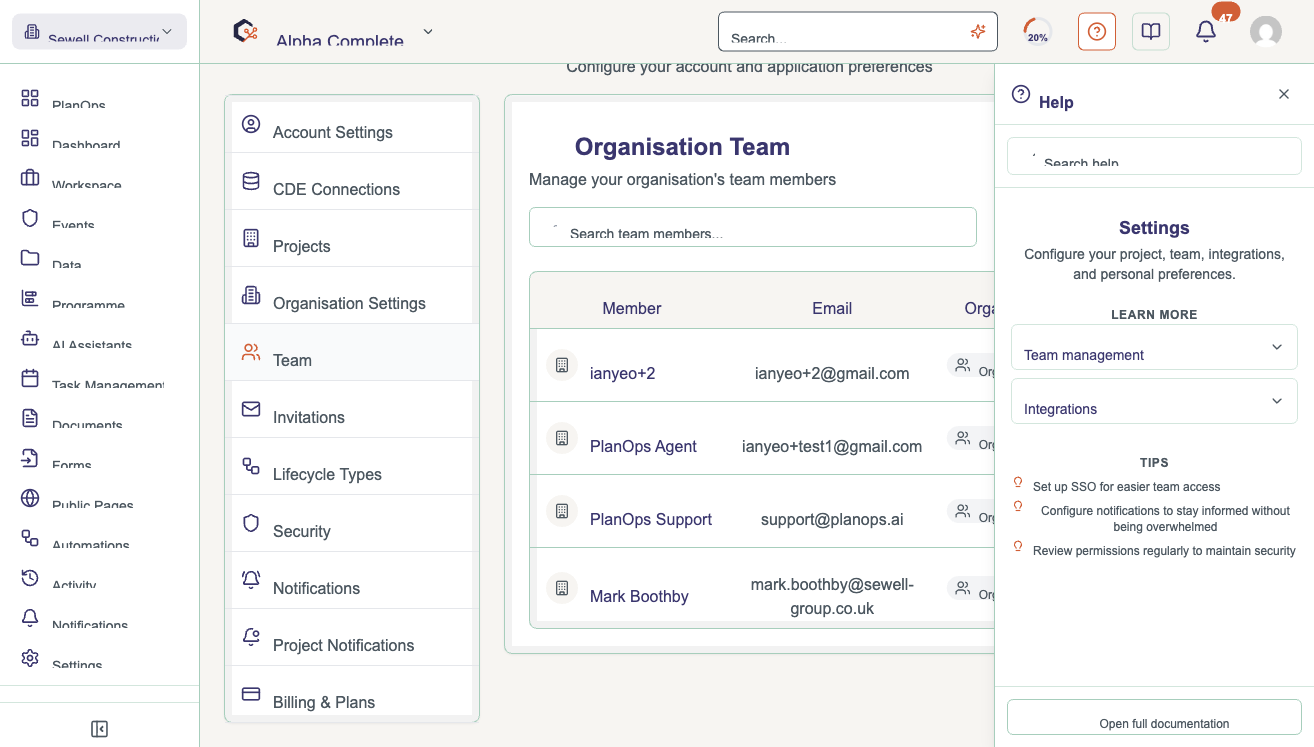
Step 1: Locate the help icon
Look to the application frame (usually the top or side bar) and find the circular help icon, typically shown as a question mark. Make sure you are not currently typing into any text field, as the help button will not respond while an input is active.
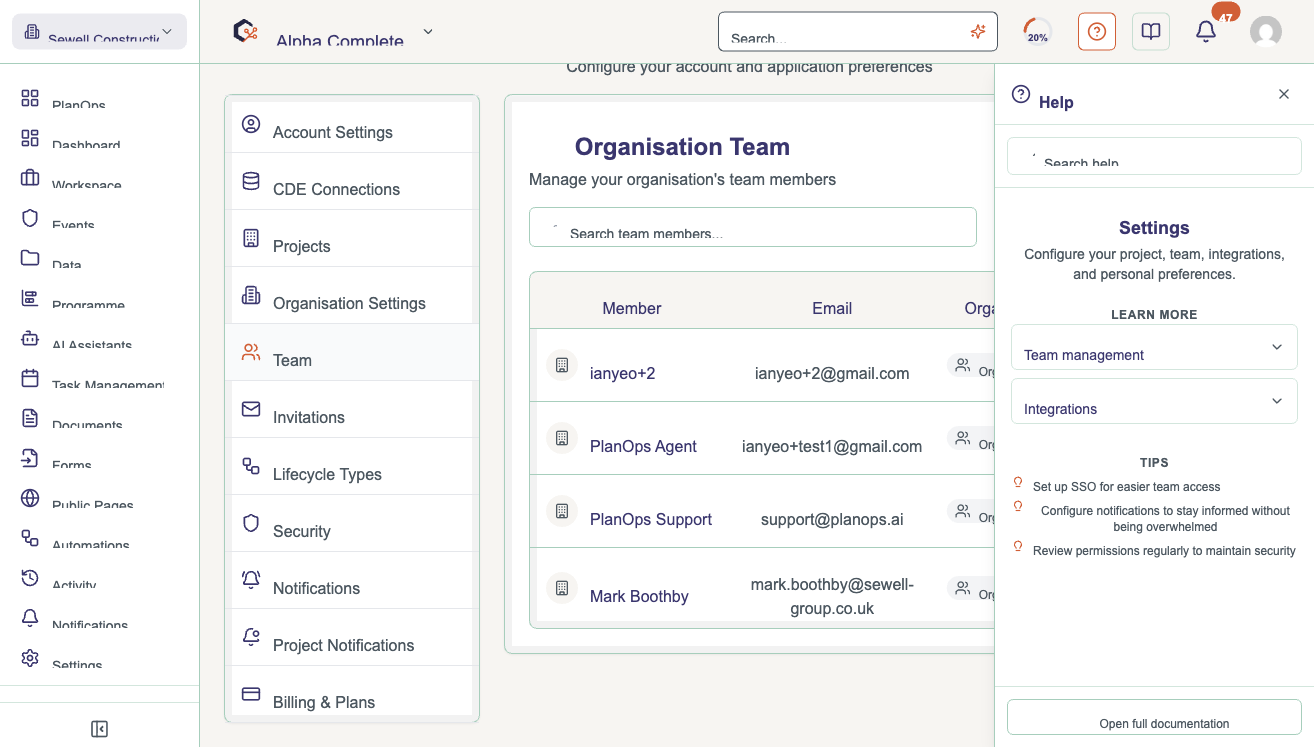
Step 2: Click the help icon
Click the help icon once to open the help panel. The system automatically detects your current page and shows the most relevant help topic for that area of the application.
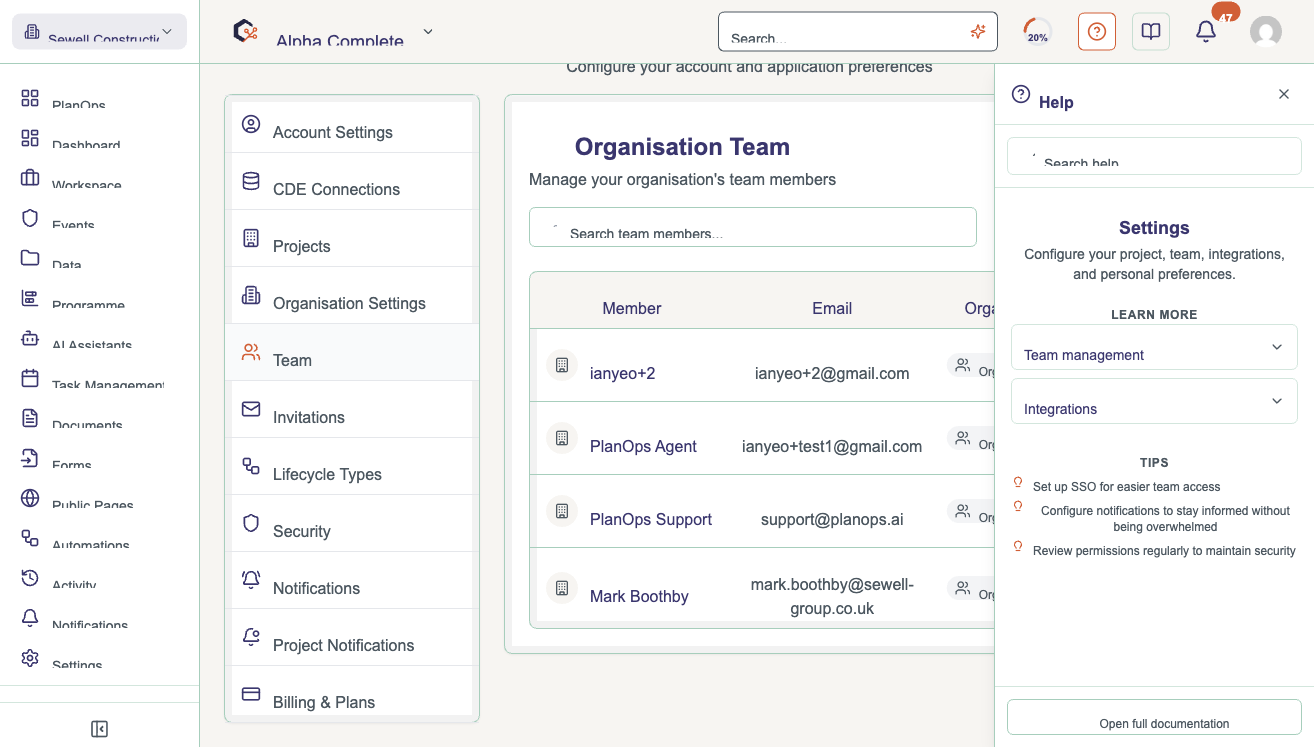
Step 3: Review the contextual guidance
Read through the help content displayed in the panel to understand the available actions, fields, and options on your current page. Use this information to complete your task more efficiently.
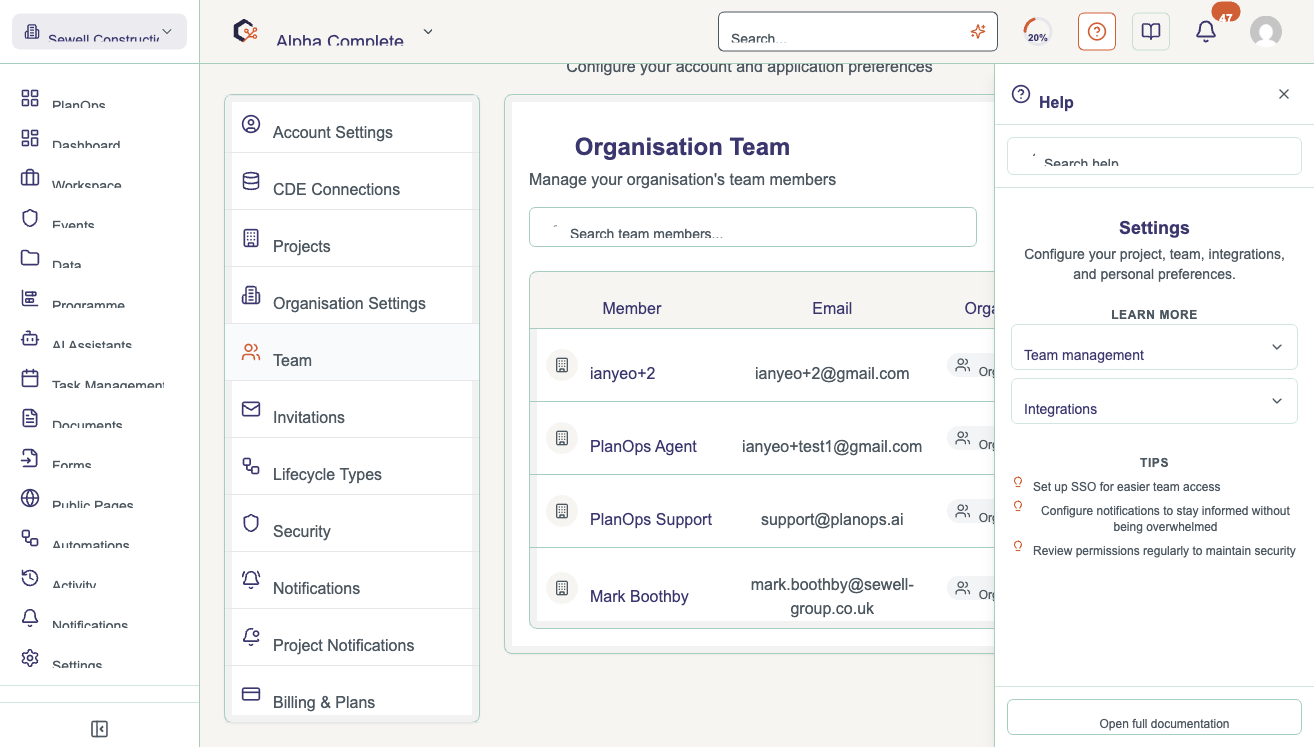
Step 4: Keep working with help available
Continue working in the main application while keeping the help panel open, referring back to it as needed. If required, you can close the panel using its close control when you no longer need guidance.
Related Tasks
Last updated: 2025-12-24