View your project dashboard
Use the project dashboard to review key metrics, activities, deadlines, risks and AI insights for the selected project in one place.
This guide is designed for project manager.
Steps
Step 1: Open the project dashboard
From the main navigation, select your project to open its dashboard; the page loads an overview of metrics, activities, deadlines and insights for the current project.
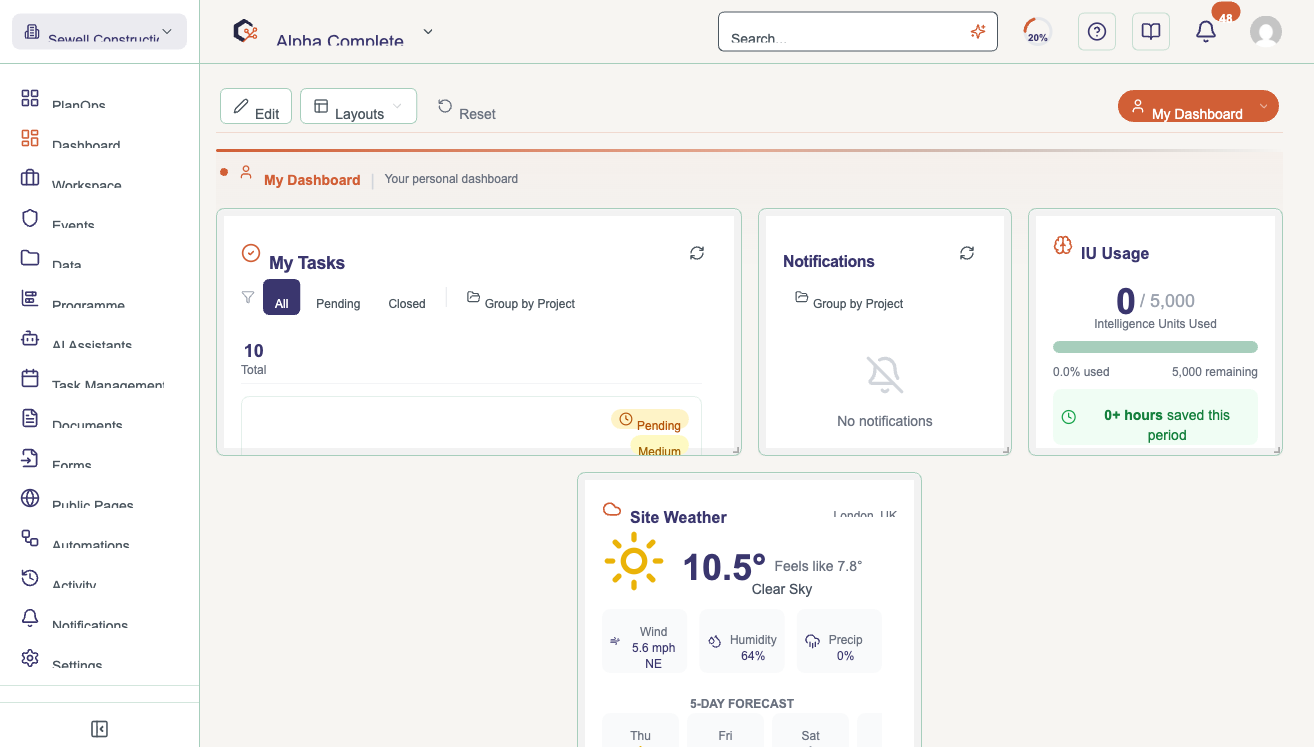
Step 2: Review project metrics and progress
Check the metrics section to see overall project health, completion percentage and other key indicators calculated from project dates and task data.
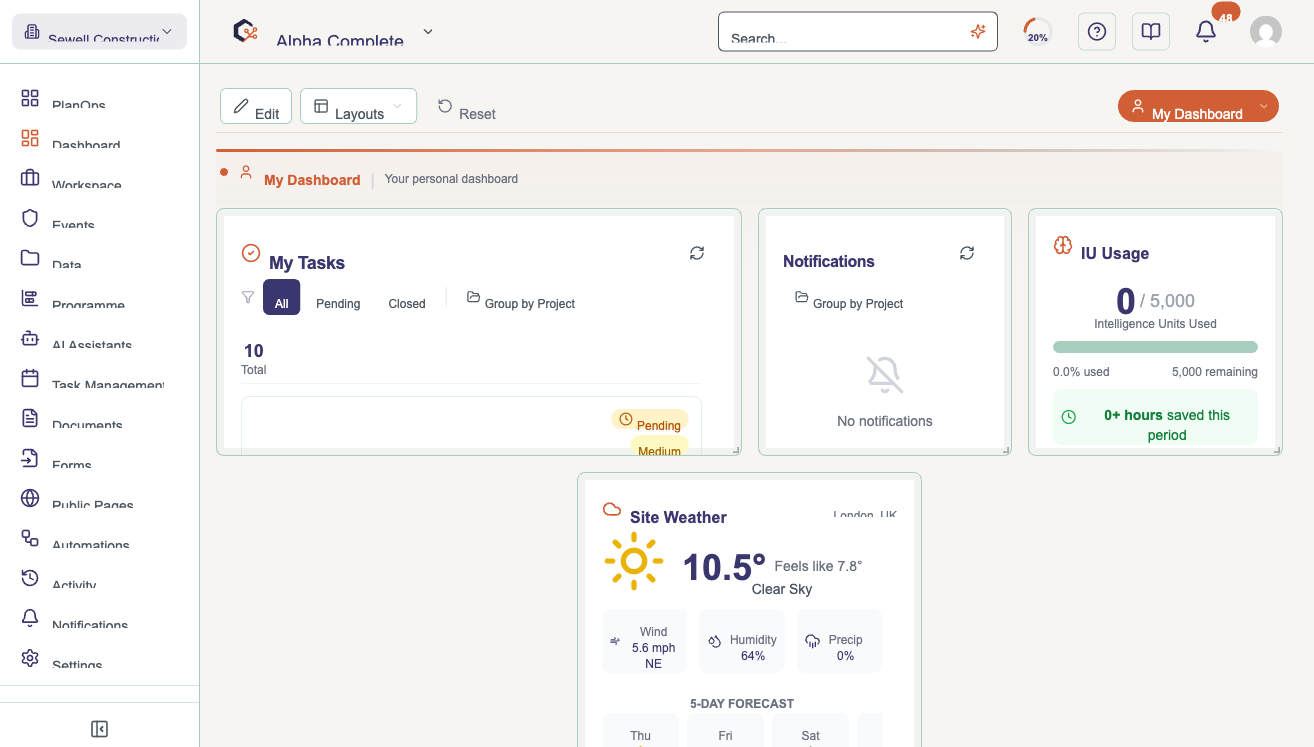
Step 3: Monitor recent activity
Scroll to the recent activity section to review the latest updates, changes and actions taken on the project by team members and systems.
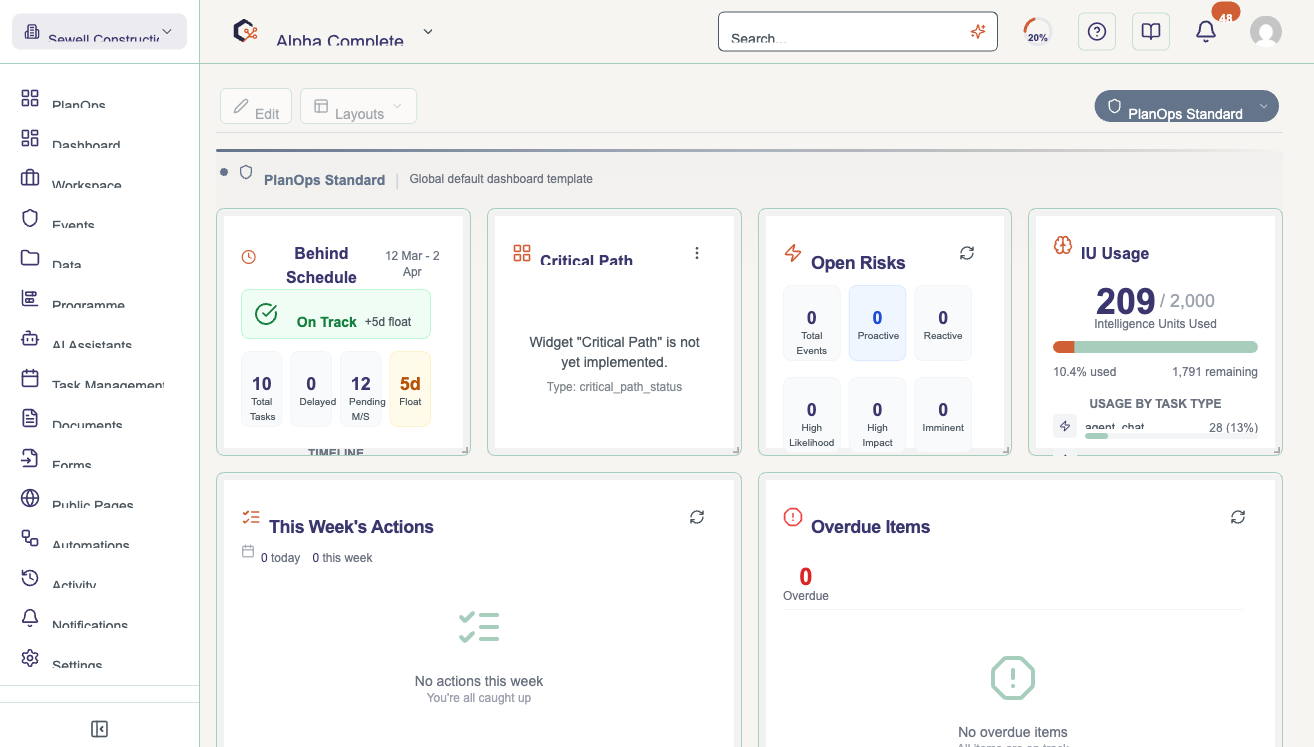
Step 4: Check upcoming deadlines
In the upcoming deadlines section, review approaching milestones and due dates to understand what needs attention soon.
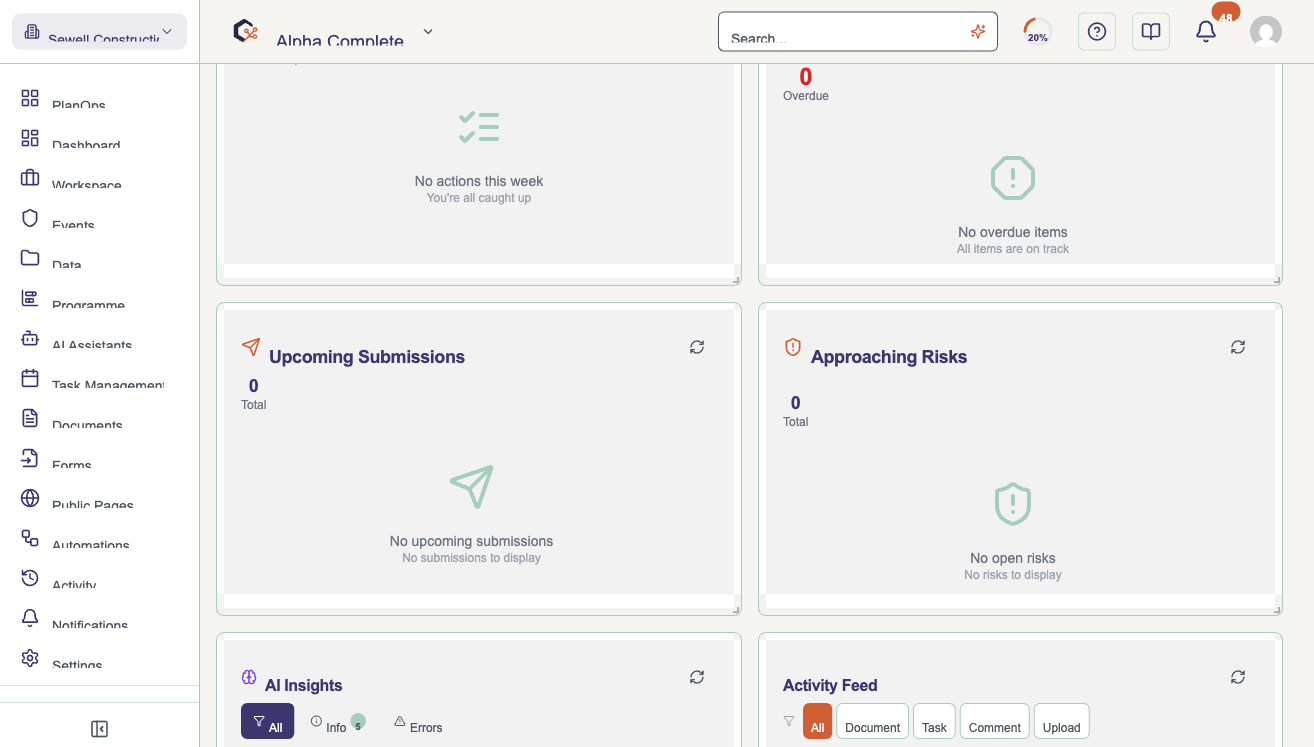
Step 5: Assess project risks
Look at the risks section to see identified issues and concerns that could affect timelines, scope or quality, so you can plan mitigation actions.
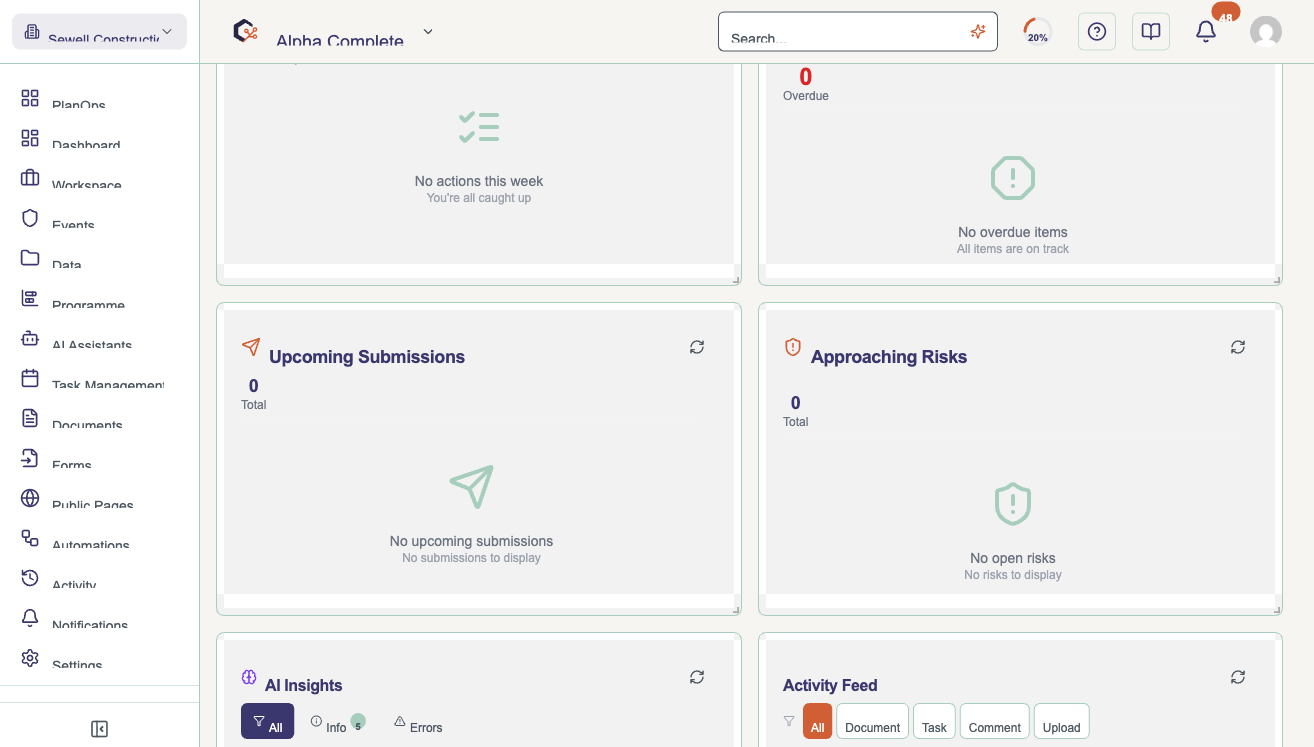
Step 6: Use AI insights and assistance
Open the Ask AI and project insights sections to ask questions about the project and review automatically generated insights based on current data.
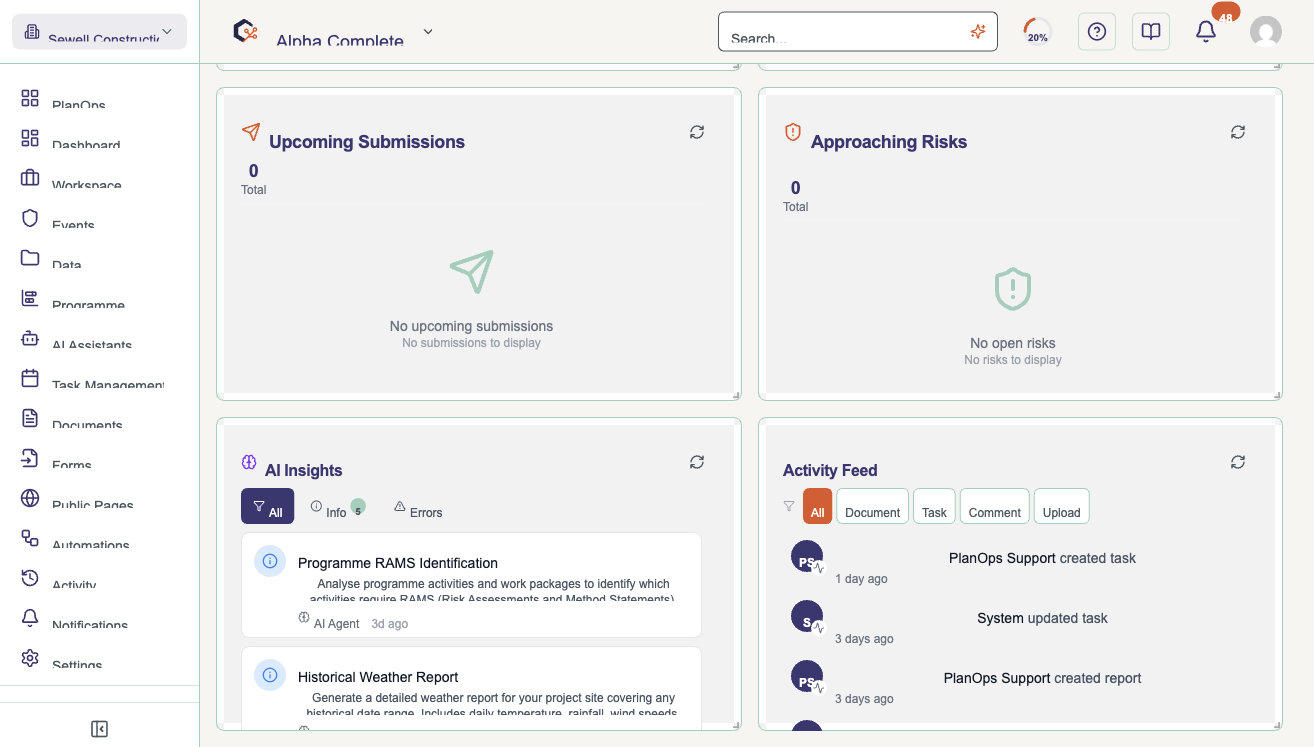
Step 7: Access project details and setup workflow
Use the project details manager and project setup workflow panels to review or refine core project settings, team members, drawings and configuration.
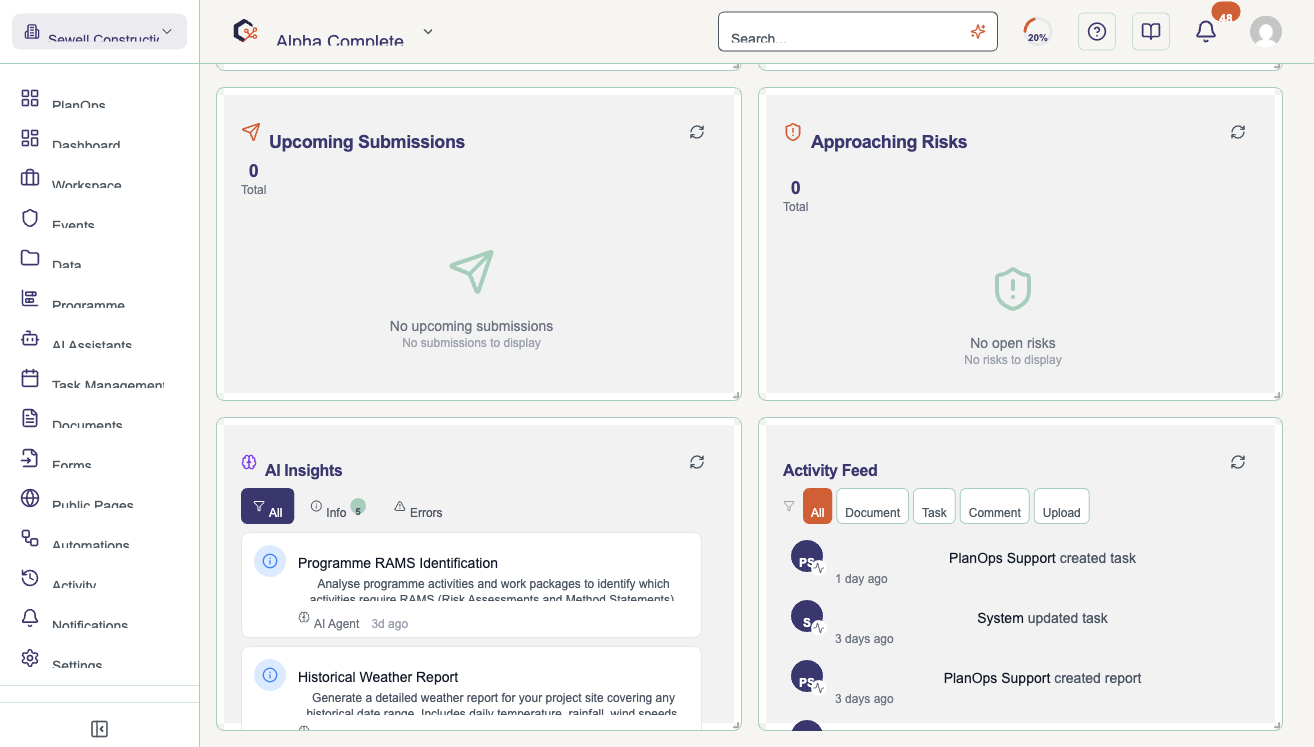
Step 8: Navigate to related tasks and documents
From the dashboard widgets, follow shortcuts to tasks, documents and organisation-level project views for more detailed management actions.
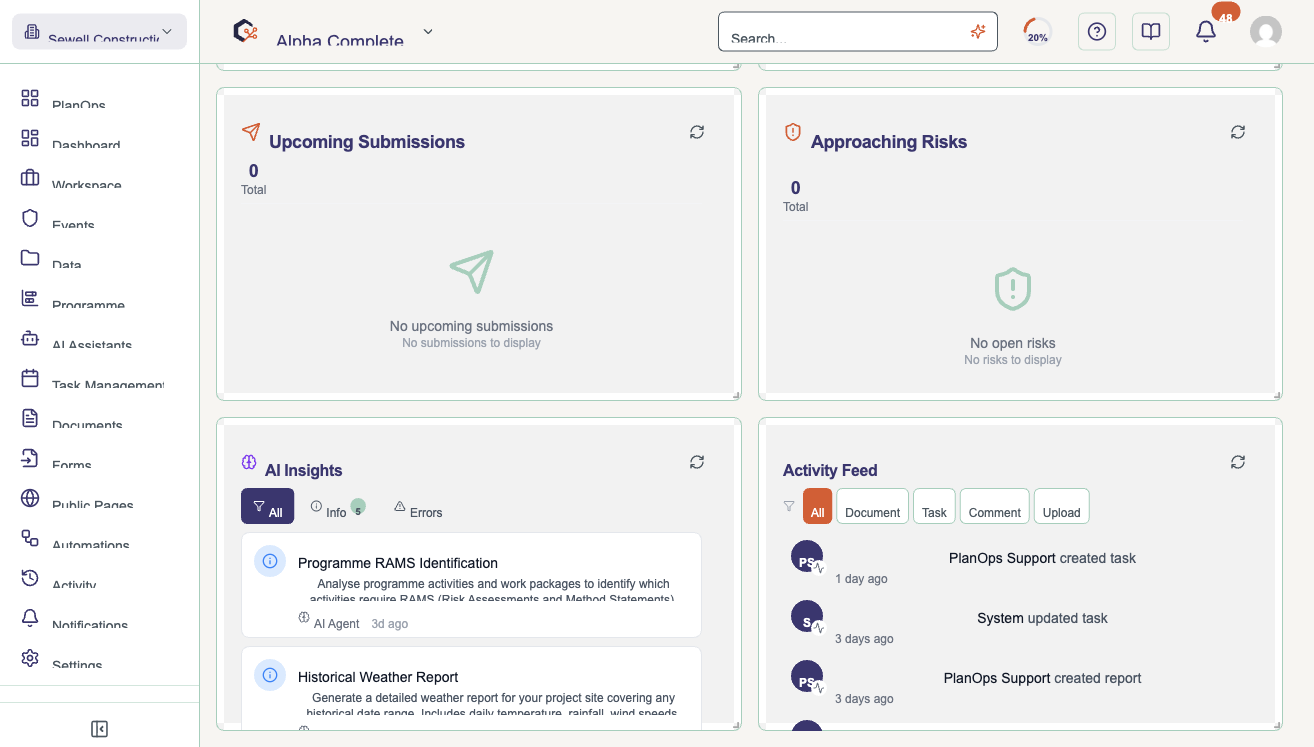
Related Tasks
Last updated: 2026-02-03