Manage project automations
Use the Automations section to browse templates, review active workflows, check execution history, and monitor issues for a specific project.
This guide is designed for project manager.
Steps
Step 1: Open the Automations section for your project
In the main navigation, select your project and open the Automations section. If no project is selected, you will see a prompt asking you to choose a project before automations can be viewed.
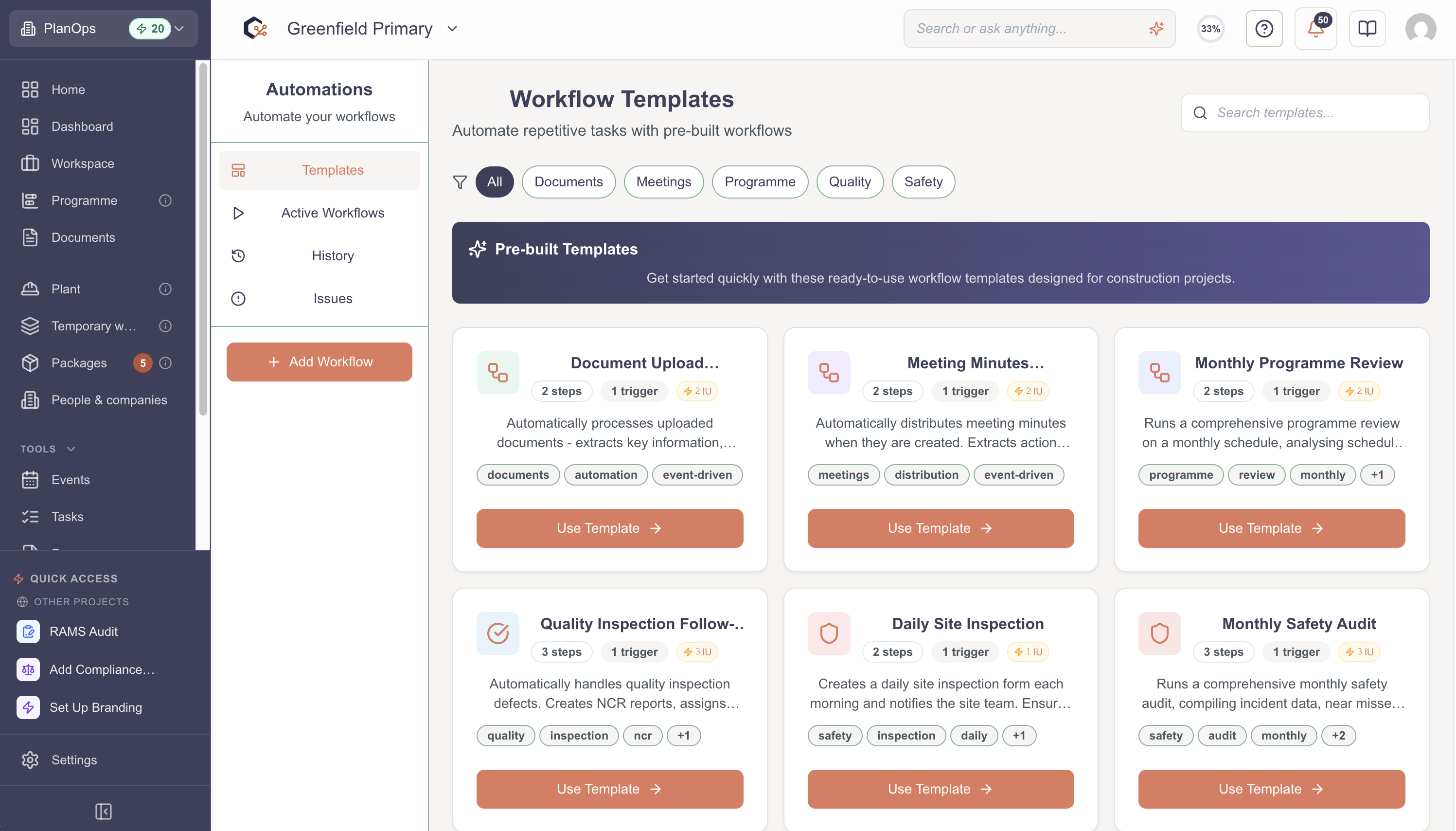
Step 2: Browse automation templates
In the Automations sidebar, ensure the Templates tab is selected to open the Template Gallery. From here you can explore available automation templates and select one to view more details.
Step 3: View template details
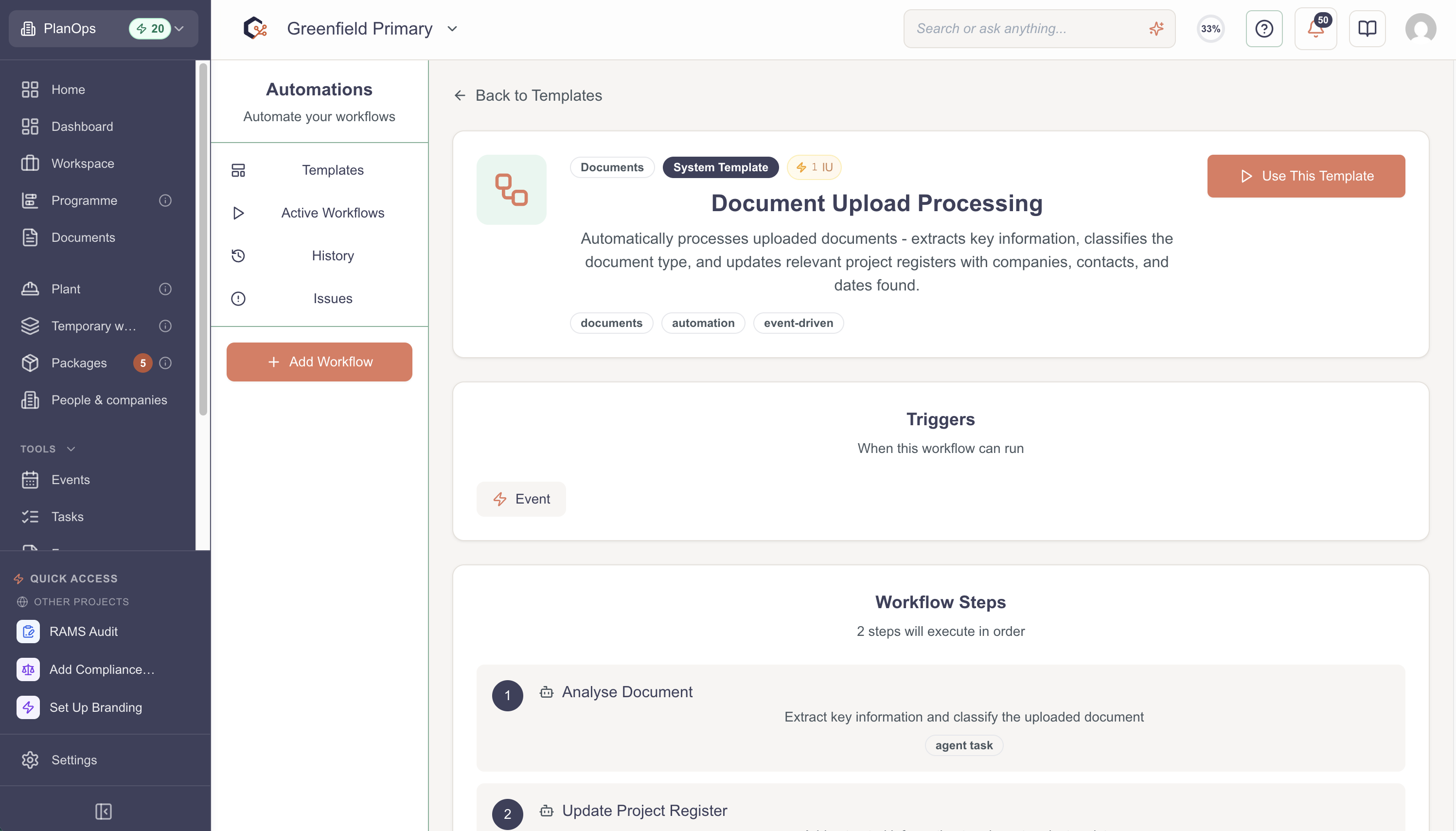
Select a template in the gallery to open its detail view. Review what the template does and how it automates your workflow before deciding whether to use it in your project.
Step 4: Review active workflows
Click the Active Workflows tab in the Automations sidebar to see a list of all workflows currently running for your project. Use this list to understand which automations are in use.
Step 5: Inspect a specific active workflow
Select an active workflow from the list to open its detail view. From here you can review its configuration, status, and how it operates within your project.
Step 6: Check automation execution history
Open the History tab in the Automations sidebar to view the Execution History. This shows past workflow runs so you can confirm when automations ran and whether they completed successfully.
Step 7: Drill into a specific execution
From the execution history list, select a specific run to open its detail view. Review timings, status, and any additional information to understand what happened in that execution.
Step 8: Monitor and prioritise issues
Click the Issues tab in the Automations sidebar to open the Issues dashboard. Use the issues list and the badge count in the navigation to identify and prioritise unresolved automation issues.
Last updated: 2026-02-20T00:00:00.000Z