Review workspace items on the board
Use the board view to review workspace items grouped by status, understand their priority and due dates, and open items for more detail.
This guide is designed for project manager.
Steps
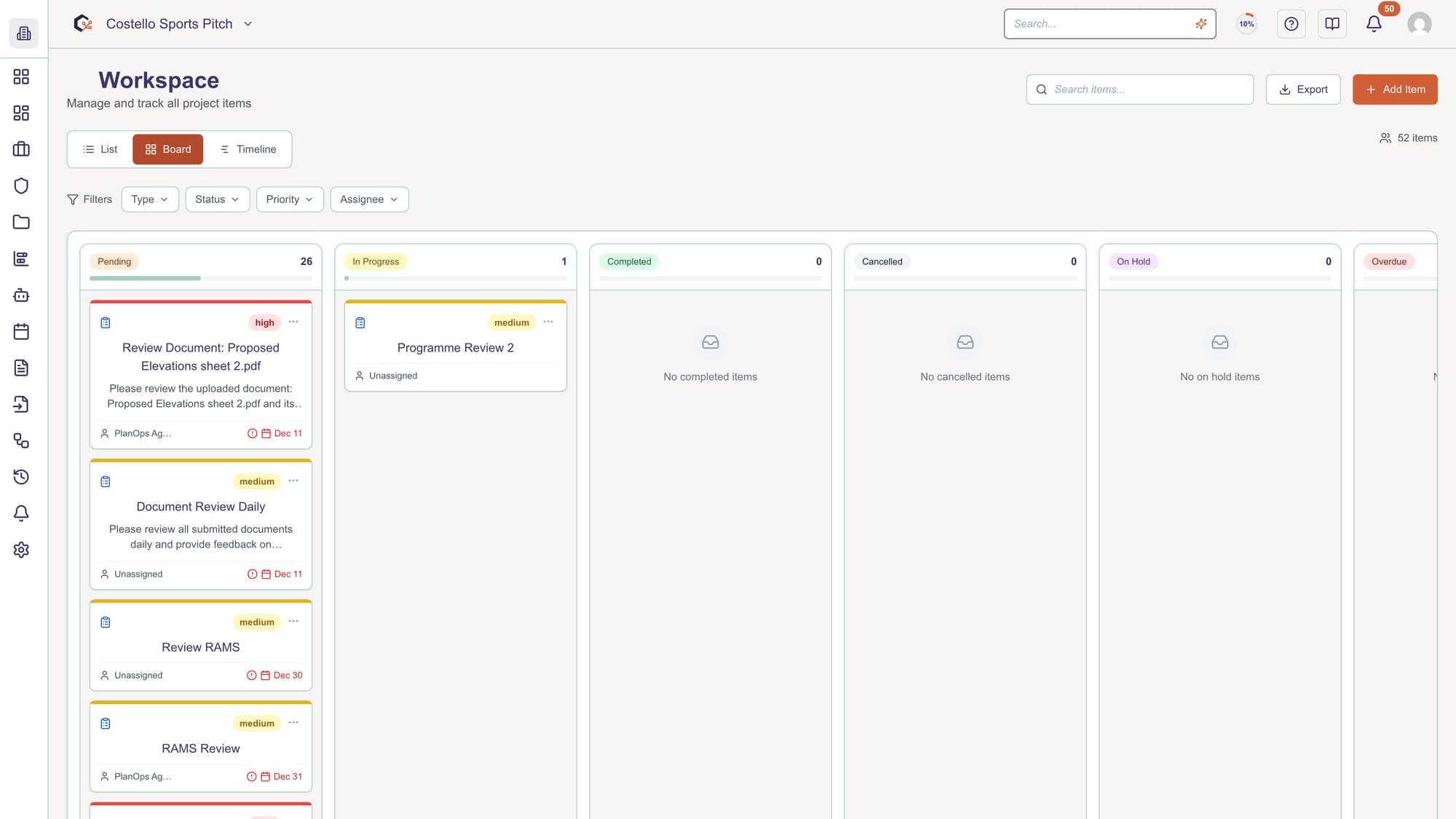
Step 1: Open the board view
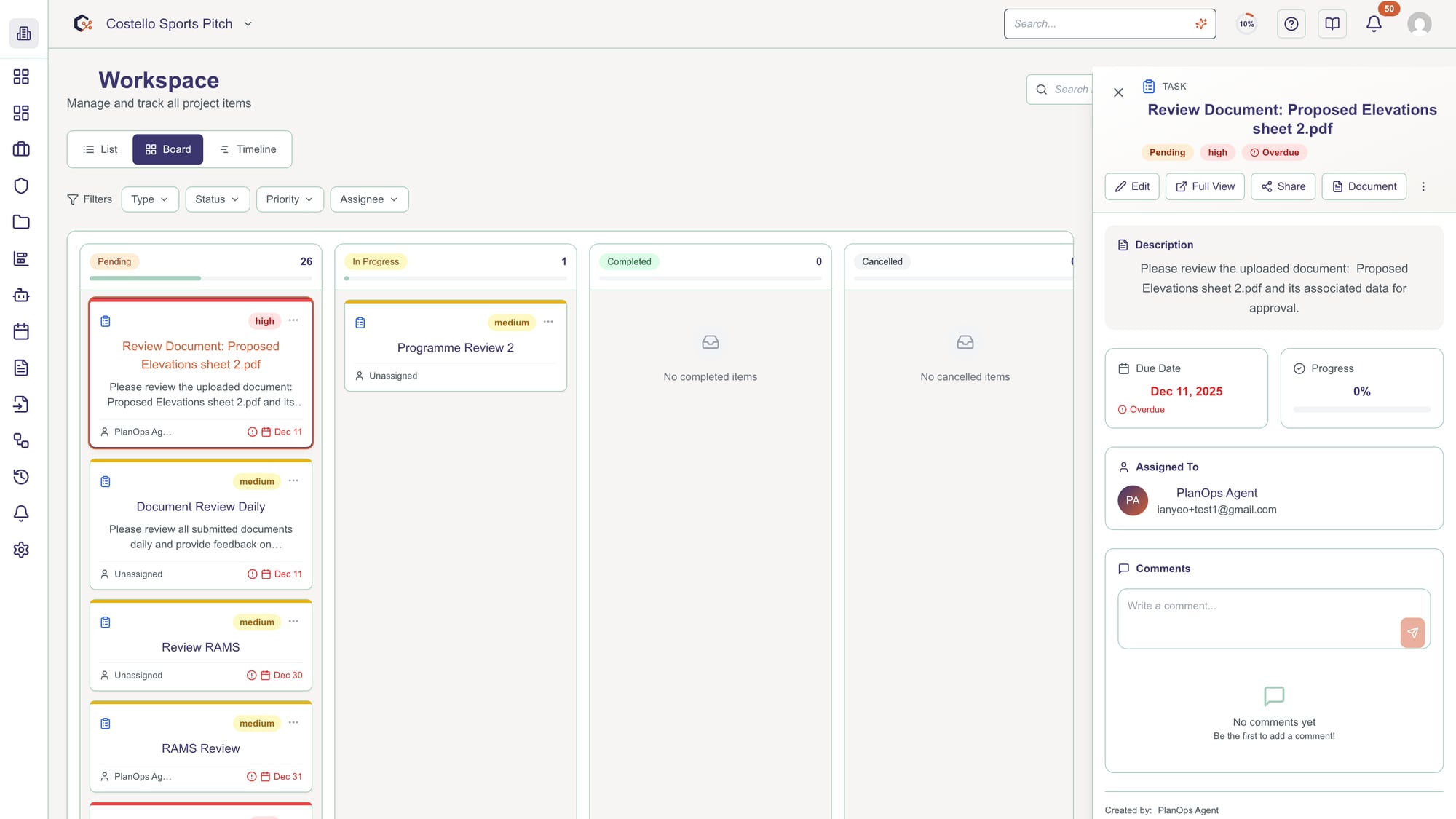
Navigate to the workspace board view to see your items arranged in vertical columns, each representing a different status such as To Do, In Progress, or Done.
Step 2: Review item counts by status
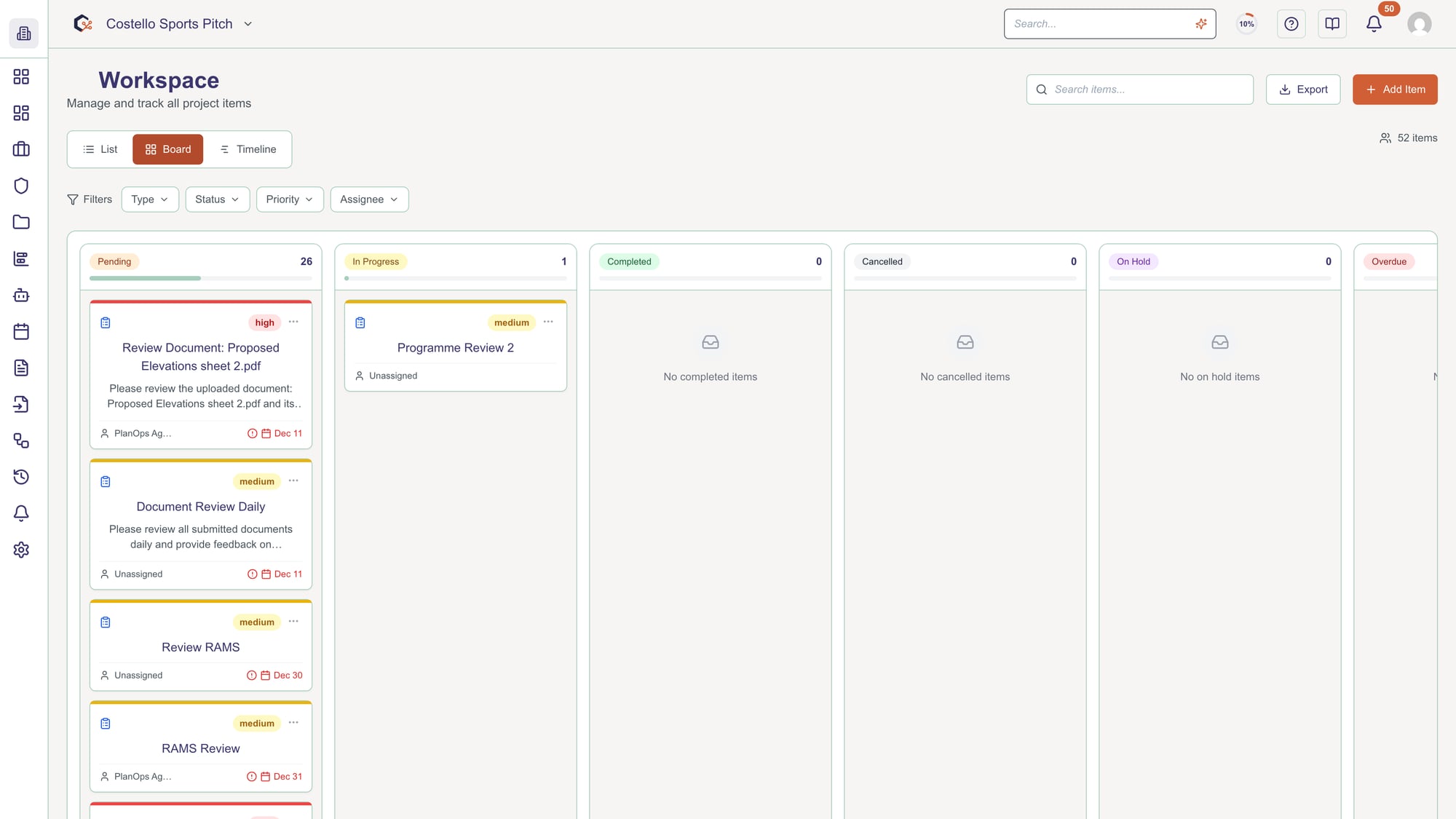
At the top of each status column, check the header to see the status name and the total number of items currently in that stage.
Step 3: Scan item details in each column
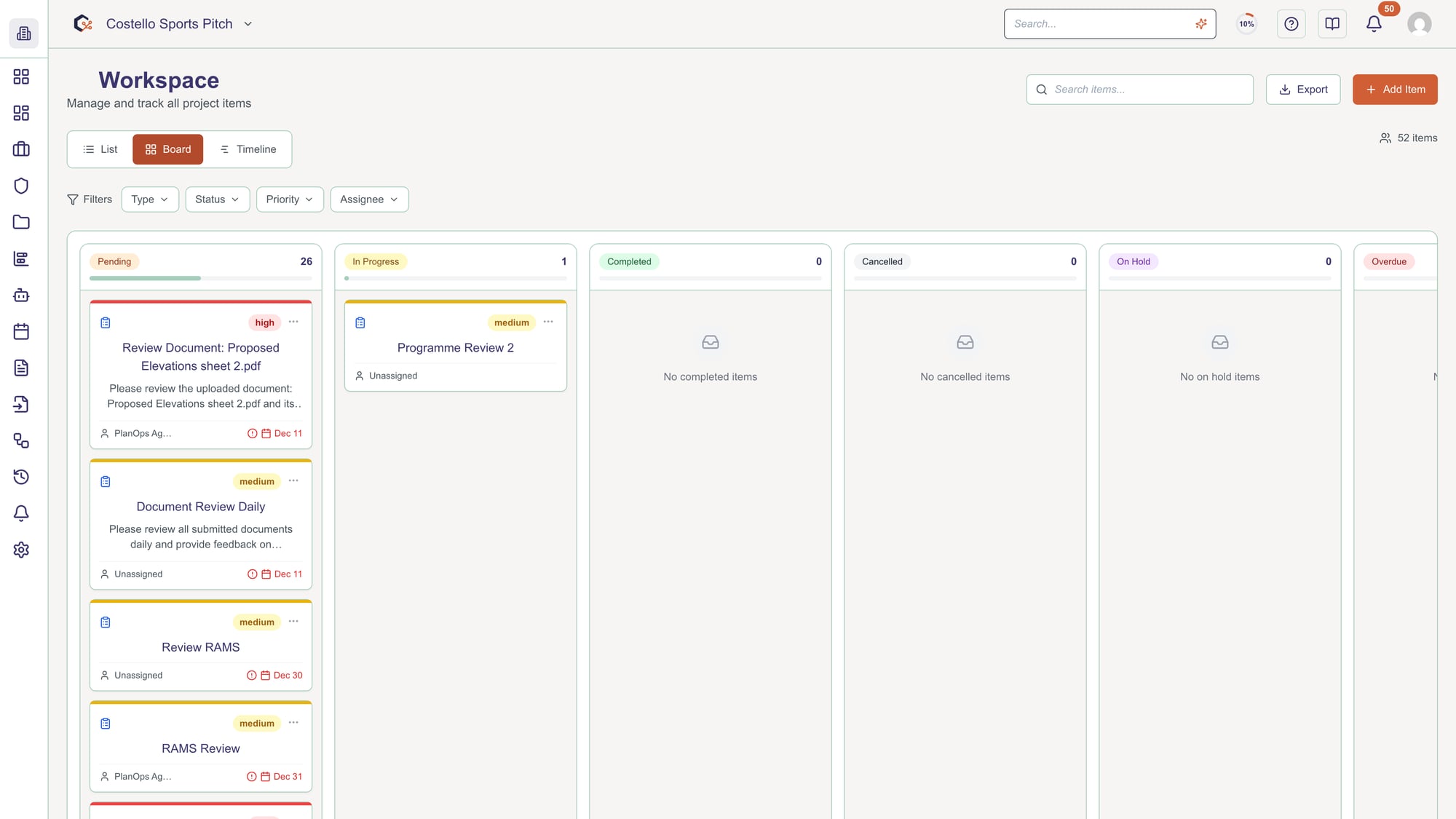
Within each column, review individual cards showing the item title, its priority badge (high, medium, or low), a brief description, the item type, and any due date.
Step 4: Identify priorities at a glance
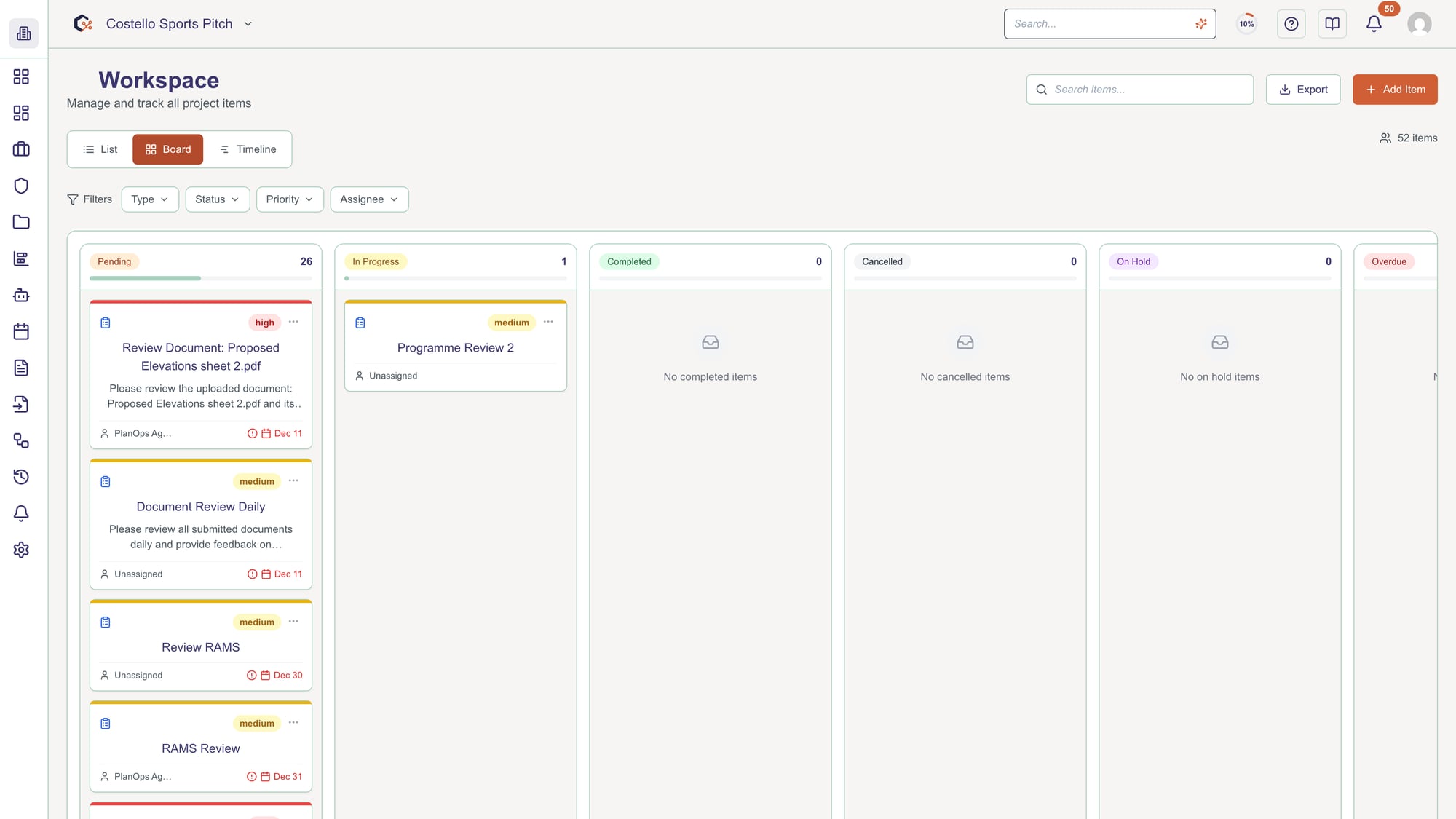
Use the coloured priority badges on each card to quickly spot high, medium, and low priority work in every status column.
Step 5: Open an item for more information
Click on any item card to open its detailed view or editor, where you can see full information and take further actions as provided elsewhere in the workspace.
Related Tasks
Last updated: 2025-12-29