Bring your programme into PlanOps in one go
Instead of adding tasks one by one, upload your whole programme in a single file. PlanOps checks it for errors before anything is added, so you can fix problems up front.
This guide is designed for project manager.
Steps
Step 1: Export your programme from your planning software
In whatever software you plan your programme in, export it for this project. If you can choose the file type, pick XML — it gives the best result when you bring it into PlanOps.
Step 2: Open the import screen
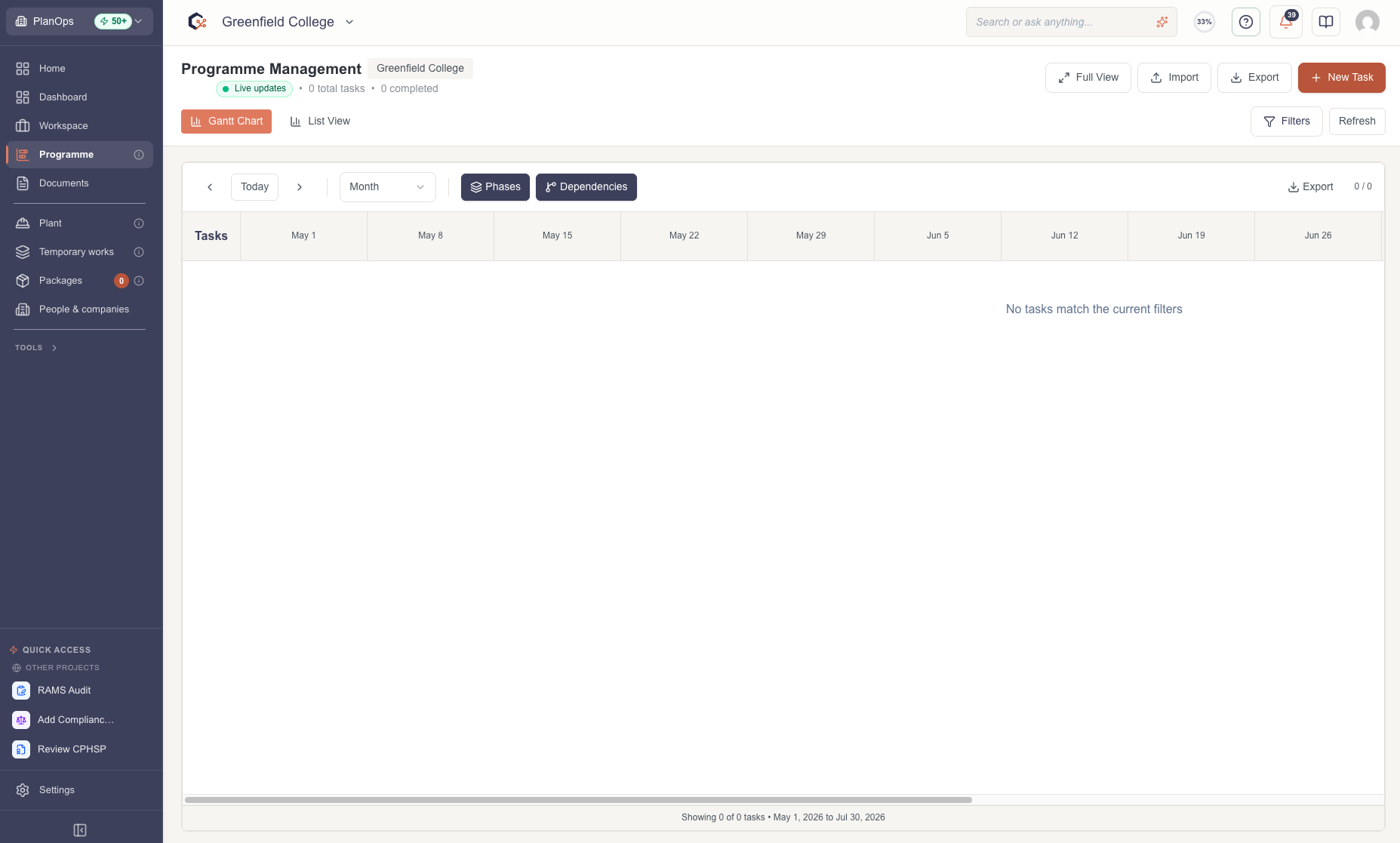
From your programme view, choose the option to import programme tasks. A window opens where you'll upload your file.
Step 3: Read what PlanOps needs from your file
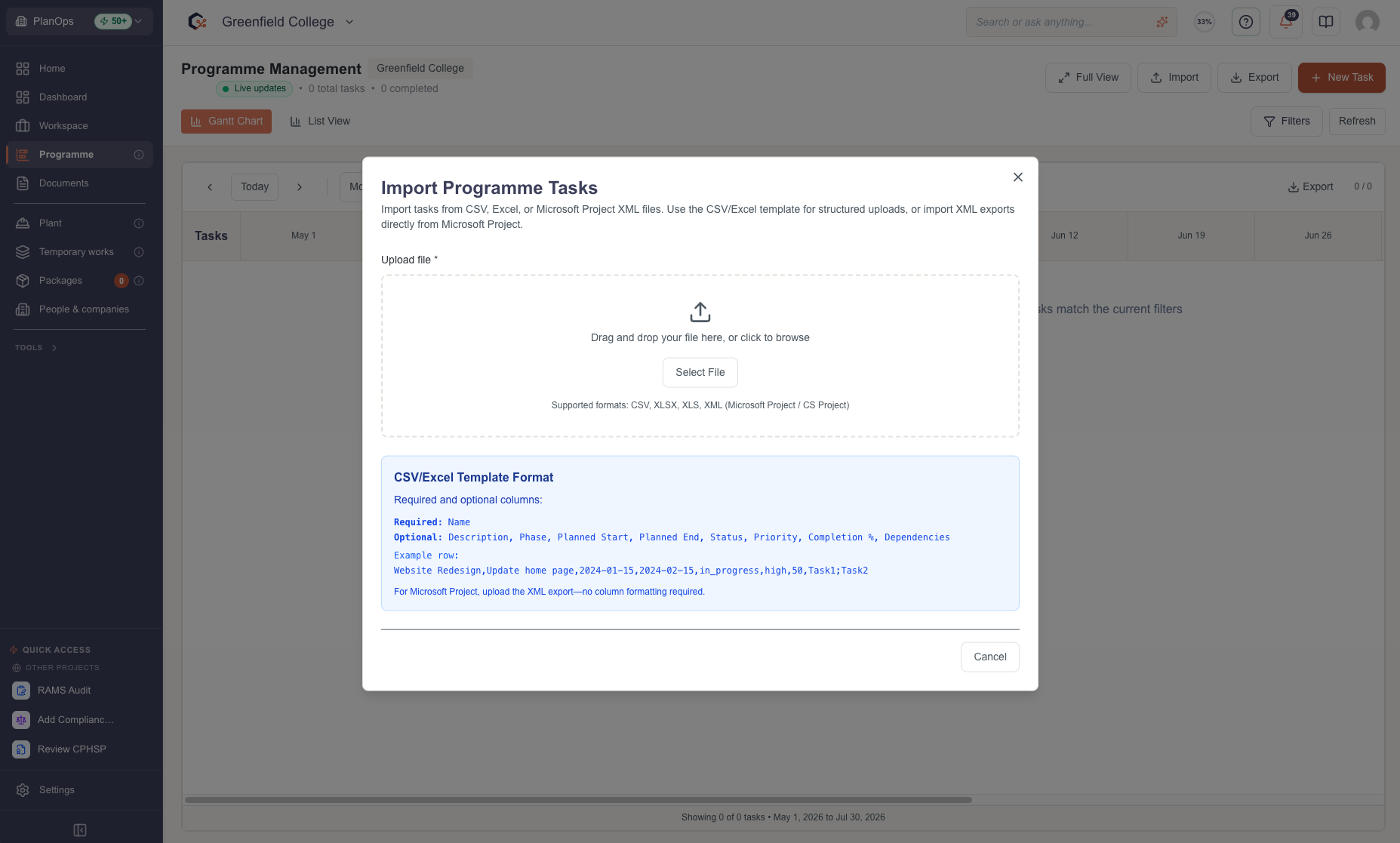
Have a quick read of the guidance on screen before you upload. If you're using a CSV or Excel file, there's extra guidance on how to lay out your columns correctly.
Step 4: Choose your file
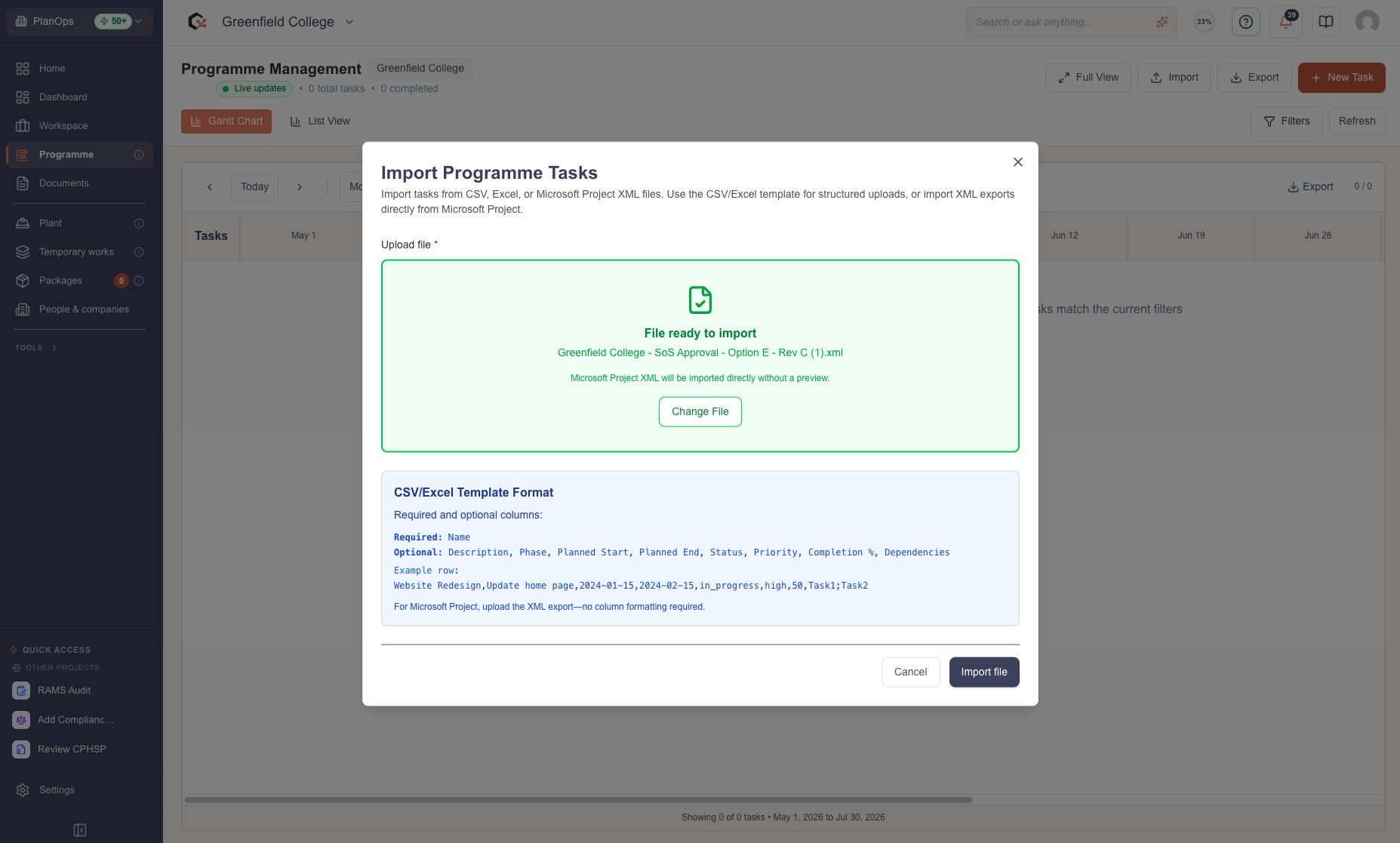
Click the upload area to pick a CSV file from your computer, or just drag it onto the highlighted box. You'll see the file name appear once it's picked up.
Step 5: Check the rows for errors
Once PlanOps has read your file, it lists every row it found. Look through for any error messages — these usually mean a date, status or priority isn't filled in correctly, or a required field is missing.
Step 6: Confirm the import
Once you're happy with what you see, select the import option to bring the tasks in.
Step 7: Check what came through
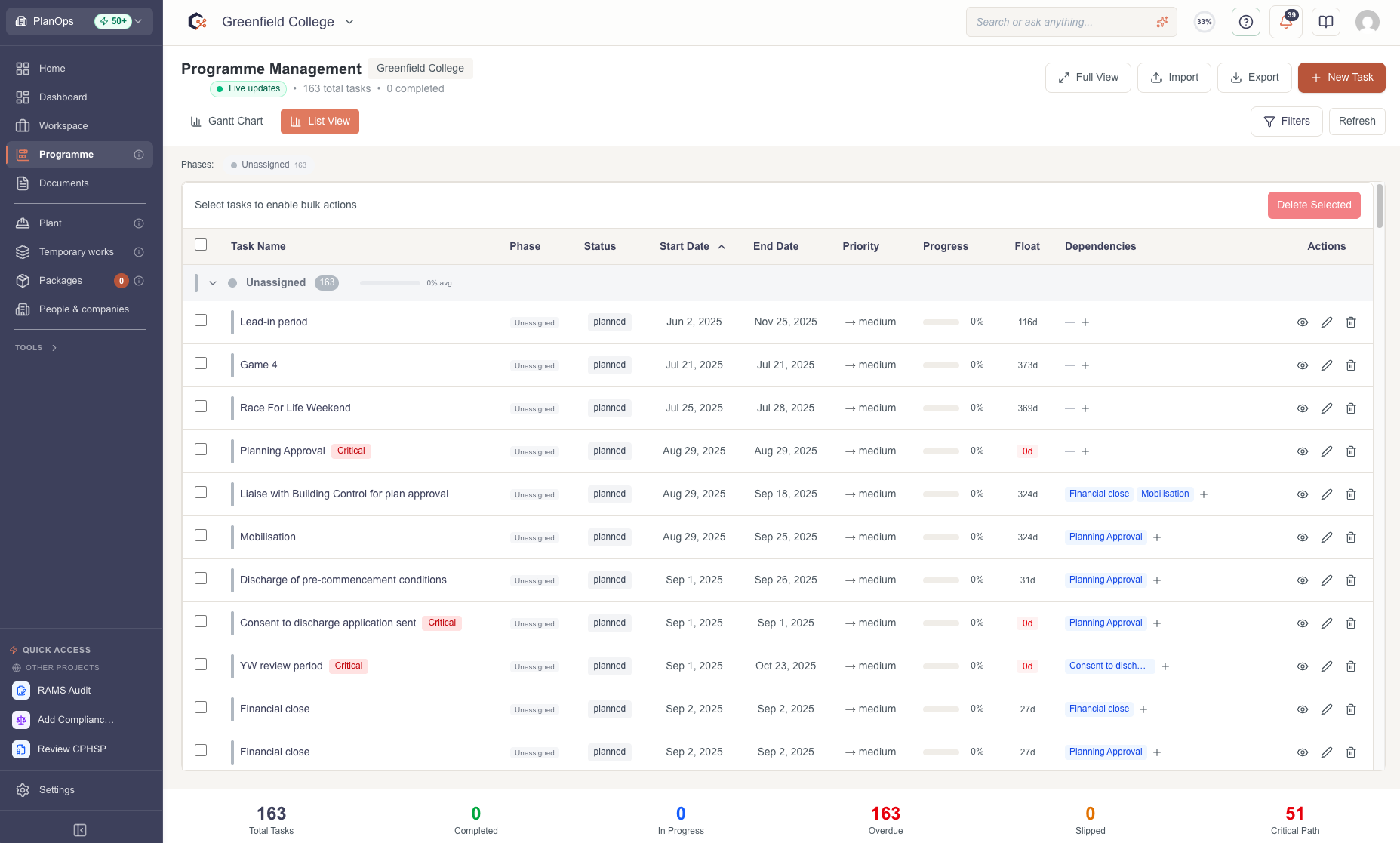
When the import finishes, check how many tasks were added successfully and whether anything still needs fixing.
Related Guides
Last updated: 2026-07-04