Manage your project calendar and tasks
Use the calendar to view project events, switch between views, filter what you see, and add or update meetings, milestones and tasks.
This guide is designed for project manager.
Steps
Step 1: Open the calendar and choose Calendar or Tasks view
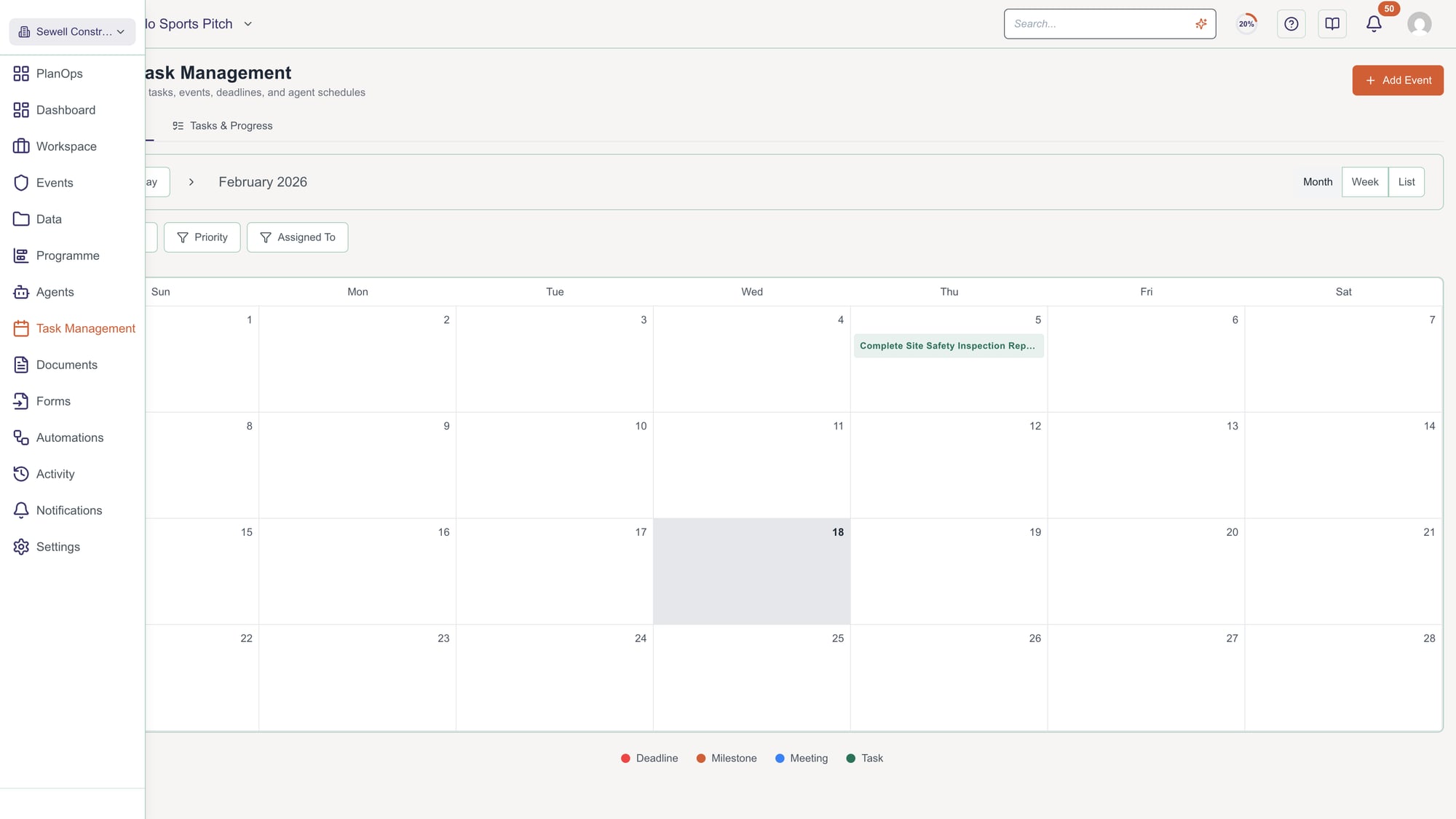
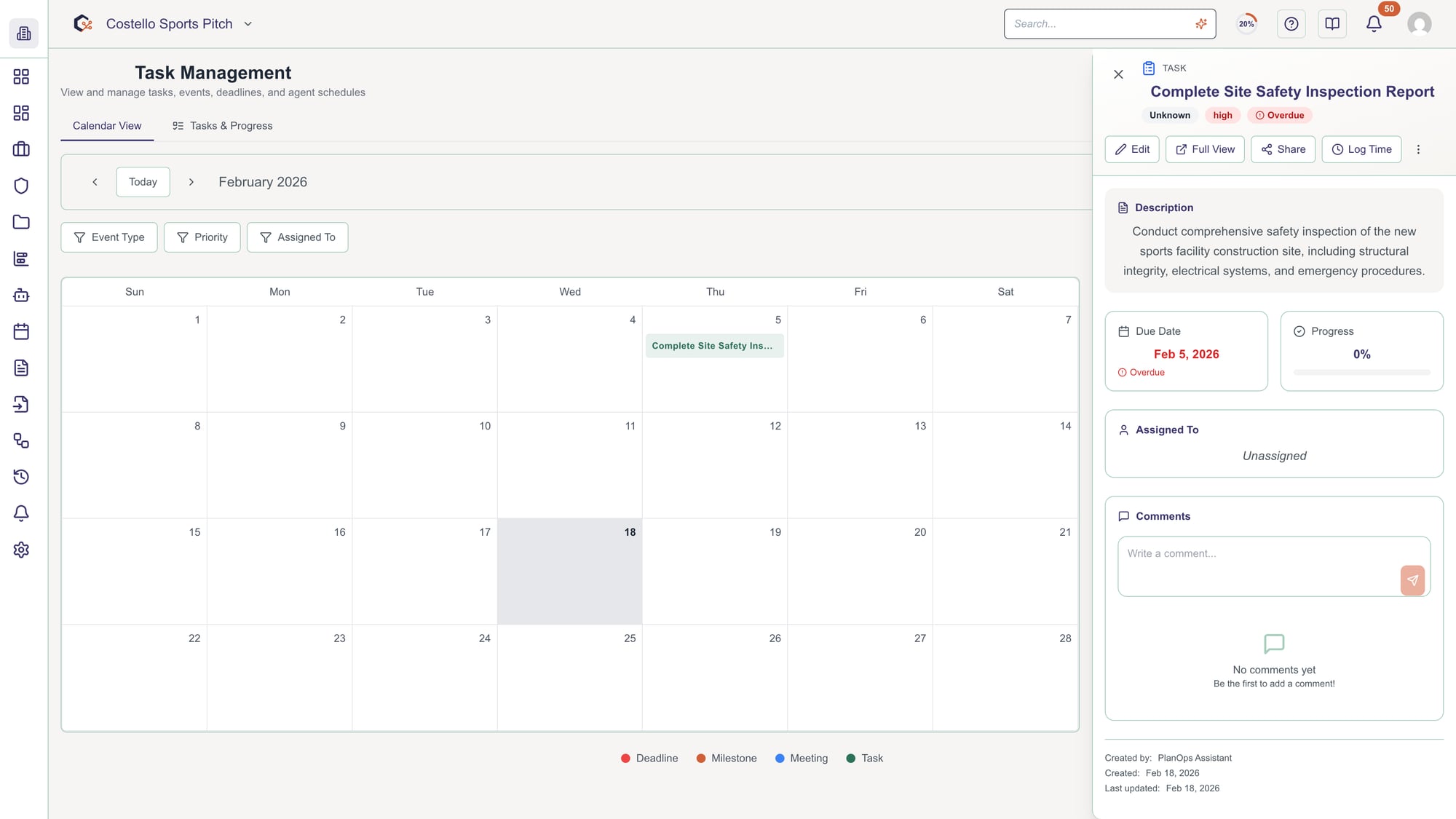
From your project workspace, open the calendar area and use the tabs at the top to switch between the Calendar view for time-based planning and the Tasks view for task progress and lists.
Step 2: Switch between month, week and list views
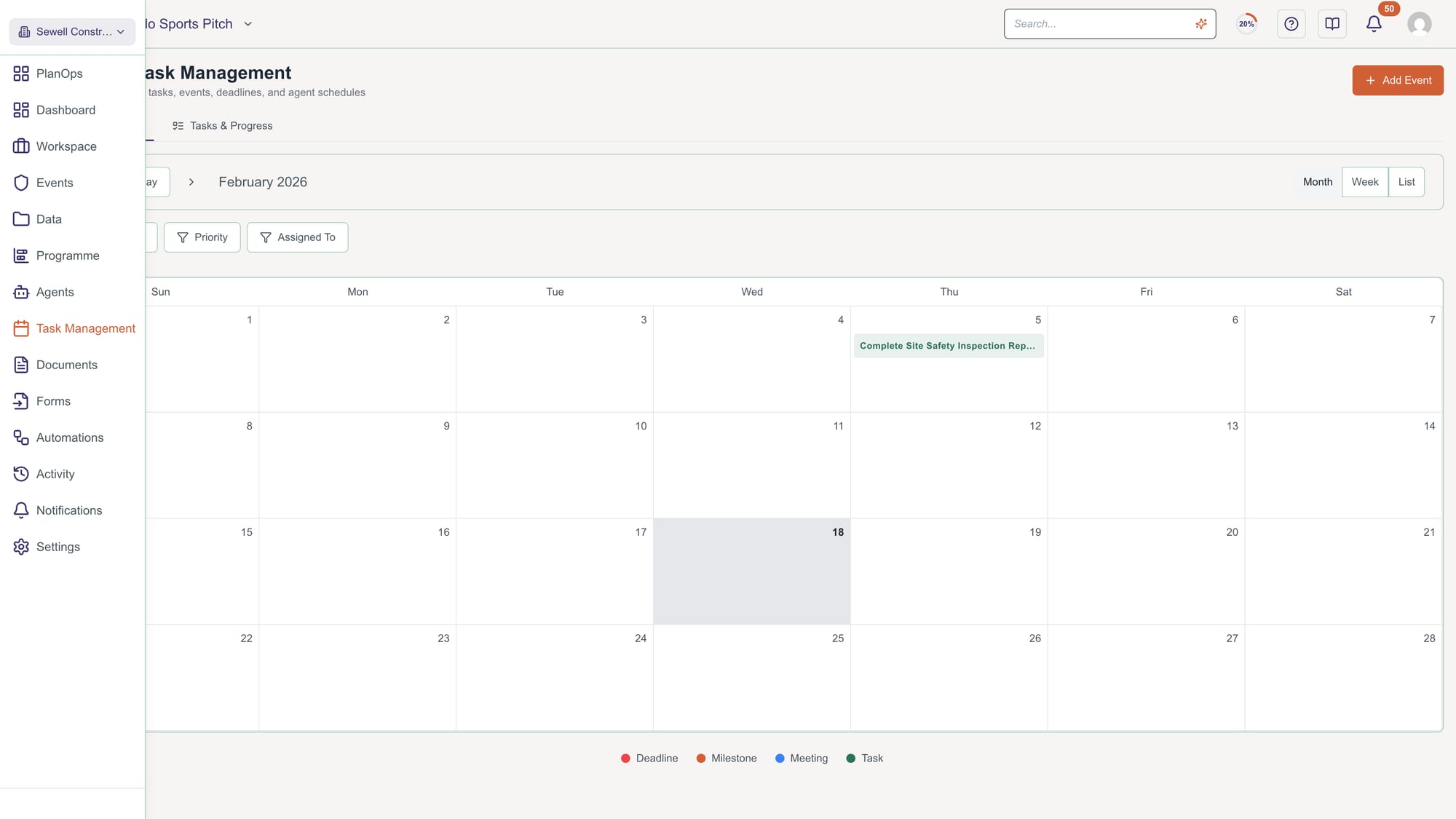
In the Calendar tab, use the view controls in the header to toggle between Month, Week and List views so you can see either a broad overview or a detailed schedule.
Step 3: Move between dates
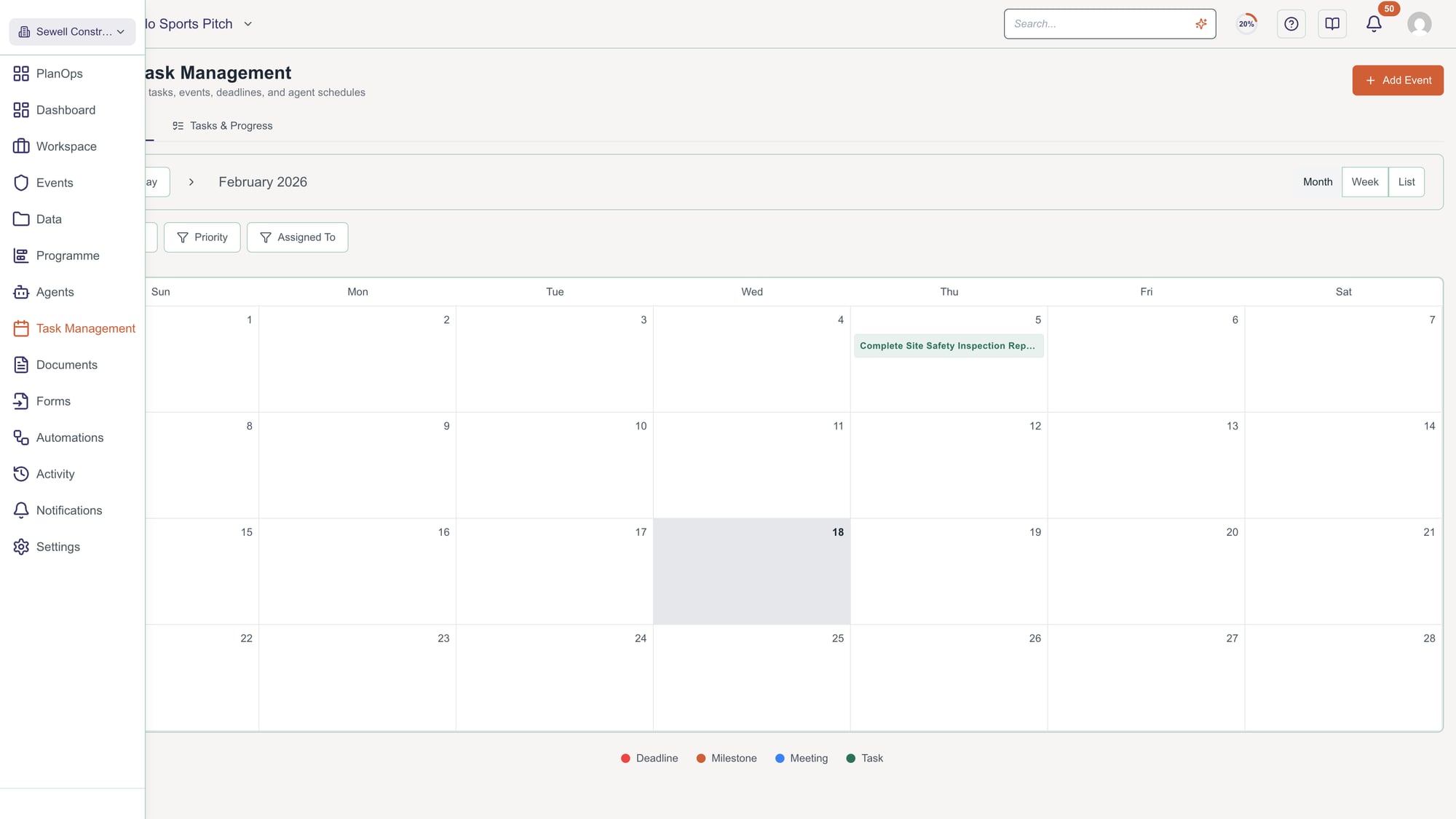
Use the left and right arrow buttons beside the date in the header to move backwards or forwards in time, or choose Today to return to the current date range.
Step 4: Filter events by type, priority and assignee
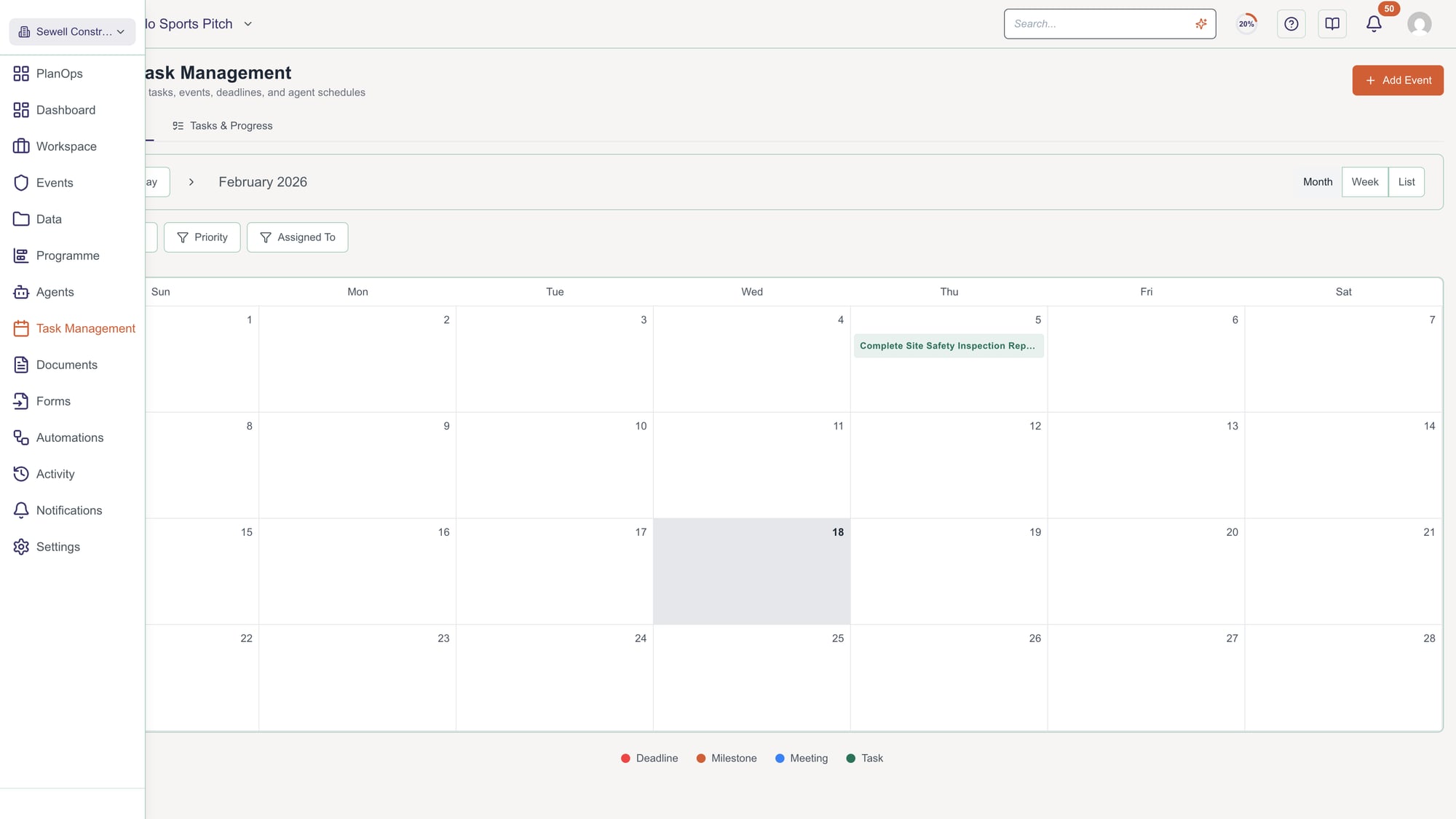
Open the filters panel and select event types, priority levels and specific users to narrow down which events and tasks appear on the calendar.
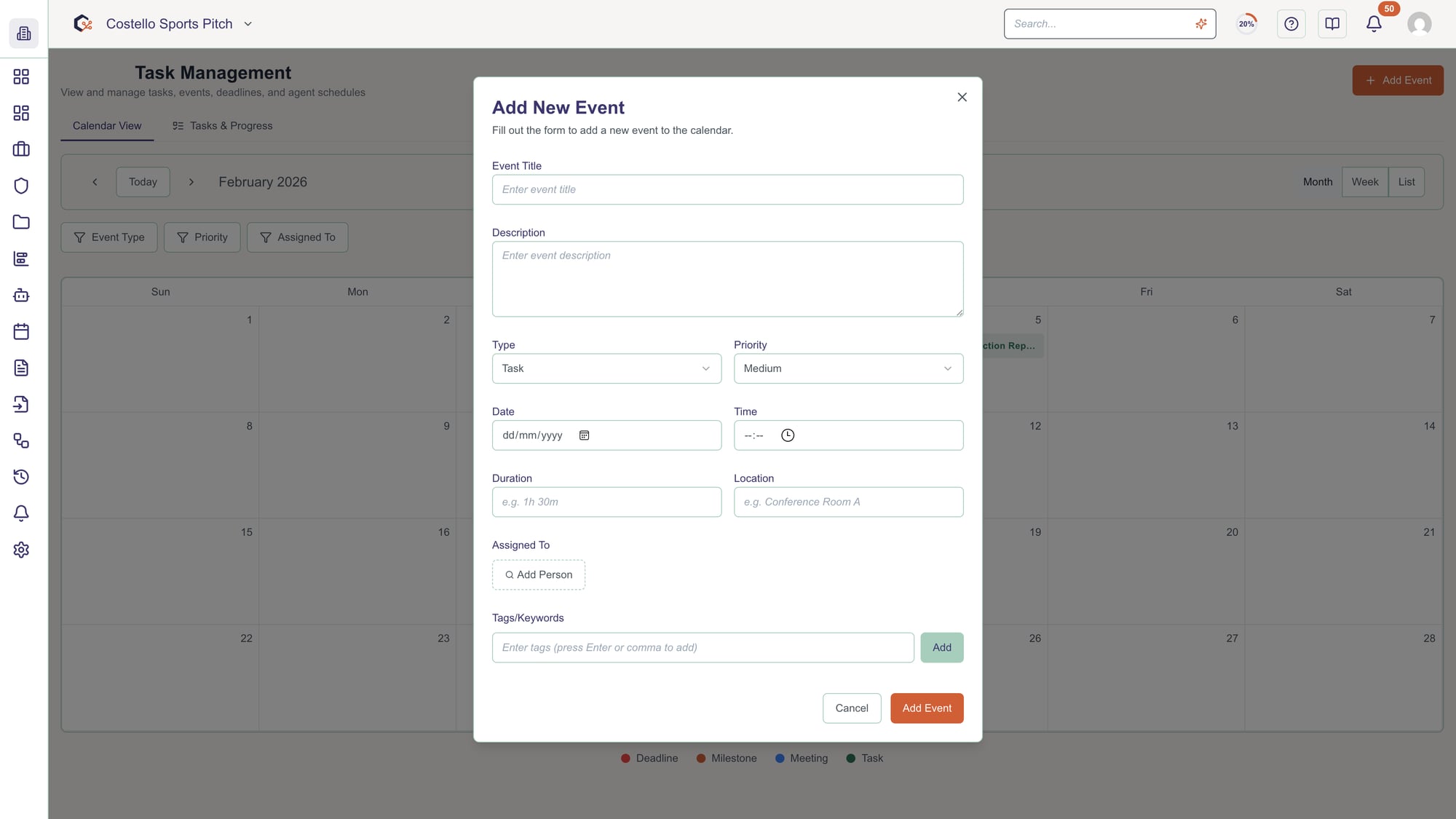
Step 5: Add a new meeting or milestone to the calendar
Select the add event button (with the plus icon) in the calendar header to open the Add Event dialog, then enter the details for your new meeting or milestone and save it to place it on the calendar.
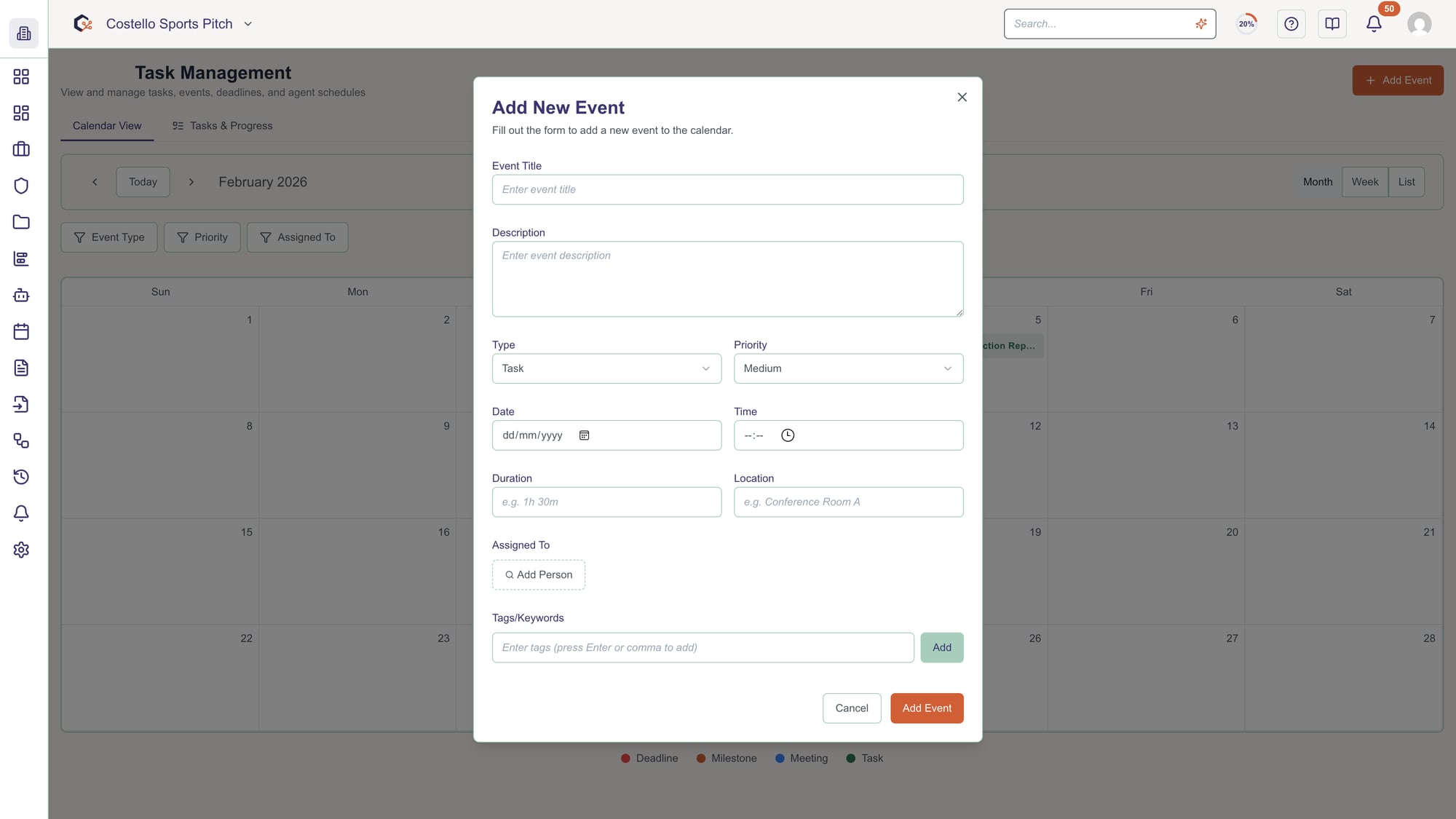
Step 6: Add a new task from the calendar area
Use the add task option to open the Add Task dialog, then define the task details such as title, due date and assignee to link it into your project’s schedule.
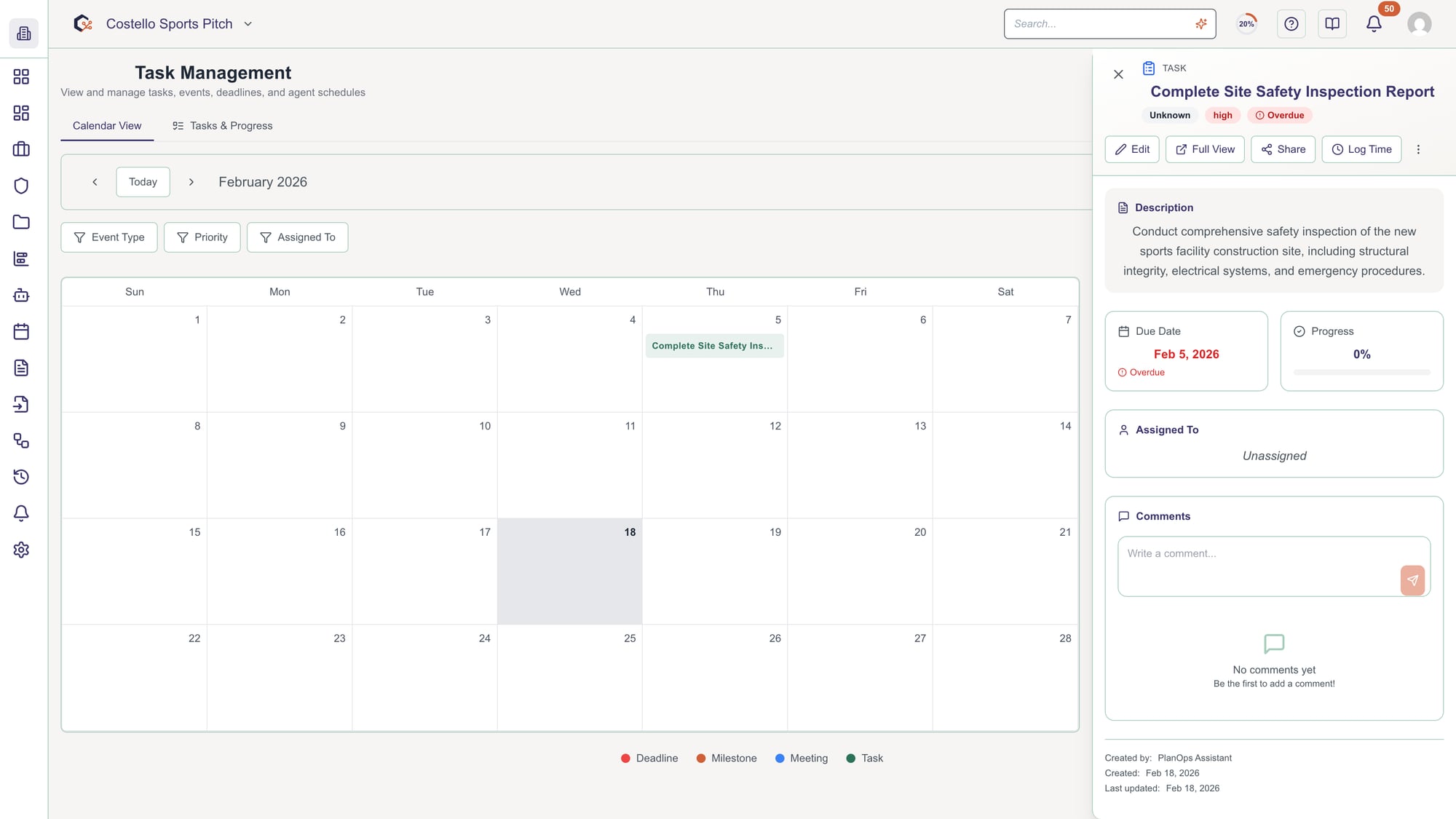
Step 7: View and edit existing events
Click an event on the calendar or in the list view to open its details, then adjust fields such as date, time, status or priority and save your changes to update the event.
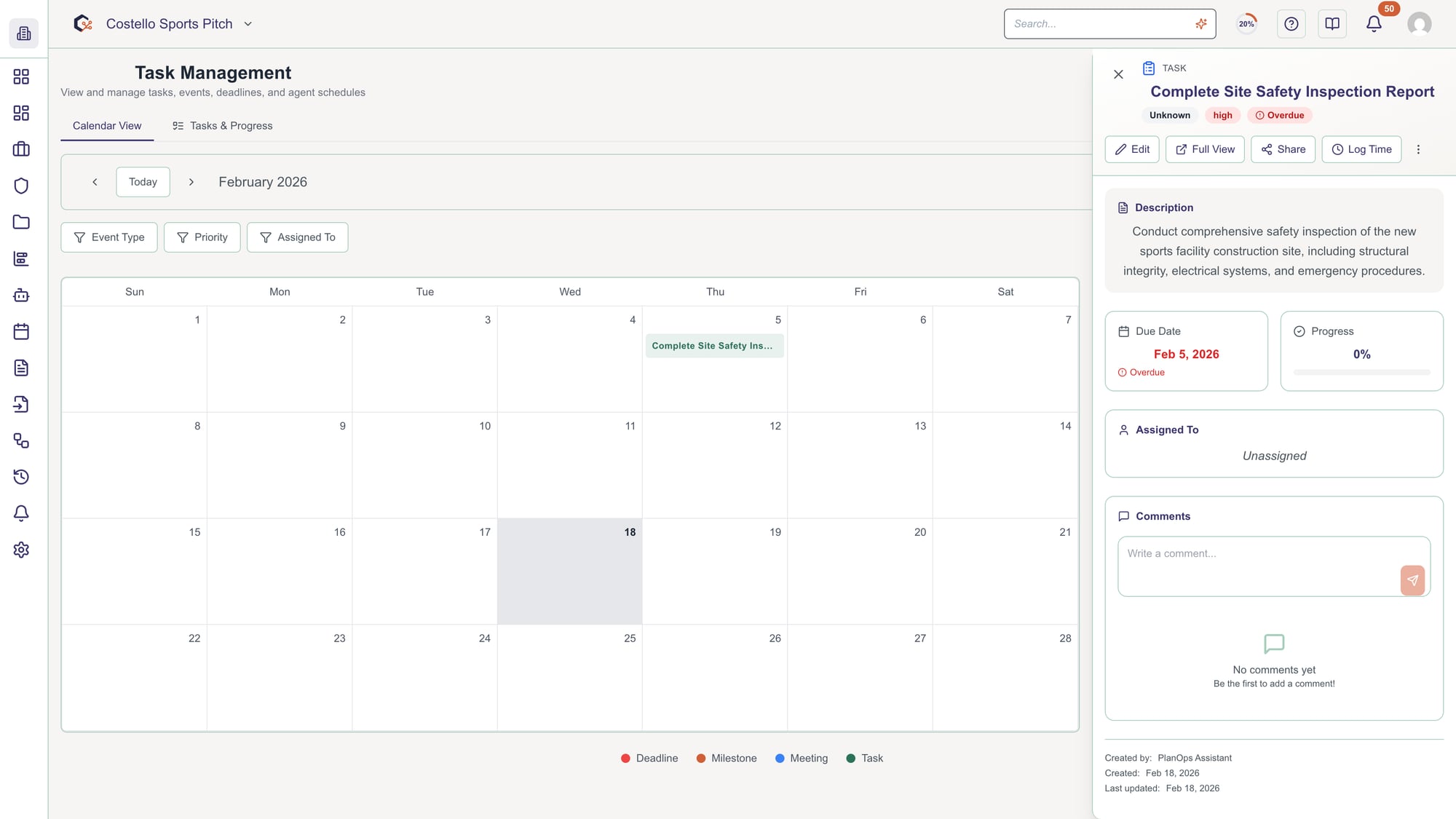
Step 8: Open related workspace items from events
From an event that is linked to a workspace item, open the workspace item detail panel to review its information and context without leaving the calendar.
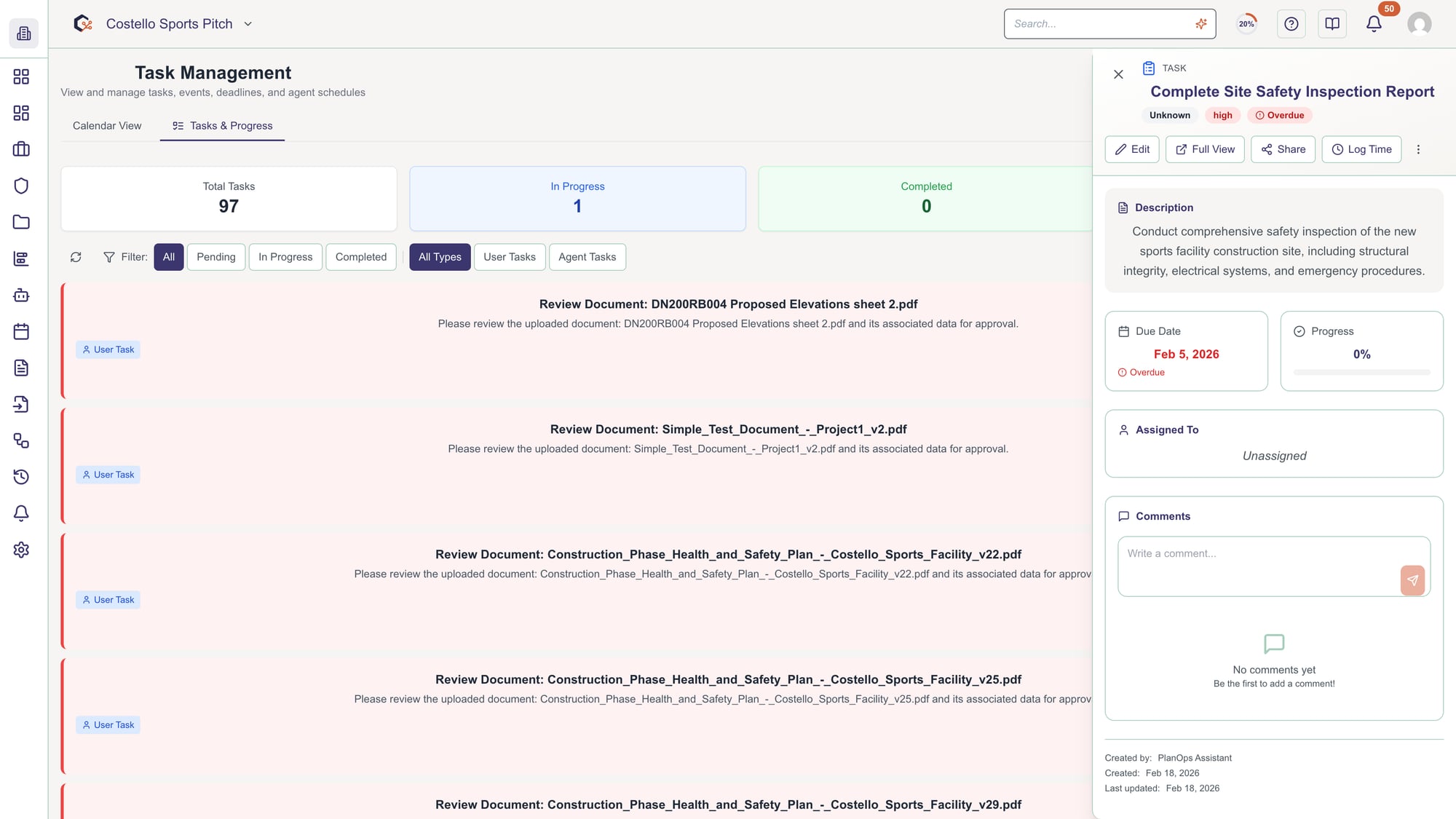
Step 9: Track task progress in the Tasks tab
Switch to the Tasks tab to view task progress indicators and lists so you can monitor completion, status and workload across the project.
Step 10: Delete events you no longer need
From an event’s detail view or context actions, choose the delete option to remove outdated or incorrect events from the calendar.
Related Tasks
Last updated: 2025-12-29