Assess a RAMS and link it to its package
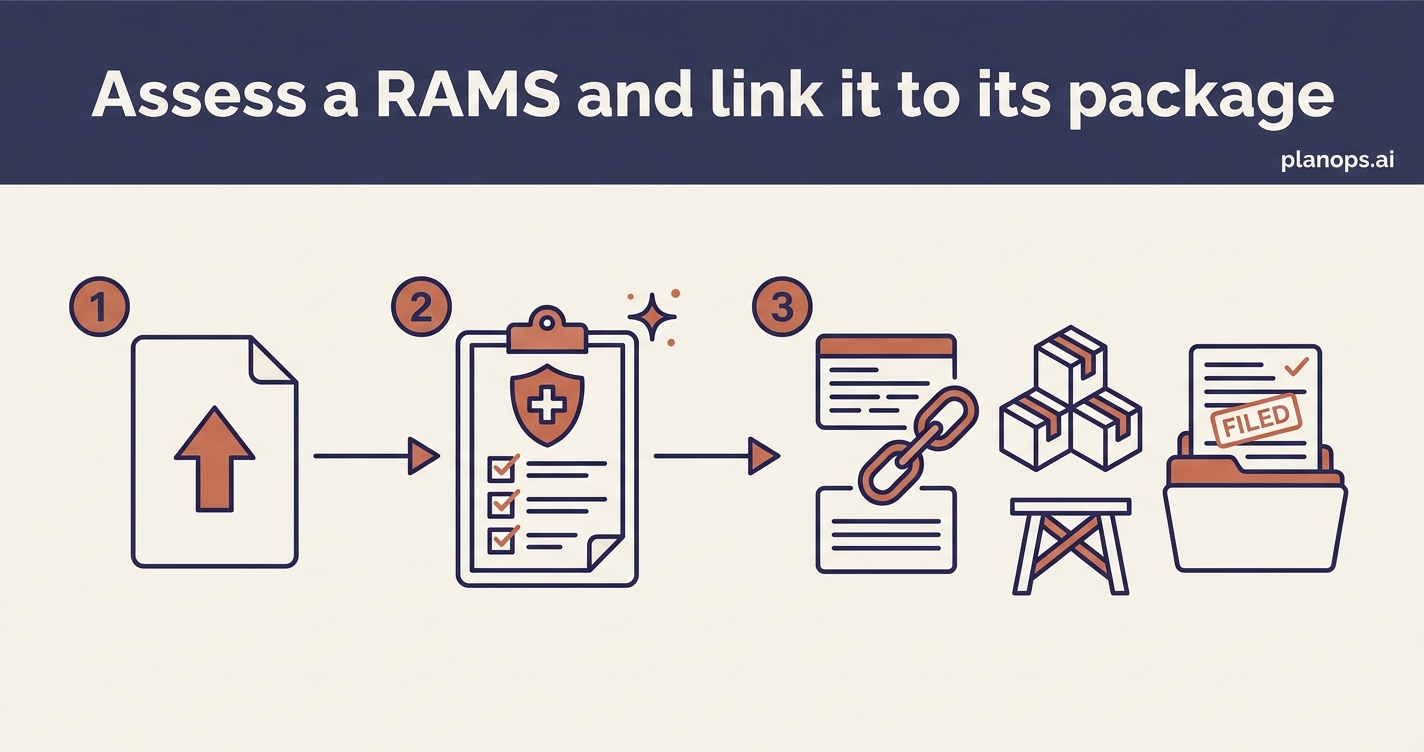
Check a subcontractor's Risk Assessment and Method Statement against UK safety law and your project requirements, with the result held against a RAMS record tied to the subcontractor's work package.
An assessed RAMS, recorded against a RAMS lifecycle item linked to its package and any temporary works.
A subcontractor's RAMS checked against UK safety legislation and your activity requirements, with the gaps flagged and follow-up actions raised. The outcome is held against a RAMS lifecycle item linked to its work package and any temporary works, so the assessment is traceable and ready to defend at audit.
Time: ~10 minutes · Level: beginner · Steps: 5
Set up once per project
Do these the first time only. If your project is already set up, skip straight to the steps.
Set up the project's packages
your project does not have packages set up yet
Break the project into work packages so each RAMS has a package to be linked to. You only need to do this once per project.
AI task: Identify the components inside each package — Run on demand from the Assistant Hub
Steps
Steps marked ⚡ AI task are done for you by a PlanOps AI assistant, run from the Assistant Hub on your project home.
Step 1: Upload the subcontractor's RAMS
Add the RAMS the subcontractor has submitted to the project, so the document is on record and ready to assess. You can also point the assessment at a RAMS already on the project.
Full guide: Upload project files
Step 2: Start the RAMS assessment ⚡ AI task
Run the RAMS against UK safety legislation and your activity requirements to get a compliance assessment with the gaps flagged and corrective actions raised. The result is recorded against a RAMS item — pick an existing one, or let PlanOps create one from the submission so the assessment is always tied to a RAMS record. You can also create a toolbox talk fully based on the activities and risks flagged in the assessment.
Run on demand from the Assistant Hub.
AI task: Check a subcontractor's RAMS against UK safety law
Step 3: Review the assessment details
Review the assessment report and check the gaps flagged and corrective actions raised.
Full guide: Review and discuss a project report
Step 4: Access the created RAMS
View the created RAMS item. This is where you are able to quickly view the status of the RAMS item that is associated with the works package.
Full guide: Find and check a RAMS
Step 5: Link the RAMS to its package and temporary works
Open the RAMS record and link it to the work package it covers, and to any temporary works it relies on. This keeps the assessment, the package and the temporary works joined up, so anyone can see which RAMS applies to which work.
Full guide: Link a RAMS to the work it covers
Related workflows
Last updated: 2026-06-29