Compare two drawing revisions
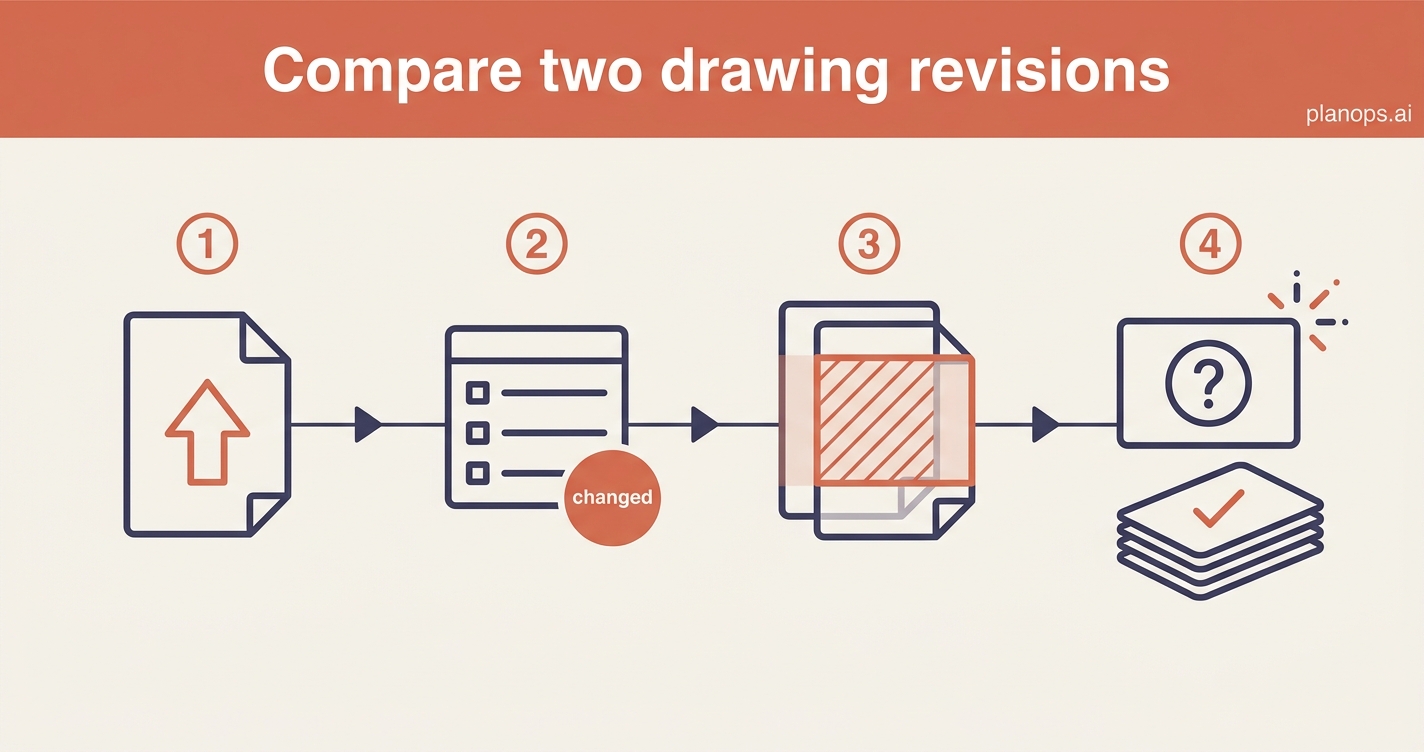
A new revision of a drawing arrives. Get it into the project, see exactly what changed against the last version, and raise queries on anything unclear.
A clear, shared record of what changed between two drawing revisions, with any gaps raised as RFIs.
The latest revision in the project, every difference against the previous version highlighted on the drawing, and any gaps or clashes raised as RFIs before they reach site.
Time: ~5 minutes · Level: beginner · Steps: 4
Steps
Steps marked ⚡ AI task are done for you by a PlanOps AI assistant, run from the Assistant Hub on your project home.
Step 1: Upload the new revision
Add the updated drawing against the existing document, so the project always holds the latest version and the older one stays on record.
Full guide: Upload an updated version of a document
Step 2: Spot what has recently changed
Look for the Changes chip in the documents list to see which drawings have a comparison analysis against their previous revision, so a new revision never sits unnoticed.
Full guide: Review drawing changes from the documents list
Step 3: Compare the revisions side by side
Let PlanOps read the new revision against the last one and highlight every difference on the drawing, so nothing slips through on a visual skim.
Full guide: Compare two drawing revisions and see what's changed
Step 4: Raise queries on anything unclear ⚡ AI task
Let the assistant check the revised drawing against the rest of the project, flag gaps or clashes, and draft RFIs so questions get answered before they reach site.
Run on demand from the Assistant Hub.
AI task: Find gaps in the design information and raise RFIs
Related workflows
Last updated: 2026-06-24