Assess the impact of a changed drawing
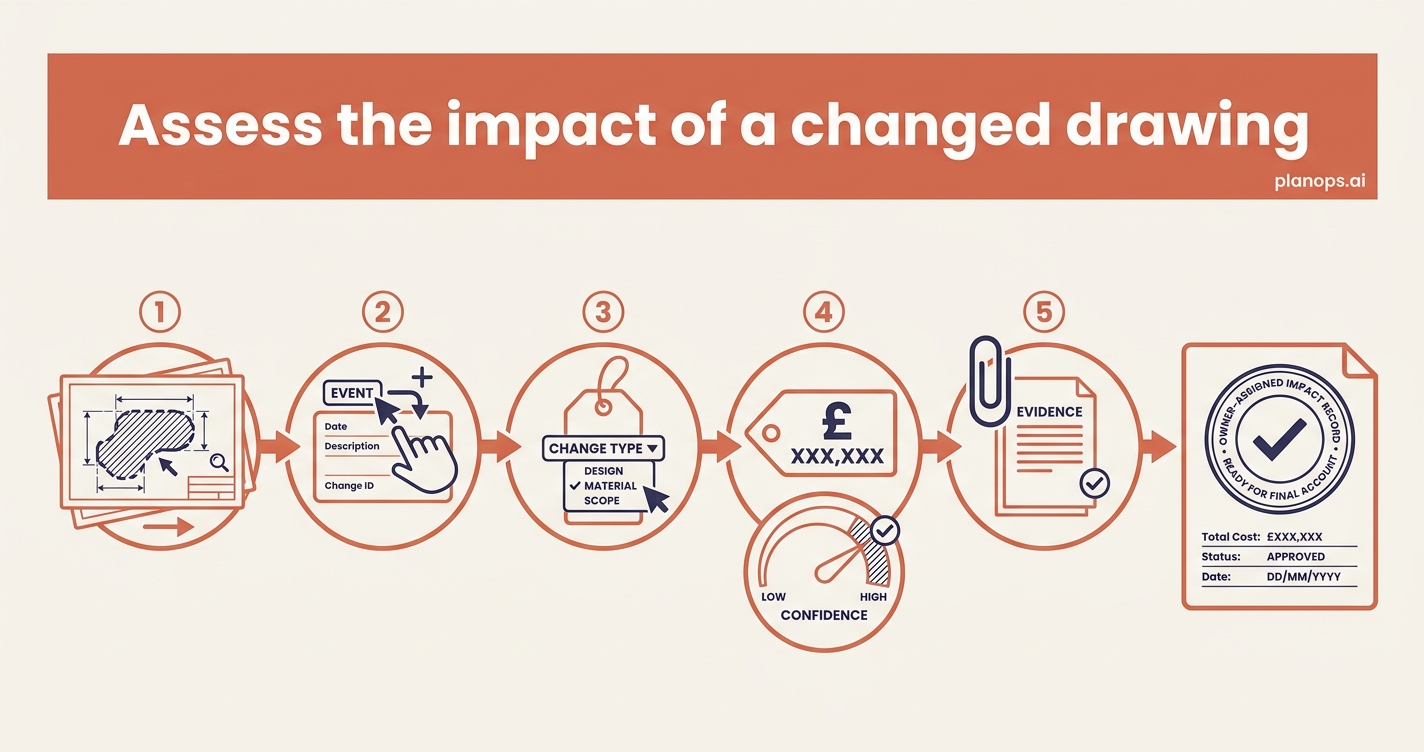
A revised drawing lands. Let PlanOps review it and raise the queries, then turn each change into a costed, owner-assigned record — before it becomes a disputed claim at final account.
A fully-costed, owner-assigned impact record linked to the changed drawing.
Every change from the revision captured as a typed event, costed with a confidence level, and linked back to the source drawing and its RFIs — defensible at final account.
Time: ~10 minutes · Level: intermediate · Steps: 4
Steps
Steps marked ⚡ AI task are done for you by a PlanOps AI assistant, run from the Assistant Hub on your project home.
Step 1: Let PlanOps review the revision and raise the queries ⚡ AI task
Point the assistant at the revised drawing. It checks the change against the rest of the project, logs a gap event for each issue it finds, and raises a linked RFI — so you start from typed records, not a blank form.
Run on demand from the Assistant Hub.
AI task: Find gaps in the design information and raise RFIs
Step 2: Log any commercial change the review didn't raise
Not every change is a gap. Where the revision adds scope or instructs new work, capture it yourself as an event, so the variation is on record from the moment you spot it.
Full guide: Log or update a risk or issue on your project
Step 3: Cost the impact
Record the financial impact with a category, amount and confidence level, so the commercial position is clear and trackable from day one.
Full guide: Add an impact to an event
Step 4: Link it back to the evidence
Attach the changed drawing, the RFIs and any supporting documents to the event, so the full audit trail sits in one place when you need to defend it.
Full guide: Add a link to an event
Related workflows
Last updated: 2026-06-19