Issue and track a site form
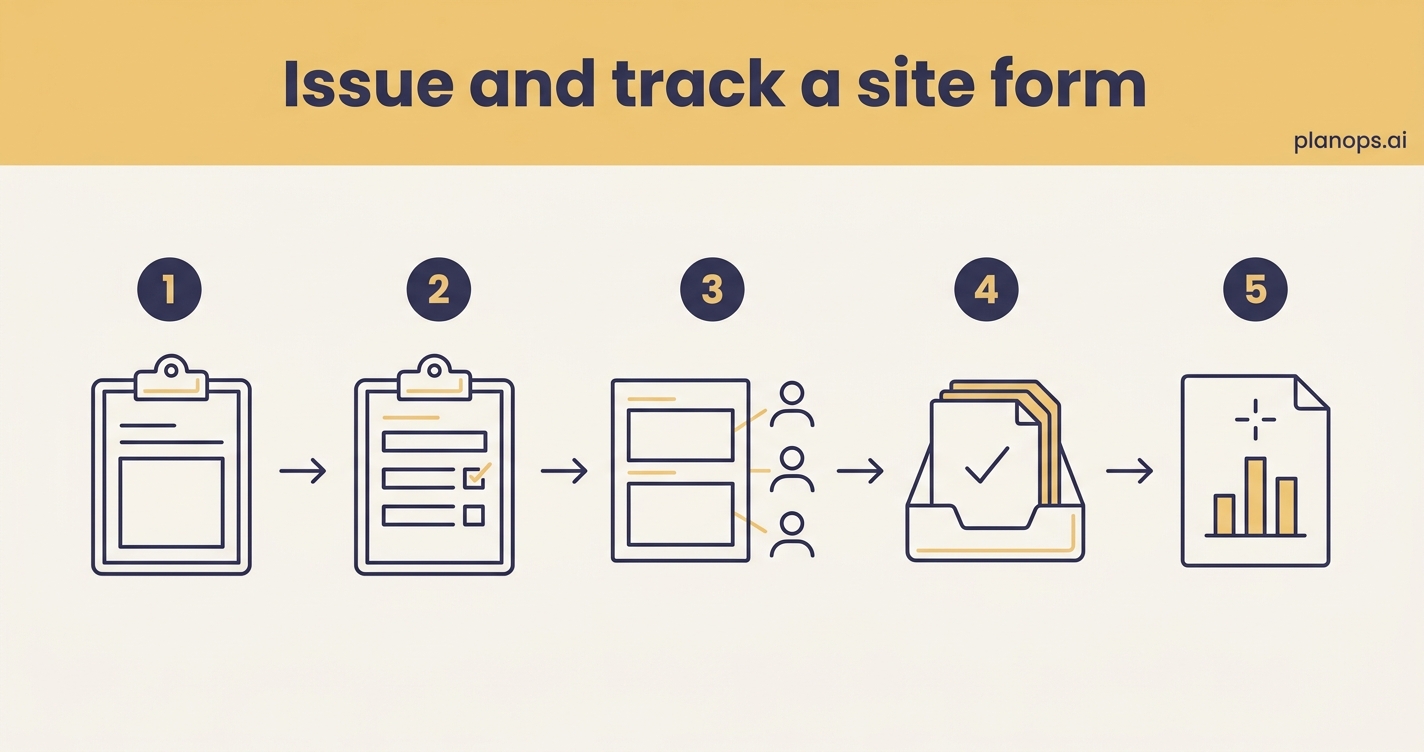
Build a form once, issue it to the people who need it, and keep control as responses come back — no chasing paper, no lost records.
A live site form issued, assigned and tracked through to submission.
A reusable form template, issued to the right people with sections assigned, and a clean trail of submissions you can review, amend and report on.
Time: ~15 minutes · Level: beginner · Steps: 5
Steps
Steps marked ⚡ AI task are done for you by a PlanOps AI assistant, run from the Assistant Hub on your project home.
Step 1: Create the form template
Start a reusable template so the form you build today can be issued again and again without rebuilding it each time.
Full guide: Create a new form template
Step 2: Build the form to fit the job
Add the fields and sections your inspection or record actually needs, so the data you collect is the data you can use.
Full guide: Build a custom form
Step 3: Assign sections to the right people
Split the form across the people responsible for each part, so completion is shared and accountable rather than landing on one person.
Full guide: Assign a workflow section to project members or external reviewers
Step 4: Manage responses as they come in
Review submissions and amend where needed, keeping every record accurate and audit-ready as the form is completed.
Full guide: Amend a submitted form
Step 5: Turn submissions into a project report ⚡ AI task
Let PlanOps read every submission for the form and write a structured project report — trends, key findings and all — so you are not collating spreadsheets by hand.
Run on demand from the Assistant Hub.
AI task: Summarise Form Submissions to Project Report
Related workflows
Last updated: 2026-06-07